Table of Contents
Canva's Create an Animation tool can move a character along a custom path without frame-by-frame animation. Build the scene, select the character, open Animate > Create an Animation, and drag the character along the route you want it to follow. You can then adjust the speed, movement style, orientation, and timing.
This workflow uses Canva's motion-path editor rather than generative AI, so you control the route directly. It works well for classroom explainers, simple story scenes, product callouts, and social videos.
1. Create a video canvas
From Canva's home page, select Create a design > Video. Choose the aspect ratio for the destination: 16:9 for a standard presentation or YouTube video, and 9:16 for vertical short-form video.
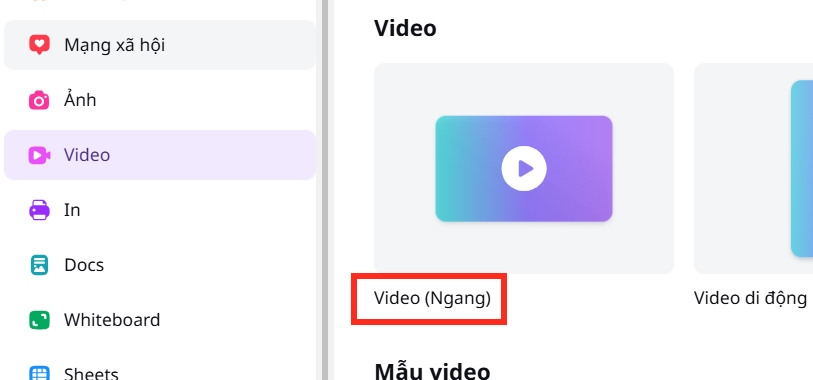
Set the page duration before detailed animation work. The motion path plays within that page, so a very short page can make the character move too quickly.
2. Add and size the background
Open Elements and search for a background that matches the scene. A simple background with clear open space makes the moving character easier to see.
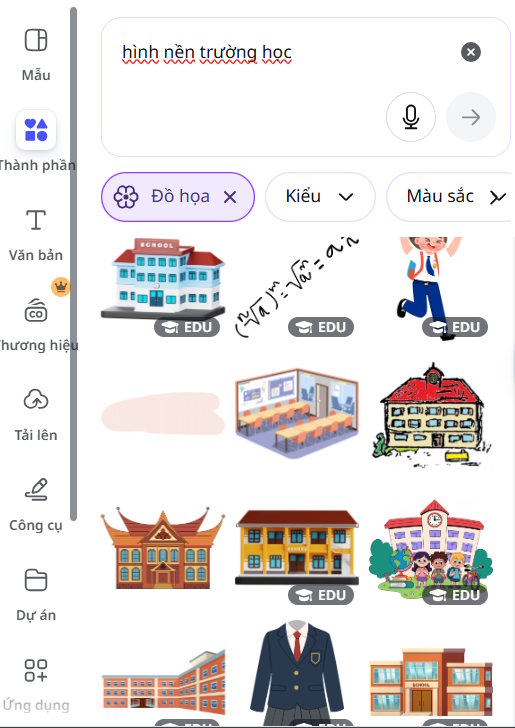
Add the image, right-click it, and select Set image as background. If that command is unavailable, resize and crop the image until it reaches every edge of the canvas.
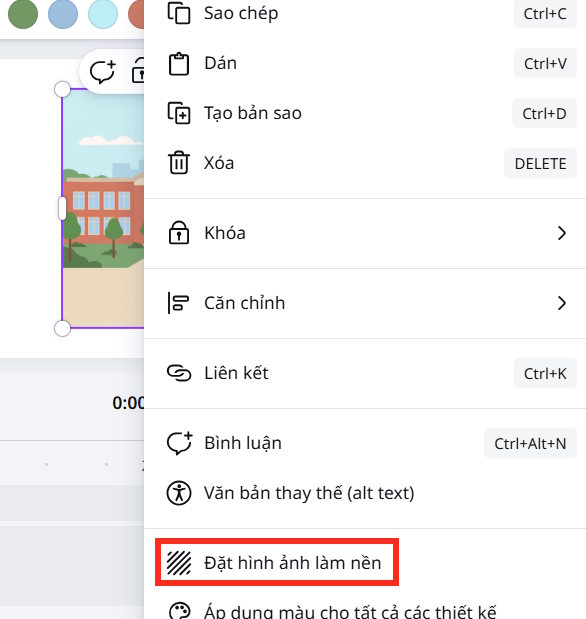
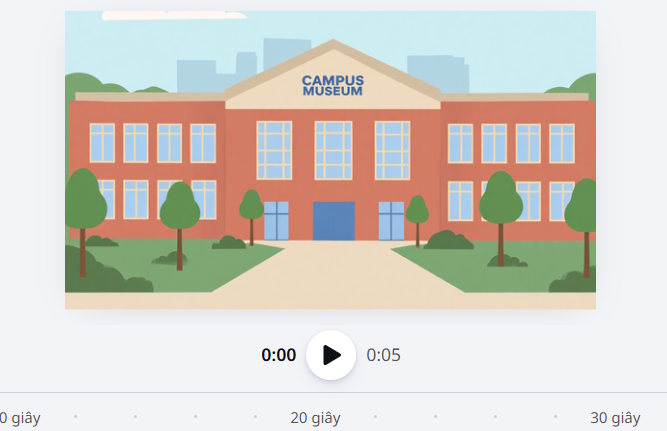
Check the crop before continuing. Important objects near the edge may be hidden when the image fills a canvas with a different aspect ratio.
3. Add a character you can legally reuse
Choose an animated character from Canva's Elements library, upload your own artwork, or import a GIF covered by a license that permits your intended use. A file appearing in image-search results does not make it free to reuse.
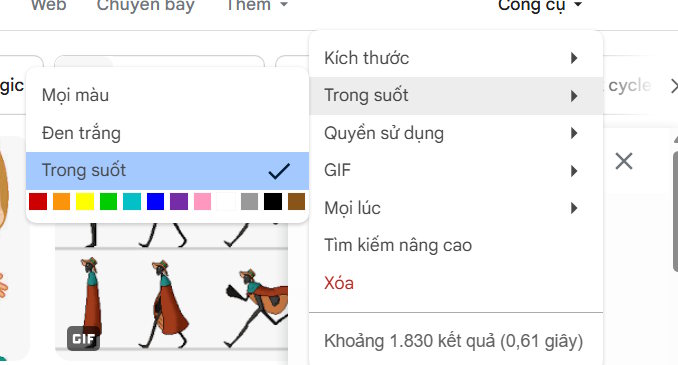
A transparent character is easiest to place. If an uploaded asset has an unwanted background, select it and use BG Remover where the feature is available. Canva identifies Background Remover as a paid-plan tool; free users can start with a transparent PNG, GIF, or Canva element instead.
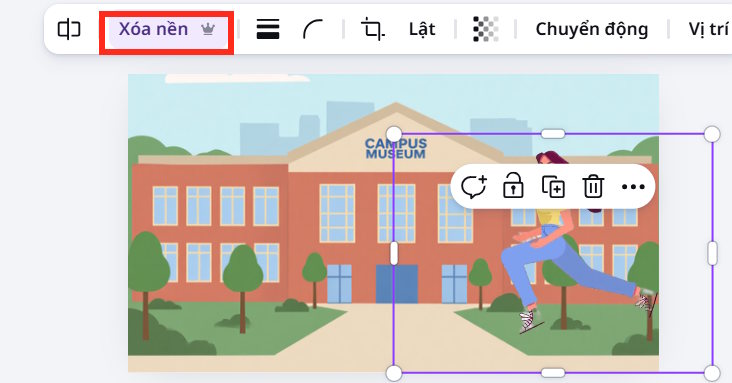
Resize the character before drawing its route. Changing the size later can alter how closely the path fits the scene.
4. Draw the custom motion path
Select the character and choose Animate from the editor toolbar.
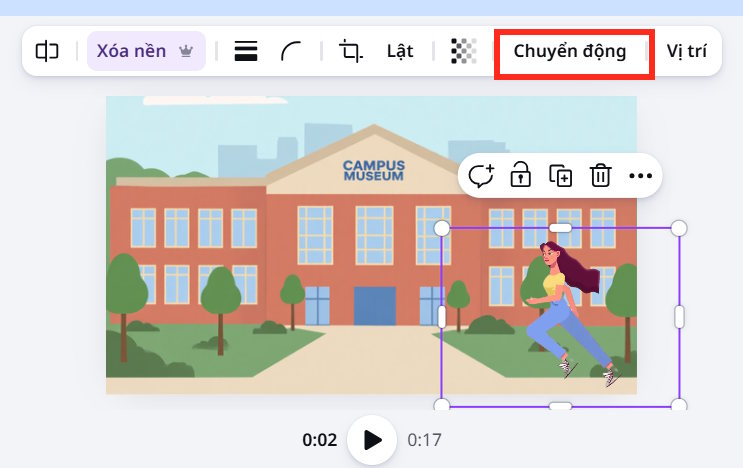
In the animation panel, select Create an Animation.
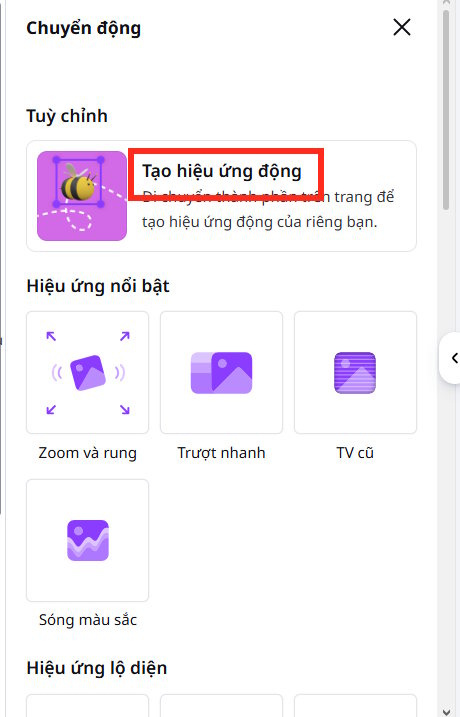
Click and drag the character from its starting position along the route it should travel. Release it at the endpoint. Canva displays the recorded path as a line on the canvas.
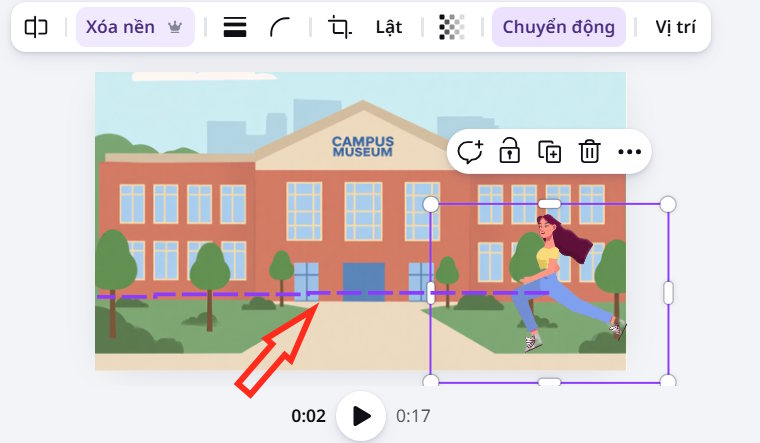
For a walking character, use a short horizontal route and keep it aligned with the floor or ground in the background. For a flying object, use a gentle curve. Avoid excessive loops unless they explain something in the scene.
5. Adjust movement and timing
Use the controls in the animation panel to refine the result:
- Speed: slow the motion when viewers need to follow narration or labels; speed it up for a quick entrance or exit.
- Movement style: choose a steady or more expressive motion that suits the character.
- Orient element to path: enable this when the character or object should turn to face the direction of travel; leave it off when it must stay upright.
- Presentation behavior: check whether the animation starts automatically or on click when the design will be presented rather than exported as a video.
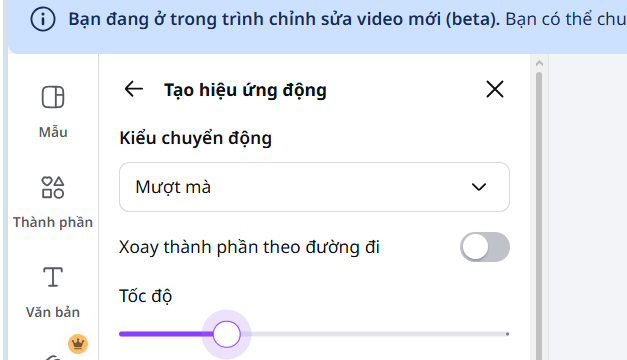
Select Done to keep the path. To start over, choose Delete path and redraw it rather than trying to rescue an erratic route. Canva's official animation instructions list the current controls, which can vary by element and account plan.
6. Control when the character appears
Right-click the character and choose Show element timing. Drag the timing handles in the page timeline to set when the character enters and how long it remains visible. Use separate pages or duplicate the character when you need several distinct movements; one carefully timed path is usually easier to edit than a long, complicated route.
If you want the character to speak, use the separate Canva talking-character workflow. For background audio or sound effects, see how to add music to a Canva video.
7. Preview and export
- Play the whole page, not just the motion preview.
- Confirm that the character stays inside the frame unless an off-screen exit is intentional.
- Check that text remains readable and the character does not cross important captions.
- Preview transitions between pages and reduce distracting movement.
- Download as MP4 for a standard video, then watch the exported file once to verify timing.
For viewers sensitive to motion, favor short, predictable paths and avoid constant looping. Movement should direct attention or explain a sequence, not compete with the content.
Related Articles
 How to Create a Talking Character in Canva5 minutes read
 Guide to Creating 3D Animated Videos About Smartphones with Grok AI6 minutes read
 Creating Animated Videos Using Anijam AI Is Definitely Worth a Try4 minutes read
 Guide to Creating 3D Designs Using AI in Canva4 minutes read
 How to Create a 3D Animated 'Stomach Crying for Help' Video with Veo 3 in Geminigen AI7 minutes read
 How to Design Greeting Cards on Canva AI4 minutes read
Reader Comments 0
Sign in with email or Google to join the discussion.