Table of Contents
Explore 4 gemini features you should use on your Android phone.
Call Gemini from anywhere
Gestures, shortcuts, and more
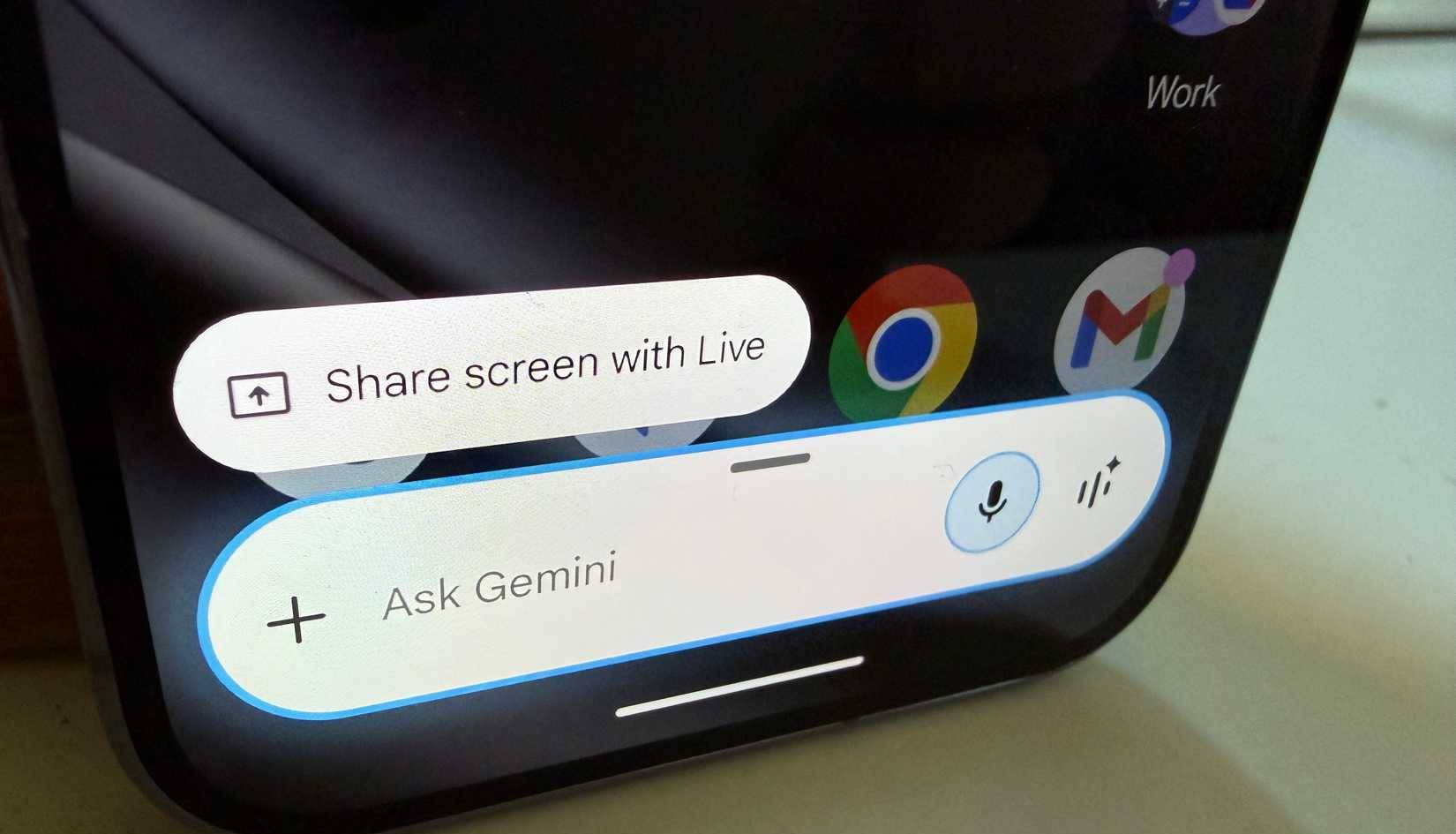
Using Gemini doesn't require you to open the Gemini app first. Instead, there are several faster ways to use it, including:
- Press and hold the power button to activate Gemini (works even when the screen is off!).
- Enable corner swipe gestures to summon Gemini from any screen by going to Settings -> System -> Navigation Mode , and turning on Swipe to invoke assistant.
- Say "Hey Google" or "Ok Google" from any screen. This feature also works when the screen is off, so you can use Gemini even if your phone is on the other side of the room, within hearing range. But you need to enable this feature by going to the Gemini app, then tapping your profile picture in the upper right corner, going to Settings -> Enable Talk to Gemini hands-free .
After you activate Gemini using one of the methods above, your screen content will automatically be transferred to Gemini.
Using Gemini in Google applications
Gmail, Google Maps, Photos, etc
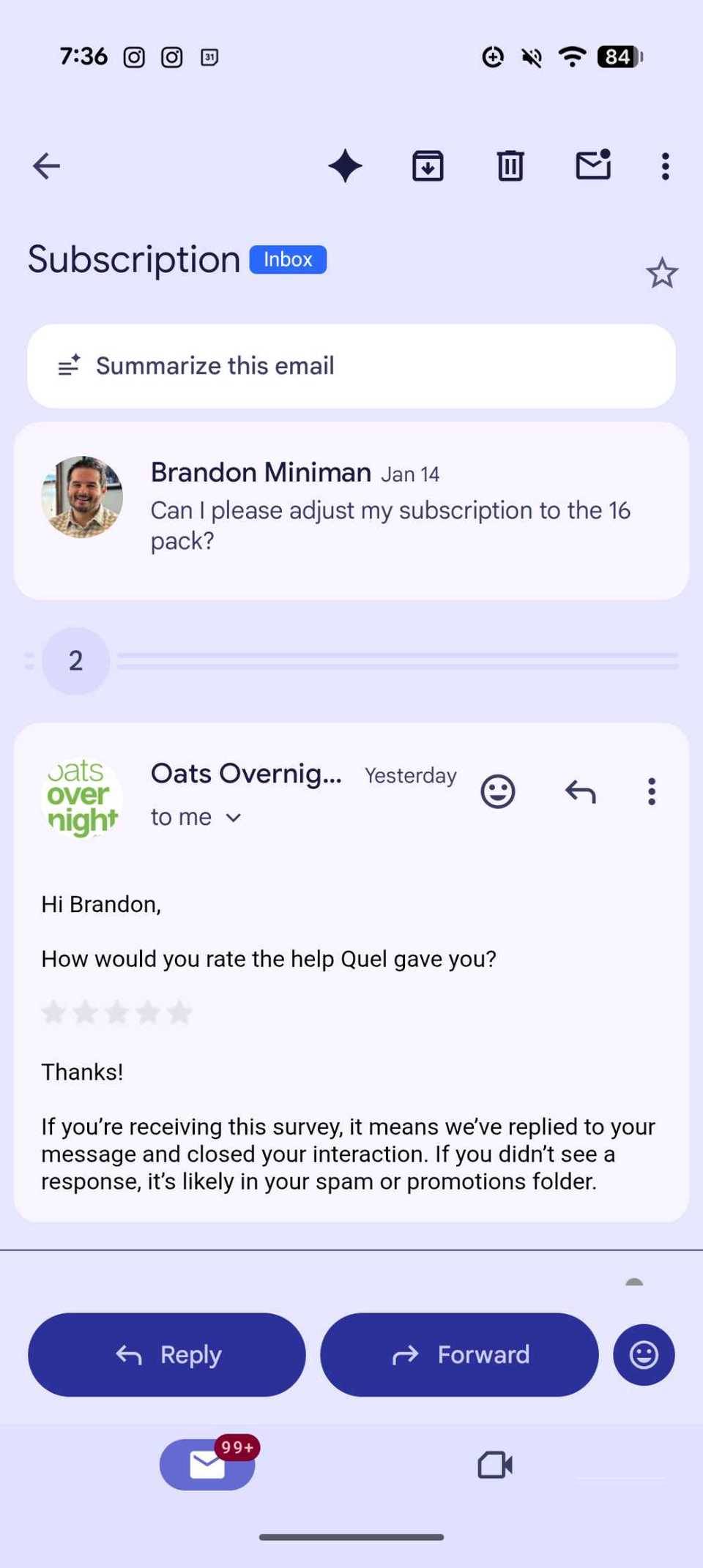
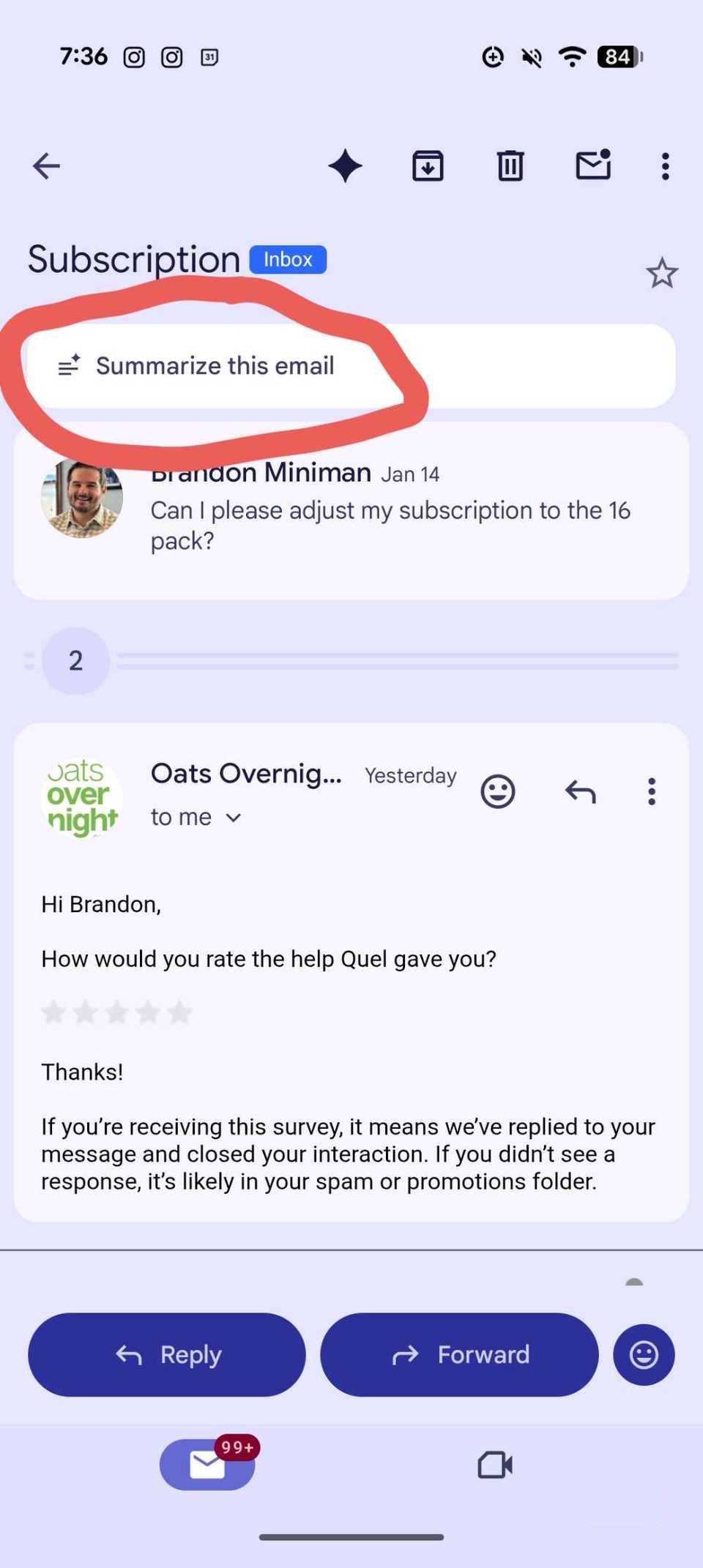
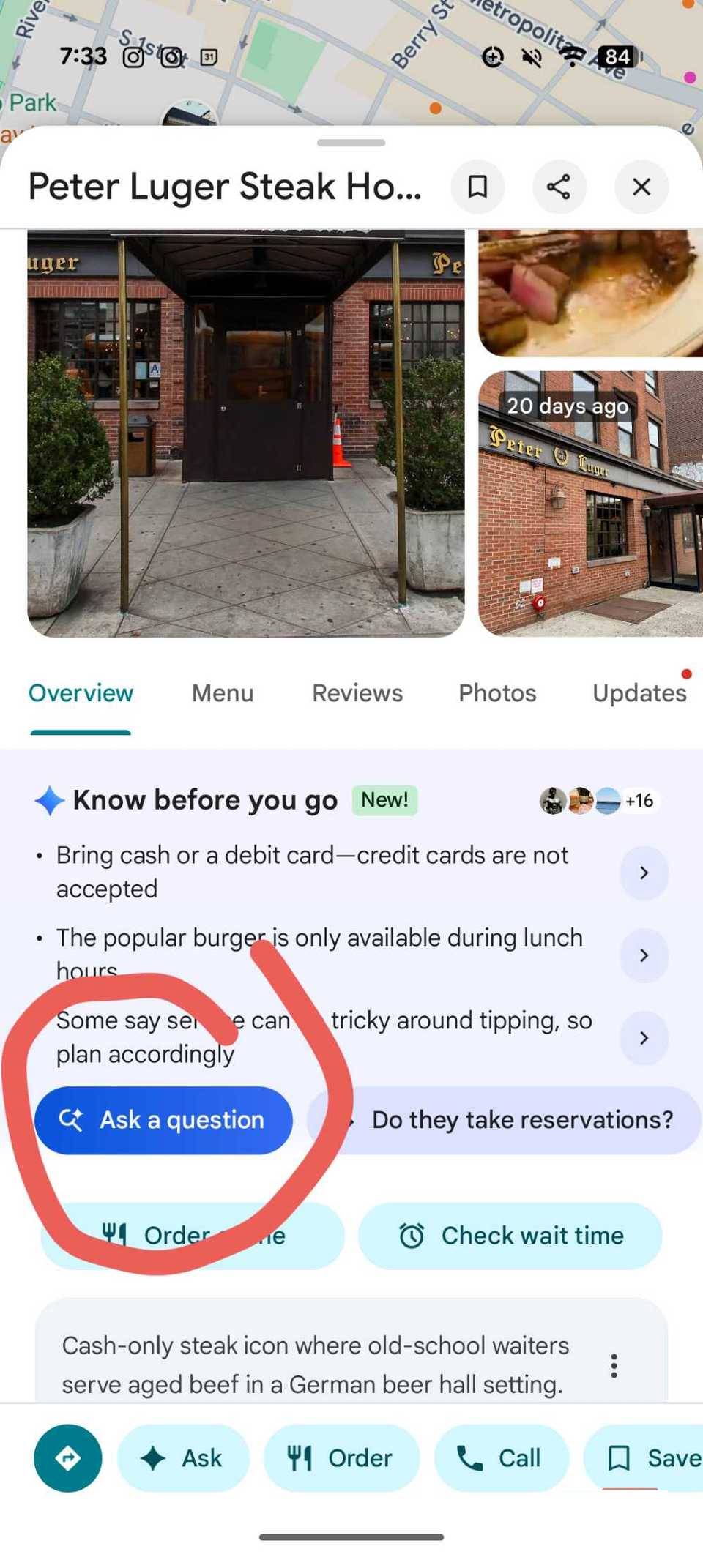
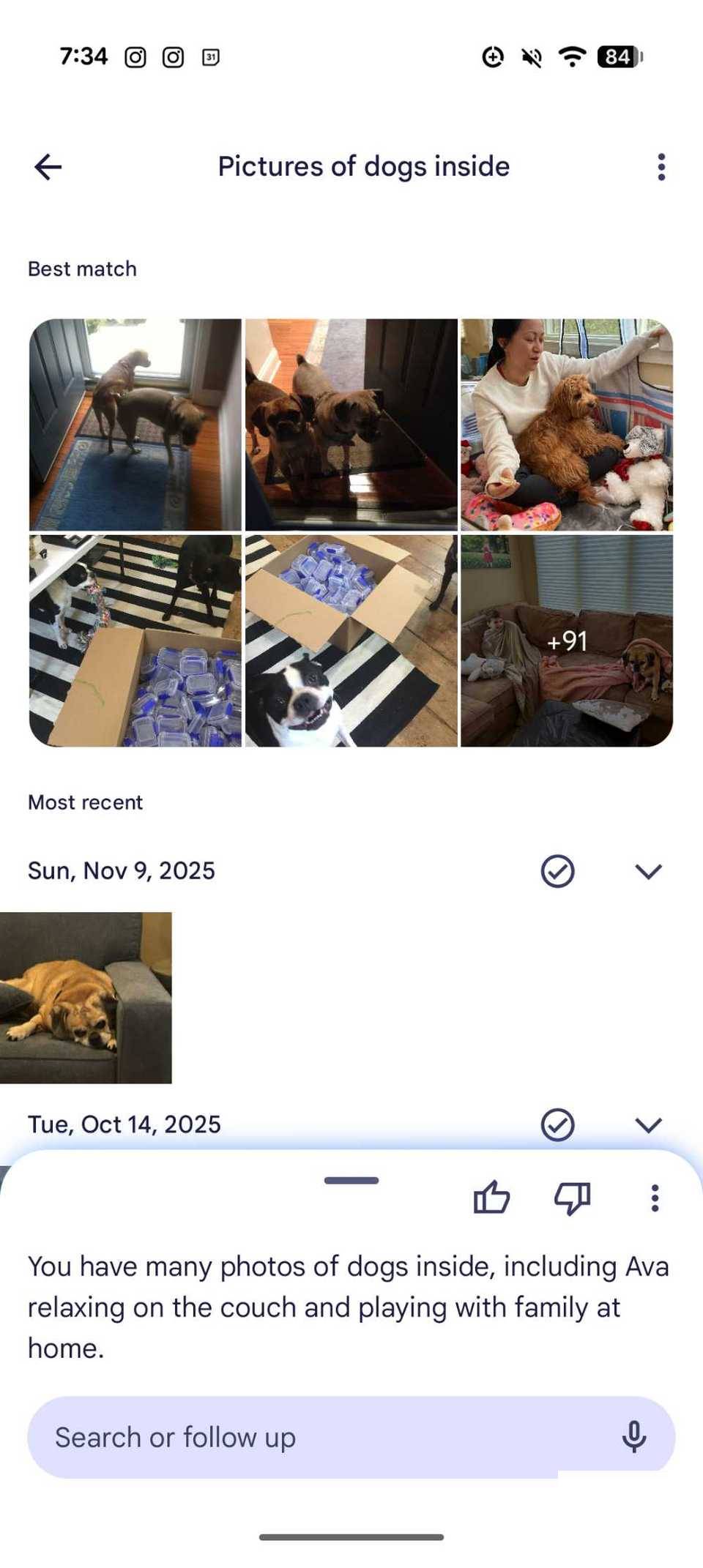
Gemini is now integrated into most of the Google apps you use, and it's very useful. This article will give a few examples of how Gemini is very useful in Google apps:
- Google Maps : Maps today is more than just a navigation app; it also contains reviews, location details, operating hours, and much more (it even has a new panoramic view that you should try). When you tap on a location on Google Maps, you can now tap the blue "Ask a question" button to open Gemini, so you can ask helpful questions like "What's the best food here?" (and it will read the reviews) or "Are there any happy hours?" etc.
- Google Photos : You can use Gemini within Google Photos (although some people prefer using a different app instead of Google Photos) in two ways: First, you can tap any photo and press the star icon labeled "Ask," which will open a dialog box where you can ask anything about that photo. Second, you can use the fourth tab at the bottom – the Ask button – to open a Gemini session, where you can ask a question about your entire photo library, such as "Photo of my dad with my son Phil" or "Food photo from New York."
- Gmail : This is my favorite way to use Gemini within Google applications. Whether using the "Summarize this email" button to summarize a long email with dozens of replies, or trying to find important information from six months ago without having to reread dozens of emails, Gemini saves a huge amount of time in Gmail by quickly reading and analyzing dozens of messages.
Gemini saves a huge amount of time in Gmail by quickly reading and analyzing dozens of messages.
Share content in a Sharesheet
The fastest way to send content to Gemini
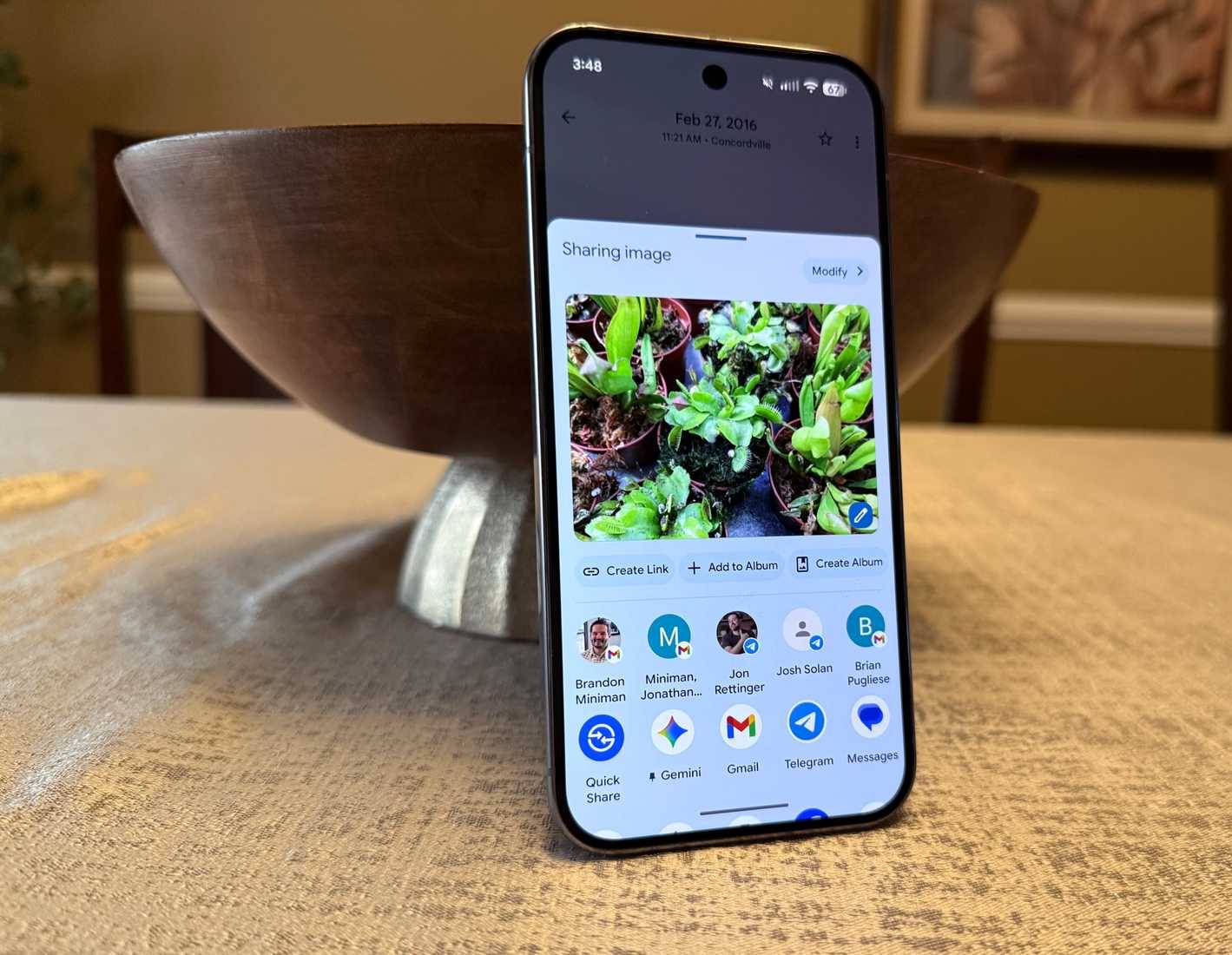
Previously, we discussed using Gemini in Android's Sharesheet, but because this feature is so important and useful, this article wants to reiterate it. Using the Share button on Android, you can send any content—whether it's images, articles, screenshots, social media posts, etc.—directly to Gemini.
Learn about Personal Intelligence
Personal context is a big advantage
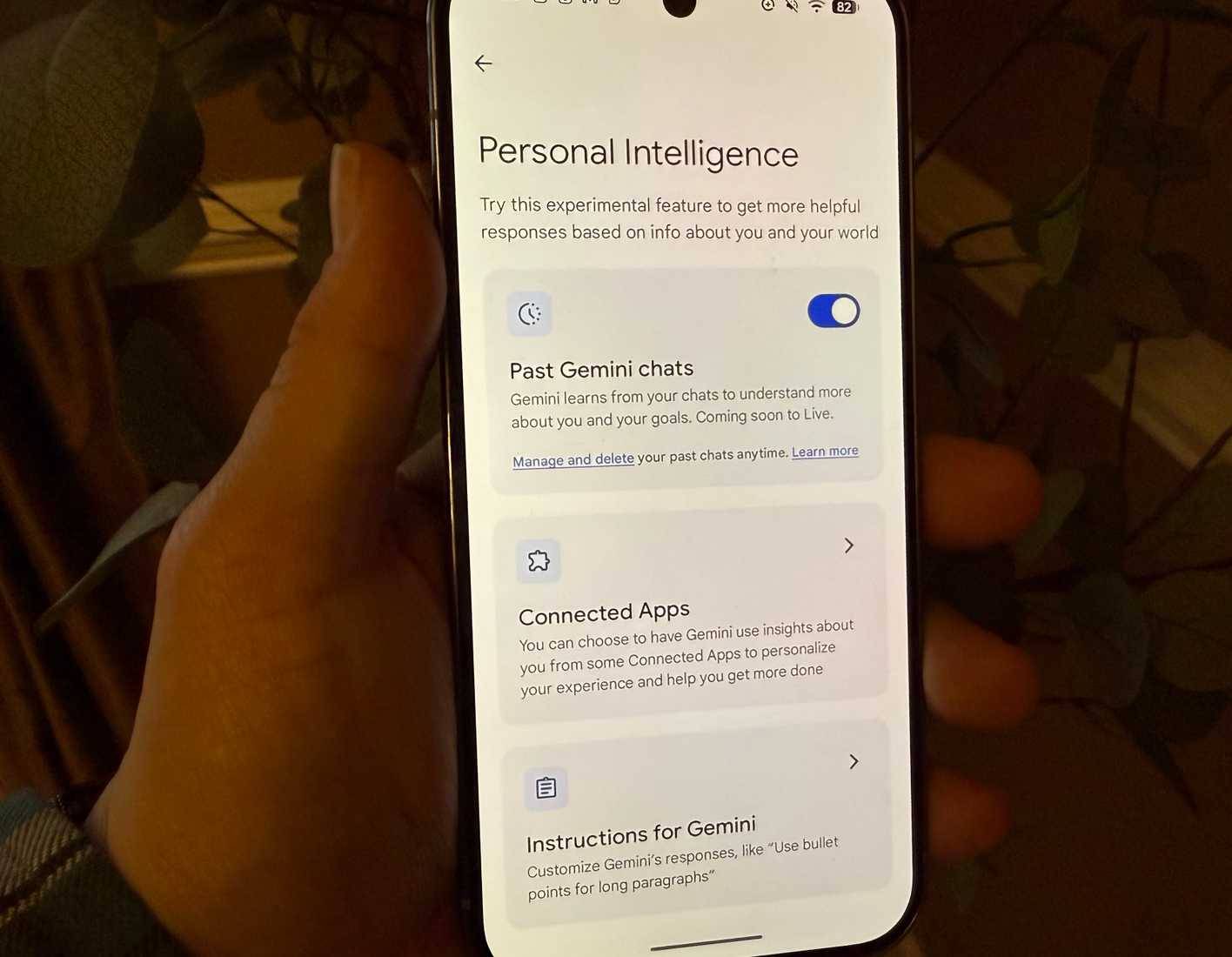
This is truly amazing. At the time of writing, Personal Intelligence is in beta, but only available to Gemini Pro and Gemini Ultra users. Free users will get the feature later, but Google hasn't announced when it will be available to everyone.
Gemini connects to various sources of personal data (only if you opt in)
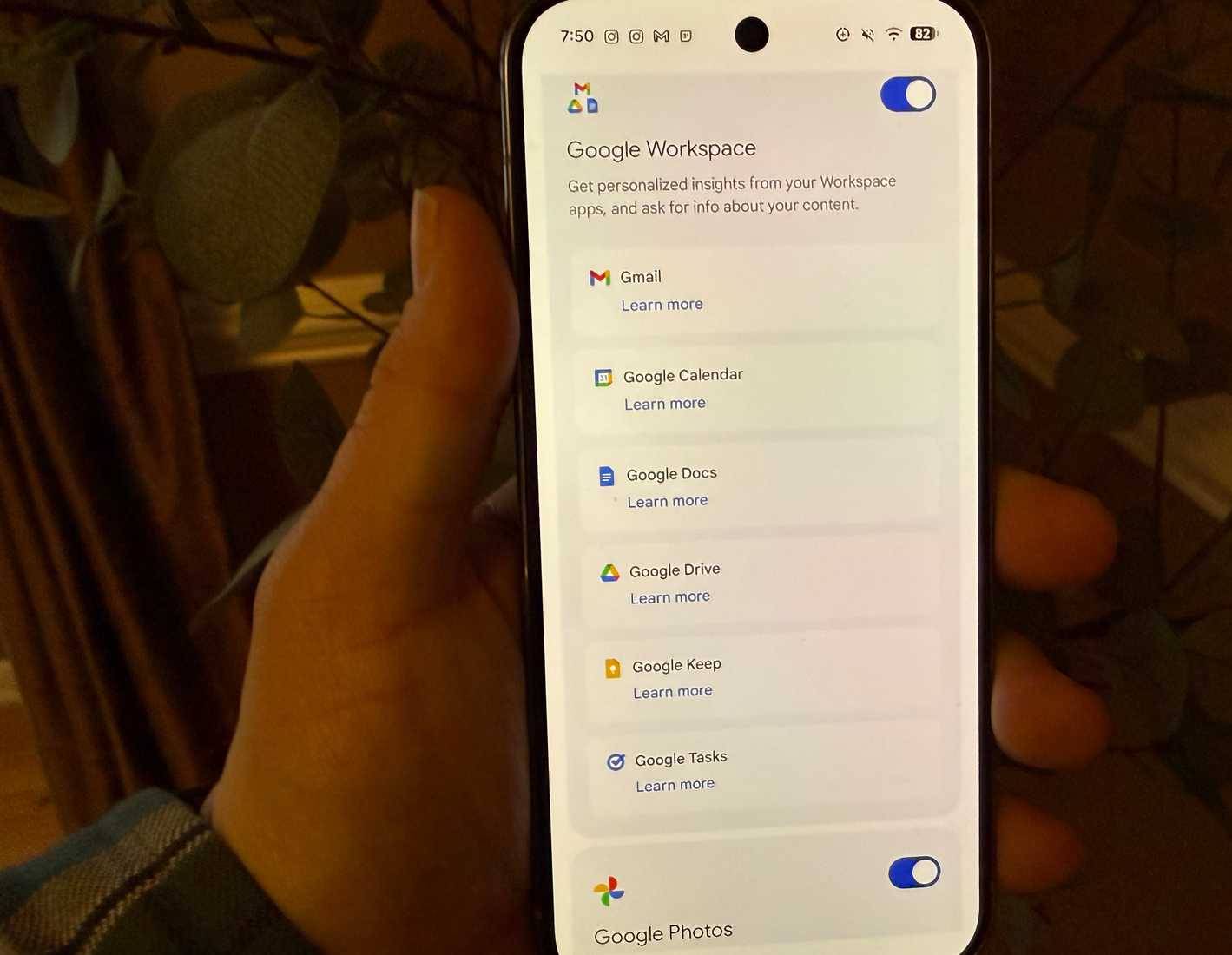
Here's why Personal Intelligence is so great: If you grant access to your Google workspace (including Gmail, Drive, Photos, Calendar, Keep, Tasks, etc.), Gemini will be able to use your data as a source to answer questions.
If you have Gemini Pro or Ultra and want to enable Personal Intelligence, open Gemini , tap your profile picture in the upper right corner, and then select Personal Intelligence .
Final Thoughts
Use this guide as a practical checklist for 4 gemini features you should use on your android phone. Work through the steps in order, verify each result, and adjust the options to match your needs.
FAQ
What do you need before following this 4 Gemini Features You Should Use on Your Android Phone guide?
Review the required tools, accounts, settings, or materials mentioned in the article. Explore 4 gemini features you should use on your Android phone.
What are the main steps for 4 gemini features you should use on your android phone?
Follow the sections in order, especially Call Gemini from anywhere, Gestures, shortcuts, and more, Using Gemini in Google applications. Complete each step before continuing and verify the result as you go.
What should you do if the process does not work as expected?
Recheck the prerequisites, update the relevant app or service, review the settings, and repeat the step that caused the issue. Use any troubleshooting notes included in the guide.
Related Articles
 How to Make Calls on Android Using Gemini3 minutes read
 Gemini Updates New Icons on Android and iPhone3 minutes read
 Gemini Advanced Is Now Google AI Pro: Current Plans15 minutes read
 How to Easily Identify Songs Using Gemini on Android6 minutes read
 9 Underrated Android Features You Probably Aren't Taking Full12 minutes read
 Instructions for Getting Started with Gemini Embedding 211 minutes read
Reader Comments 0
Sign in with email or Google to join the discussion.