Table of Contents
Open a video in Google Drive and select Ask Gemini if the button appears. With an eligible account and a captioned video, you can ask for an overview or look for specific decisions without replaying the entire recording.
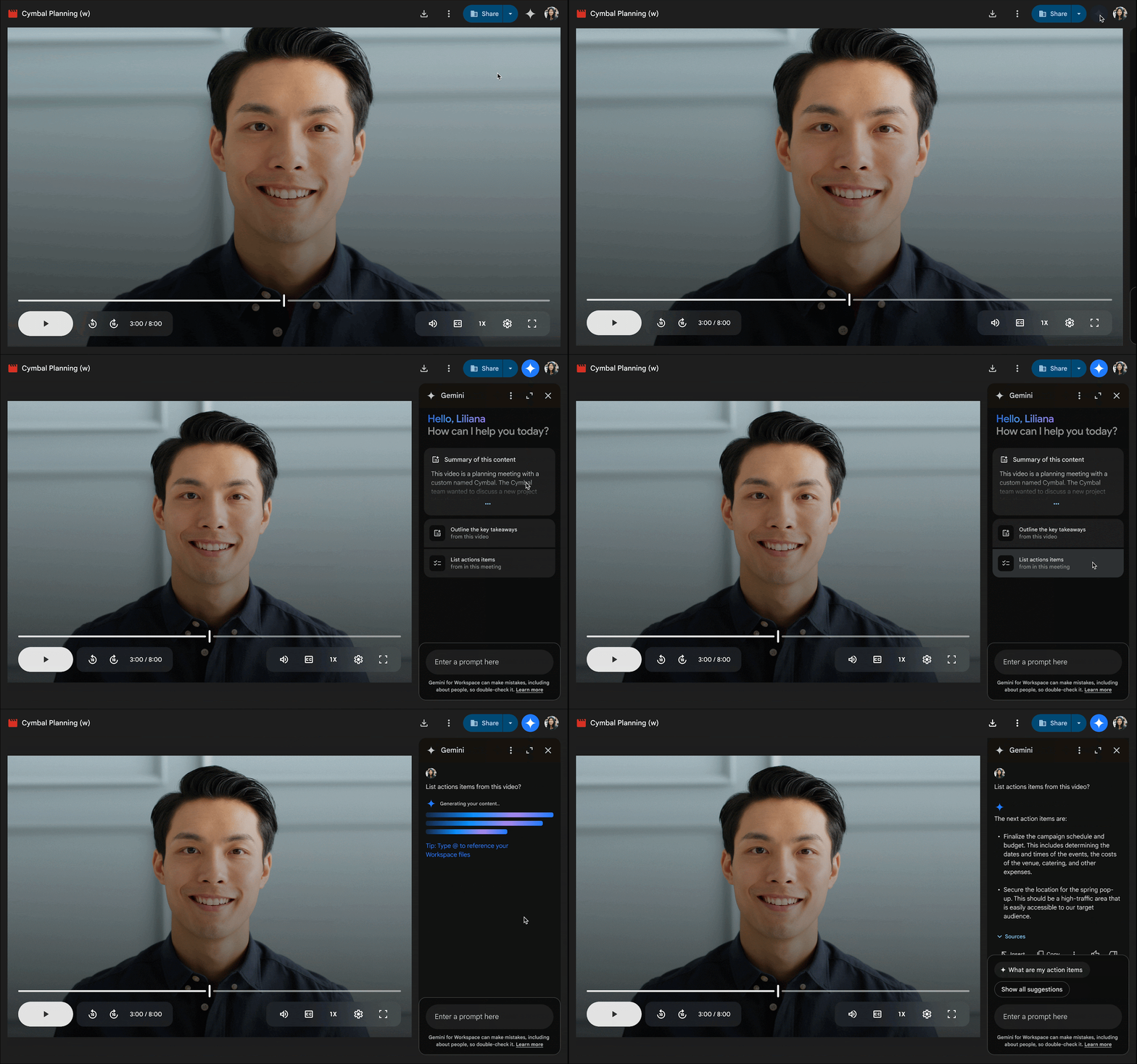
Ask a focused question about the recording
- On a computer, open the video in Drive’s preview or its file viewer.
- Use Ask Gemini near the top of the viewer.
- Ask for the information you need, then compare important details with the video. For a meeting, try “List decisions and action items. Include an owner or due date only if the recording explicitly mentions one.”
Before sharing a summary, check names, dates, and any commitments against the source. See how to ask AI for structured information for more prompt examples.
If Ask Gemini is missing
Check that your plan includes Gemini in Drive, that you have access to the file, and that its captions are available. In a managed workspace, ask whether the administrator allows video captions and Gemini features. Google’s announcement explains where the video panel appears and what the feature requires.
Related Articles
 6 powerful features of Google Analytics
 Real-time web analytics and tracking tools, replacing Google Analytics
 Gemini in Gmail, Meet, Docs, and Drive: 4 Practical Uses
 How to Summarize a Google Drive File With Gemini
 How to transform a cluttered Google Drive into a searchable knowledge base with Gemini.
 Gemini 3.1 Pro vs Gemini 3 Pro: What Changed?
Reader Comments 0
Sign in with email or Google to join the discussion.