Table of Contents
The Windows 11 Media Creation Tool has stopped working on Windows 10 22H2 devices. If you try to launch the tool, it will automatically close after displaying the Windows logo without any errors.
The Windows 11 Media Creation Tool has stopped working on Windows 10 22H2 devices. If you try to launch the tool, it will automatically close after displaying the Windows logo without any errors. Microsoft has acknowledged the issue and will fix it in the next MCT update. Until then, you can use the following methods to upgrade to Windows 11.
Upgrade in place using Windows 11 ISO
While creating a Windows 11 installation USB is a popular way to upgrade or clean install Windows, it is not required. The Windows 11 ISO is enough to perform an in-place upgrade. While the ISO can only upgrade an existing Windows environment, this should not be an issue since you are already using Windows 10.
The ISO can also be moved to other Windows PCs for upgrading (like on a USB stick) if you have more than one device to upgrade. The main downside is that you can't customize the installer easily, and it won't perform a true clean install, as it stores your old OS files for restoration. Here's what You should do:
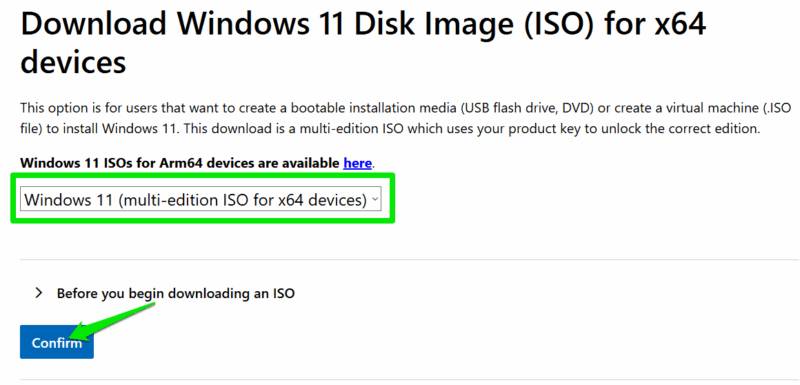
Go to the Windows 11 download page on Microsoft's website, select Windows 11 under Download Windows 11 Disk Image (ISO) for x64 devices, And click Confirm . Then, select your operating system language to generate a time-limited ISO download link.
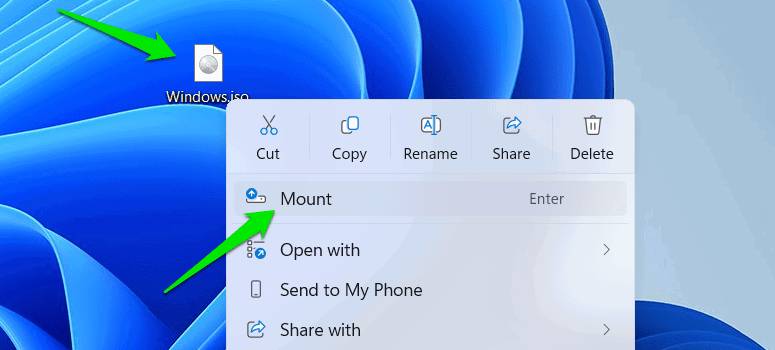
Once downloaded, right-click on the Windows 11 ISO File and select Mount .
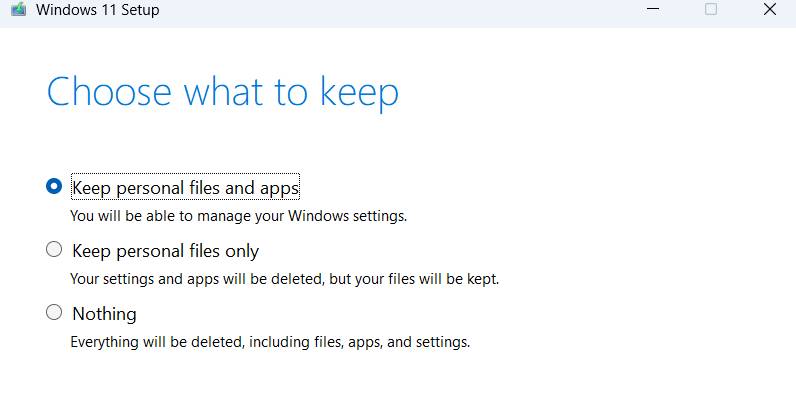
This will mount the file and you can view the contents. Now, open the Setup.exe File and the installation wizard will start. To upgrade, select the Keep personal files and apps Option, and to restart, select Nothing . Windows will restart and the Windows 11 installation process will begin.
Create Windows 11 installation USB using Rufus
If You should create a Windows 11 installation USB, the Media Creation Tool isn't the only tool for the job. Rufus is a popular tool that can create a Windows 11 installation USB from a Windows ISO file. Unlike MCT, Rufus gives you more customization options, including the ability to skip the requirement to create a Microsoft account and install Windows 11.
You will need the Windows 11 ISO file, so make sure to download it first. Then, connect a USB drive (at least 8GB) and launch Rufus. Here, click Select And choose the Windows 11 ISO file to download.
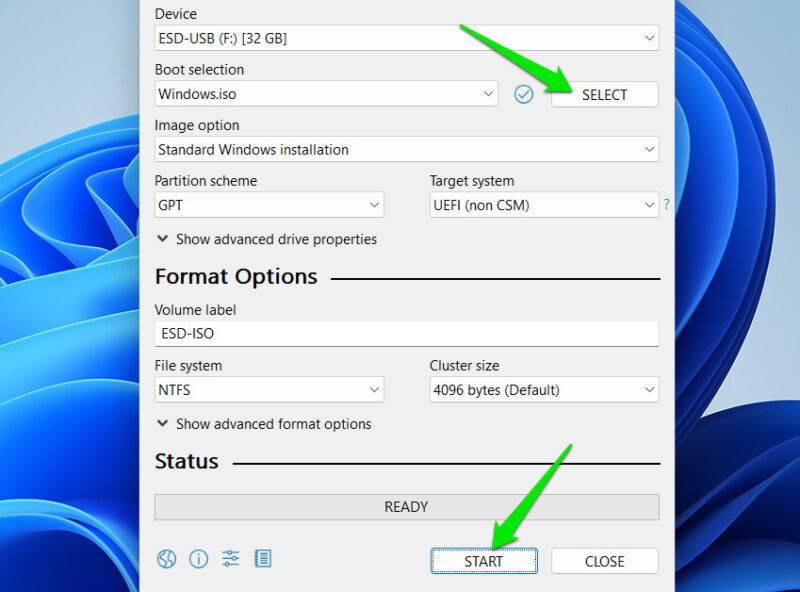
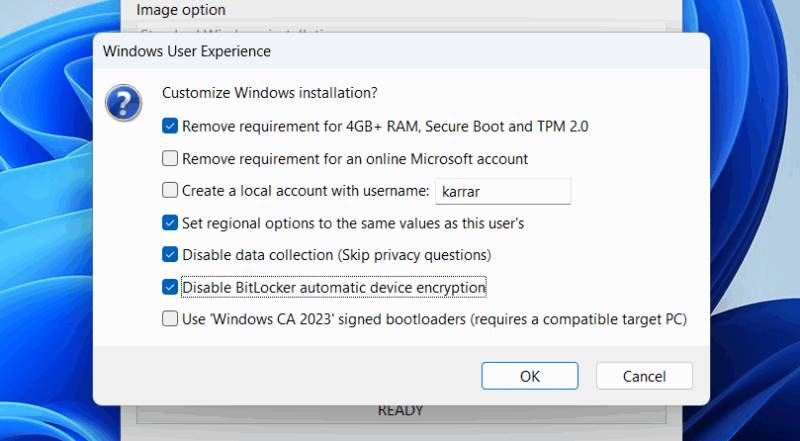
It will automatically fill in all the fields, selecting the settings that best suit Windows 11. For most users, the default settings will be fine; you just need to click the Start Button. It will provide a series of special customization options, you can configure them as you like and click OK To start the process.
Using Windows 11 Installation Assistant
If your Windows 10 PC meets the Windows 11 requirements and you just want to upgrade to Windows 11, using the Windows 11 Installation Assistant is the easiest way. It does everything for you; you just have to accept the prompts.
Download the Windows 11 Installation Assistant from Microsoft's website. Then, launch the program and it will do the rest. First, it will check to see if your computer is compatible with the Windows 11 installation, then ask for the necessary permissions to download the necessary files and upgrade your computer to Windows 11.
Use Command Prompt to create Windows 11 installation USB
For those who want to create a Windows 11 installation USB but do not want to use any third-party tools, it can be done using Command Prompt commands. This will be a little complicated as You should flash the USB and then copy the files from the Windows ISO to it. Here is a step-by-step guide to create a Windows 11 installation USB using Command Prompt.
The Windows Media Creation Tool isn't updated very often, so it may take a while for a fix to be released. Don't delay, use these methods to upgrade to Windows 11 directly or via USB. If your computer doesn't meet Windows 11's requirements, use Flyby11 to easily upgrade an unsupported computer.
FAQ
What should you know about Windows 11 media creation tool stopped working on Windows 10?
In practical terms, the Windows 11 Media Creation Tool has stopped working on Windows 10 22H2 devices. If you try to launch the tool, it will automatically close after displaying the Windows logo without any errors.
Why does Windows 11 media creation tool stopped working on Windows 10 matter?
The article highlights that create Windows 11 installation USB using Rufus If you need to create a Windows 11 installation USB, the Media Creation Tool isn't the only tool for the job.
What is the main takeaway?
The main takeaway is that the Windows Media Creation Tool isn't updated very often, so it may take a while for a fix to be released.
Related Articles
 6 Ways to Fix Media Creation Tool Not Working Error8 minutes read
 Download Media Creation Tool - Support for Windows 10 Installation7 minutes read
 3 Ways to Update Windows 10 to the Latest 2026 Update11 minutes read
 How to Fix Has Stopped Working Error on Windows8 minutes read
 Media Creation Tool - Software to Download Windows 10 from Microsoft3 minutes read
 Fix Error Code 0x80070070 Using the Media Creation Tool to3 minutes read
Reader Comments 0
Sign in with email or Google to join the discussion.