Table of Contents
Use Windows Clipboard History if you mainly need to paste a few recent items. Use Ditto if you regularly search older clips, organize reusable snippets, or need custom paste shortcuts. Either tool can retain information you intended to copy only once.
Find and organize more clips
Windows + V opens Windows’ history once enabled. You can pin important items, but older unpinned items are eventually replaced. Ditto lets you search saved clips by text and move reusable content into groups. Try searching for a distinctive phrase, then put frequently reused clips in a group such as “Templates.”


Adjust the window, shortcuts, and ordering
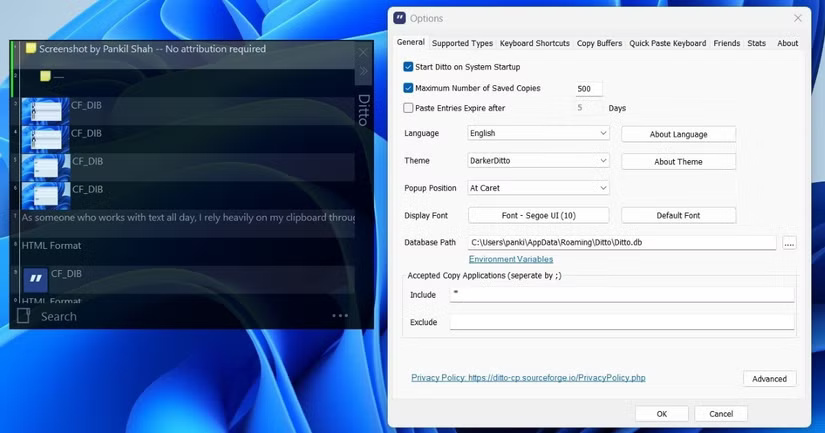
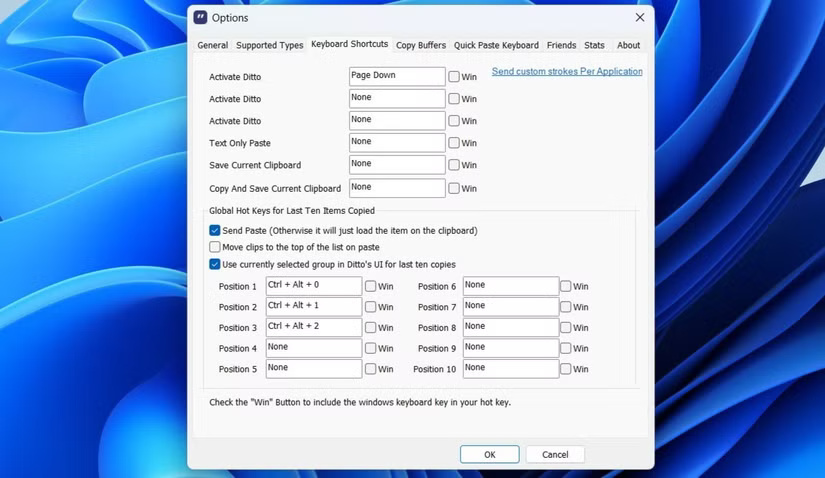
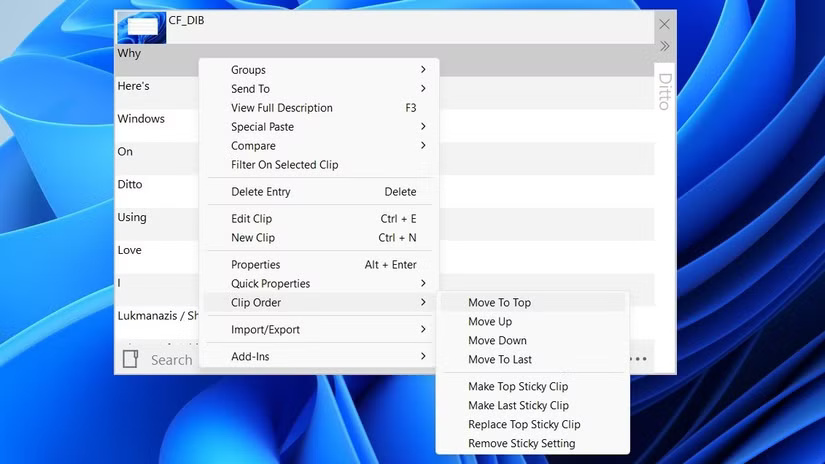
Open Ditto from the tray or use its assigned shortcut, usually Ctrl + backtick. Check its options for appearance and plain-text paste. Assign shortcuts that don’t conflict with the apps you use. If you copy several items for one task, use the clip menu to reorder them, or select multiple unwanted items and delete them together.
Control what stays in history
Review Ditto’s history size and retention settings. Avoid keeping passwords, recovery codes or confidential text in clipboard history, and clear sensitive entries if they were captured. For the built-in tool, see Microsoft’s clipboard and syncing controls and how to pin useful Windows clipboard items. The Windows utility guide covers Ditto alongside other desktop tools.
Related Articles
 How to delete the clipboard on Windows 10
 Clipboard History: An extremely useful but often 'forgotten' feature on Windows
 How to sync Windows 11 clipboard across multiple computers
 How to access and use Clipboard History on Windows 11
 The clipboard management software on Windows
 How to use clipboard manager on Windows 11
Reader Comments 0
Sign in with email or Google to join the discussion.