Table of Contents
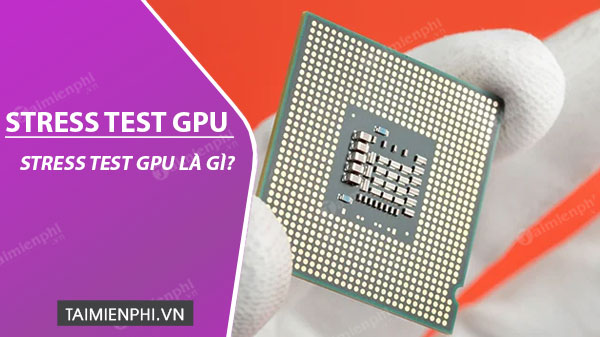
A GPU stress test runs a demanding graphics workload for a sustained period to check whether a graphics card remains stable under load. It can expose crashes, visual artifacts, overheating, power-delivery problems, or an unstable overclock. A stress test is different from a benchmark: a benchmark mainly measures performance, while a stress test focuses on stability and cooling.
When a GPU stress test is useful
- After installing a new graphics card or changing its driver.
- When games crash, freeze, show colored blocks, or make the display driver restart.
- After changing GPU clock, voltage, power, or fan settings.
- After cleaning or repairing the cooling system.
- When checking whether a power supply or case airflow is adequate under load.
A stress test cannot prove that every game or application will be stable. Different workloads use different parts of the GPU, memory, driver, and power system. Treat it as one diagnostic tool rather than a guarantee.
Prepare before testing
Return the GPU to its normal clock settings for the first test. Testing at stock settings gives you a baseline and helps separate an existing fault from an unstable overclock. Save open work, close unnecessary applications, and make sure the computer's vents are clear.
Use monitoring software to watch GPU temperature, utilization, clock speed, fan speed, and power behavior. MSI Afterburner and other hardware monitors can display these readings; see TipsMake's guide to monitoring PC hardware while gaming for an example.
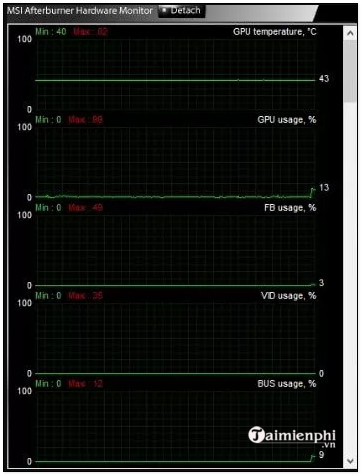
Temperature limits vary by GPU model, laptop design, and sensor. Check the card or computer manufacturer's guidance instead of relying on one universal number.
How to run a GPU stress test
- Choose a reputable test. FurMark creates a very heavy sustained load. Unigine Heaven or Superposition provides a game-like 3D workload. A demanding game with a repeatable benchmark can also be useful.
- Start with default settings. Use the display's normal resolution and a moderate preset. Do not combine a first stability check with overclocking.
- Begin with a short run. Watch temperatures and the image continuously during the first few minutes. Extend the test only if cooling and behavior remain normal.
- Record the result. Note the test, settings, duration, highest observed temperature, clock behavior, and any error or crash.
- Confirm with a second workload. A card that passes one synthetic test can still fail in a particular game or application.

Stop the test if you see a warning sign
End the test if the screen shows flashing polygons, colored squares, missing textures, or other new visual artifacts. Also stop if the display driver repeatedly resets, the computer freezes or shuts down, temperatures approach the hardware manufacturer's stated limit, or the cooling system makes an unusual noise.
Use the program's stop control when possible. If the system is still responsive, avoid cutting power abruptly. After a crash, let the computer cool and return any overclock to its default setting before testing again.
Interpreting the result
- Stable temperature and no errors: the card passed this particular workload, but real applications should still be tested.
- Artifacts or driver crashes: reset overclocking, update or clean-install the graphics driver, and test again.
- Rapid temperature rise or clock throttling: check fans, dust, airflow, and the cooler's contact. Laptop cooling may need professional service.
- Sudden shutdown under load: investigate temperature and power delivery, including the power supply and GPU power connectors.
- Only one game fails: check that game's settings, files, patches, and known driver issues before blaming the hardware.
Common GPU stress-test tools
FurMark produces an unusually intense graphics load and is useful for a short cooling or power check. Monitor it closely and do not leave it running unattended.
Unigine Heaven is an older but repeatable 3D benchmark that can reveal instability. Unigine Superposition provides a more demanding scene for newer hardware. Tool support changes over time, so download software only from the developer's official site and check that it supports your operating system and GPU.
If you also want comparable performance scores, review free benchmark tools for Windows. For temperature utilities, TipsMake also lists PC and laptop temperature-monitoring apps.
A good test is controlled and repeatable: establish a stock-settings baseline, monitor the hardware, stop at the first warning sign, and confirm the result with the applications you actually use.
Related Articles
 What Is Stress Test: What Is a Stress Test?3 minutes read
 How to Safely Stress Test Overclocked RAM, GPU and CPU12 minutes read
 6 Reasons OCCT Is the Favorite Tool for Stress Testing CPUs and GPUs8 minutes read
 How to Stress Test Hard Drives on Your Computer or Server?9 minutes read
 Test Stress Test CPU: 8 Stress Test Tools Useful for CPU5 minutes read
 10-Minute Stress Relief Habit: Practical Guide6 minutes read
Reader Comments 0
Sign in with email or Google to join the discussion.