Table of Contents
Test at stock settings first, then change and test one component at a time. A stable run should finish without calculation errors, visual artifacts, or crashes. Stop if temperatures rise beyond the manufacturer’s guidance, cooling fails, or the PC starts showing errors.
Check cooling and record a baseline
- Save your work and record the current BIOS and tuning settings or save a profile you can restore.
- At stock settings, open a monitor such as HWMonitor or the GPU vendor’s tool. Log temperature, sustained clock speed, power, and any thermal throttling.
- Check the published limits for your exact CPU and GPU. CPU package temperature and GPU hotspot temperature measure different things. Watch the first run closely and address abnormal idle temperatures or failed fans before starting.
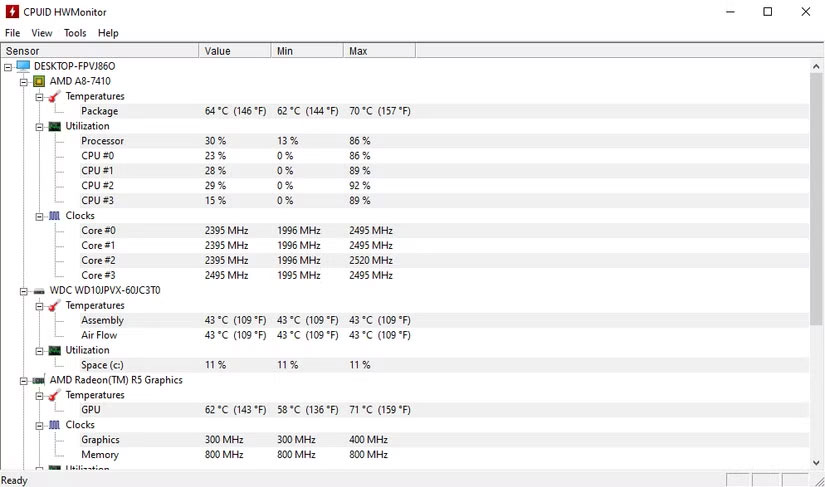
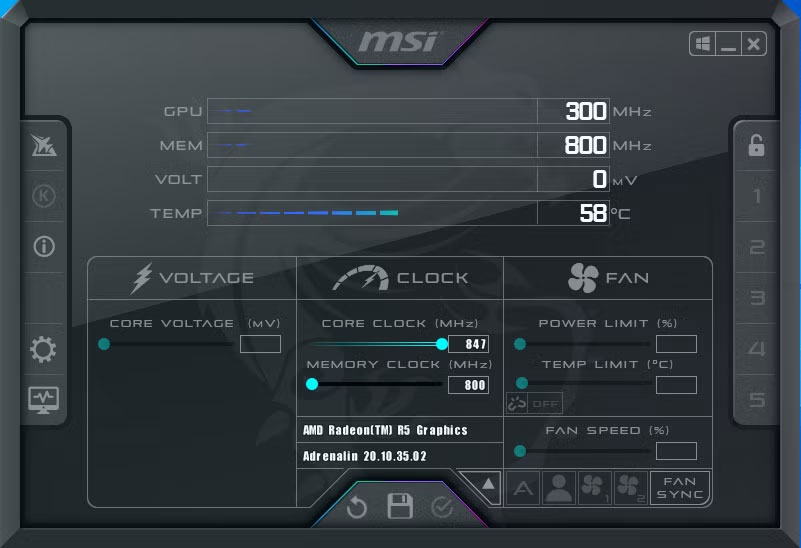
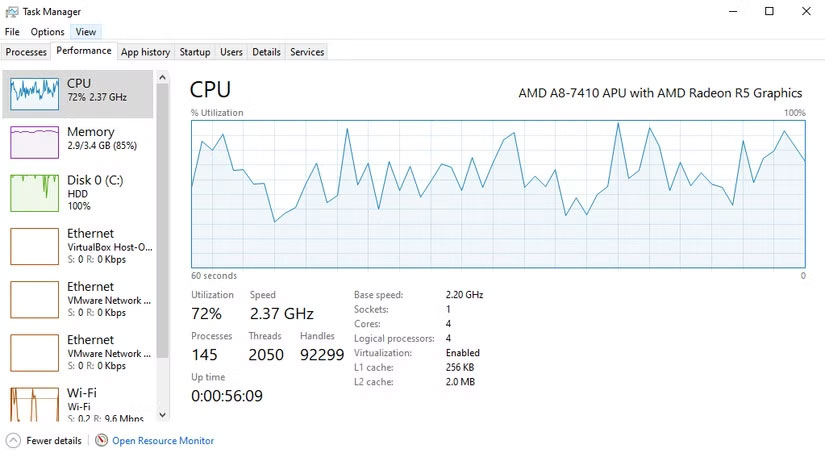
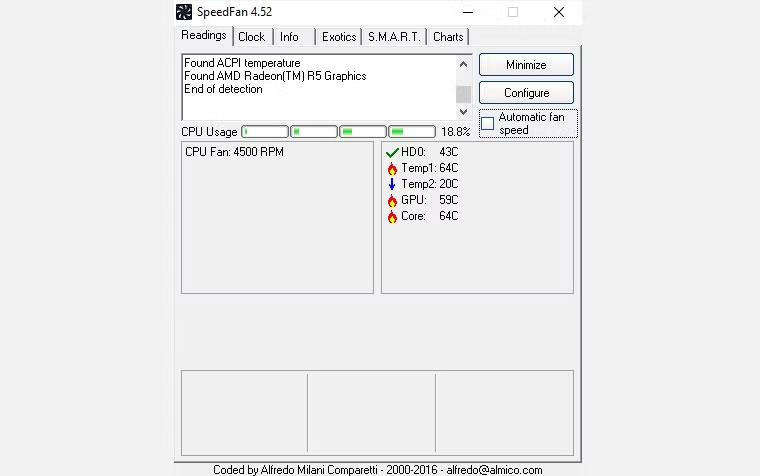
Boost clocks can change with load, temperature, and available power. Check sustained readings for the workload instead of assuming a brief peak confirms the setting.
Choose a test for each component
GPU
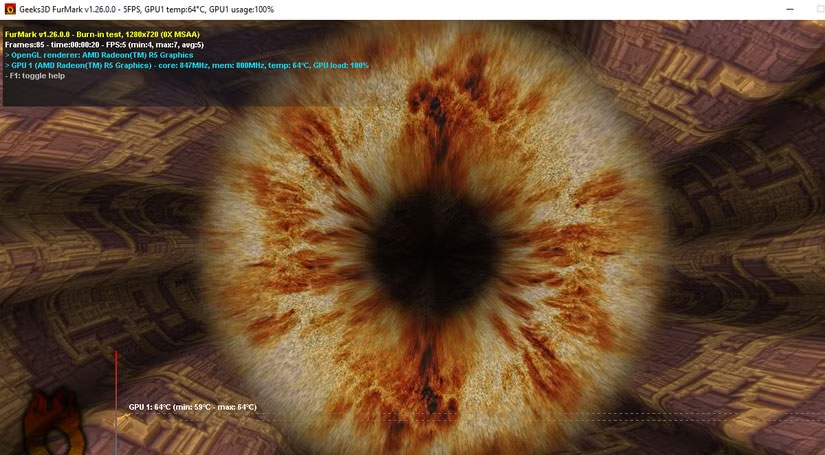
Use a GPU workload such as FurMark for a controlled initial check, then test a game or rendering application you actually use. Flicker, colored artifacts, driver resets, and crashes are reasons to stop and retest at stock settings.
CPU
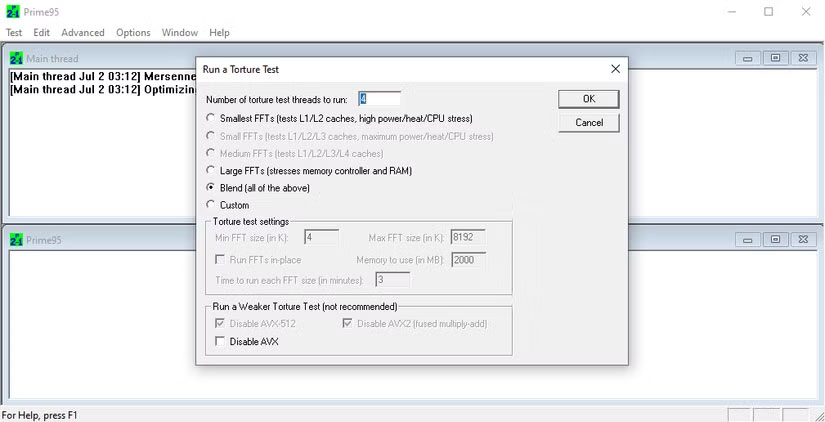
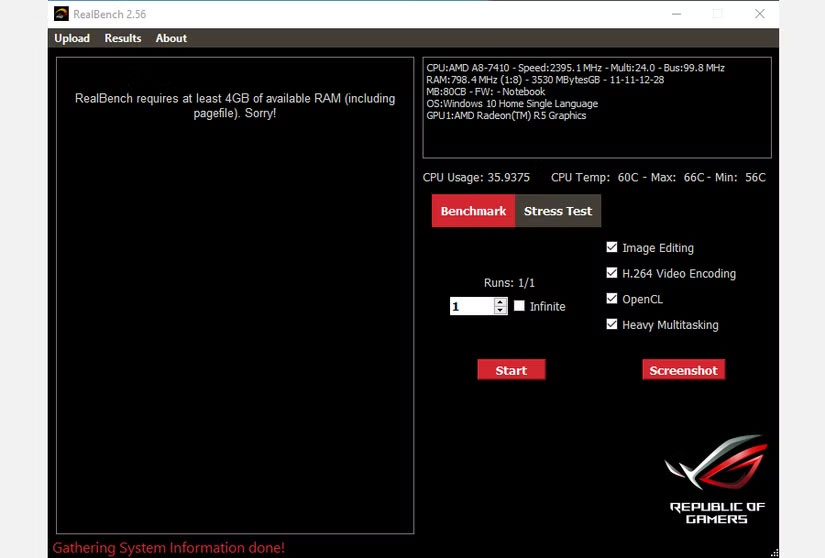
Prime95’s Small FFT tests focus on the CPU and can produce heavy heat load. Blend works across a wider range of FFT sizes and uses more memory. Watch for worker errors even if Windows continues running. Follow the synthetic test with a normal task such as a render or code build.
RAM
Create a bootable MemTest86 USB using the tool’s instructions. Use a spare drive whose contents you have backed up. If it reports errors, retest with default memory settings before concluding a DIMM has failed. An unstable memory controller or tuning profile can also cause errors.
Interpret the results
Document the test, settings, temperatures, and errors. If a new setting fails, revert the latest change and repeat the same test. Passing a test increases confidence for that workload, but it cannot guarantee stability in every application.





Reader Comments 0
Sign in with email or Google to join the discussion.