Table of Contents
This updated guide compares reasons OCCT is the favorite tool for stress testing cpus and gpus and highlights the details that matter most. Stress testing is an essential step whether you're overclocking your CPU /GPU, troubleshooting hardware, or testing a used PC. There are many stress testing apps out there, but one option stands out - OCCT (OverClock Checking Tool). Here's why…
Simple to Use Yet Highly Customizable
With a sleek design, large buttons, and clear explanations of all functions, OCCT makes it easy for first-time users to use the tool. All test types are listed in the left panel, and you just need to select a test and press the Start button to begin. The default configurations are sufficient to meet the stress testing needs of most users.
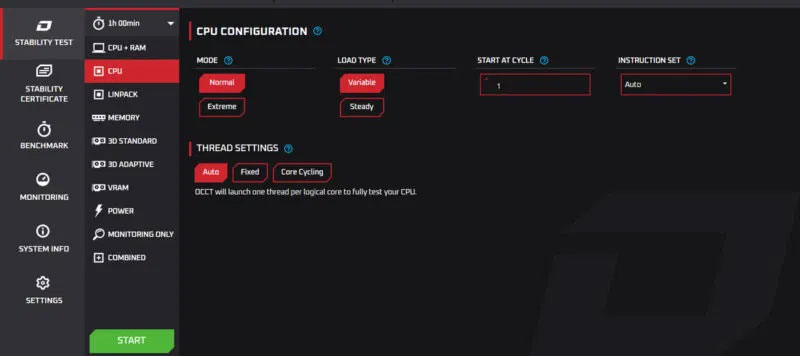
While it is easy to get started with, it still offers FFT-based stress testing and advanced features like Prime95. You can configure load types, instruction sets, thread behavior, stress intensity, and many other important features. it is not as powerful as something like AIDA64, but it does a great job of balancing simplicity and customizability.
All - in - one Testing Tool
One of the biggest reasons people like OCCT is its all-in-one nature. Unlike popular tools like Prime95, which focuses only on CPU stress testing, or FurMark, which specializes in GPU stress testing, OCCT covers all major PC components.
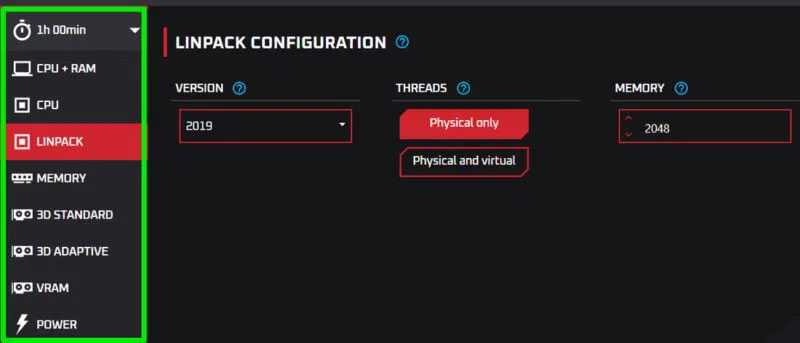
You can stress test your CPU, GPU, RAM, and even PSU with fully customizable tests. There are also multiple types of tests for different purposes. for instance, OCCT's signature CPU+RAM test is highly sensitive and can detect even the smallest errors. Also, you can push your CPU to its absolute limit with the Linpack test or choose from three different stress tests to thoroughly evaluate your GPU.
The best part is that it is a portable app so you can carry it with you for all your stress testing needs instead of carrying multiple apps.
You Can Stress Test Multiple Components at Once
Not only does it support multiple stress testing tools, it also lets you run them all at once. This is great for detecting and troubleshooting CPU/GPU thermal and throttling issues. It also helps simulate real-world usage stress on components as they need to work together to run a program.
Click Combined in the tools list and you will find all the testing tools at the top. Select the tools you want to test at once and their settings will open below.
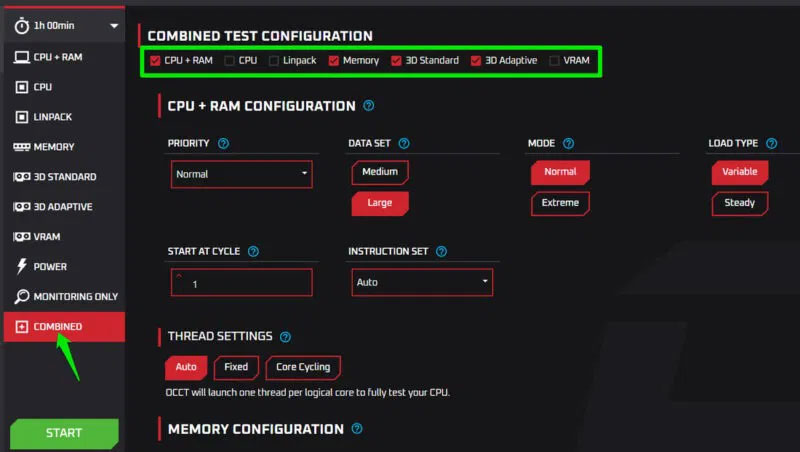
After configuring each option, choose Start to stress test all selected components at once.
If your PC cannot handle the concurrent load, OCCT will report an error. Still, you still have to stop the test manually, so It is best to go into the OCCT settings and enable the Stop on Error option.
Variable Load Is a Game Changer
Most popular stress testing tools like Prime95 or FurMark put a constant maximum load on components. This can be good for testing the stability of an overclocked CPU/GPU at maximum load, but it does not simulate real-world performance. OCCT has a dedicated Variable Load feature that can dynamically adjust the stress intensity to simulate real-world workloads.
By simulating real-world usage, OCCT can spot problems that only occur when demand fluctuates. for instance, power supplies can struggle with sudden spikes and drops in power. You can test the efficiency of your cooling system under different loads.
The default variation settings are pretty straightforward, but you can easily tweak them to your needs. All you have to do is adjust the range and the percentage of intensity increase over time. for instance, for larger variations, you can choose a 15% increase every 10 seconds.
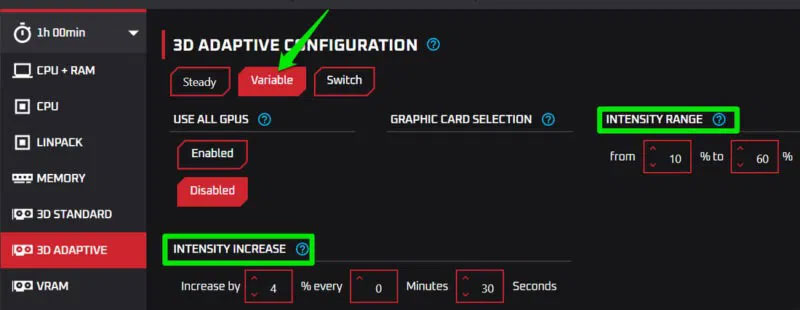
While tools like AIDA64 also offer variable load testing, OCCT offers granular control over intensity that is hard to find in other applications.
Comes with a Surprisingly Extensive Built - in Usage Tracker
System monitoring during stress testing is important, but most stress testing applications do not have built-in monitors. This is why online stress testing guides often recommend downloading a temperature monitor or hardware monitoring application. OCCT, on the other hand, has a comprehensive system monitoring tool built in.
It launches automatically when you run any type of test, but you can launch it separately from the list of tools. The tool displays all system information in real time, updating every 2 seconds by default. You can see current, minimum, average, and maximum values for CPU, GPU, storage, RAM, battery, and network.
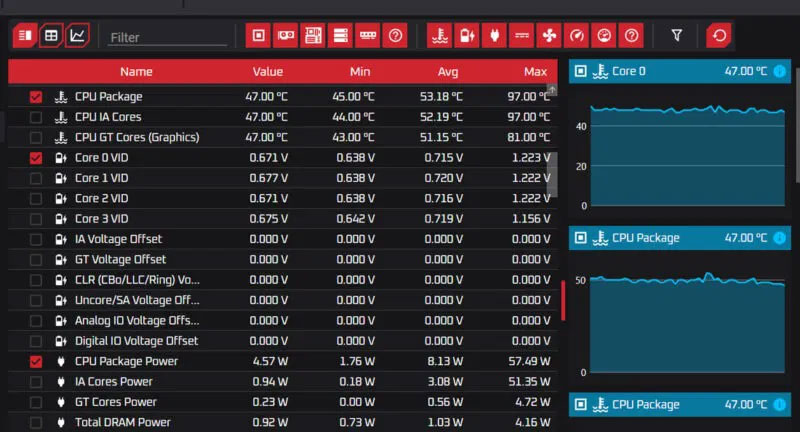
Along with the values in the table, there is a chart section that shows changes over time. You can right-select elements and data types to view specific data.
Free for Personal Use
Yes, all the tools in OCCT are free for personal use with a maximum test duration of 1 hour. Although there are paid Pro and Enterprise versions, they mostly add optional features like custom certificates, report comparison, premium support, unlimited test duration, etc.
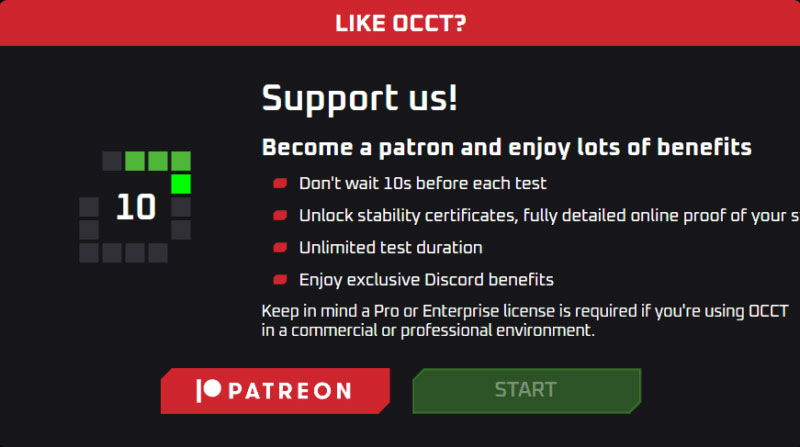
One downside to the free version is that you have to wait 10 seconds before checking. This small delay will not be a problem for most users. Still, if you do not like it, you can try the Pro version, which costs just $4.50/month.
Overall, OCCT is a versatile tool that is intuitive enough for beginners and advanced enough for experienced users. While people primarily use OCCT for stress testing, it also has other useful tools that you might want to check out, like a system information tool for checking system specifications and a benchmark tool.
FAQ
How were the reasons occt is the favorite tool for stress testing cpus and gpus options evaluated?
The comparison focuses on practical features, ease of use, limitations, compatibility, and the type of user each option is most likely to help.
Which option is best for beginners?
Beginners should prioritize a clear interface, useful documentation, reliable support, and the core features needed for their first project.
Should I choose a free or paid option?
Start with a free option when it covers your needs. A paid plan may be worthwhile when you need advanced tools, commercial rights, collaboration, or professional support.
Related Articles
 What Is Stress Test: What Is a Stress Test?3 minutes read
 How to Safely Stress Test Overclocked RAM, GPU and CPU12 minutes read
 9 Effective Ways to Reduce Stress Immediately7 minutes read
 Test Stress Test CPU: 8 Stress Test Tools Useful for CPU5 minutes read
 5 Reasons to Buy NVIDIA Gpus Instead of AMD in 20248 minutes read
 How to Check CPU with Intel Processor Diagnostic Tool3 minutes read
Reader Comments 0
Sign in with email or Google to join the discussion.