Table of Contents
When Windows shows 100% CPU usage, the processor is fully occupied at that moment. A brief spike while an application starts, Windows updates, or a scan runs can be normal. If usage stays near 100% and the computer becomes slow, use Task Manager to identify the process responsible before changing services or uninstalling software.

Start by identifying what is using the CPU
- Press Ctrl + Shift + Esc to open Task Manager.
- If necessary, select More details, then open the Processes tab.
- Select the CPU column to sort processes from highest to lowest usage.
- Watch the list for a minute. Note whether one application remains at the top or whether several processes take turns.
Save your work before ending a task. It is generally safe to close an application you recognize, but do not end an unfamiliar Windows process simply because its name looks unusual. Search for the process name and check its file location first.
System Idle Process is not the cause. Its percentage represents unused processor capacity. For example, a high System Idle Process value means the CPU is mostly free.
Quick fixes for a temporary CPU spike
- Restart Windows. This clears a stuck application or service and finishes some pending updates.
- Let legitimate work finish. Windows Update, a security scan, file indexing, or a large installation can briefly use substantial CPU time.
- Close demanding apps and browser tabs. Video editing, games, video calls, and poorly behaved browser extensions can keep the processor busy.
- Update the affected application. If one program repeatedly reaches the top of the CPU list, install its current stable update or reinstall it from its official source.
Reduce unnecessary background and startup activity
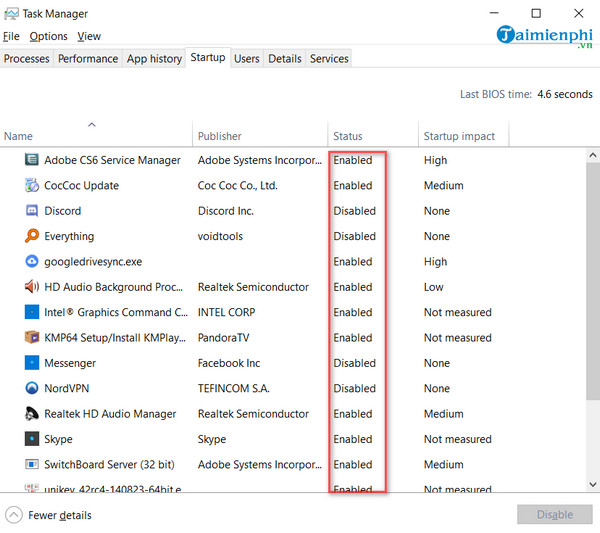
In Task Manager, open Startup apps. Disable applications that do not need to launch whenever you sign in. This does not uninstall them; you can still open them normally. Avoid disabling security software, touchpad utilities, audio controls, or other hardware-related tools unless you understand what they do.
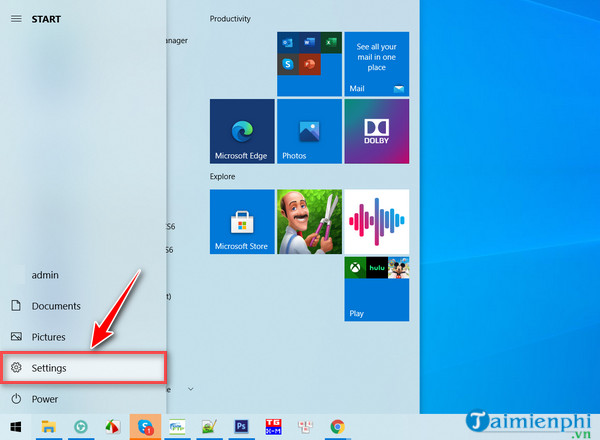
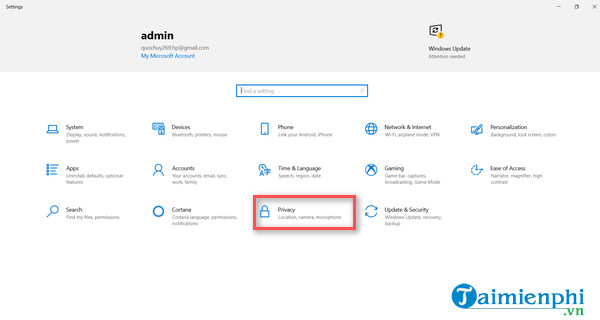
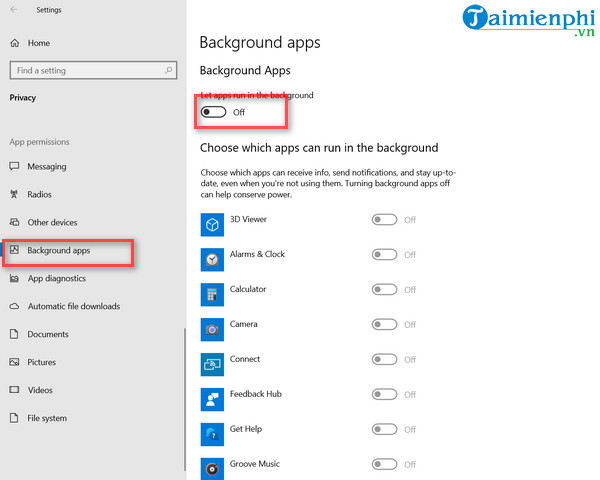
Windows 10 also includes per-app background permissions under Settings > Privacy > Background apps. The screens below apply to that older interface; newer Windows releases manage background permissions per app under Settings > Apps > Installed apps.
For a broader performance checklist, see how to troubleshoot a slow computer.
Check for malware
Unexpected CPU use from an unfamiliar process can be a sign of unwanted software, although high CPU usage alone does not prove an infection. Open Windows Security > Virus & threat protection > Scan options and run a full scan. Keep your security definitions current and avoid downloading a second “cleanup” tool from an untrusted advertisement.
TipsMake's guide to running a full Microsoft Defender scan explains the available scan options.
Handle Windows services carefully
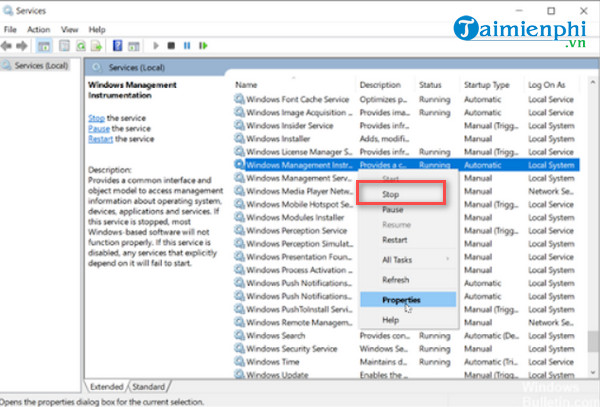
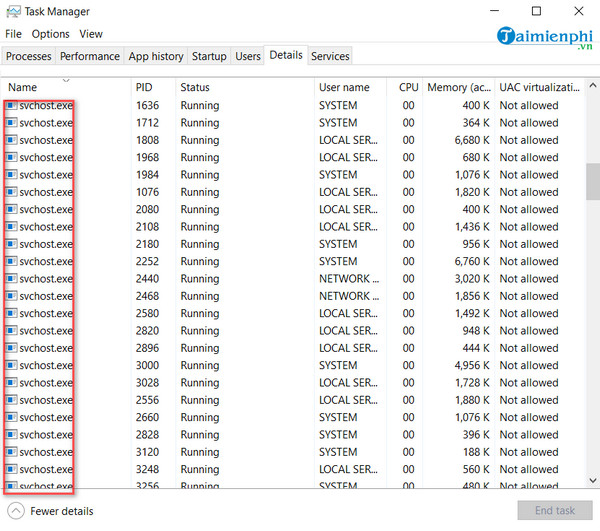
Processes such as Service Host (svchost.exe), WMI Provider Host, Windows Search, and the update services perform legitimate Windows tasks. Multiple Service Host processes are normal on modern Windows systems. Do not disable Windows Update, BITS, Plug and Play, or Windows Management Instrumentation as a blanket fix; doing so can break updates, hardware detection, and management tools.
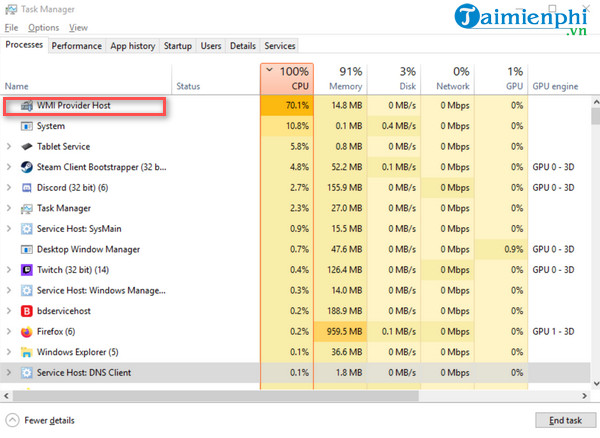
If WMI Provider Host is consistently using high CPU, restart Windows first and update the application or device utility that may be making repeated management requests. Event Viewer can help an experienced user identify a failing WMI client. Restarting the WMI service may provide temporary relief, but permanently disabling the service is not a suitable fix.
Check Windows and drivers
Install pending Windows updates, then restart. If the problem began immediately after a driver update, check Device Manager for the affected device and consider rolling back that specific driver. Do not use a generic driver updater when the PC or hardware manufacturer's support page offers the correct driver.
If Windows Search is the process using the CPU, allow a new installation or large file change time to finish indexing. If the activity never settles, open Indexing Options and use its troubleshooting controls rather than disabling search permanently.
Check cooling and hardware health
High temperature does not directly create CPU work, but overheating can force the processor to reduce its speed, making demanding tasks take longer and leaving usage high. Make sure the laptop vents are not blocked and that fans can move air freely. Shut the computer down before cleaning exterior vents.
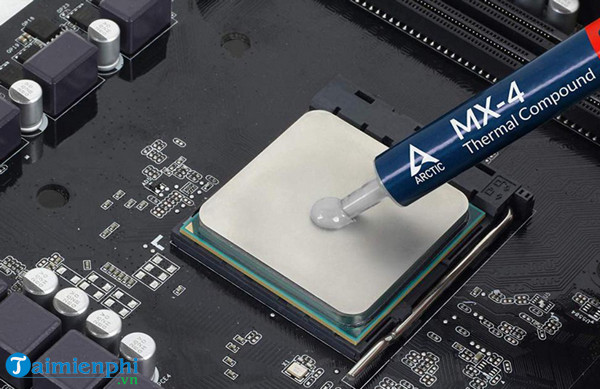
Opening a laptop, replacing thermal paste, or cleaning an internal fan can damage components and may affect warranty coverage. Use a qualified technician if you are not comfortable servicing the hardware.
If CPU usage is still stuck at 100%
Perform a clean boot or start Windows in Safe Mode to determine whether third-party software is responsible. If usage is normal there, re-enable startup items in small groups until the cause returns. Also check the CPU model and the workload: an older low-power processor may legitimately remain at full use during current video, browser, or development tasks even when nothing is broken.
Record the process name, CPU percentage, when the problem begins, and any recent software or driver changes. Those details are far more useful for diagnosis than disabling a long list of Windows services.
Related Articles
 How to Fix CPU Overload Error 99%, 100% Simple, Effective!9 minutes read
 How to Fix Onedrive Error Makes CPU Overload on Windows 105 minutes read
 Fix CPU and 99% CPU Overload Errors on Windows10 minutes read
 How to Fix the Nvidia Display Settings Are Not Available Error4 minutes read
 How to Fix the Yellow Exclamation Mark Error on a Computer Network4 minutes read
 Fixing the 'No Internet, Secure' Error on Windows 10, Resolving Network Access Issues4 minutes read
Reader Comments 0
Sign in with email or Google to join the discussion.