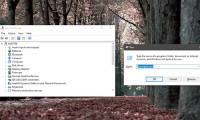
What is Device Manager? A detailed guide on how to open and use it.

What is Device Manager? How to open Device Manager in Windows 10? Let's find out in the following article.

What is Device Manager? This is a question that many users have been asking. Also known as 'Device Manager', it plays a crucial role in the Windows operating system. With its intuitive and easy-to-use interface, this tool is suitable for all users and offers many useful features. Let's explore how to open Device Manager in Windows 10 and its benefits in the article below.

What is Device Manager?

Device Manager, also known as the device management tool, is a built-in feature in the Windows operating system that plays a crucial role in managing and interacting with hardware connected to a computer. It provides users with an intuitive interface to view detailed information about each device, update drivers, troubleshoot problems, and configure settings.

Ways to open Device Manager in Windows 10

Whether you're a beginner or already familiar with computers, this compilation of methods for opening Device Manager promises to provide the quickest and most convenient experience. Detailed illustrations are also included to help you follow along.

Windows 10 Search is a tool that helps you quickly find tasks, applications, and device managers. You can easily access Device Manager by following these detailed step-by-step instructions:

Step 1: On your keyboard , press the 'Windows + X' key combination; the Power User menu will then appear. You need to find and activate 'Device Manager' as shown in the following illustration.

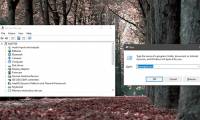
Step 2: To open Windows Device Manager, press 'Windows + R' simultaneously to bring up the Run dialog box. Then, simply type 'devmgmt.msc' and select 'Ok'.

Use CMD or PowerShell commands. 

Using Command Prompt (CMD) or PowerShell is a quick and efficient way to access Windows 10 Device Manager. This method is especially useful when you want to perform advanced operations or need to access Device Manager from the command-line interface.

Step 1: You can open Command Prompt by searching for "cmd" in the Windows search bar or by pressing the Windows + R keys, typing "cmd," and pressing Enter. Alternatively, you can open the PowerShell interface.

Step 2: In the Command Prompt or PowerShell window, enter the following command: 'devmgmt.msc' or 'control hdwwiz.cpl' or 'mmc devmgmt.msc' and press Enter.

How to open Device Manager using the Run command

The Run command is a convenient tool in Windows 10 that allows you to quickly launch programs and access system settings. 

Step 1: Press the Windows + R key combination to open the Run dialog box.

Step 2: In the Run dialog box, enter the exact command 'devmgmt.msc' and then select 'Ok' to complete the process of accessing Device Manager.

Use WinX Menu commands

The WinX menu, also known as the Power User Menu, is a context menu containing many useful tools and utilities in Windows 10. This menu is activated using a simple keyboard shortcut, allowing quick access to system settings and frequently used programs.

Step 1: Press the Windows + X key combination on your keyboard.

Step 2: In the WinX menu, press the M key to directly access Device Manager.

Using Devices with Printers

Although it doesn't directly open Windows 10's Device Manager, Devices and Printers provides a related way to access this hardware management tool on Windows 10. To do this, follow these steps:

Step 1: Go to 'Start' and search for "Control Panel".

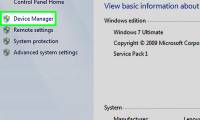
Step 2: In the Control Panel window, change the view to Categories by clicking the dropdown menu in the upper right corner. Select the 'Hardware and Sound' category and then click the 'Device Manager' link under Devices.

Open Device Manager using icon view.

In addition to the common methods for accessing Windows Device Manager described above, you can also use the Control Panel with icon view to open this tool more intuitively and easily.

Step 1: Access the Control Panel icon as instructed above.

Step 2: In the upper right corner of the screen , click on View by and select Large icons or Small icons. In the list of icons, find and click on Device Manager.

Use This PC

Windows 10 provides users with a very convenient way to access Device Manager directly from File Explorer, also known as This PC. 

Step 1: To access This PC, you can select the icon located on the desktop, or press the Windows + E key combination.

Step 2: In the C drive interface menu that appears, select Manage. In the Computer Management window, expand the System Tools list on the left and select Device Manager.

How to open Device Manager using Cortana

Cortana is an intelligent virtual assistant on Windows 10, offering a very convenient and modern way to open Device Manager.

Step 1: If your computer already has voice control installed, simply say the command. If not, manually enter the command by pressing the Windows + R key combination to search for Cortana.

Step 2: Search by entering the keyword 'Device Manager' and selecting.

Use Computer Management

Besides the common methods, Computer Management – ​​the familiar system administration tool on Windows – is also an effective option for accessing Device Manager.

Step 1: Go to This PC on your computer and find the Manage section.

Step 2: In the new interface, select the System Tools expansion button on the left, then search for and left-click on Device Manager.

Open Device Manager using Quick Access Menu

The Quick Access Menu, also known as the quick access menu, is an extremely useful tool in Windows 10. It allows users to quickly access many system settings and utilities. 

Step 1: Press Win + X to open the Quick Access Menu. Type "Quick Access Menu" into the search bar next to the Windows icon, then select the appropriate result.

Step 2: In the Quick Access Menu, find and left-click on Device Manager to launch this device management tool.

Use Task Manager 

Task Manager not only acts as an efficient manager for applications and processes, but also serves as a powerful tool for accessing Windows Device Manager. With simple and quick operation, you can easily open this tool without having to search through multiple menu layers.

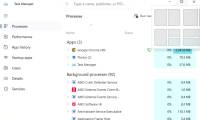
Step 1: Press Ctrl + Shift + Esc. The Task Manager window will immediately appear. Move your mouse to the File tab located in the upper left corner of the screen.

Step 2: Click on Run new task. In the new window, type devmgmt.msc into the search box and press Enter. Device Manager will now be ready for you to explore and manage hardware devices on your system.

Use System Settings

The Windows 10 system installation not only offers a wealth of customization options, but also includes a powerful tool for accessing Device Manager – System Settings. With this method, you can easily open Device Manager with just a few simple clicks.

Step 1: Press the Win + I key combination to open the familiar Windows 10 settings window.

Step 2: Using the built-in search bar, type "Device Manager". The results will appear immediately. Simply click on the "Device Manager" option to open this tool.

How to open Device Manager using File Explorer 

File Explorer, an indispensable tool on every Windows computer, now also serves as a quick and convenient "key" to accessing Device Manager.

Step 1: Press the Win + E key combination to access the familiar File Explorer interface. 

Step 2: Type the command `devmgmt.msc` into the empty field and press Enter. Device Manager will immediately launch and be ready for you to explore and manage the hardware on your system.

Use the System32 folder.

Besides common methods like using the left-click menu, Cortana search bar, or keyboard shortcuts, you can also open Device Manager through the System32 folder – where essential system files are stored. The process is quite simple, just follow these three steps:

Step 1: Open File Explorer by pressing Windows + E. Select drive C in the drive section on the left side of the screen. Navigate to the Windows folders and then to System32.

Step 2: In the System32 folder, scroll down and find the file named devmgmt.msc, then double-click on the file.

Use Shortcuts on the Desktop

Creating a shortcut on the Desktop is the most efficient and quickest way to open Device Manager in Windows 10. With just a few simple clicks, users can open this manager. Here are the steps:

Step 1: Press the Windows + D key combination to minimize all windows and display the Desktop. Right-click on an empty area of ​​the Desktop, then select New to create a Shortcut.

Step 2: In the Create Shortcut window, enter the following command in the Location field: '%windir%system32devmgmt.msc'. Name the shortcut Device Manager or whatever you like. Click Finish to complete creating the shortcut.

How to use Windows Device Manager

Above, you've learned what Device Manager is and how to open it. The following content will introduce some common uses of this tool that you should know.

How to update drivers using Device Manager

Device Manager is a tool that helps manage and update drivers for hardware devices on Windows computers. 

Step 1: There are several ways to open Device Manager; you can go to Start and select Device Manager.

Step 2: In the window that appears, expand the categories to include the devices for which you want to update the drivers.

Step 3: After right-clicking and selecting "Update driver," you can proceed as follows:

  1. Search automatically for updated driver software: In this section, simply select it as it has built-in automatic searching, and it will then install the latest driver version for your computer.
  2. Browse my computer for driver software: You can download and install drivers directly from your computer.

Check the status of the installed hardware.

Device Manager is a useful Windows tool that helps you monitor and manage the hardware connected to your computer. One of its important functions is checking the operational status of these devices.

In the access window, the list of hardware devices is displayed by category. 

  1. Yellow triangle icon: The device is malfunctioning and needs attention.
  2. Upward-pointing arrow icon: The device is functioning normally.
  3. Exclamation mark icon: Device is disabled.
  4. Question mark icon: Windows cannot recognize the device.

Windows laptops from a wide variety of brands are available for you to easily choose from. For advice and to experience these products firsthand, please visit your nearest store!

Fix driver errors using Device Manager

Device Manager will help you troubleshoot hardware driver issues. To fix driver errors using this tool, follow the steps below:

Step 1: Follow the instructions above to open Device Manager.

Step 2: Right-click on the device with the driver error and select one of the following options:

  1. Update drivers: Windows will automatically search for and install the latest version of the drivers.
  2. Uninstall device: Uninstall the current driver.
  3. Reinstall driver: Reinstall the current driver.
  4. Update driver software manually: Install drivers from your computer.

Understanding what Device Manager is and how to access it in Windows 10 is crucial for managing and troubleshooting hardware issues at home. Make the most of this useful tool to keep your computer running at its best. Don't forget to check back regularly for the latest information!

Device Manager often causes Bluetooth to stop working due to:

  1. Faulty/Missing/Outdated Driver: The Bluetooth driver is not working correctly.
  2. Bluetooth service is turned off: The Bluetooth support service in Windows has stopped.
  3. Airplane Mode is enabled: This mode disables all wireless connections.
  4. Hardware issue: Damaged Bluetooth adapter (less common).

You've just finished reading the article "What is Device Manager? A detailed guide on how to open and use it." edited by the TipsMake team. You can save what-is-device-manager-a-detailed-guide-on-how-to-open-and-use-it.pdf to your computer here to read later or print it out. We hope this article has provided you with many useful tech tips and tricks. You can search for similar articles on tips and guides. Thank you for reading and for following us regularly.

« PREV Exploding phones - Causes, identification, and prevention methods.
NEXT » Causes and the simplest, most effective ways to fix driver errors.