AMD is a type of device that specializes in processing image information in computers, specifically aspects like color, resolution, and contrast, thereby improving image display. To update your AMD graphics card driver on Windows 10 , please follow the instructions below from tipsmake.com .
Update AMD graphics card drivers on Windows 10
Table of Contents:
1. Traditional driver update methods .
2. Updating AMD graphics card drivers using DDU .
1. Traditional methods of updating drivers
To update your AMD drivers, open Radeon Settings , click on Updates in the bottom left corner, and then click on Check for Updates .
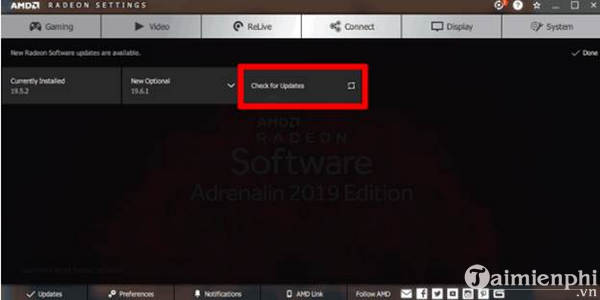
You'll see the options New Recommended and New Optional . Optional updates are often still in testing and may not work correctly (unless they optimize new games better).
If you want your driver to work reliably, the "New Recommended" update is a better option. Click on that option and follow the on-screen instructions to update your driver.
2. Update your AMD graphics card driver using DDU.
If AMD driver updates aren't working properly and are causing your drivers to malfunction, you should install an updated driver. To do this, we'll use a tool called DDU (Display Driver Uninstaller).
First, download the latest version of DDU and extract it to your chosen location; then boot Windows 10 into Safe Mode by simply holding down the Shift key while clicking Restart in Windows 10, then go to Troubleshoot > Advanced options > See more recovery options > Start-up Settings > Restart .
Select Enable Safe Mode to ensure the computer is disconnected from the Internet.
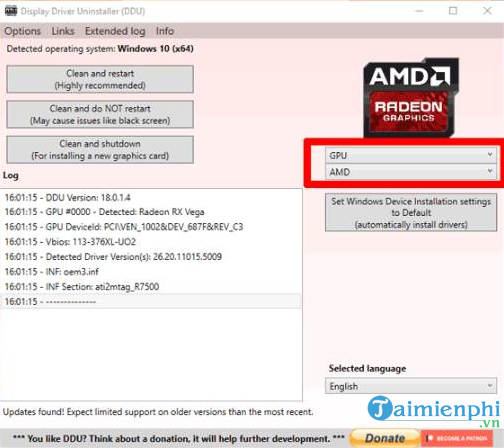
While in Safe Mode, open Display Driver Uninstaller. In Select device type, select GPU and choose AMD below.
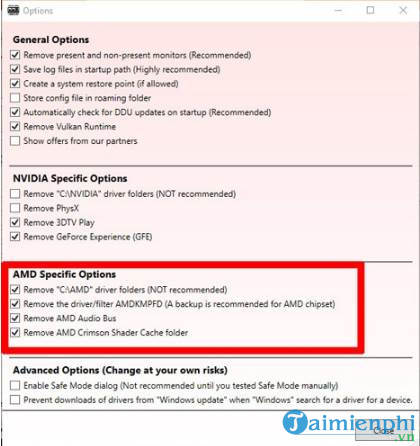
Next, go to the Options section and check all the options within AMD Specific Options .
Finally, click Clean and restart and wait for DUU to handle the rest.
When your computer restarts, Windows will also boot (possibly at a lower resolution). Access the AMD driver in your browser and select the driver corresponding to your graphics card (You can download the Auto-Detect tool at the bottom of the page).
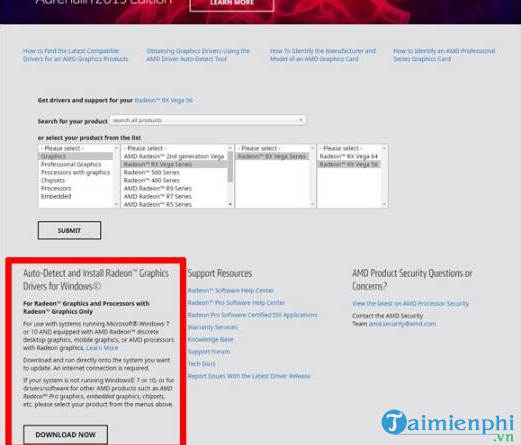
Click Submit after entering your GPU information. On the next page, select the appropriate driver you want to download and install it as usual.
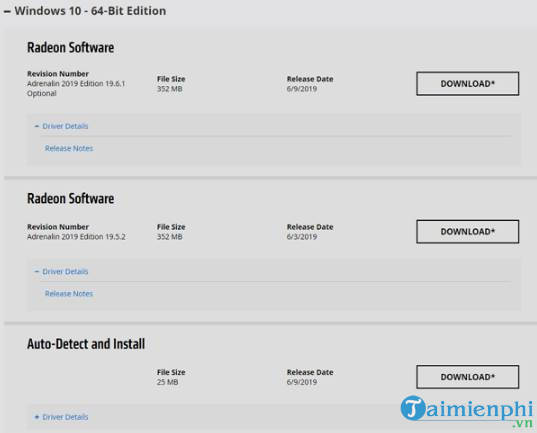
With the detailed instructions above, tipsmake.com hopes to help readers who want to update their AMD graphics card drivers on Windows 10. Additionally, if you have any questions or need clarification, such as how to set up automatic use of your NVIDIA dedicated graphics card , please leave your comments in the comment section below the article!
Related Articles
 How to Update Graphics Card: Step-by-Step Guide5 minutes read
 How to Update Drivers for Windows 105 minutes read
 How to Update Drivers for Amd Video Cards on Windows 104 minutes read
 Click: How to Update Video Card Drivers in Windows5 minutes read
 How to Update Video Card Drivers on Windows 7: Complete Guide10 minutes read
 How to Update the Driver for NVIDIA Video Card7 minutes read
Reader Comments 0
Sign in with email or Google to join the discussion.