Table of Contents
There are many ways to check your computer's configuration, including checking whether your VGA card is a dedicated or integrated graphics card . The issue of dedicated versus integrated graphics cards isn't new, but those who are new to computers, especially laptops, often wonder about this.
How to check if your VGA card is a dedicated or integrated graphics card.
To save you time, the following guide will help you find out how to easily check whether your VGA card is a dedicated or integrated graphics card.
Guide to checking if your VGA card is a dedicated or integrated graphics card.
1. Check if your VGA card is a dedicated or integrated card without using software.
If you use software, checking whether your VGA graphics card is a dedicated or integrated card becomes easy. Before guiding you on how to check if your VGA card is dedicated or integrated using software, let's use some readily available tools to check your VGA card.
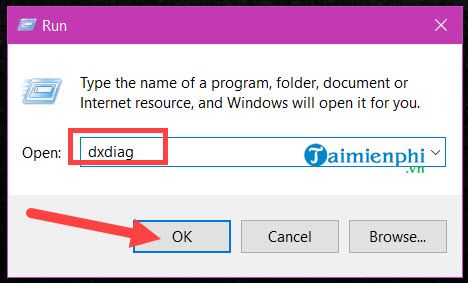
Step 1: To check if your VGA card is a dedicated or integrated card, simply press the Windows + R key combination , then type dxdiag .
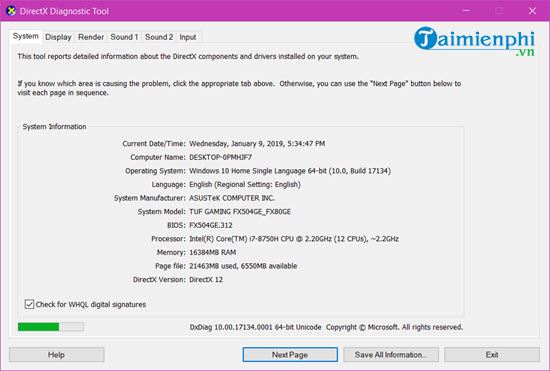
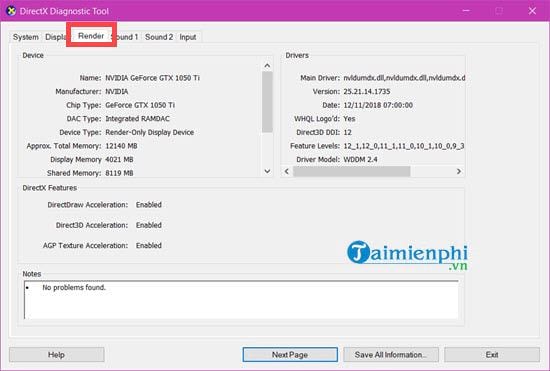
Step 2: Here you will see an information panel appear containing various introductory information sections; however, you only need to pay attention to two sections: Display and Render .
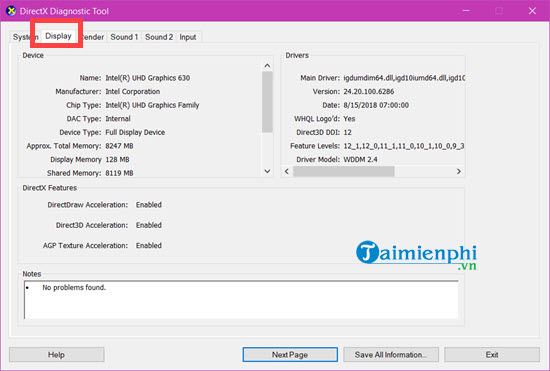
Every device has this Display section , which shows the onboard VGA specifications. Even without installing the driver, this section will still be present, although it may not be visible.
The Render section tells you which VGA card model your computer is using.
2. Check if your VGA card is a dedicated or integrated card using CPU-Z.
Another way to check if your VGA card is a dedicated or integrated card is to use CPU-Z software. With CPU-Z, no specifications can escape its notice. Download CPU-Z to your computer here.
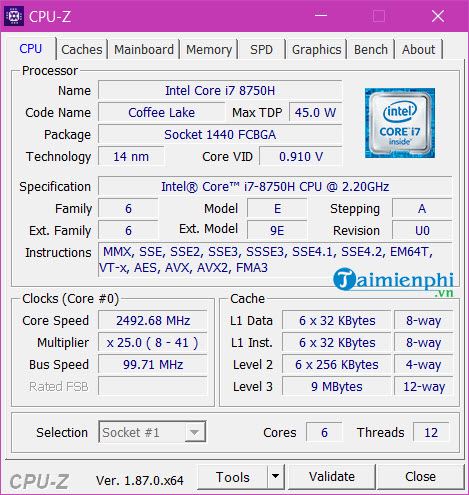
Step 1: After downloading, proceed with the installation like any other software. When you open it, you will see an interface like the one below.
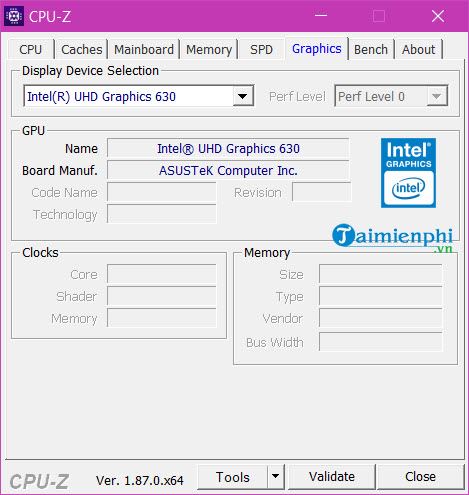
Step 2: Go to the Graphics section and you will see a line that says Display Device Selection ; this will show how many VGA cards your computer has.
If your computer or laptop has a dedicated graphics card, you will see the text NVIDIA GeForce GTX or AMD depending on the laptop model, followed by the model number and some specifications of that dedicated graphics card.
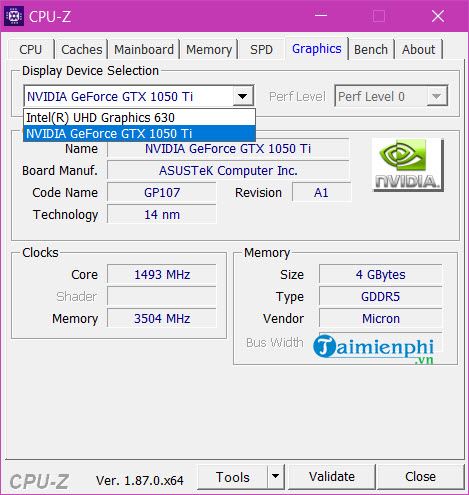
Therefore, using CPU-Z to check whether your VGA card is a dedicated or integrated card will give you the most accurate and fastest results possible.
Above are two quick ways to check your computer's configuration, to determine whether your VGA card is dedicated or integrated, to better understand your computer's specifications. Both methods can be used to check your overall computer configuration as all the necessary information is included.
For those who are more interested in computer hard drives, including all types of internal HDDs or SSDs, CPU-Z alone is not enough. You need to use CrystalDiskInfo to get complete information, especially about the health of your hard drive. CrystalDiskInfo is easy to use and focuses on the parameters users want to know.
Related Articles
 7 Things You Need to Know About Integrated and Dedicated Graphics Cards11 minutes read
 Choosing a Computer Graphics Card7 minutes read
 How to Check the Type of Graphics Card (GPU) on the Computer4 minutes read
 How to Disable Integrated Graphics on Windows? When Should This Be Done6 minutes read
 List of the Best Graphics Cards According to the Price Segment14 minutes read
 3 Ways to Check the Graphics Card Model on Windows 115 minutes read
Reader Comments 0
Sign in with email or Google to join the discussion.