Table of Contents
The most direct way to move large files between Android and a Mac is a USB cable plus an MTP client such as OpenMTP. For wireless transfers on the same network, LocalSend is simpler and keeps the transfer local. AirDroid adds remote file management, while Google Drive or another cloud service is useful when the devices are not together.
Choose a transfer method
| Method | Best for | What to know |
|---|---|---|
| OpenMTP over USB | Large folders and offline transfers | Requires a data-capable cable and a Mac MTP app |
| LocalSend | Quick wireless transfers nearby | Install it on both devices and use the same local network |
| AirDroid Personal | File management from a desktop client or browser | Requires broader phone permissions and may use an account |
| Cloud storage | Access from different locations | Uses internet bandwidth and cloud quota |
Method 1: Transfer files over USB with OpenMTP
macOS does not expose an Android phone in Finder like an iPhone or ordinary USB drive. Android normally presents its storage through Media Transfer Protocol (MTP), so the Mac needs a compatible client. OpenMTP is a free, open-source option with separate downloads for Apple silicon and Intel Macs.
- Download OpenMTP from the official OpenMTP site. Choose the Apple silicon build for M-series Macs or the Intel build for older Macs.
- Install and open OpenMTP. If macOS blocks the first launch, confirm that you downloaded the expected application before approving it in Privacy & Security.
- Unlock the Android phone and connect it with a USB cable that supports data, not a charge-only cable.
- Tap the Android notification labeled Charging this device via USB or USB preferences. Under Use USB for, select File Transfer or File Transfer/Android Auto.
- In OpenMTP, select the phone if it does not appear automatically. Copy files between the Mac pane and the phone pane.
- Wait for active transfers to finish, then disconnect the phone cleanly.
If the Android phone does not appear
- Try another known data-capable cable and another USB port.
- Unlock the phone before choosing File Transfer mode.
- Quit other apps that may try to claim the phone's MTP connection.
- Restart OpenMTP and the phone. Update both macOS and Android if the issue persists.
- Do not enable USB debugging merely for ordinary file transfer; it is not normally required.
Google's current Android file-transfer help documents the phone-side USB mode. Google's old Android File Transfer for Mac is no longer a dependable recommendation because its official download is no longer prominently maintained; avoid installers copied to unrelated download sites.
Method 2: Send files over local Wi-Fi with LocalSend
LocalSend works on Android and macOS and transfers directly over the local network without uploading the file to a cloud account.
- Install LocalSend on the Mac from the official LocalSend download page or Mac App Store, and install its Android app from Google Play.
- Connect both devices to the same trusted Wi-Fi network and open LocalSend on both.
- On the sending device, choose Send, select the files or folders, then select the receiving device.
- Accept the request on the receiver and choose the destination folder if prompted.
If the devices cannot see each other, allow LocalSend local-network access in macOS and Android, then check whether the Wi-Fi network uses client isolation. Guest networks often prevent devices from communicating. Do not turn off the firewall completely; approve the signed app's local-network request instead.
LocalSend is also included in our list of Android apps that solve everyday problems.
Method 3: Use AirDroid Personal
AirDroid Personal can transfer files through its Mac desktop client or web interface. It is useful when you want more than a one-off copy, but it asks for more access than a simple local transfer tool. Grant only the Android permissions required for the features you use.
- Install AirDroid Personal from Google Play on Android. Open it and sign in, or use the local/nearby workflow offered by the current app.
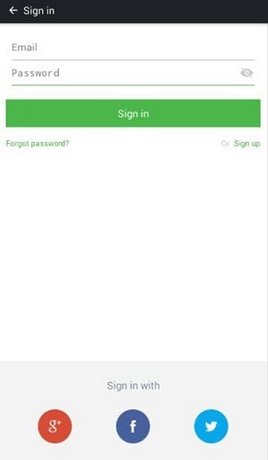
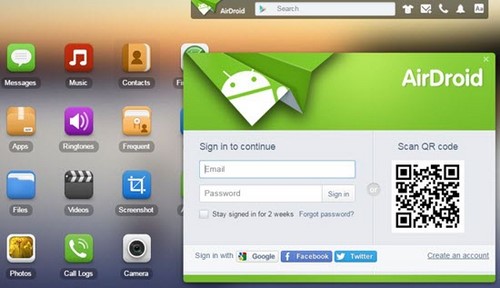
- On the Mac, install AirDroid Personal from its official site or open AirDroid Web. Sign in to the same account when the chosen workflow requires it.
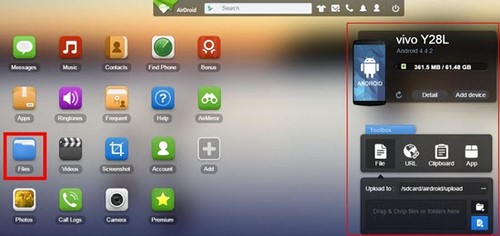
- Select the Android device, open Files or File Transfer, and choose the files to download to the Mac. To send files to the phone, drag them into the desktop client's transfer panel or use the upload control in the web interface.
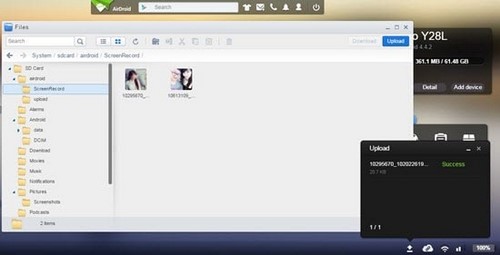
Review AirDroid's current free-plan limits before transferring large folders. Sign out of a shared Mac and remove any browser authorization when finished. More wireless options are covered in our comparison of Wi-Fi file-transfer apps for Android.
Method 4: Use Google Drive or another cloud service
- On Android, upload the file from the cloud provider's app or use Share and select the provider.
- Wait for the upload to complete over Wi-Fi if the file is large.
- On the Mac, open the provider's website or desktop app and download or sync the file.
This is convenient across different networks, but the file is stored with a third party and counts against storage quota. Check the sharing permissions before uploading sensitive material, and delete public links that are no longer needed.
Methods from older guides to avoid
- HandShaker: the old Mac-and-Android setup shown in legacy screenshots is not a current, well-supported default choice.
- ES File Explorer plus macOS FTP: the old Terminal command that loaded Apple's built-in FTP daemon is obsolete on modern macOS, and plain FTP does not encrypt credentials or files.
- Unverified SHAREit installers: use a currently maintained app from an official store rather than an old Mac download link.
For most people, OpenMTP is the best cable method and LocalSend is the best same-network method. AirDroid is worthwhile when you specifically need its desktop or browser management features, while cloud storage is the fallback when the Android phone and Mac are not on the same network.
Related Articles
 How to Transfer Data from iPhone to Android?10 minutes read
 Ways to Transfer Android Data to iPhone6 minutes read
 Simple Way to Transfer Data from Android to iPhone9 minutes read
 How to Transfer All Data from an Old Android Phone to a New Phone?11 minutes read
 How to Transfer Data Between Computer and Phone: Complete Guide16 minutes read
 How to Transfer Files from Mac to Android Without Android File Transfer7 minutes read
Reader Comments 0
Sign in with email or Google to join the discussion.