Table of Contents
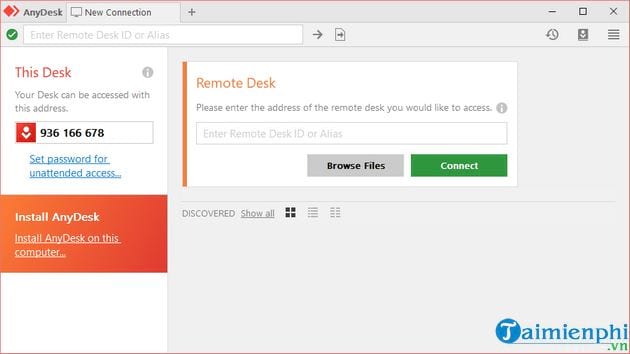
To control a computer with AnyDesk, open AnyDesk on both devices, enter the remote computer's AnyDesk ID or Alias in the Remote Address field, and start the connection. The person at the remote computer must review the requested permissions and select Accept, unless unattended access was deliberately configured beforehand.
Before you connect
- Download AnyDesk only from the official AnyDesk download page or your device's official app store.
- Keep both devices online and leave AnyDesk running on the remote device.
- Get the remote device's AnyDesk ID or Alias. This identifies the device; it is not a password.
- Only accept a connection from someone you know and expect. A legitimate company should not unexpectedly ask you to install remote-control software or use it to make a payment.
AnyDesk can run in portable mode on supported desktop systems, so installation is not always required for an attended session. Installation is useful when you need the service to remain available after sign-out or restart and for some advanced configuration.
Connect from a PC or Mac
- Open AnyDesk on the computer you will control and note the address displayed for that device.
- On the controlling computer, enter that address in Remote Address, then press Enter or select the connect button.
- On the remote computer, check who is connecting and review the permissions in the acceptance window. Enable only the actions needed for the task, such as viewing the screen, controlling the keyboard and mouse, hearing sound, or using the clipboard.
- Select Accept. The controlling computer will display the remote desktop in a session tab.
- When finished, close the session tab or select Disconnect on the remote computer.
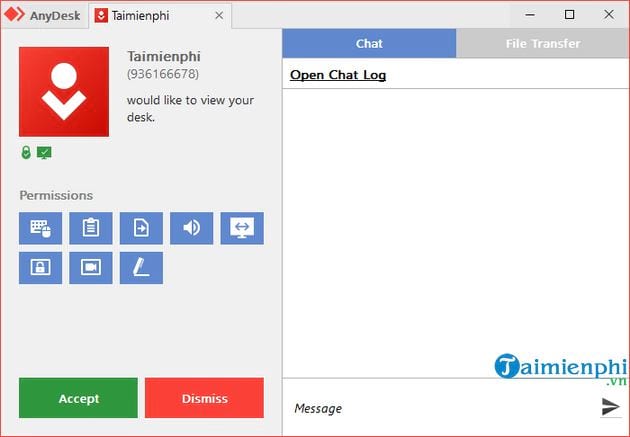
Use only the permissions the session requires
The remote user can approve or deny individual capabilities before accepting. Screen viewing may be enough for verbal guidance; full keyboard and mouse control is appropriate only when the helper needs to operate the computer. File transfer, clipboard access, audio, screen recording, and administrative elevation should remain off unless they are necessary and understood by both people.
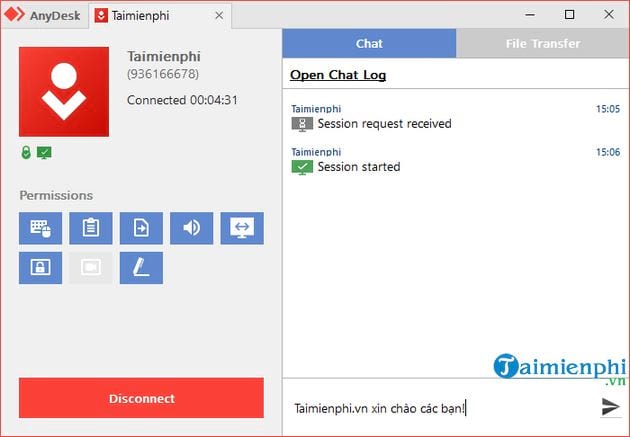
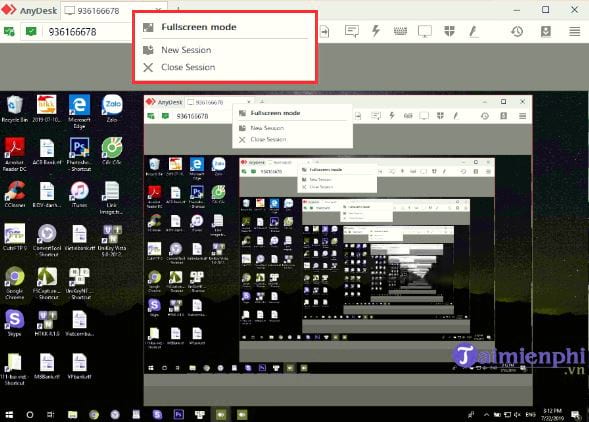
The session toolbar can provide chat, display controls, monitor switching, clipboard options, and other actions, depending on the operating system and permissions. AnyDesk's current connection guide explains the normal attended connection flow.
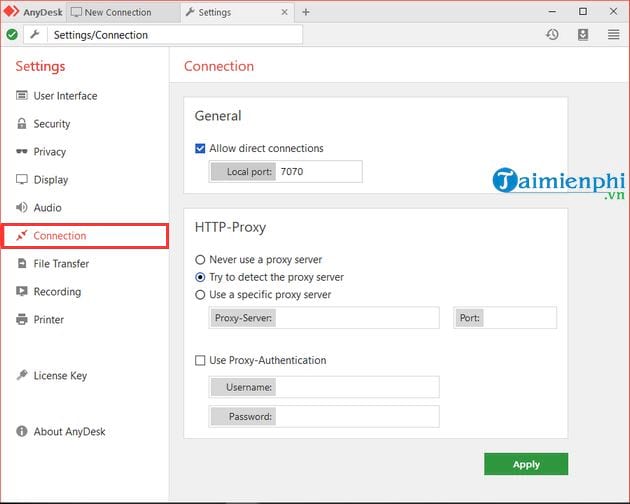
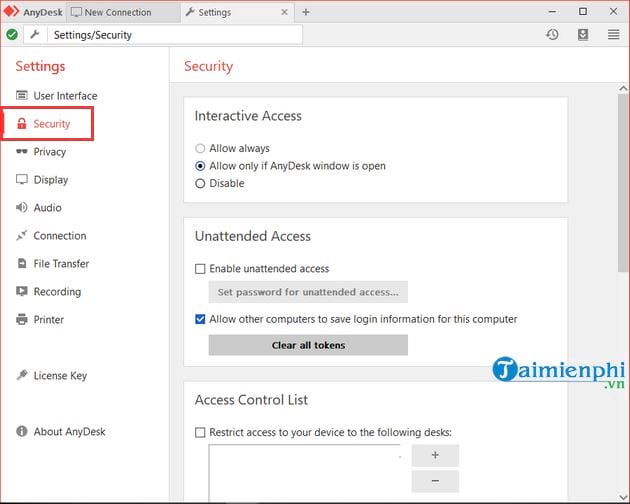
Connect to a computer from Android or iPhone
- Install AnyDesk from Google Play or Apple's App Store on the phone. Open AnyDesk on the computer you want to control as well.
- In the phone app, enter the computer's AnyDesk ID or Alias and start the connection.
- At the computer, review the request and select Accept. If the computer uses properly configured unattended access, enter that password instead.
- Use the phone's touch or touchpad input mode to move the pointer, click, drag, and type. Swipe from an edge to open the session menu on iPhone or iPad; the exact gesture and menu layout can vary by app version.
- Disconnect from the session menu when the task is complete.
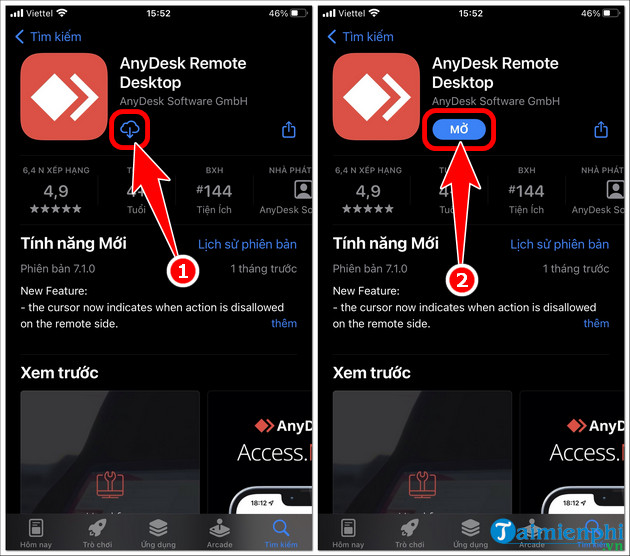
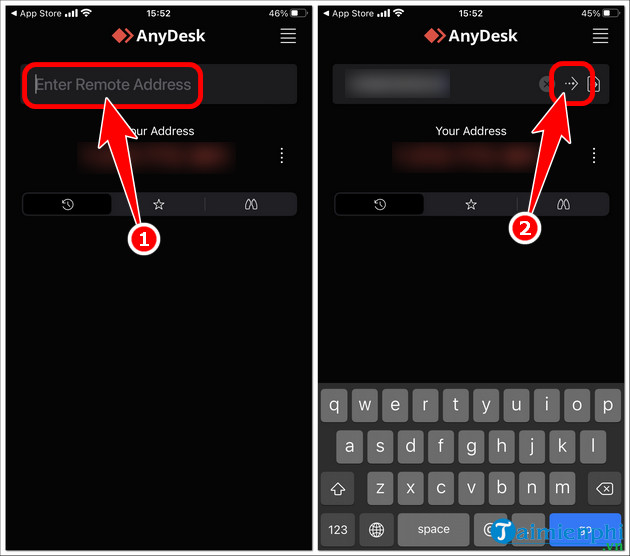
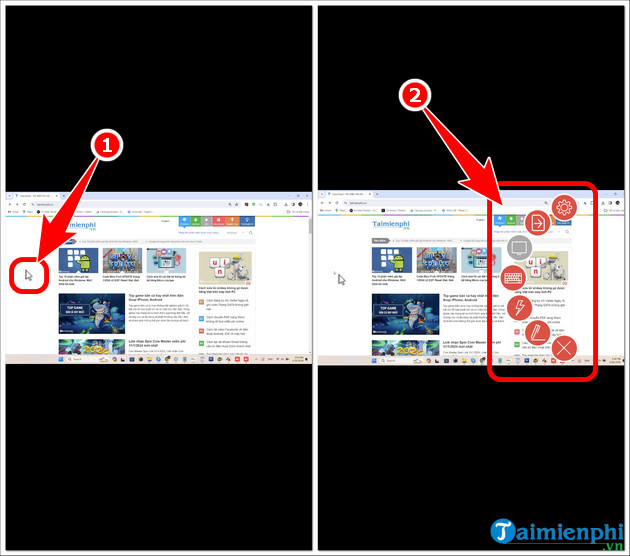
Mobile operating systems impose their own limits. Controlling an Android device may require an AnyDesk control plug-in and Accessibility permission; macOS requires permissions such as Screen Recording and Accessibility before the remote user can see or control everything. Follow the prompts on the device rather than granting unrelated permissions.
Set up unattended access only for your own managed device
For a computer that must be reachable when nobody is present, open AnyDesk on the remote computer and go to Settings > Access > Unattended Access. Set a long, unique password and, if available, enable two-factor authentication. Anyone with the device address and unattended-access credentials may be able to control the machine within the configured permission profile.
Do not enable unattended access merely to help someone once. For a one-time support session, manual acceptance is safer because the remote user sees the incoming request and can limit permissions. See AnyDesk's unattended-access documentation for current settings.
If AnyDesk connects but control does not work
- The screen is visible but clicks do nothing: verify that keyboard and mouse control was allowed. On macOS or Android, check the required system permissions.
- The request never appears: confirm the ID or Alias, internet connection, and that AnyDesk is open on the remote device.
- The image is slow: lower display quality in the session toolbar and close bandwidth-heavy apps on either network.
- Administrative prompts are invisible: the session may not have elevated rights. The remote user should handle the prompt locally unless elevation is genuinely required.
If AnyDesk is not a good fit, compare it with other remote computer control tools and our shorter list of free remote desktop software. Features and free-use limits differ, so check the current licensing terms for the product you choose.
Related Articles
 AnyDesk vs. TeamViewer: Key Differences9 minutes read
 How to Install and Setting Up AnyDesk6 minutes read
 What Is AnyDesk? Is AnyDesk Software Really Safe?8 minutes read
 How to Control a Remote Computer by Phone with AnyDesk Remote4 minutes read
 Steps to Record Screen in Anydesk3 minutes read
 How to Use Anydesk Remote to Control Remote Computers7 minutes read
Reader Comments 0
Sign in with email or Google to join the discussion.