Table of Contents
Changing DNS usually does not lower your ping after a game match has connected. DNS translates names such as a login or matchmaking host into IP addresses; the game then sends traffic directly to those addresses. A faster or more reliable resolver can still improve launcher sign-in, server discovery, voice or chat setup, and update downloads when repeated DNS lookups are involved.

There is no single fastest DNS server for every gamer. The best result depends on your ISP, location, network path, and the provider's nearest point of presence. Test several established resolvers from your own connection and keep the one that resolves consistently without blocking services your games need.
Recommended public DNS resolvers
| Provider | Preferred / alternate IPv4 | Best fit | Important behavior |
|---|---|---|---|
| Cloudflare 1.1.1.1 | 1.1.1.11.0.0.1 | Simple, unfiltered public resolution | Separate “for Families” addresses add malware or adult-content filtering; do not confuse them with the standard pair |
| Google Public DNS | 8.8.8.88.8.4.4 | Broadly supported, unfiltered resolution | Supports conventional DNS, DNS over TLS, and DNS over HTTPS |
| Quad9 | 9.9.9.9149.112.112.112 | Security-focused households | The recommended profile validates DNSSEC and blocks domains identified as malicious; false positives are possible |
| AdGuard DNS | 94.140.14.1494.140.15.15 | Network-level ad and tracker filtering | The default profile also filters threats; blocking can interfere with ads, telemetry, rewards, or login endpoints in some games |
These addresses are documented by Cloudflare, Google Public DNS, Quad9, and AdGuard DNS. Use the provider's current documentation for IPv6 and encrypted DNS endpoints.

Which DNS is best for gaming?
- Start with Cloudflare or Google if you want an uncomplicated resolver with no category filtering.
- Try Quad9 if blocking known malicious domains is valuable and you are willing to troubleshoot an occasional false positive.
- Try AdGuard DNS if network-level filtering is the priority. Switch to its unfiltered profile or another resolver if a game, launcher, or reward system stops working.
Do not choose a resolver because a global benchmark calls it “fastest.” A provider that performs well in another country may be slower from your ISP. Privacy policies also differ: DNS operators can see the domain names your device requests unless encrypted DNS and other protections apply. Read the current policy before routing an entire household through a third party.
How to test DNS before changing the whole network
- Record your current DNS settings so you can restore them.
- Test from the same device and connection you use for gaming. Pause large downloads and VPNs unless the VPN is part of your normal setup.
- Query several relevant domains—your game publisher, launcher, voice service, and a large CDN—rather than testing one cached domain.
- Repeat each test at different times of day. Compare failures and consistency, not only the single lowest time.
- Change DNS on one device first. Confirm that login, matchmaking, chat, store, and updates all work before applying it at the router.
On Windows, nslookup example.com 1.1.1.1 sends a lookup to a specific resolver. Repeat with other providers and domains. The reported time can be affected by caching, so treat small differences as noise. To diagnose actual game lag, measure latency and packet loss to the game service; TipsMake's guide to testing network latency in Windows explains the distinction.
Change DNS on Windows 11
- Open Settings > Network & internet.
- Select the active Wi-Fi or Ethernet connection. If necessary, open its hardware properties.
- Next to DNS server assignment, select Edit.
- Choose Manual, enable IPv4, and enter the preferred and alternate addresses.
- If Windows offers DNS over HTTPS for that provider, select the encrypted option.
- Select Save, then test the game launcher and a web page.
TipsMake has a separate walkthrough for DNS over HTTPS in Windows 11. Interface labels can differ slightly by Windows build.
Change DNS on macOS
- Open System Settings > Network.
- Select the active service, then choose Details.
- Open DNS and use the plus button to add each server address.
- Remove a manual address you no longer want, choose OK, and apply the change.
Addresses supplied automatically by the router may behave differently from manually added entries. If name lookups still use an old cached answer, reconnect the network or restart the affected application before using more aggressive cache-clearing commands.
Change DNS on Ubuntu with GNOME
- Open Settings > Network and select the gear beside the active wired or Wi-Fi connection.
- Open the IPv4 tab and turn off automatic DNS while leaving the address method appropriate for your network.
- Enter the resolver addresses, usually separated by commas.
- Apply the change and reconnect.
- Run
resolvectl statuson systems that use systemd-resolved to check the active resolver.
Change DNS on a router or game console
Router menus vary, but DNS settings are commonly under Internet, WAN, or DHCP. Enter both addresses from the same provider, save, and reconnect client devices. This changes DNS for the household only if the router distributes or uses those addresses and the ISP does not intercept plain DNS.
On PlayStation, Xbox, or another console, open the network connection's advanced or manual settings and change only the DNS fields. Leave IP address, subnet, gateway, MTU, and proxy settings automatic unless you know they require custom values.
When changing DNS will not fix lag
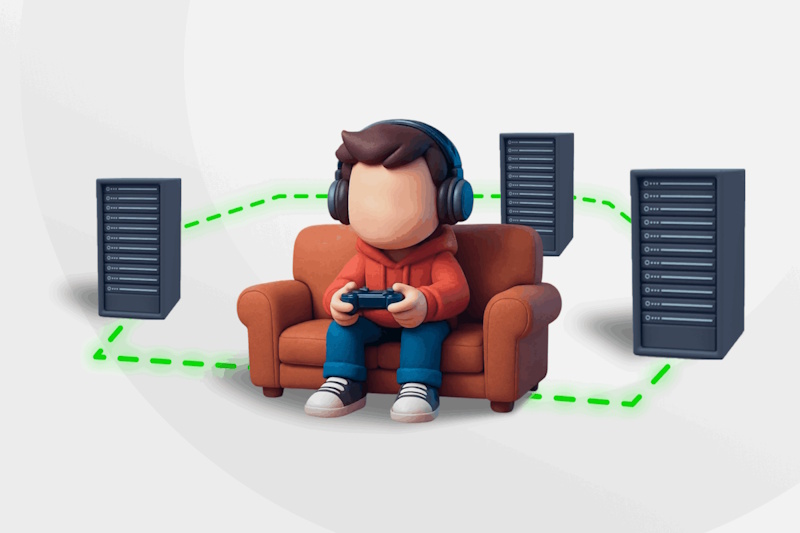
DNS is unlikely to help when the match has already started and the problem is high round-trip latency, Wi-Fi interference, congestion, packet loss, an overloaded game server, or a distant server region. In those cases:
- Use Ethernet or a strong 5 GHz/6 GHz Wi-Fi connection where practical.
- Stop large uploads and downloads on the local network.
- Select the nearest game region instead of relying on automatic selection.
- Test without a VPN or gaming route optimizer, then compare results.
- Check for packet loss between your device, router, ISP, and the game service.
If a resolver change breaks a launcher or login, restore Automatic (DHCP) or switch to an unfiltered resolver. TipsMake also compares DNS servers that emphasize online safety.
A DNS change is a small, reversible network adjustment—not a universal ping fix. Choose a documented provider, test it locally, and keep the configuration only if it improves reliability without blocking the services you use.
Related Articles
 Top Best Gaming Desktops25 minutes read
 5 Top Gaming Mice in 2024: Best Options Compared7 minutes read
 5 Reasons Not to Buy a Gaming Laptop10 minutes read
 Ranked 25 Fastest Gaming Laptops6 minutes read
 5 Top Gaming Keypads in 2024: Top Picks and Buying Guide8 minutes read
 Top 7 Best Gaming Laptops in 202111 minutes read
Reader Comments 0
Sign in with email or Google to join the discussion.