Table of Contents
This guide provides a clear, practical overview of "Windows 11 Won't Respect Your Privacy Until You Make These Changes". It organizes the most useful details, explains important considerations, and highlights the steps or choices that matter most.
7. Location Tracking
By default, Windows 11 tracks your location, allowing Microsoft and third-party apps to know where you are. If you're uncomfortable with this, or rarely use location-based apps like Weather or Uber, turning off location services will stop the data collection. It can also save battery life on laptops and tablets.
To do that, go to Settings > Privacy & Security , scroll down to App Permissions and select Location . From there, turn off Location services .
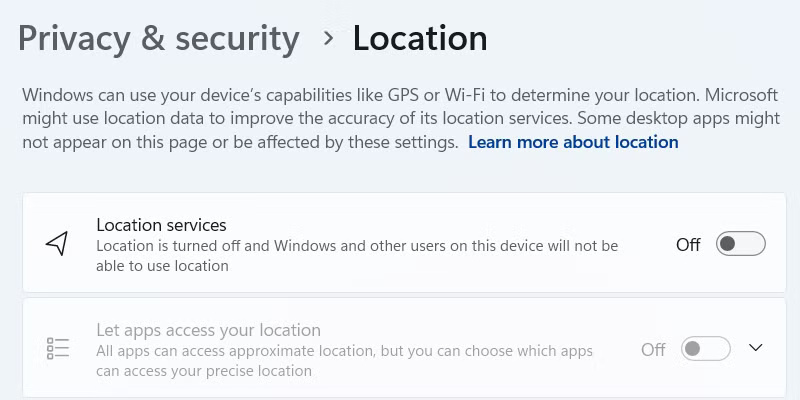
In the pop-up window, click Turn off to completely turn off location services.
6. Application Permissions
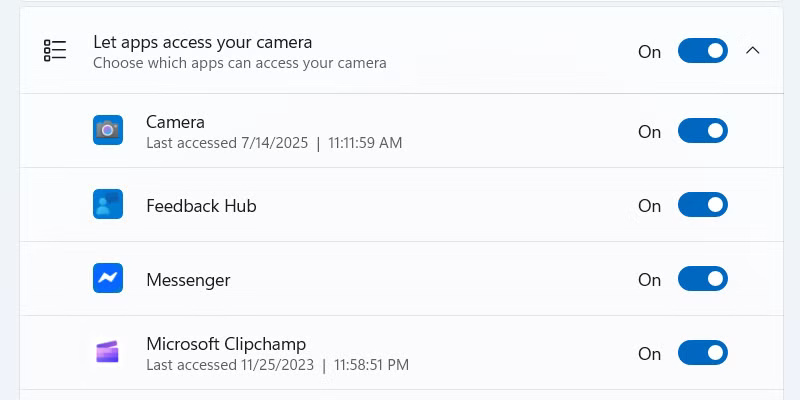
By default, Windows 11 grants apps a lot of permissions, which can be a violation of your privacy. It's also easy to grant permissions you don't want. For both reasons, it's a good idea to review and adjust app permissions to make sure certain apps don't have too much access.
To do this, go to Settings > Privacy & Security , then scroll down to App Permissions . Here you'll find permissions like Camera , Microphone , and Contacts . Select an app, expand Let apps access your [permission] , and turn off access for apps that don't need that permission.
5. Cloud Clipboard
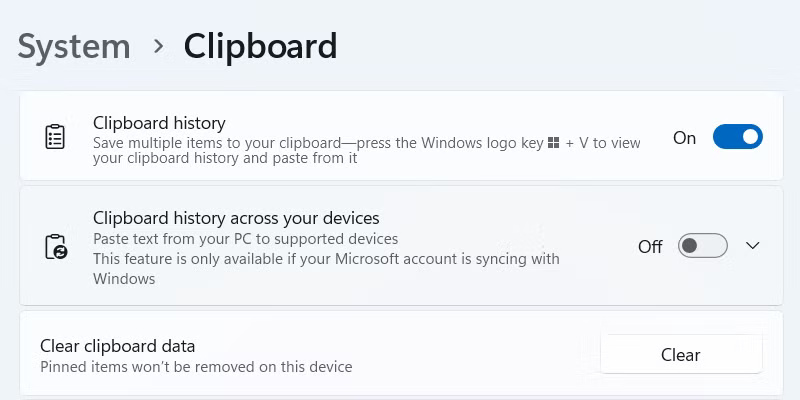
The clipboard is a handy feature that temporarily stores items you've copied (such as text and images), allowing you to quickly paste them between applications. The clipboard history, displayed by pressing Win + V , is especially useful when you want to retrieve multiple copied items. This feature is even more useful with these best clipboard tips for Windows.
But do you want your clipboard to sync data to Microsoft servers or across devices, leading to data collection and inadvertent sharing of sensitive data? If not, you can easily turn off clipboard history by going to Settings > System > Clipboard and turning off Clipboard history across devices .
4. Cloud sync
Windows' cloud syncing capabilities can also pose privacy concerns, as it stores your settings, files, app data, and preferences in your OneDrive account. In addition to Microsoft's obvious data collection capabilities, it can also lead to persistent tracking. To prevent this from happening, you can unlink your OneDrive account from Windows.
To do that, click the OneDrive icon in the notification area in the lower right corner. Next, click the gear icon in the upper right corner and select Settings from the menu.
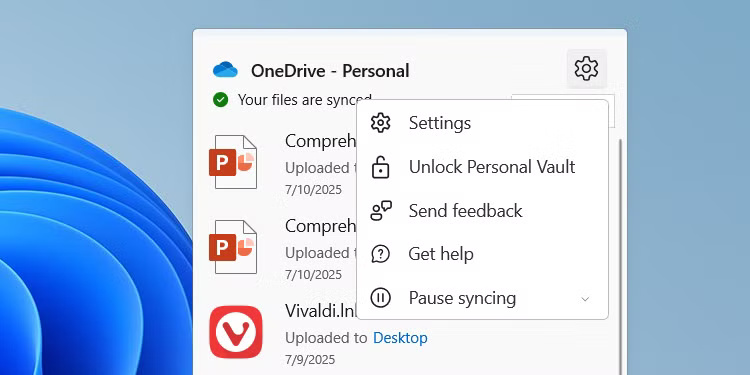
Select the Account tab on the left and click the Unlink this PC link.
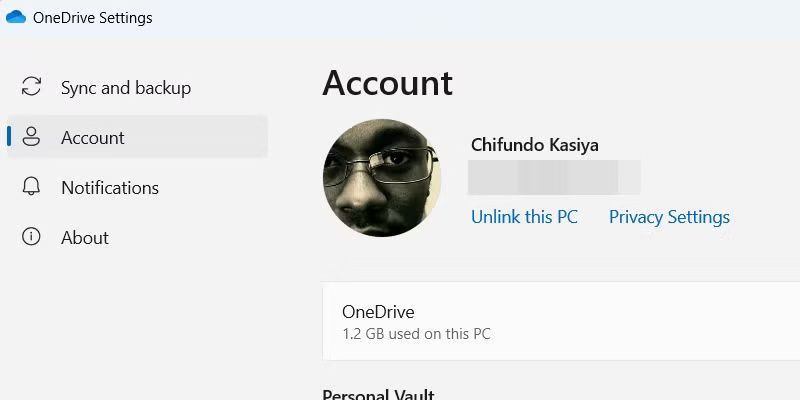
In the pop-up window, click Unlink account , and that's it - no more cloud syncing.
3. Set up a Microsoft account
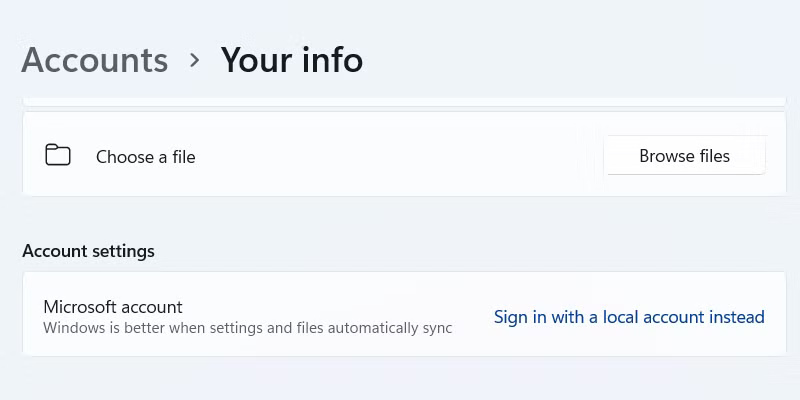
When you install Windows 11, you're asked to sign in with a Microsoft account to complete the setup. While linking a Microsoft account to Windows has some benefits, it also allows Microsoft to track your usage habits, collect data, and create a digital profile that's directly tied to your identity.
Some tricks let you bypass the Microsoft account requirement, but if you sign in, the good news is that you can still sign out afterwards. You'll be using a local account afterwards, which provides a more private experience.
To switch to a local account, go to Settings > Accounts > Your info and click the Sign in with a local account instead link.
2. Background Data Collection and Telemetry
By default, Microsoft collects data about your device and usage habits to help improve the operating system. This feature, called telemetry, can include information about your hardware, app usage, feature usage, and performance data. While you can't turn off this data collection entirely, you can limit it.
To do this, go to Settings > Privacy & security > Diagnostic & feedback and expand the Diagnostic data section. Find the Send optional diagnostic data toggle and turn it off.
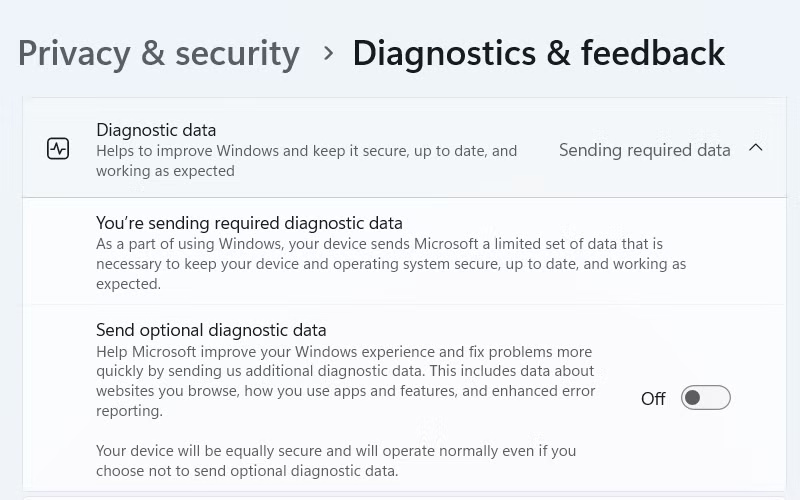
Next, delete any diagnostic data that Microsoft may have collected for your Windows PC. Scroll down, expand the Delete diagnostic data section, and click Delete .
1. Personalized advertising and advertising ID
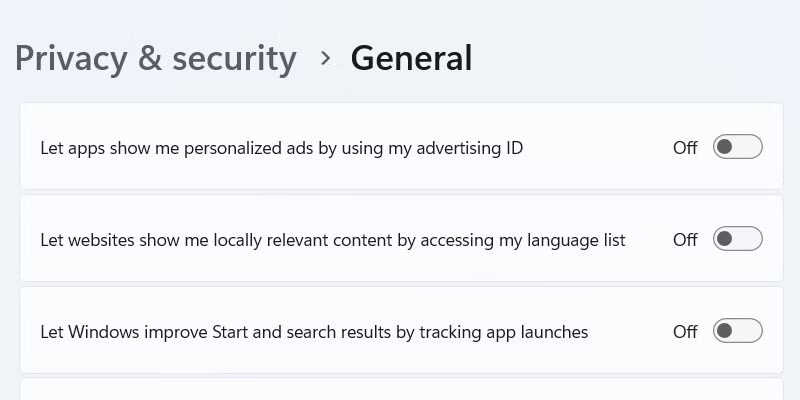
Personalized advertising relies on extensive tracking of your online behavior, browsing history, and personal information without your explicit consent. This is a privacy nightmare that you can turn off by turning off your advertising ID in Settings. However, be aware that apps will continue to show you non-personalized ads after you turn this feature off (based on general factors like location and what you're doing in the app).
Go to Settings > Privacy & security > General and turn off Let apps show me personalized ads by using my advertising ID . Here, you'll also find some additional tracking options you might want to turn off, such as Let websites show me locally relevant content by accessing my language list and Let Windows improve Start and search results by tracking app launches .
FAQ
What should you know about 7. Location Tracking?
By default, Windows 11 tracks your location, allowing Microsoft and third-party apps to know where you are. If you're uncomfortable with this, or rarely use location-based apps like Weather or Uber, turning off location services will stop the data collection. It can also save battery life on laptops and tablets.
What should you know about 6. Application Permissions?
By default, Windows 11 grants apps a lot of permissions, which can be a violation of your privacy. It's also easy to grant permissions you don't want. For both reasons, it's a good idea to review and adjust app permissions to make sure certain apps don't have too much access.
What should you know about 5. Cloud Clipboard?
The clipboard is a handy feature that temporarily stores items you've copied (such as text and images), allowing you to quickly paste them between applications. The clipboard history, displayed by pressing Win + V, is especially useful when you want to retrieve multiple copied items. This feature is even more useful with these.
What should you know about 4. Cloud sync?
Windows' cloud syncing capabilities can also pose privacy concerns, as it stores your settings, files, app data, and preferences in your OneDrive account. In addition to Microsoft's obvious data collection capabilities, it can also lead to persistent tracking. To prevent this from happening, you can unlink your OneDrive account.
Related Articles
 4 Privacy - Focused Apps You Should Switch To6 minutes read
 3 Browsers That Respect User Privacy More Than Chrome: Practical Guide4 minutes read
 Always Respect Your Parents When They Get Old, Because4 minutes read
 Hey Copilot on Windows 11: Hands-Free AI or Just a Privacy Headache: Key Facts7 minutes read
 A Tool to Help You Control Your Privacy in Windows 104 minutes read
 How to Tighten Privacy on Chromebooks6 minutes read
Reader Comments 0
Sign in with email or Google to join the discussion.