Table of Contents
Any well-organized Notion page can become a shareable template. Build the page and its subpages, remove private or unnecessary sample data, test the structure from a recipient's perspective, publish the page, and enable Duplicate as template. People who open the public link can then copy the page into their own Notion workspace.
This guide covers a public page template. A database template is different: it creates standardized entries inside one database and is better for recurring meeting notes, project briefs, bug reports, or other internal records.
1. Create a clean root page
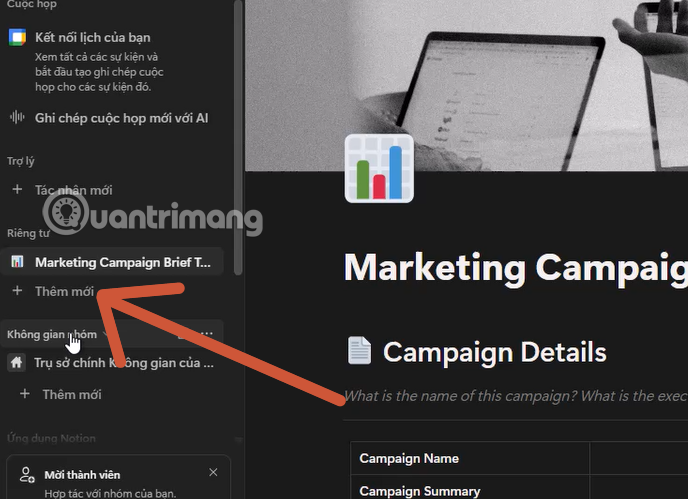
Select New page in the Notion sidebar and give the page a specific name. This root page should contain everything a recipient needs to understand and use the template. Add subpages beneath it when the workflow has several parts, but avoid unnecessary nesting.
At the top, add a short callout that explains:
- what the template is for;
- who it is designed for;
- the first action a new user should take;
- which sample records may be deleted; and
- which integrations or permissions require separate setup.
2. Design the reusable structure
Add only blocks that help the workflow: headings, checklists, toggles, callouts, databases, buttons, files, images, and subpages. A good template gives users a useful starting state without forcing them to delete pages of filler.
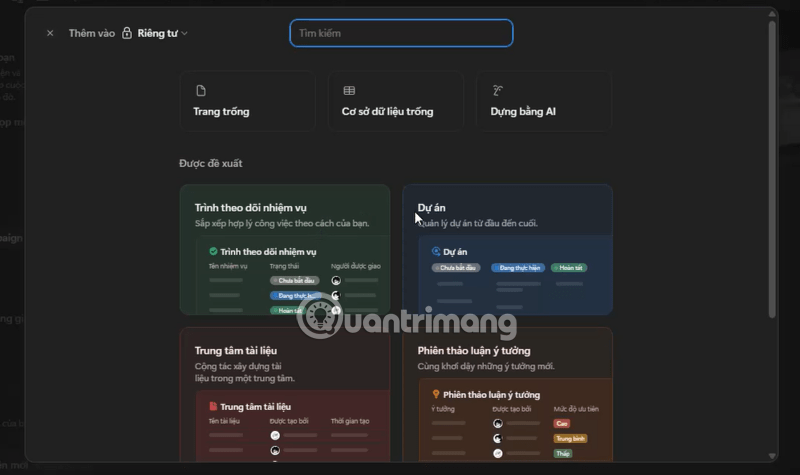
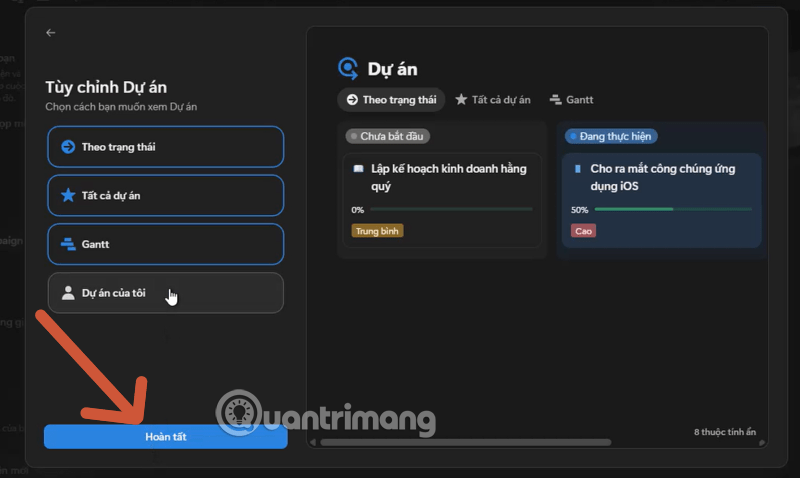
For a project tracker, for example, you might include a Projects database, a Tasks database, linked views filtered to active work, and a short setup checklist. For meeting notes, one database with a reusable entry format may be enough.
Use database templates for repeated records
Inside a database, open the menu beside New and choose New template. Set default properties and add the page content that each new record should contain. Notion's database template documentation notes that templates can include images, embeds, and subpages.
Be careful with relation properties. If a relation is filled in inside the template, every new record may point to the same existing page. Leave it blank unless that shared relationship is intentional.
3. Remove private data and fragile dependencies
Publishing a template makes the selected page available on the web. Before publishing, remove names, email addresses, customer details, internal URLs, API keys, private files, comments, and realistic sample records that should not be public.
Also inspect every component that depends on another workspace resource:
- Linked database views: confirm that the underlying database is included in the template or intentionally shared.
- Relations and rollups: check that related databases will duplicate in a usable way.
- Buttons and automations: document any permissions, recipients, integrations, or credentials the recipient must configure.
- Embeds: verify that recipients are allowed to view the source.
- Files and images: make sure you have permission to redistribute them.
Duplicating a page does not transfer ownership of outside services or credentials. A template can contain a button or an embedded workflow without making its connected account available to the recipient.
4. Test the template before publishing
Duplicate the root page into a test area or use a separate test workspace. Follow the instructions as if you had never seen the template. Create a record, use each database view, click each button, open each subpage, and check the mobile layout if recipients may use phones.
| Check | What success looks like |
|---|---|
| First-use instructions | A new user knows what to do without asking the creator |
| Databases | Properties, filters, sorts, and templates work on copied data |
| Relations | No accidental link points back to private workspace content |
| Buttons and automations | Required setup is documented; no action targets the creator's private resources |
| Sample content | Examples are clearly labeled and safe to publish |
| Permissions | The public visitor can view and duplicate, but not edit the creator's source page |
5. Publish the Notion page
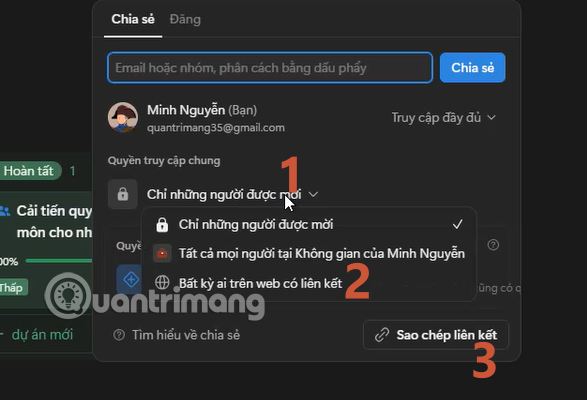
Open Share at the top of the root page, select the Publish area, and publish it as a Notion Site. Review search discoverability, comments, and other site options according to the audience you want.
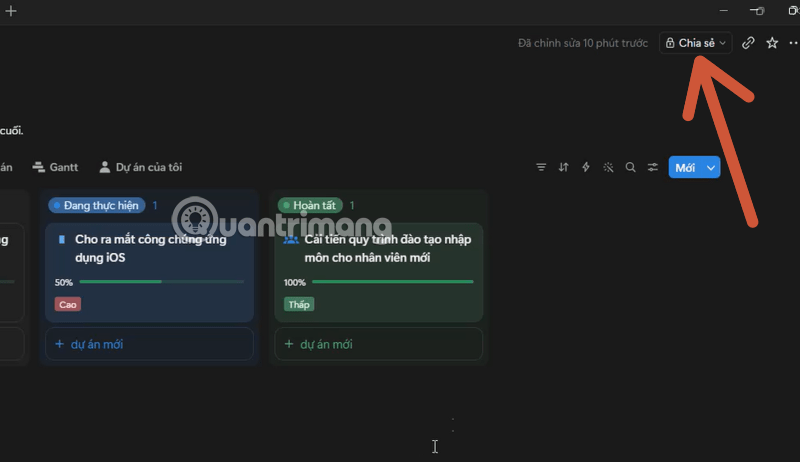
Publishing and sharing with invited collaborators are not the same. A collaborator link follows the page's workspace permissions; a published page is web-accessible according to its site settings.
6. Enable duplication and copy the public link
In the published site's customization controls, find the header option and make sure Duplicate as template is enabled. Depending on the current interface, this option may appear during publishing or under Site customization > Header. Notion's current guide to duplicating public pages also explains how a creator can turn duplication off.
Copy the public web link, open it in a private browser window, and confirm that the page loads without your signed-in workspace permissions and displays a Duplicate control.
What recipients should expect
When someone duplicates the template, Notion creates an independent copy in the workspace they choose. Later edits to your source template do not automatically update copies that people already made. Add a visible version label or update date if recipients need to know which release they have.
Some components may require paid-plan features, organization permissions, or separate service accounts. State those requirements before the user duplicates the template. If the design is meant only for one team, consider keeping it inside the workspace and using database templates instead of publishing it to the web.
Improve the template without overdesigning it
- Use consistent property names and statuses.
- Create focused views for common tasks rather than showing every field at once.
- Add one realistic example, then label it as sample data.
- Keep setup instructions separate from day-to-day working views.
- Prefer native Notion blocks when an external widget does not add real value.
- Include a brief change log when you publish important revisions.
For examples of practical layouts, see TipsMake's list of Notion templates for students and teachers. If you plan to add external elements, compare TipsMake's useful Notion widgets and verify each provider's privacy and availability first.
Common sharing problems
| Problem | Likely fix |
|---|---|
| Visitors cannot open the link | Use the published web link and confirm the site is still published. |
| The Duplicate control is missing | Enable Duplicate as template in the site's header customization. |
| A database appears empty or inaccessible | Check whether the underlying database is inside the published root page and has appropriate permissions. |
| A button or automation fails | Document the required permissions and let the recipient reconnect any integration in their own workspace. |
| Old copies do not receive updates | This is expected; publish a version note and ask users to duplicate the new release if needed. |
The strongest Notion template is not the most complicated one. It is the version a new user can duplicate, understand, and adapt without exposing the creator's private workspace.
Related Articles
 Top 10 Notion Templates Are Suitable for Students and5 minutes read
 6 Fun Ways to Use Notion: Top Picks and Buying Guide12 minutes read
 7 Most Useful Notion Widgets6 minutes read
 6 Reasons You Don't Need a Notion Plus Subscription6 minutes read
 Notion Calendar Explained8 minutes read
 Detailed How to Use Notion Web Clipper7 minutes read
Reader Comments 0
Sign in with email or Google to join the discussion.