Table of Contents
Most modern SSDs need little manual tuning. Keep reasonable free space, leave Windows drive optimization enabled, update firmware cautiously, monitor temperature and health, and maintain backups. Avoid registry “tweaks” that disable useful Windows features in the name of reducing writes.
1. Keep useful free space
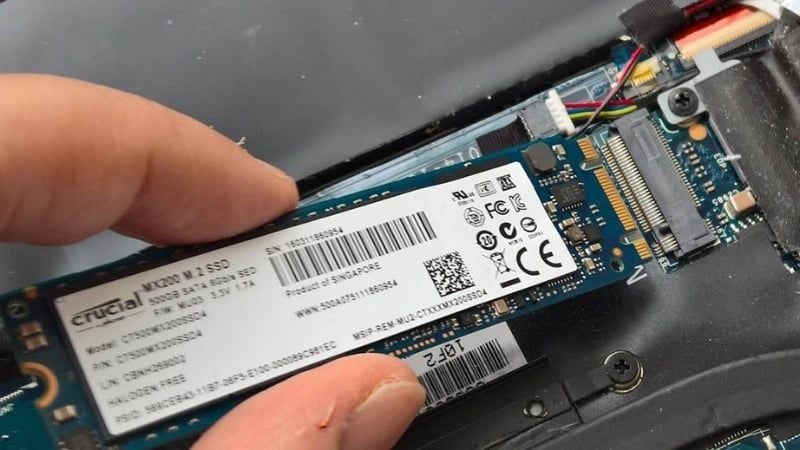
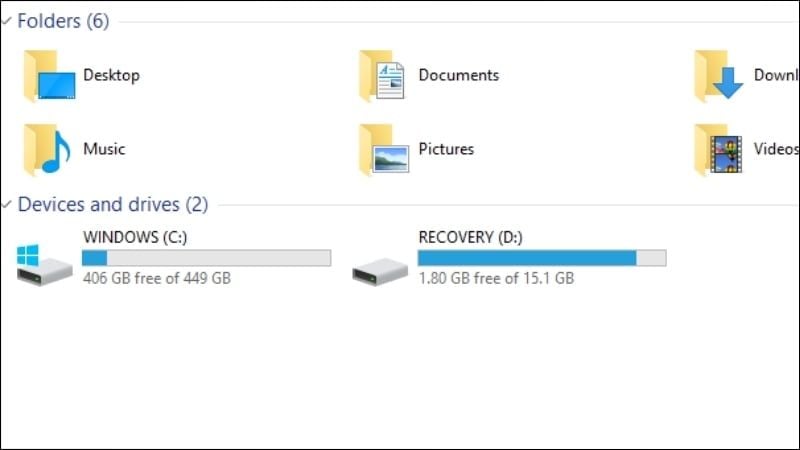
An SSD can slow down when nearly full because its controller has fewer empty flash blocks available for writes and background cleanup. There is no universal percentage for every model and workload, but keeping roughly 10–20% free is a practical target for a system drive. Leave more room if large transfers become inconsistent.
Free file-system space and manufacturer-configured over-provisioning are related but not identical. Many SSDs already reserve hidden capacity. Do not create an extra partition merely because a guide claims that every drive needs exactly 25% over-provisioning.
2. Let Windows run TRIM
TRIM tells an SSD which deleted blocks no longer contain needed data, allowing the controller to prepare them for later writes. Windows 10 and 11 normally enable this automatically for supported drives.
To check the status, open Terminal (Admin) or Command Prompt (Admin) and run:
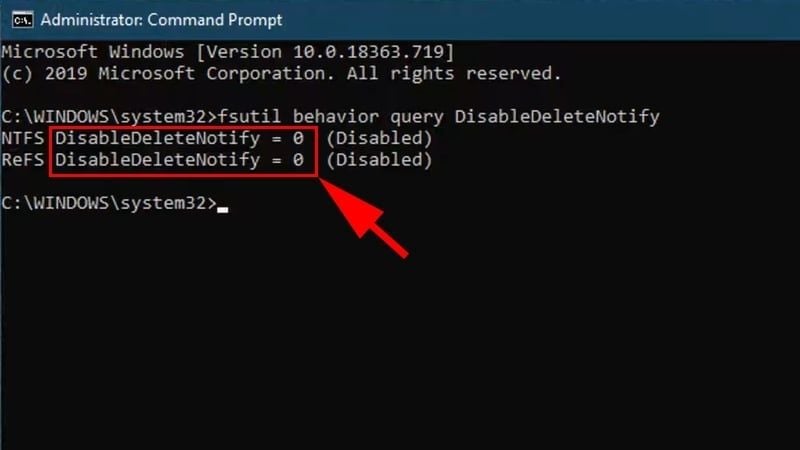
fsutil behavior query DisableDeleteNotifyA result of NTFS DisableDeleteNotify = 0 means delete notifications are enabled for NTFS. If the value is 1, first confirm that Windows correctly identifies the drive as an SSD and that the storage controller driver is working. The enable command is:
fsutil behavior set DisableDeleteNotify 0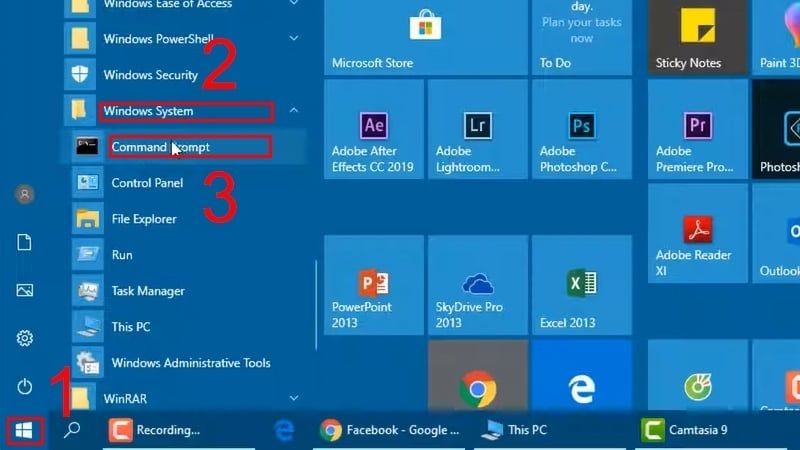
3. Keep scheduled drive optimization enabled
Do not run a traditional third-party defragmenter against an SSD. At the same time, do not disable Windows' built-in Defragment and Optimize Drives schedule. Windows recognizes the storage type and normally sends TRIM commands to an SSD rather than treating it like a mechanical disk. Microsoft documents the distinction in its drive optimization guidance.
4. Understand AHCI and NVMe before changing firmware settings
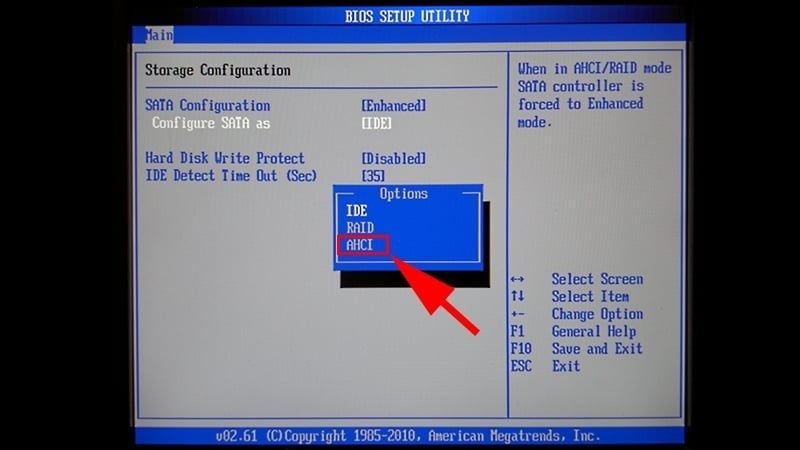
AHCI is relevant to SATA storage. NVMe drives use the NVMe protocol and do not need an AHCI mode. Most current systems already use the correct controller setting.
Do not switch a Windows installation from IDE or RAID to AHCI casually. Changing the controller mode after Windows is installed can make the system unbootable until the required driver and boot configuration are prepared. Follow instructions for the exact motherboard or laptop, and back up important files first.
5. Manage NVMe temperature
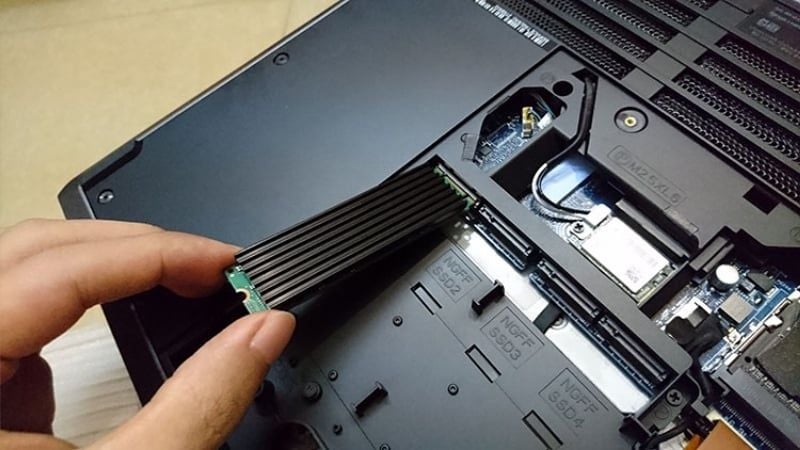
Fast PCIe NVMe drives can throttle during sustained transfers when the controller becomes too hot. Use the motherboard's M.2 cover or a compatible heatsink when the drive manufacturer recommends one, especially for sustained video work, large builds, or repeated file transfers.
A heatsink is not automatically necessary for every SSD. Check the drive's reported temperature under the workload that causes trouble, ensure the thermal pad contacts the controller and flash correctly, and improve case airflow before adding bulky cooling hardware.
6. Monitor health and update firmware carefully
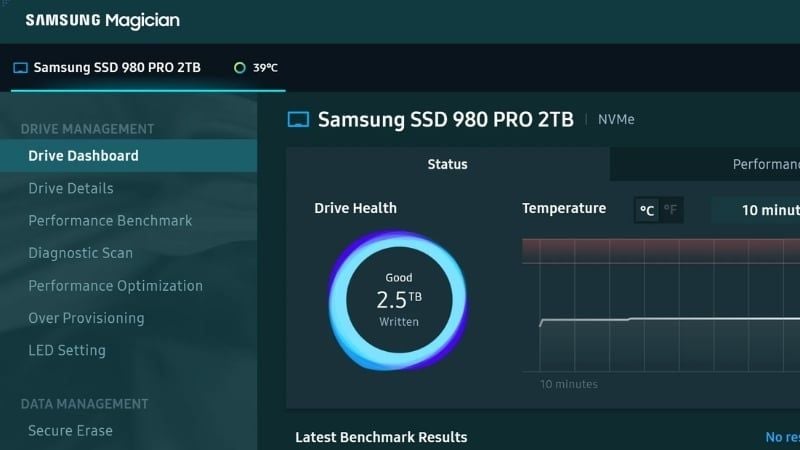
Use the SSD manufacturer's utility when available to check firmware, temperature, SMART data, remaining-life indicators, and total bytes written. CrystalDiskInfo can provide a convenient cross-brand overview on Windows. Pay particular attention to critical warnings, media errors, unsafe shutdowns, and a rapidly declining health percentage.
Install firmware only from the manufacturer and read the release notes. Back up first: firmware updates are normally safe, but a power interruption or failed update can make a drive inaccessible.


7. Do not fear normal writes
Every NAND SSD has finite write endurance, often expressed as TBW in the warranty, but normal paging, browser caching, game updates, indexing, and file work are expected uses. Disabling the Windows page file or search index can create worse performance and stability problems without materially extending the life of a typical consumer drive.
High-volume recording, database logging, scratch-disk work, or continuous cache workloads deserve an SSD rated for that write load. For ordinary use, choose a reputable model, keep backups, and use the drive rather than micromanaging every write.
8. Protect data from power loss and failure
An unexpected shutdown can corrupt a file system or interrupt a write. Use a healthy laptop battery or a UPS for a desktop when power is unreliable, and shut down normally. More importantly, keep at least one backup on a different device or service. SMART status and an SSD warranty are not substitutes for a backup.
A sensible SSD maintenance checklist
- Keep approximately 10–20% free when practical.
- Leave Windows scheduled optimization enabled.
- Confirm TRIM if write performance is unexpectedly poor.
- Check firmware and SMART data a few times per year or when symptoms appear.
- Monitor NVMe temperature under sustained load.
- Back up irreplaceable files independently of the SSD.

If a new drive behaves suspiciously, use these checks to identify a fake SSD. For more longevity guidance, review the common mistakes that can shorten SSD life.
Related Articles
 How to Effectively Speed up Computer7 minutes read
 How Long Is SSD Lifespan? How to Estimate SSD Drive Life: Main Insights10 minutes read
 Simple Habits That Help Extend the Lifespan of Your Headphones7 minutes read
 Clean Your Computer Mouse Properly, Remove Dust, Increase Lifespan5 minutes read
 These Factors Determine the Speed of the Computer9 minutes read
 30+ Ways to Speed up Your Computer Effectively on Windows 1021 minutes read
Reader Comments 0
Sign in with email or Google to join the discussion.