Table of Contents
FFSJ stands for Fastest File Splitter and Joiner. It is a file-splitting utility with separate tabs for splitting a file, joining its parts, and calculating an MD5 checksum. HJSplit is a different program; the two names should not be used interchangeably.
Splitting is useful when a file exceeds a transfer limit. It does not reduce the total amount of data like compression, and each recipient needs the complete set of parts to reconstruct the file.
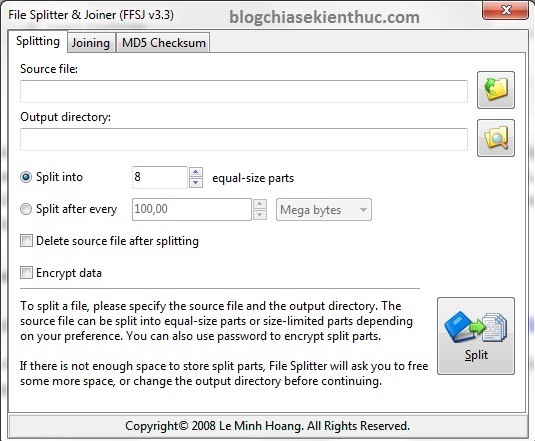
Prepare the file and destination
The older package described here offered installed and portable variants. Use a trusted copy and check compatibility with your system; the screenshots document the legacy interface rather than a current release guarantee.
Keep a backup of the original file. Choose a destination with enough free space for the parts as well as any original file stored on the same drive. Before sending a large set, test the split-and-join workflow with a small sample.
Split a file by size or number of parts
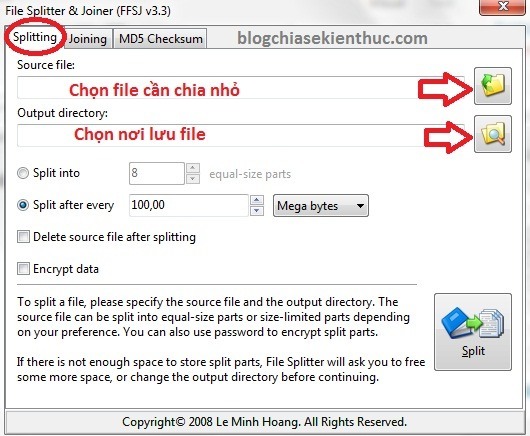
- Open the Splitting tab and select the file under Source.
- Choose the folder under Output directory.
- Select Split into to specify a number of parts, or Split after every to specify a maximum part size.
- Check the size unit. For an upload limit, choose a size below the service’s maximum.
- Leave Delete source file after splitting unchecked while testing and transferring.
- Select Split and wait for completion.
For example, choose “Split into” with 8 if you need eight pieces. Choose “Split after every” if each piece must fit a size limit. The last part may be smaller than the others.
The interface also offers Encrypt data. If you use it, test that you can join the pieces with the required password and retain that password securely. This guide does not establish the strength of the legacy encryption, so do not select it solely on the assumption that it meets a modern security requirement.
Join the parts back into one file
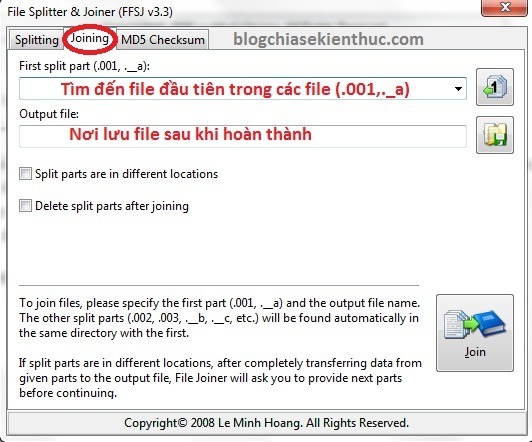
- Collect all pieces from the same file into one folder without renaming them.
- Open Joining and select the first part through First split part. The interface identifies supported starting suffixes such as
.001or._a. - Choose the destination under Output file.
- If pieces are stored in separate locations, use the corresponding option and follow the prompts. Keeping the complete set together is simpler.
- Leave Delete split parts after joining unchecked until verification is complete.
- Select Join and provide a password if the parts require one.
Open the reconstructed file in its intended application and, when a reference checksum is available, compare it. Do not delete the source or parts just because the progress bar reached the end. See the illustrated FFSJ walkthrough for more examples of these controls.
Calculate an MD5 checksum
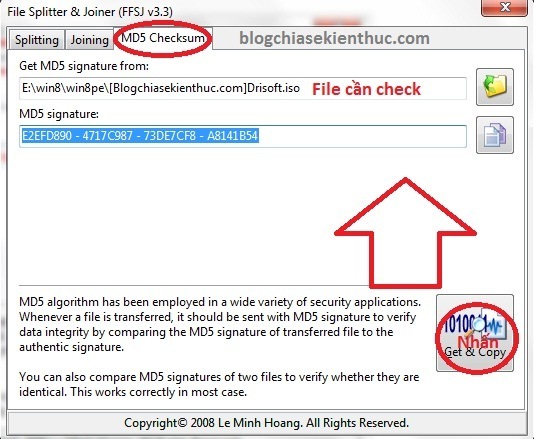
In MD5 checksum, select the complete file under Get MD5 signature from, then choose Get & Copy. The calculated value appears in the signature field and can be compared with the value for the original file.
Use the same algorithm and the same intended file for both sides of the comparison. A part’s hash will not match the complete file’s hash. A mismatch can indicate an incomplete transfer, a wrong file, or changed contents.
MD5 is suitable only for limited legacy change checks; it is not secure against deliberate tampering. Prefer SHA-256 when the publisher provides it, and obtain the expected value from a trusted source. Microsoft’s Get-FileHash documentation explains supported algorithms, and the Windows checksum guide provides other ways to calculate them.
Fix common joining problems
- A part is missing: retrieve the missing piece rather than renaming another one to fill the gap.
- The output will not open: verify the part sequence, check for incomplete downloads, and confirm that all pieces came from the same source file.
- The format is unrecognized: determine which tool created the pieces. Multipart archives may require their archive program.
- There is not enough space: allow room for both the parts and the full output until the joined file has been checked.
Related Articles
 How to split and join files with FFSJ
 5 best free CSV splitting tools, CSV file splitting software
 What is FFSJ? Instructions on how to use FFSJ file splitter software
 HJSplit extremely fast file splitting software
 Top 5 best PDF file joining software and how to use it
 2 The best free software for cutting and joining music
Reader Comments 0
Sign in with email or Google to join the discussion.