Table of Contents
A VPN or proxy can make a website see the intermediary server’s public IP address instead of the address used by your normal connection. This is often called “fake IP,” but it is different from spoofing packet source addresses. It does not automatically make you anonymous, remove account restrictions, or guarantee access to a website.
VPN, proxy, and DNS: what changes?
| Method | What it does | Main limitation |
|---|---|---|
| VPN | Routes covered traffic through a tunnel to a VPN service. | Traffic outside the tunnel, such as excluded apps, may use the normal connection. |
| HTTP or SOCKS proxy | Relays traffic from applications configured to use it. | Other applications may connect directly; proxying alone does not guarantee encryption. |
| DNS change | Changes how domain names are resolved. | Ordinary DNS changes do not replace the public source IP seen by websites. |
| Private IP change | Changes an address inside a local network. | It usually does not change the public address used to reach the internet. |
Some proxies cache content, but caching is not their universal purpose and they do not necessarily store everything a user downloads. A SOCKS proxy supports different traffic patterns from an HTTP proxy; that does not inherently make it anonymous or encrypted.
For background on name resolution, see how DNS works. A DNS-switching utility should not be presented as an IP-hiding service.
Choose a service you can trust
For a managed network, use the configuration supplied by its administrator. For a personal VPN or proxy, check the provider, supported devices, privacy policy, connection limits, and available locations. Free service does not automatically mean unsafe, but an anonymous public proxy list gives you little basis for trusting its operator.
Do not expect a VPN to increase the bandwidth of your internet plan. Routing through another server can change latency and speed in either direction. Sites may also recognize VPN addresses or use account, cookie, and device information to identify visitors.
Set up a trusted proxy in Windows
You need the server hostname or IP address and port, or an authorized configuration-script URL. Record your existing settings first so you can restore them if the connection fails.
- Open Settings → Network & internet → Proxy.
- For a manual server, open the setup control beside Use a proxy server.
- Enter the address and port supplied by your provider or administrator.
- Review any exceptions for addresses that should connect directly.
- Save the settings and test a browser that uses the system proxy.
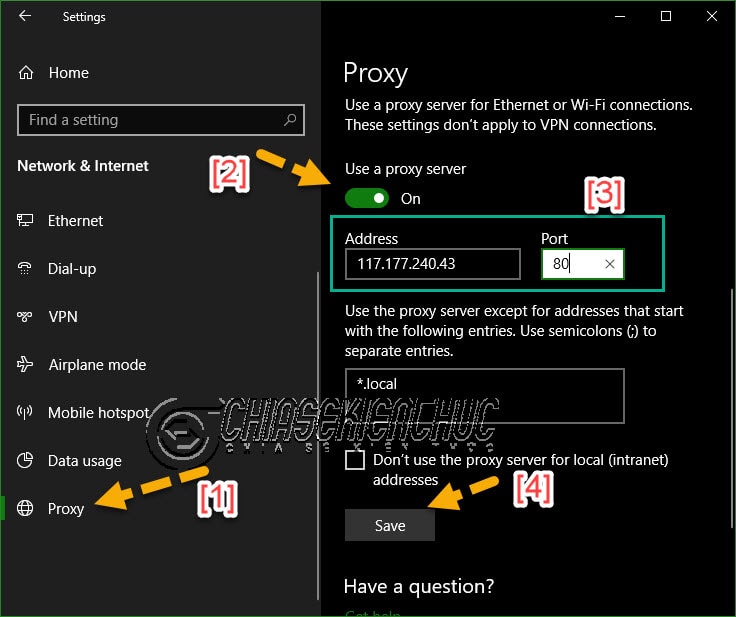
If you were given a setup script, use the script option instead of putting its URL into the manual server field. Microsoft’s Windows proxy guide explains both workflows and separate settings for VPN connections.
Older Internet Options interface
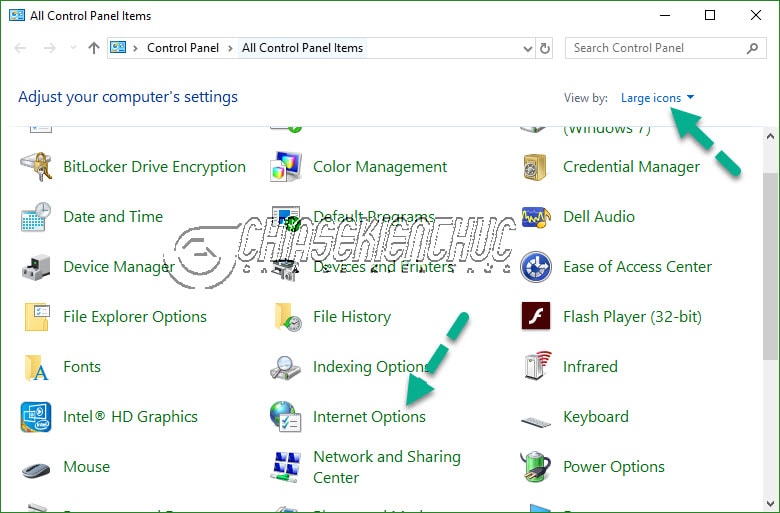
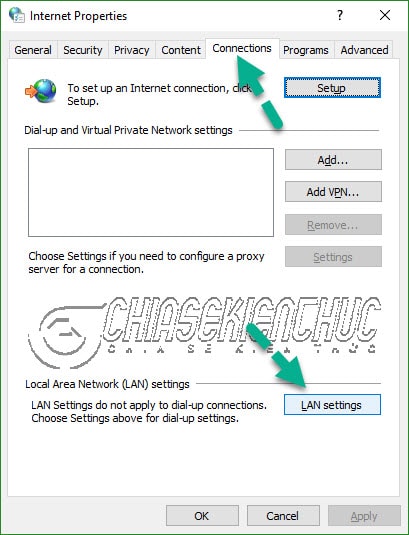
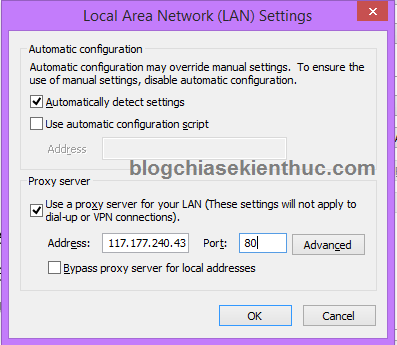
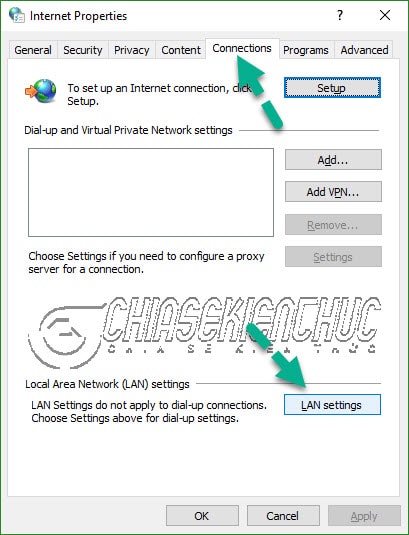
Older instructions use Control Panel → Internet Options → Connections → LAN settings. These screenshots show that path. Do not copy an address displayed in a historical screenshot: it is not a verified service endpoint.
Chrome, Edge, and other Chromium browsers
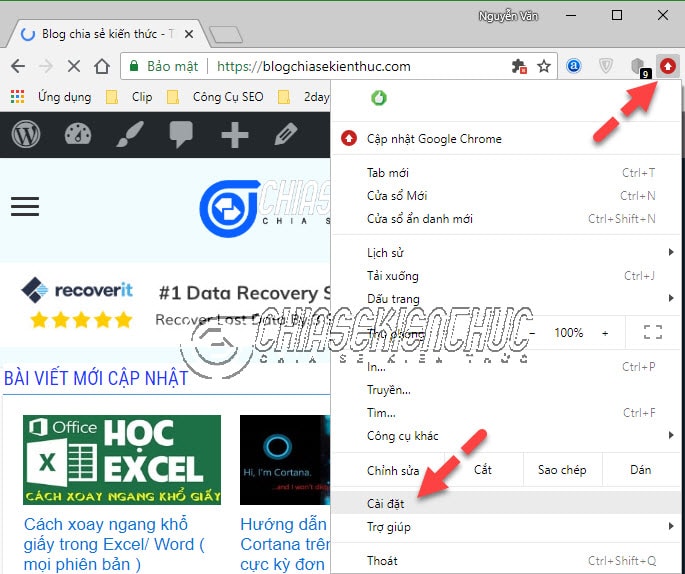
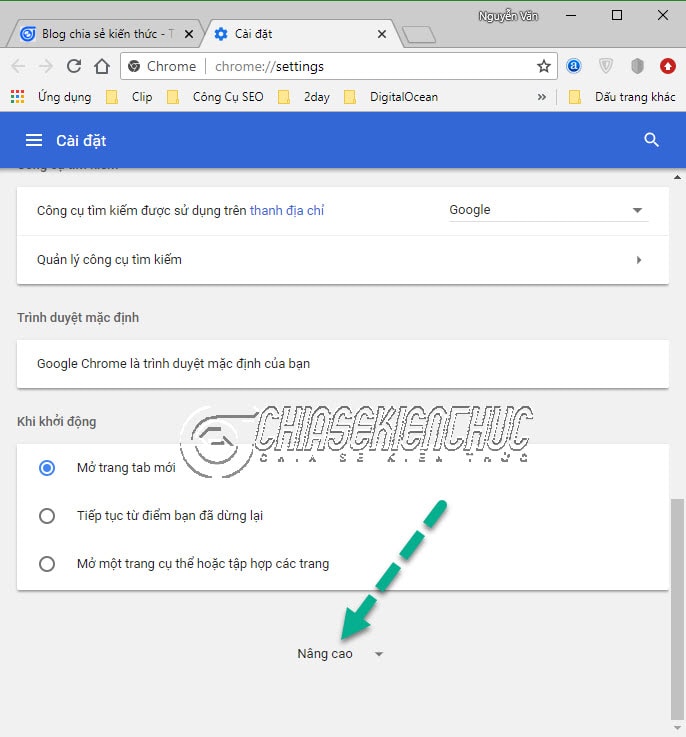
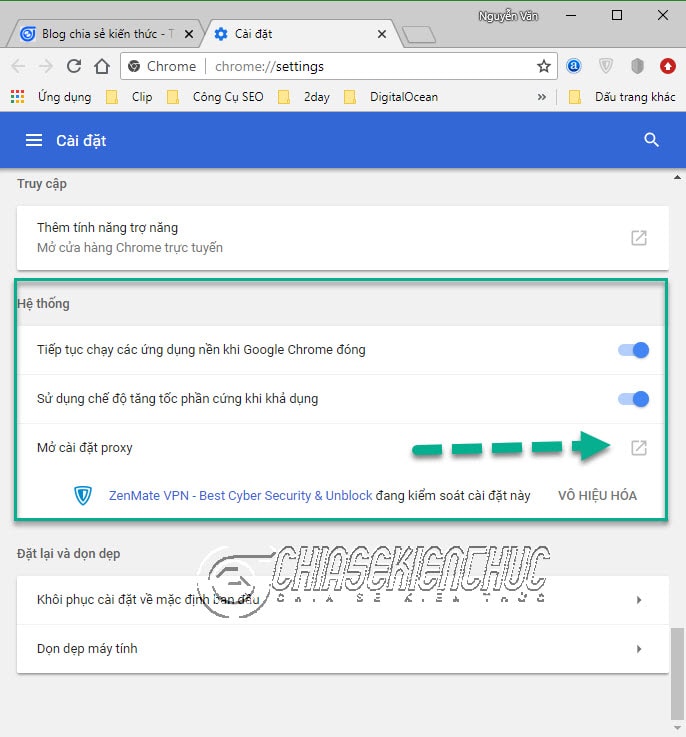
On Windows, Chrome and Edge normally provide a shortcut to the computer’s proxy settings. Search the browser settings for “proxy,” then open the system settings and follow the Windows steps above. A browser extension may instead control a browser-specific connection, so check which method is active.
The following screenshots show an older Chrome path through Settings and Advanced. They are useful for recognizing the system-proxy handoff, but current menu layouts may differ.
A proxy setting does not necessarily cover every application on the computer. Do not assume that configuring the browser also changes a game, mail client, or other program’s connection.
Configure a proxy in Firefox
Firefox can use system settings or its own manual configuration. Search its Settings for “proxy” and open the connection or proxy configuration dialog. Mozilla has moved these controls between sections in different versions, so use its current connection-settings guide if the older layout below does not match.
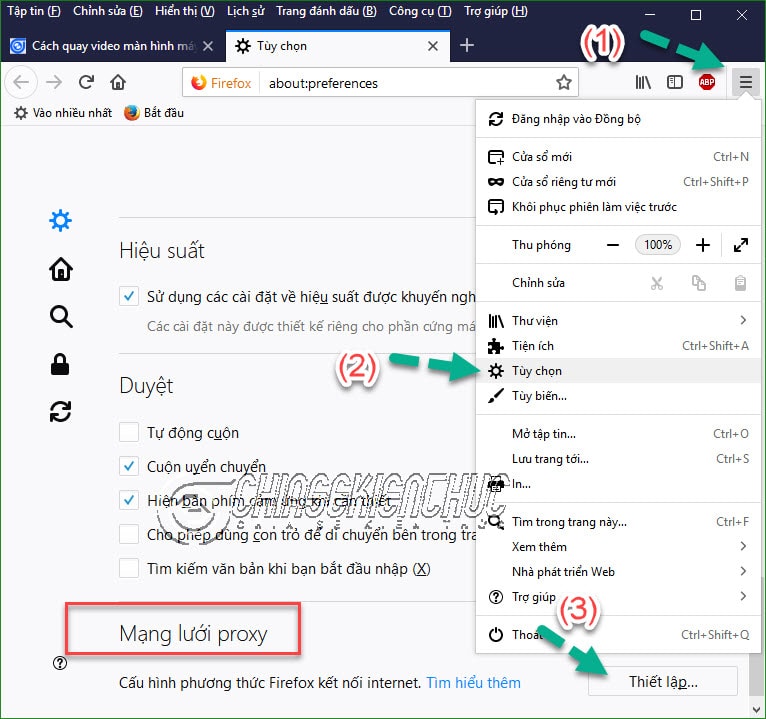
- Choose Use system proxy settings if you want Firefox to follow the operating system configuration.
- For a separate server, choose Manual proxy configuration.
- Enter the supplied HTTP or SOCKS host and port in the corresponding fields, using the protocol and options specified by the provider.
- Review exceptions and save the configuration.
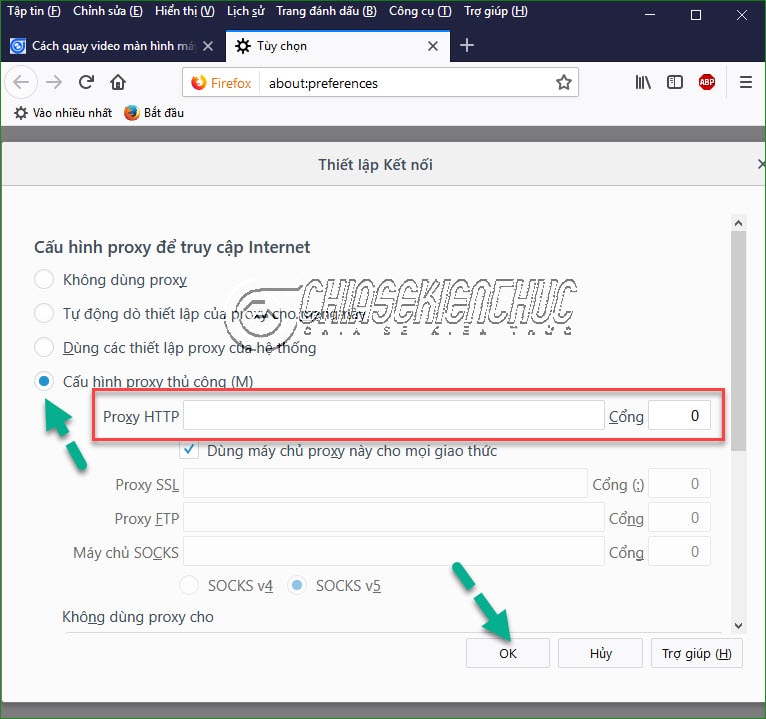
To undo a personal test, restore the previous setting. Select No proxy only if a direct connection is appropriate for your network; an organization may require its configured proxy.
Use a VPN on a phone or computer
Install the provider’s official app, review the requested VPN permission, and connect. Select a location only if the service offers that feature. Check whether split tunneling or exclusions leave some apps outside the tunnel.
Not every tunneling service is a country-selection tool. For example, the Cloudflare WARP setup guide explains the difference between its traffic-tunneling and DNS-only modes.
Verify the result and recover from errors
Compare the public IP reported in the same browser before and after connecting. A changed address confirms that particular request used a different route; it does not prove that every app, IPv6 connection, or DNS request follows it.
If websites stop loading, verify the host, port, authentication, and selected protocol. Restore your recorded settings if the test configuration is wrong. On a managed device, contact the administrator rather than changing required network policies.
Continue using HTTPS and normal account protections. A VPN or proxy changes the network path and who you trust along that path; it does not make phishing pages, unsafe downloads, or a compromised device harmless.






Reader Comments 0
Sign in with email or Google to join the discussion.