Table of Contents
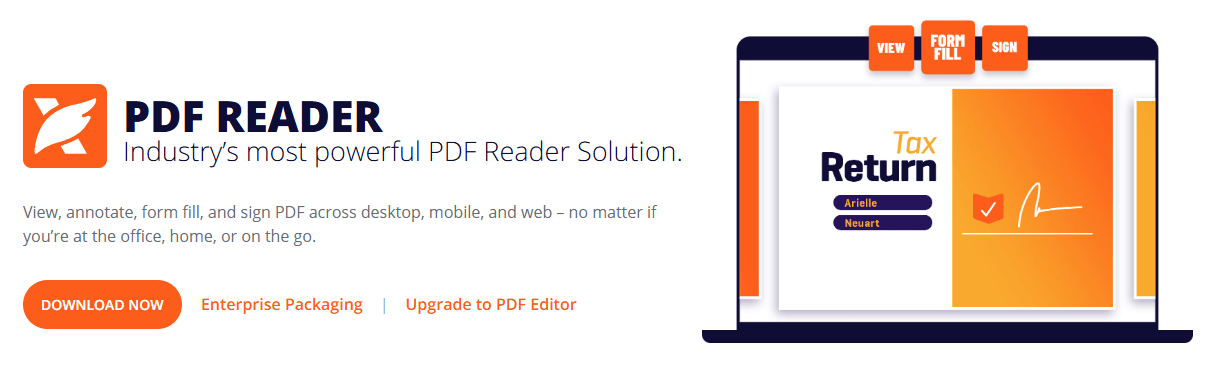
Foxit PDF Reader is a free application for opening PDFs, adding review comments, filling forms, and printing documents. It is useful when you want dedicated reading and annotation tools, but it should not be confused with Foxit PDF Editor, which offers broader document editing features.
What the free reader is for
- Reading: open a PDF, change the zoom and page view, navigate pages, and search searchable text.
- Reviewing: add highlights, notes, and other annotations without rewriting the underlying document.
- Forms: complete supported form fields and use the available fill-and-sign tools.
- Printing: choose a printer, page range, orientation, and scaling before sending the document to paper.
Foxit’s Reader and Editor comparison distinguishes these tasks from editing existing text and images, converting PDFs to Office formats, and optical character recognition (OCR). Check the current product details if one of those advanced tasks is your main reason for installing software.
Download and start using Foxit PDF Reader
- Open the official Foxit PDF Reader page and choose the supported download for your system.
- Read the installation choices, including any offer to try a paid editor or change the default PDF application.
- Open a PDF and try the page navigation and search controls.
- Add a test comment, save a copy, and reopen it to confirm that the annotation was retained.
Foxit is an optional application, not software that ships as a required part of Windows. Choose it as your default PDF reader only if you want PDFs to open there. The screenshot above shows an older interface; current layouts may differ.
Make reading and printing easier
For a long document, adjust zoom and the page layout before reading. Full-screen viewing can reduce distractions; see using full-screen mode in Foxit Reader.
If text search finds nothing in a scanned document, the pages may contain only images. A reader cannot search words that are not present as text; you may need an OCR-capable tool to create a searchable version.
Before printing a large file, review the preview, page range, paper size, and scaling. Print one test page when layout matters. The PDF printing guide explains the basic workflow.
Know the limits of a reader
Adding a comment or text box does not change the original paragraph beneath it. Likewise, placing a shape over sensitive text is not secure redaction. Use an appropriate editing or redaction tool when the document itself must change.
Keep the application updated and be cautious with unexpected PDF links and attachments. A PDF reader is not a substitute for antivirus protection, and installing one does not make every document trustworthy.
Related Articles
 Link download Foxit Reader 10.1.1.37576
 How to Open and Read PDF Files with Foxit PDF Reader
 How to install the latest version of Foxit Reader on your computer
 Discover two important zero-day vulnerabilities in Foxit PDF Reader
 How to Edit a PDF with Foxit PDF Editor (Reader vs Editor)
 How to Merge PDFs with Foxit PDF Editor or Foxit Online
Reader Comments 0
Sign in with email or Google to join the discussion.