Table of Contents
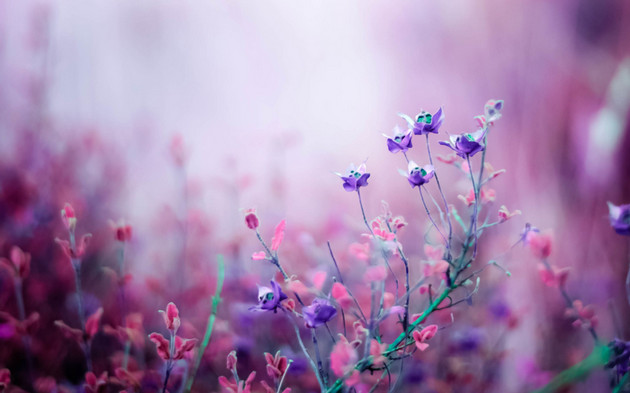
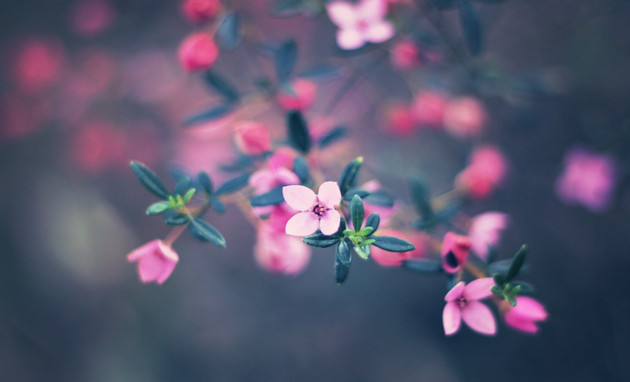
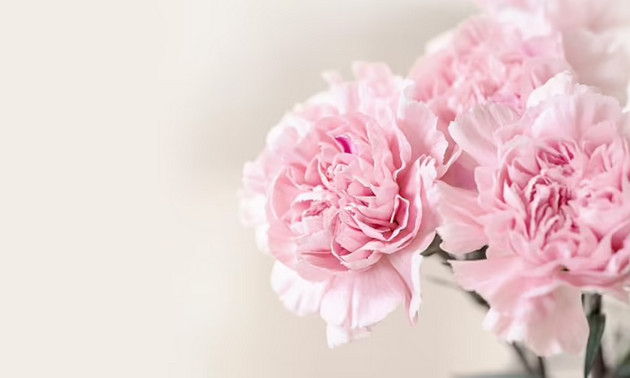
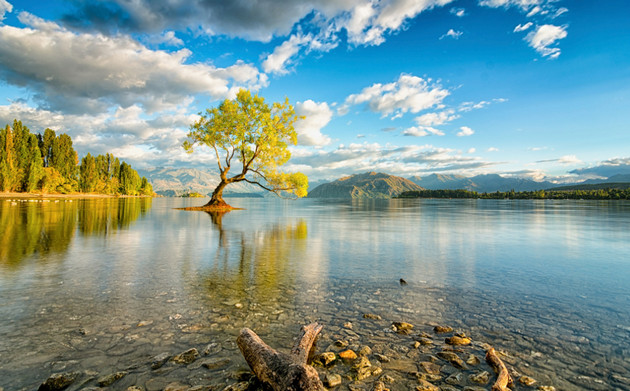
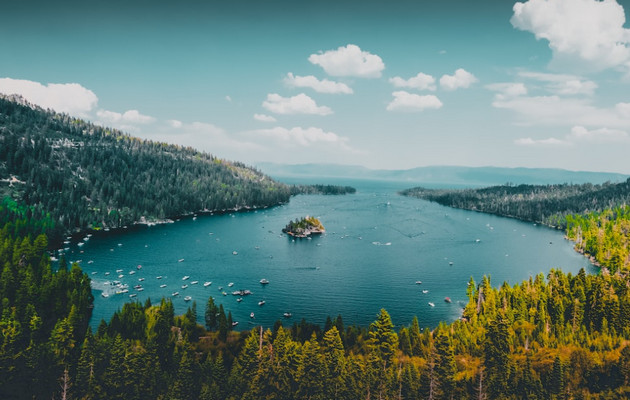
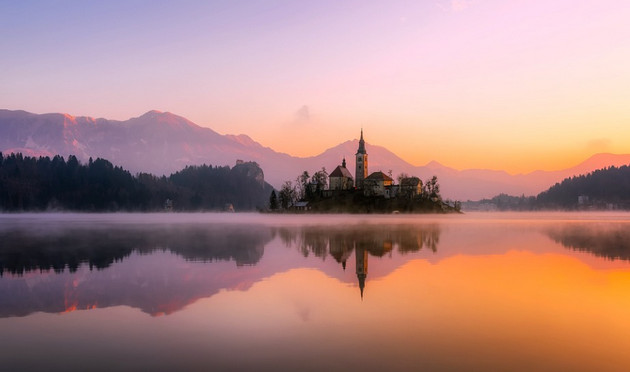
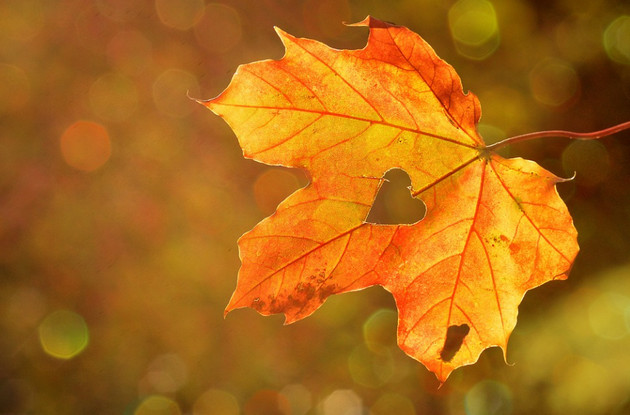
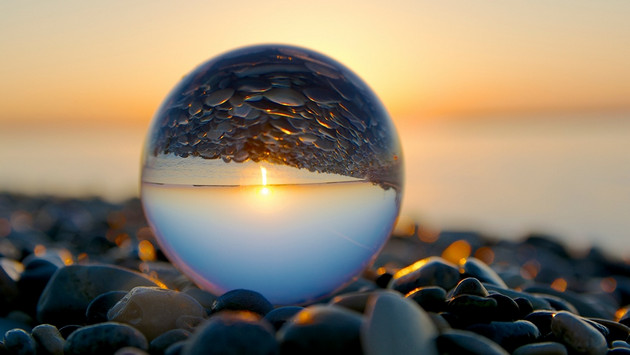
This collection includes 67 lock-screen wallpapers for computers and phones, ranging from nature and abstract designs to cute, humorous, and minimalist images. Choose a landscape image for a PC or laptop and a portrait image for an iPhone or Android phone.
Download a wallpaper
- Computer: click the image, right-click it, and choose Save image as.
- iPhone: touch and hold the image, then choose Save to Photos.
- Android: touch and hold the image, then choose Download image or Save image.
Open the saved file before setting it to confirm that it is sharp and has not been cropped to a small preview. TipsMake's image-search guide explains common save-image controls and how to look for an original source.
Set a Windows lock screen image
- Open Settings > Personalization > Lock screen.
- Under Personalize your lock screen or Background, choose Picture.
- Select Browse photos or Browse and open the saved image.
- Press Windows + L to preview the lock screen.
Choose Slideshow if Windows should rotate through a folder, or use Windows Spotlight for images supplied by Microsoft. TipsMake explains how to enable or disable Windows Spotlight. The desktop background is a separate setting; see the Windows desktop wallpaper guide if both screens should match.
Set an iPhone lock screen image
- Open Settings > Wallpaper > Add New Wallpaper, or touch and hold the current Lock Screen and tap the plus button.
- Choose Photos and select the saved image.
- Move or scale it, customize the clock and widgets, then tap Add.
- Choose a wallpaper pair or customize the Home Screen separately.
The workflow is also illustrated in TipsMake's guide to installing iPhone and iPad wallpapers.
Set an Android lock screen image
Open the image in Google Photos or the phone's Gallery app, open its menu, and choose Use as or Set as wallpaper. Select Lock screen, adjust the crop, and confirm. Samsung, Pixel, Xiaomi, OPPO, and other phones use slightly different labels, so Settings search for “wallpaper” if the option is not visible.
Choose a readable lock screen
- Keep faces, text, and the main subject away from the clock and notification area.
- Use enough contrast for the time, date, and notification text.
- Avoid placing phone numbers, addresses, travel plans, account details, or other sensitive information in an image visible to anyone holding the device.
- Use an image at least as large as the display. Enlarging a small file can make it blurry.
- Preview notifications and accessibility settings before keeping the wallpaper.
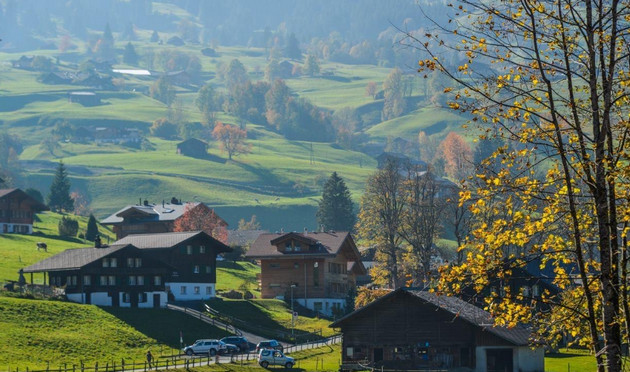
Computer and laptop lock screen wallpapers































iPhone and Android lock screen wallpapers











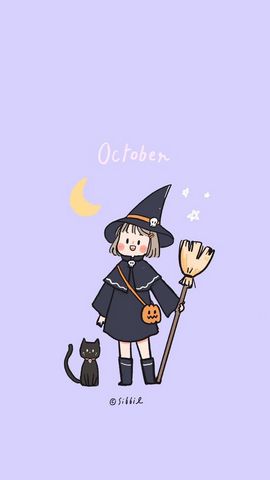


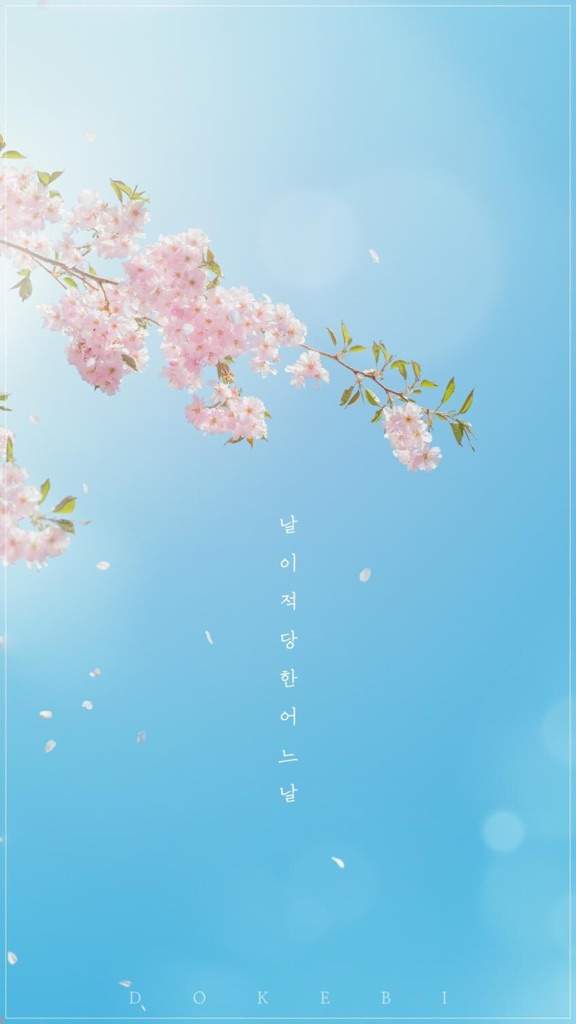











Image rights and reuse
Personal lock-screen use does not automatically grant permission to republish, sell, edit, or use an image commercially. Find the original creator and license before public or commercial reuse. For more phone-size options, browse TipsMake's phone wallpaper collection.
Related Articles
 Some Applications Help Customize the Windows Phone 8 Lock Screen10 minutes read
 How to Lock Screen by Image on Android Phone5 minutes read
 9 Android Phone Lock Screen Security Settings9 minutes read
 Set of 800+ Wallpapers for Ultrawide Screen3 minutes read
 8 Best Lock Screen Apps for Android: Lock Screen App for Android7 minutes read
 14 Best Android Screen Lock Apps for Your Creativity11 minutes read
Reader Comments 0
Sign in with email or Google to join the discussion.