Table of Contents
This collection contains 49 anime girl wallpapers for phones, organized into cool, reflective, and cute styles. The images are displayed as previews so you can compare the composition before opening the one you want to save.
Choose a wallpaper with enough clear space around the clock, icons, and widgets. A detailed image may look striking by itself but become difficult to read once the phone interface is placed over it.
Cool anime girl wallpapers
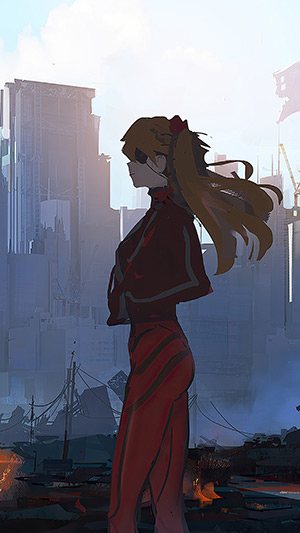
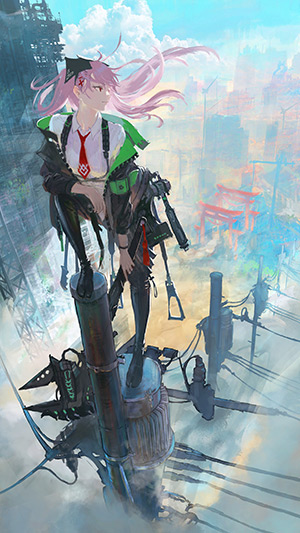
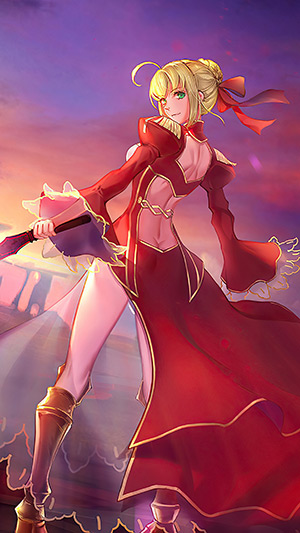
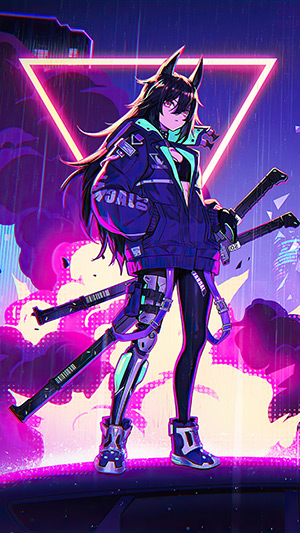
These 18 images use stronger poses, darker palettes, dramatic lighting, or action-oriented styling. For a Lock Screen, look for a portrait where the face stays away from the clock and notification area. For a Home Screen, a less detailed center area usually keeps app labels legible.
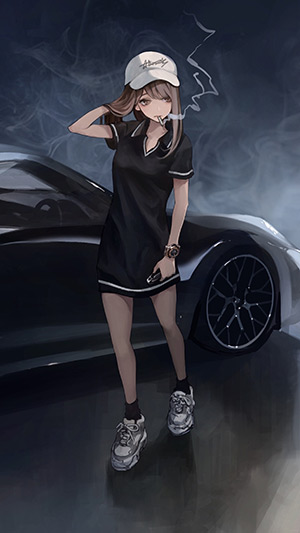
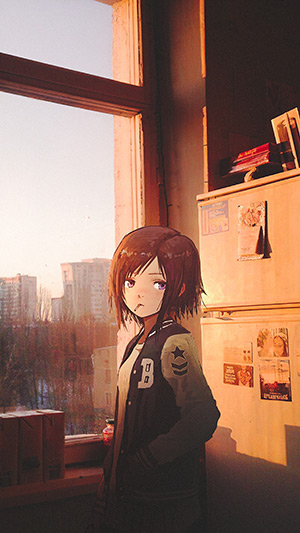
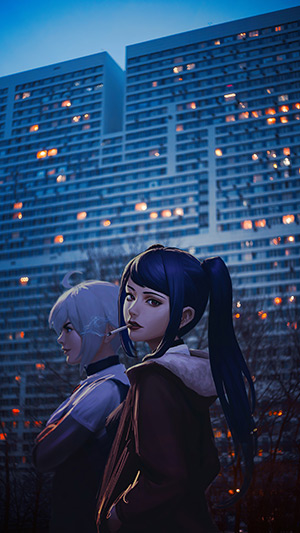
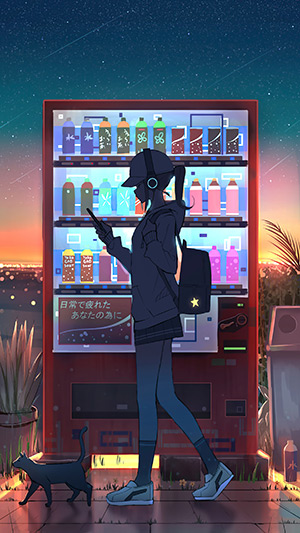
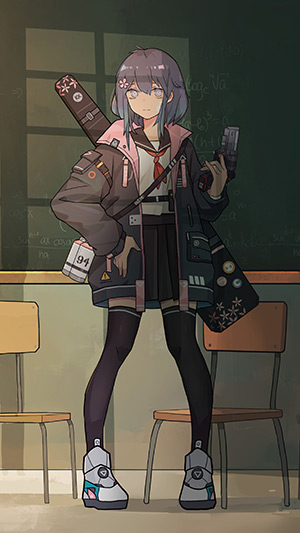
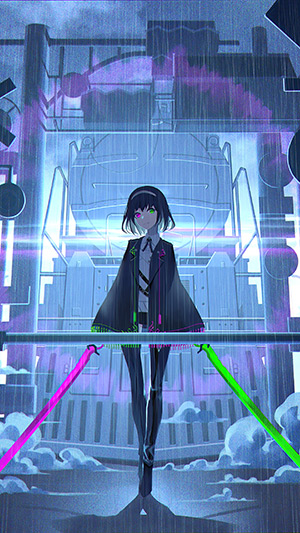
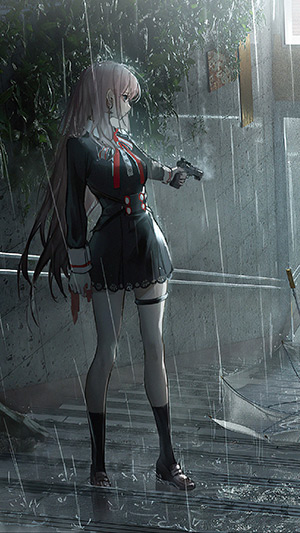
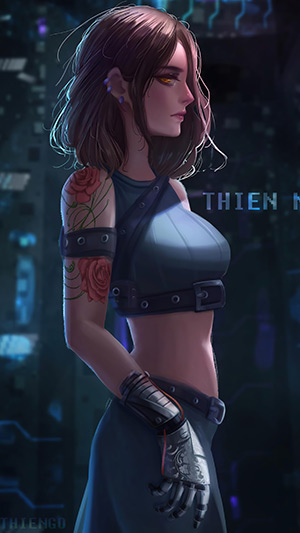
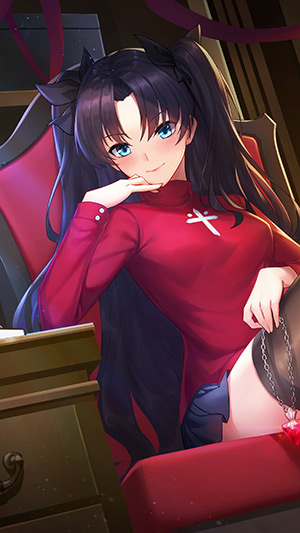
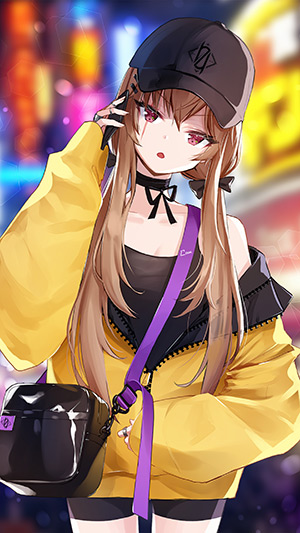
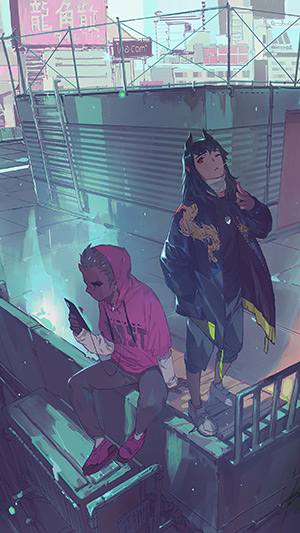
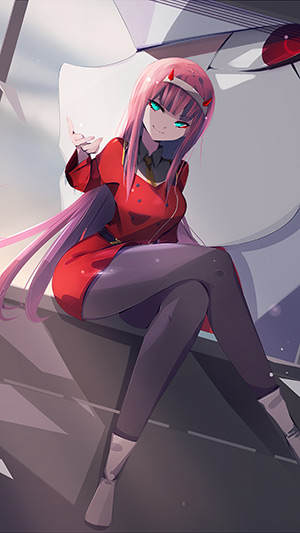
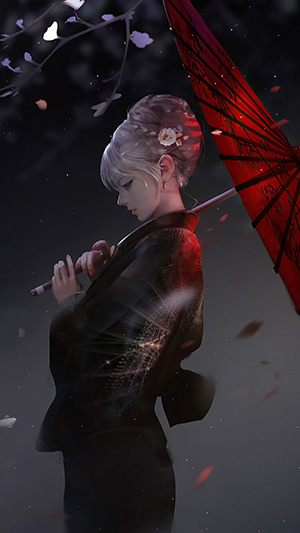
Reflective and sad anime girl wallpapers
The next 14 wallpapers have a quieter or more emotional mood. Dark backgrounds can work well with bright Lock Screen text, but check the actual preview because the phone may switch the clock color or add overlays automatically.
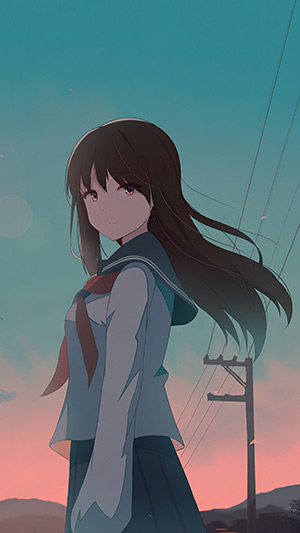
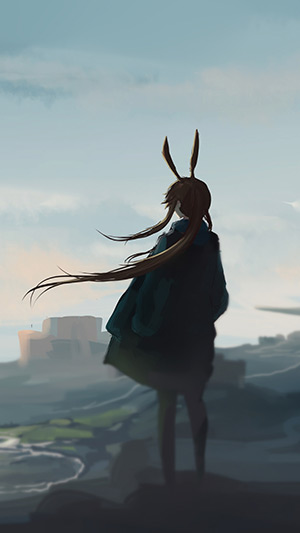
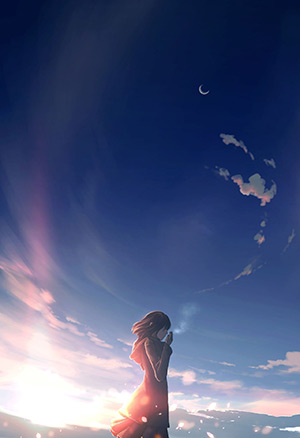
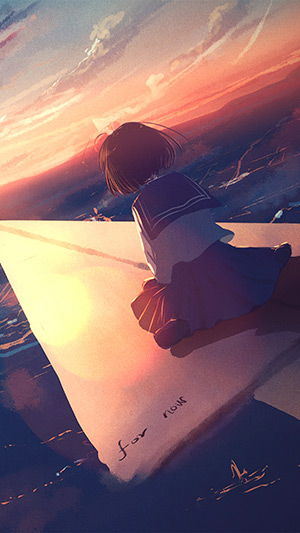
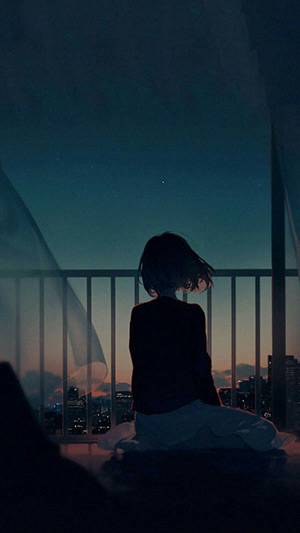
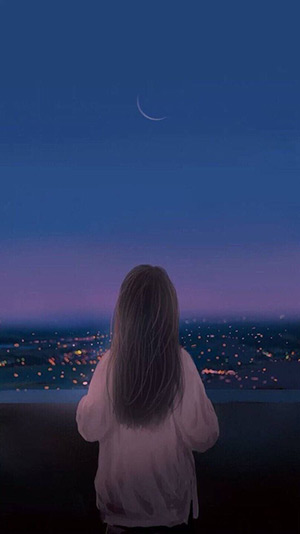
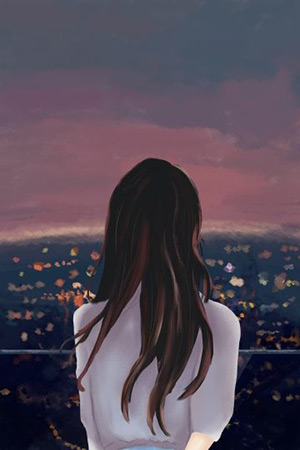
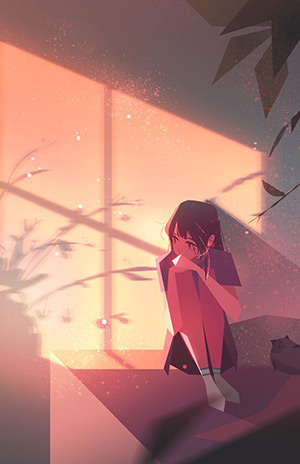
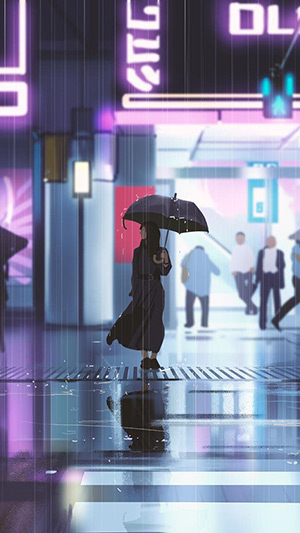
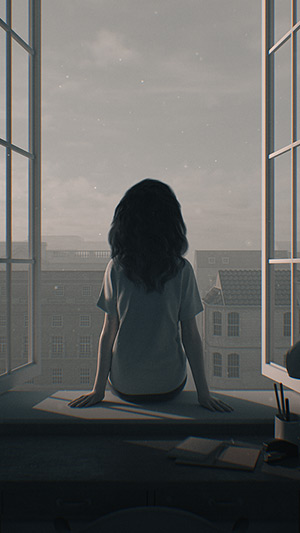
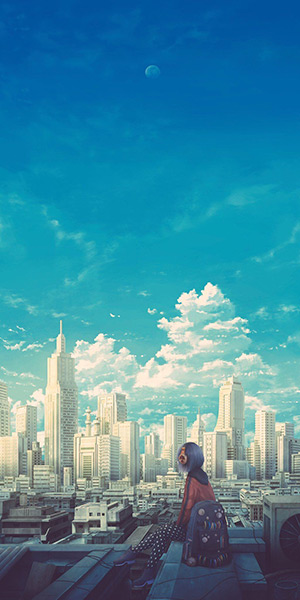

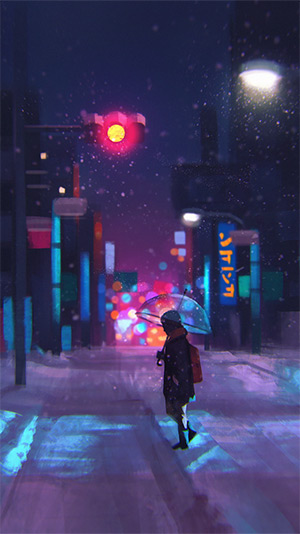
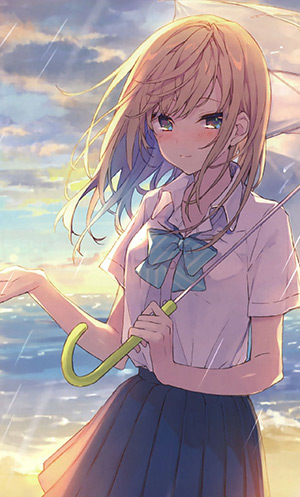
Cute anime girl wallpapers
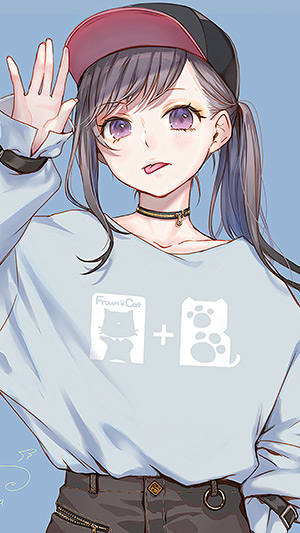
These 17 images use softer colors, friendly expressions, or playful compositions. Pastel artwork may need darker icon labels or a simple Home Screen page to remain readable.
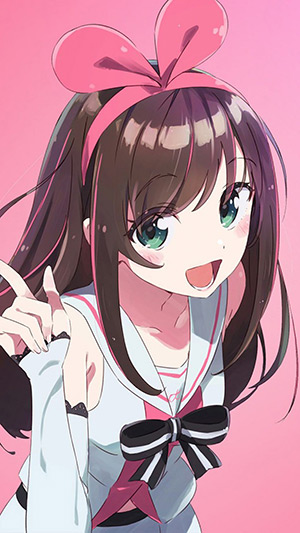
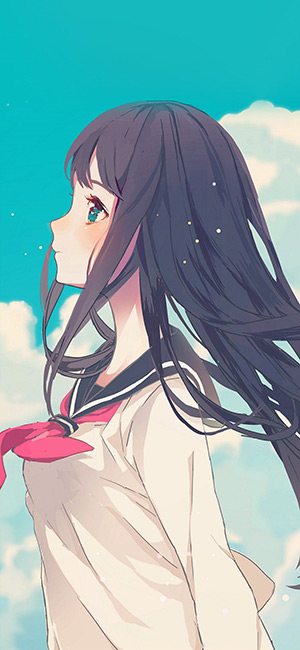
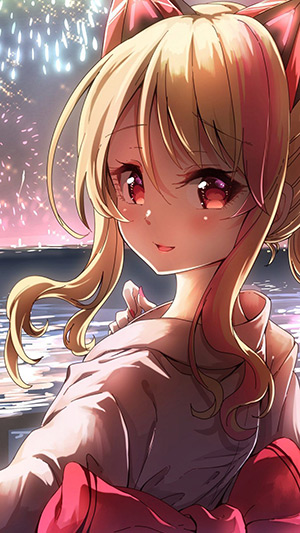
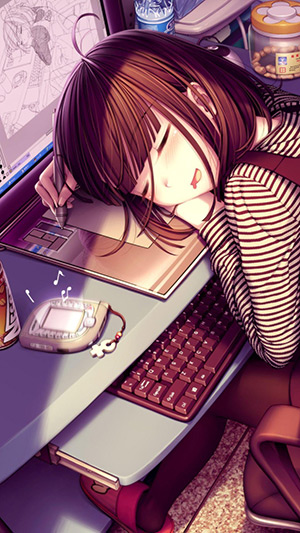
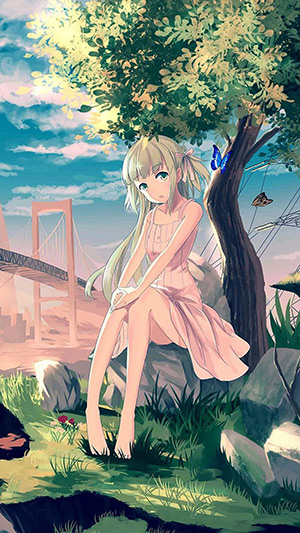
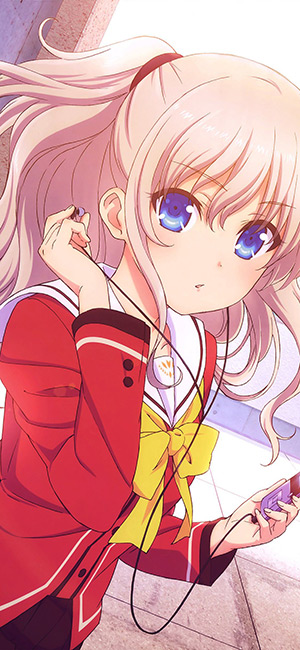
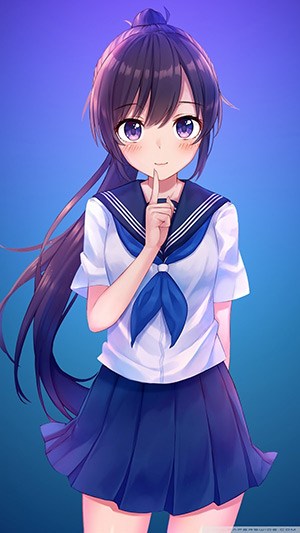
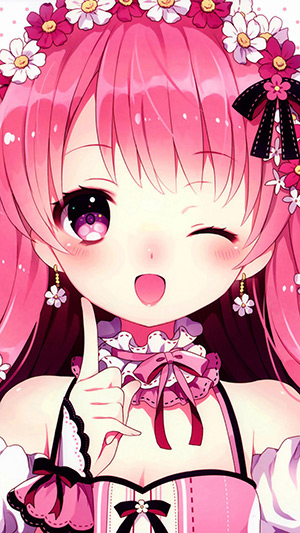
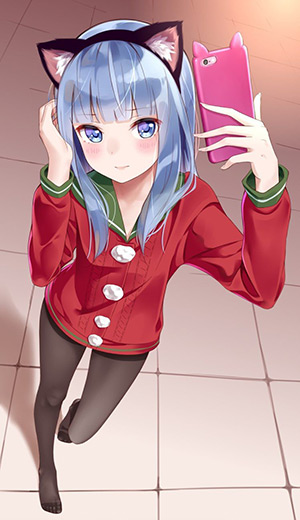
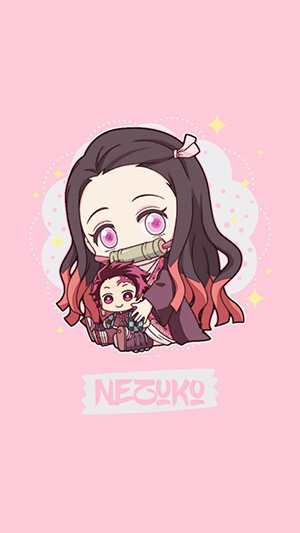
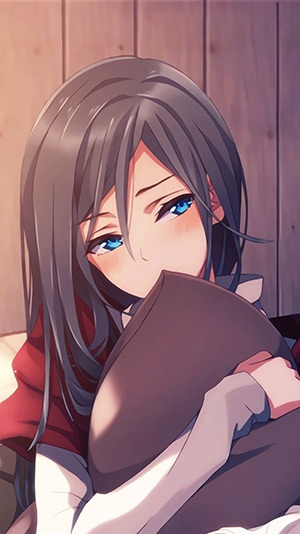
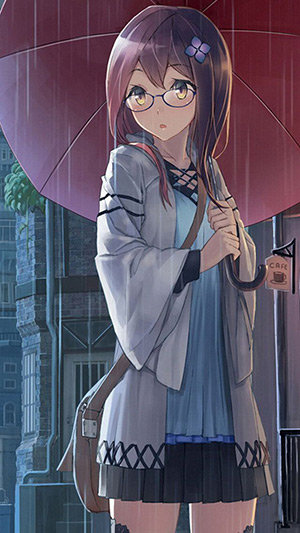
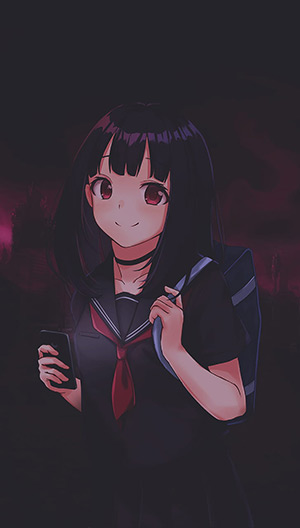
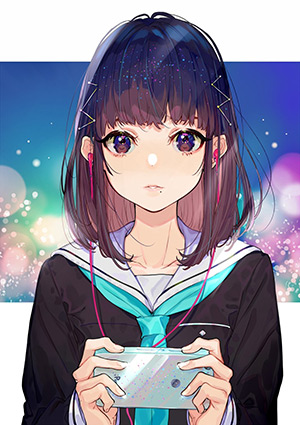
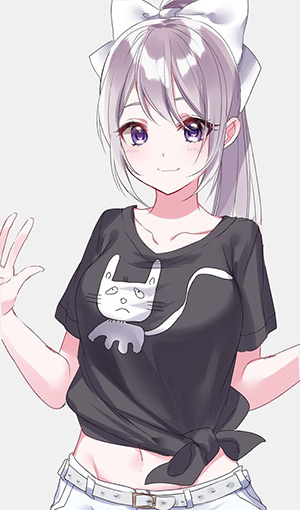
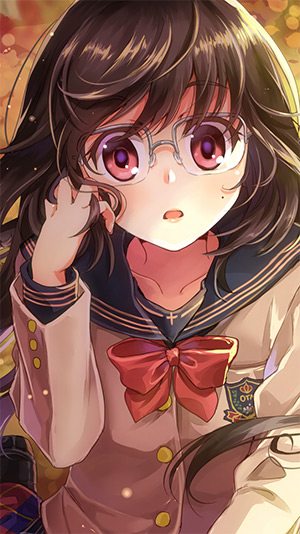
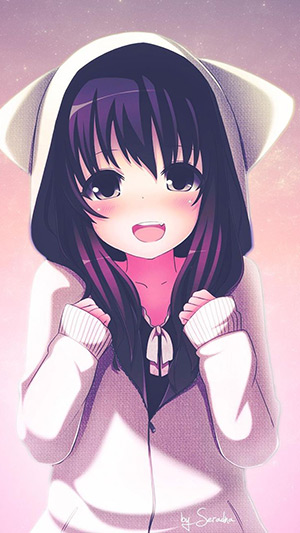
How to save and use an image
- Open the image you want at its largest available size.
- On a phone, touch and hold the image, then choose the browser's save or download option. On a computer, use the image context menu.
- Open the phone's wallpaper settings and select the saved image.
- Reposition and zoom the image in the preview. Avoid cropping the face, hands, or other important details.
- Check both the Lock Screen and Home Screen before confirming. You can use the same image for both or choose a simpler version for the Home Screen.
Menu names vary by operating system and browser. If a tap opens the image rather than downloading it, open the full-size version first and then use the device's save command.
Pick the right crop for your phone
- Match the orientation. Portrait images require less cropping on most phones.
- Leave interface space. Keep the clock area, notification area, app labels, and dock in mind.
- Check resolution. A low-resolution preview may look soft when enlarged to fill a modern display.
- Protect the focal point. Do not let a camera cutout, clock, or row of icons cover the face.
- Preview light and dark text. Similar foreground and background tones reduce readability.
- Keep the original file. Repeated screenshots or edits can reduce quality and make later recropping harder.
For more options, browse this collection of Full HD, 2K, and 4K phone wallpapers. If you want to coordinate the wallpaper with the interface, see these iPhone Home Screen customization apps.
Related Articles
 The Best Female Villains in Anime2 minutes read
 What Is Anime? Currently There Are Many Types of Anime6 minutes read
 Drawing Anime: Guide to Drawing Female Head and Face Characters8 minutes read
 PixAI - the Ultimate AI Anime Creator5 minutes read
 How to Create Anime Images Right on Canva3 minutes read
 Beautiful Female Hacker 'Threatens' Google in China1 minutes read
Reader Comments 0
Sign in with email or Google to join the discussion.