Table of Contents
You cannot assume an iPhone running iOS 26 can be restored to iOS 18. The target firmware must be compatible with the exact iPhone model and still authorized for installation by Apple. An old IPSW file being downloadable is not enough.
A normal computer restore installs the latest compatible iOS release, not automatically iOS 18. Restore also erases the phone. Check availability and backup compatibility before changing settings or downloading firmware.
What determines whether a downgrade is possible?
- Exact device model: A firmware file is made for specific hardware. An iPhone that never supported iOS 18 cannot run it.
- Active authorization: Apple's installation process checks which software versions it permits for the device. A previously signed file does not necessarily remain installable.
- Compatible backup: A backup made on newer iOS may require that version or a later compatible version to restore.
Apple's secure software update documentation explains the authorization check. There is no dependable universal “two-week downgrade window,” and support for an older iOS branch on one model does not establish availability on another.
Protect your data before any restore
- Create a fresh iCloud or computer backup and verify its completion time. See iPhone backup methods.
- If you have an archived backup from before the update, preserve it. A new backup made on iOS 26 is not a guaranteed way to recover your data on iOS 18.
- Check separately that cloud-synced photos, contacts, and documents are available in their services.
- Keep the password for an encrypted computer backup and the Apple Account credentials used on the phone.
If a backup requires newer software, Apple may ask you to update the device before restoring it. See Apple's backup compatibility guidance. Do not promise a downgrade without data loss simply because a backup exists.
Understand firmware download screens
A directory such as IPSW.me can help identify firmware by model and release. It is a third-party directory, and Apple ultimately determines whether an installation is authorized.
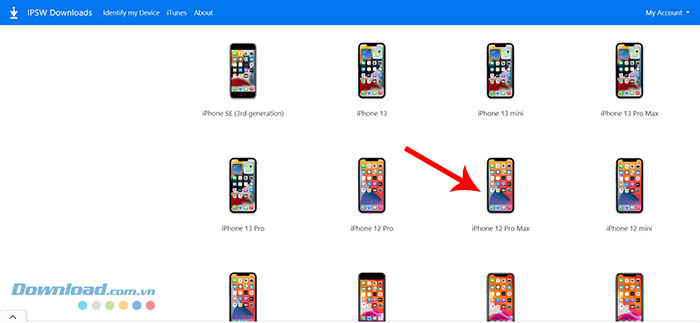
Identify the exact device before looking at firmware entries.
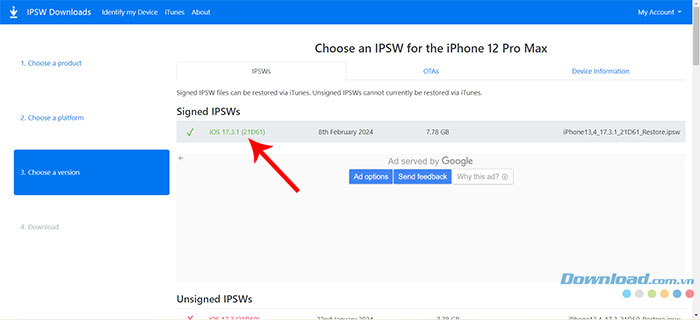
Check the target release's current status for that device. These example screens do not establish that iOS 18 is installable today.
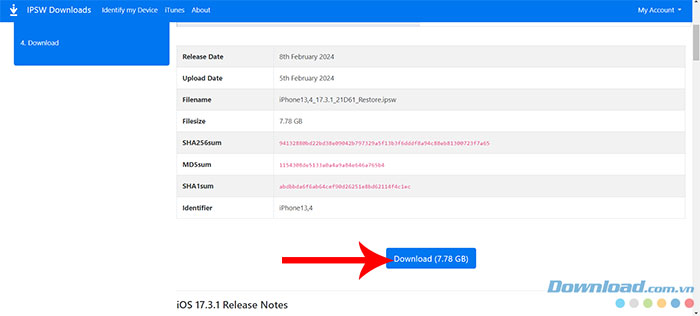
Downloading an IPSW only obtains a file. If the target is no longer authorized, stop rather than trying to force the restore. Do not treat an old screenshot or a generic downgrade guide as a current compatibility check.
What Finder, Apple Devices, and iTunes actually do
Use Finder on a current Mac or Apple Devices on a supported Windows PC. Older setups may use iTunes. Update the relevant software and use a data-capable cable.
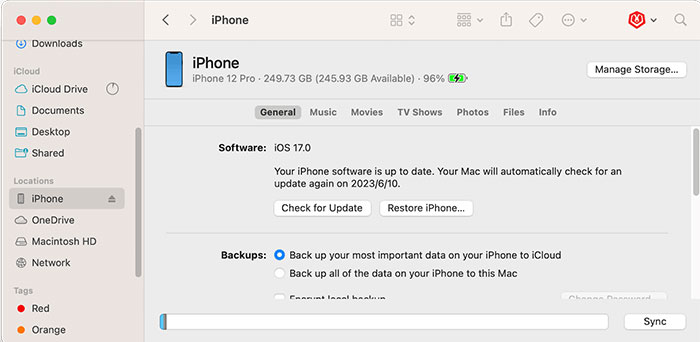
For a standard restore, select the device and choose Restore. Follow Apple's prompts, including turning off Find My when required, then confirm only after understanding that the phone will be erased. There is no need to sign out of every service merely to troubleshoot an update.
Apple's factory restore procedure installs the latest compatible software. It does not select iOS 18 for you. Holding Option when selecting Restore in Finder, or Shift in iTunes on Windows, can open a firmware-file picker on supported interfaces, but manually choosing a file does not bypass compatibility or authorization checks.
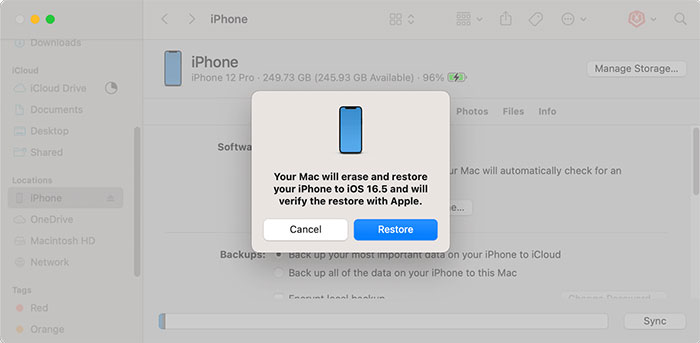
Before confirming any restore, check the proposed operation and keep the phone connected until it finishes. Afterward, set up the device using a compatible backup or as a new device. Starting as new does not bring back data omitted from your backup or cloud services.
Erasing through Settings clears content while retaining the installed iOS version. The iPhone reset guide explains that separate operation.
Recovery and DFU mode do not bypass signing
Recovery mode helps when the phone cannot start or a normal restore fails. DFU is a lower-level recovery mode, but neither turns an unauthorized older firmware into an installable release.
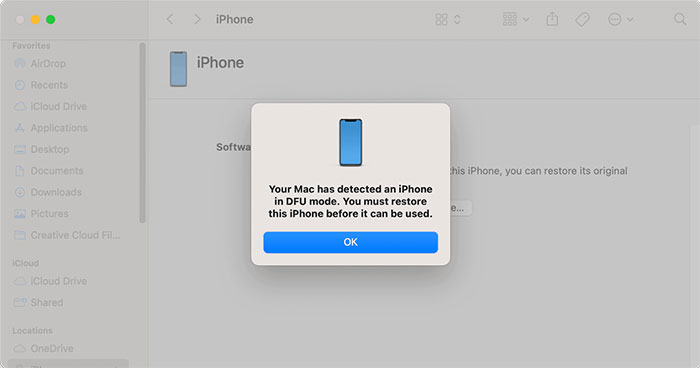
For an iPhone 8 or later, Apple's recovery procedure uses a quick press of Volume Up, a quick press of Volume Down, then holding the side button until the recovery screen appears. Follow the instructions for your device, rather than mixing recovery and DFU button timings.
If restore fails, record the error and use Apple's troubleshooting instructions. Repeated attempts with an incompatible or unauthorized file will not resolve that cause.
If your goal is to leave an iOS beta
Removing a beta is different from choosing any old major iOS release. You can stop future betas under Settings > General > Software Update > Beta Updates > Off and wait for an appropriate public update. Immediate beta removal can require erasing and restoring to the current public release.
Use Apple's beta removal guide and check your archived backup first. Turning off beta updates does not immediately change the version already installed.
If iOS 18 is not authorized for your model, use a supported release and address the specific battery, app, or interface problem instead. A missing downgrade option is an installation limit, not a reason to trust software promising a guaranteed return without erasure.
Related Articles
 New News: Apple Is Paving the Way for iOS 7, 8, 9, and 10 Downgrades for Most IPhones3 minutes read
 Guide to Downgrade iOS 11.3 to 11.2.2, 11.2.56 minutes read
 How to Downgrade iOS 11 to iOS 10.3.3 for iPhone 6S5 minutes read
 Here's How to Uninstall Windows 10 to Return to Using Windows 74 minutes read
 How to Downgrade iOS 14, IPadOS 14 to iOS 133 minutes read
 The iOS 10.1 Downgrade Guide for iPhone / iPad Has Lost Battery6 minutes read
Reader Comments 0
Sign in with email or Google to join the discussion.