Table of Contents
A Pinterest widget shows selected Pins on your phone's Home Screen. On iPhone, you can choose from feed, board, or interest widgets where available. Android supports the home feed widget; it should not be assumed to have the same board-selection controls as iOS.
Install or update Pinterest, open it, and sign in before adding the widget. The widget is different from a Pinterest app icon: it displays content, while the icon simply opens the app.
Choose the right widget
| Widget | What it displays | Platform |
|---|---|---|
| Home feed | Pins from your home feed | iOS and Android |
| Boards | Pins from a selected board you own or from a board by someone you follow | iOS |
| Interests | Pins related to an available topic, such as food or home decor | iOS |
Pinterest automatically selects the Pins displayed. Widget sizes and options can vary with the app and operating-system version. See Pinterest's widget support page for the current choices.
Add the Pinterest widget on iPhone
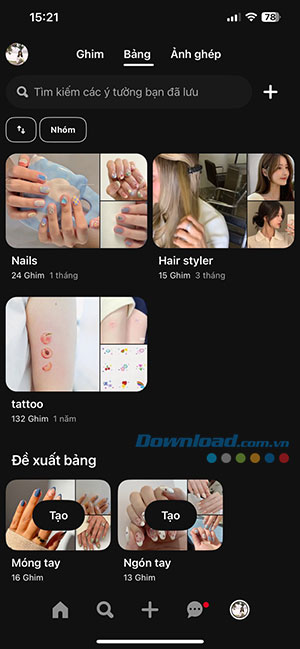
If you want a Boards widget, first choose a board that contains the images you want to see. You can use an existing board rather than creating a new one just for the widget.
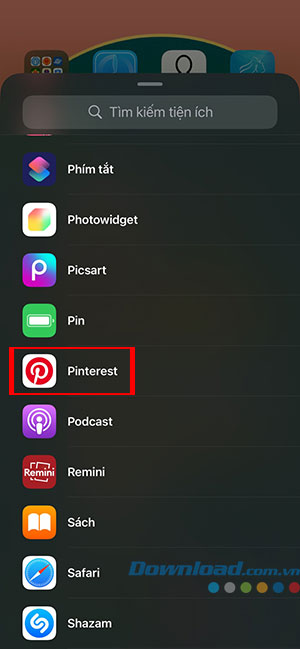
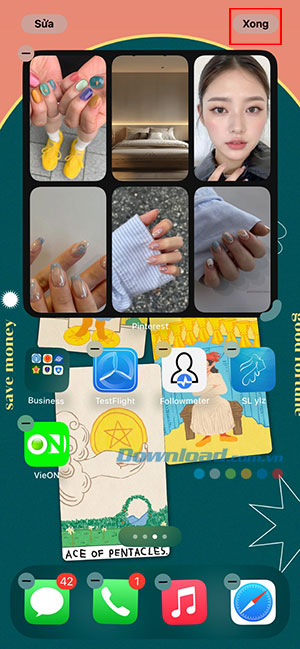
- Touch and hold an empty area of the Home Screen until the apps jiggle.
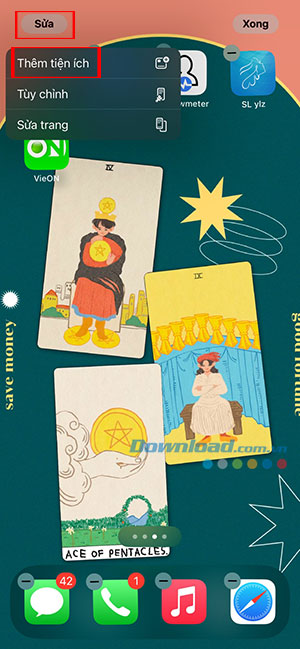
- Tap Edit > Add Widget. Older iOS versions use a plus button to open the widget gallery.
- Search for Pinterest and tap it.
- Swipe through the available widget types and sizes, then tap Add Widget.
- Drag it to the desired position and tap Done.
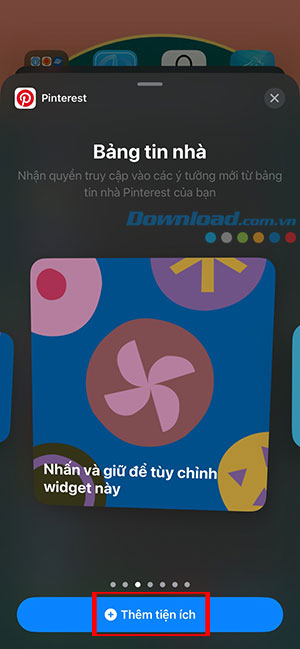
The preview in the widget gallery shows what each size contains. A Pinterest widget displays Pins; it is not a battery-status widget. Apple's widget instructions cover the current Home Screen controls.
Choose a board or change the content
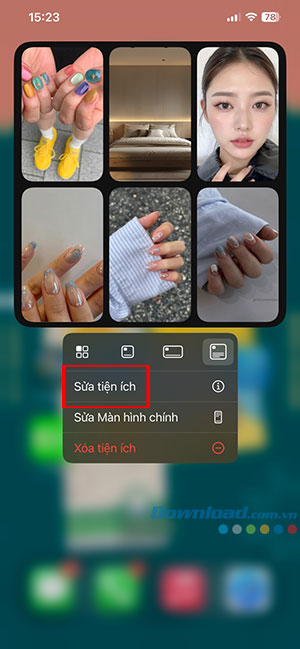
- Touch and hold the Pinterest widget.
- Select Edit Widget.
- For a Boards widget, tap Choose beside Board and select or search for the desired board.
- For another widget type, use the customization options it actually offers, then close the editor.
If you placed Pinterest in a widget stack and another widget keeps appearing, review automatic widget-stack rotation.
Add the Pinterest widget on Android
- Install or update Pinterest from Google Play, then open it and sign in.
- Touch and hold the Pinterest app icon. If your launcher offers Widgets, select it.
- Choose the available Pinterest widget and tap Add, or drag it onto the Home Screen as your launcher requires.
- To resize it, touch and hold the widget, release it into edit mode, and adjust any resize handles.
Some Android launchers instead open the widget picker when you hold an empty area of the Home Screen. Look for Pinterest there. The available Android widget shows the home feed; the iOS Boards and Interests widgets are separate options.
If Pinterest is missing or the widget is blank
- Open Pinterest and confirm that you are logged into the intended account.
- Install the latest available Pinterest update, then restart the phone.
- Remove and add the widget again. Removing a widget does not delete your Pinterest boards.
- On iPhone, check whether Background App Refresh is enabled for Pinterest if content is not updating.
- For a Boards widget, confirm that the selected board still exists and contains Pins you can access.
Reinstalling the app is a later troubleshooting step. Pinterest warns that locally stored Pin drafts can be lost, so check those before reinstalling. Widget refreshes are not guaranteed to happen instantly after each change.
To move the widget, hold and drag it. To remove it, use Remove Widget on iPhone or your launcher's Remove command on Android. For other useful Home Screen options, see these iPhone widgets.
Related Articles
 12 Helpful Ways SEO Tips on Pinterest14 minutes read
 What Is Pinterest? How to Use It?8 minutes read
 The iOS Concept with Widgets on the Home Screen: Resembles3 minutes read
 How to Use Pinterest on Windows 10: How to Sign up for Pinterest5 minutes read
 How to Register a Pinterest Account5 minutes read
 Collection of iPhone Widget Customization Applications: What to Know7 minutes read
Reader Comments 0
Sign in with email or Google to join the discussion.