Table of Contents
UltraViewer connects two Windows computers for attended support or authorized remote work. Install the application on both PCs, have the person receiving help provide the current ID and password, and enter those credentials on the controlling PC. The connection gives broad control of the remote desktop, so both people should agree on the task and remain aware of what is happening.
What UltraViewer supports
UltraViewer's official FAQ currently describes the product as Windows software. Do not assume that an unofficial app with a similar name is a genuine Android, iPhone, macOS, or Linux version. If you need to control a computer from a phone, choose a remote-access product that officially supports that mobile platform.
For this guide you need:
- two Windows computers with Internet access;
- permission from the owner or administrator of the remote computer;
- the current UltraViewer installer from the developer;
- a private way to exchange the session ID and password.
Install UltraViewer on both computers
- Open the official UltraViewer download page and choose the recommended installer.
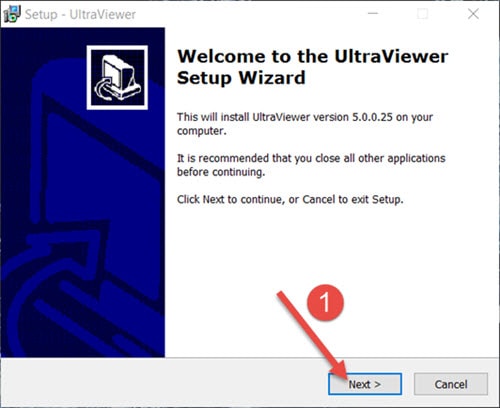
- Open the downloaded setup file. Confirm the expected publisher in the Windows security prompt before approving it.
- Select Next in the setup wizard.
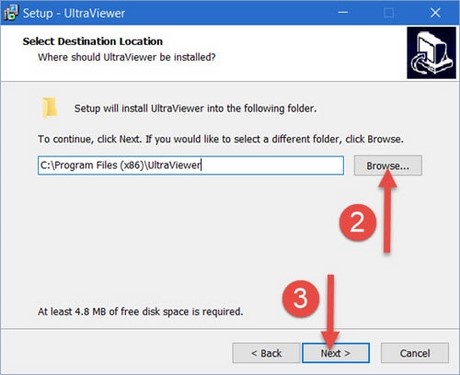
- Keep the default installation folder unless your organization requires another location.
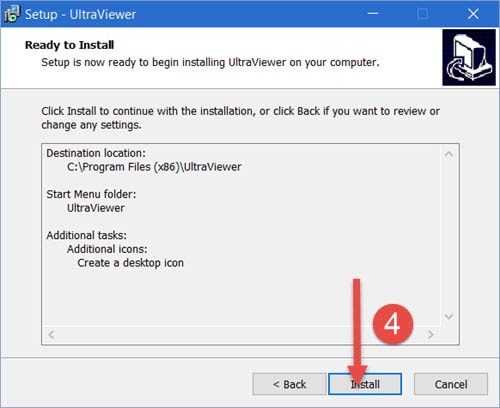
- Review the shortcut and startup choices, then select Install.
- When setup completes, select Finish and open UltraViewer.
- Repeat the process on the second authorized Windows computer.
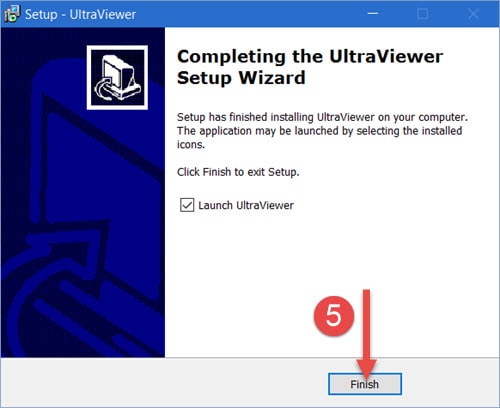
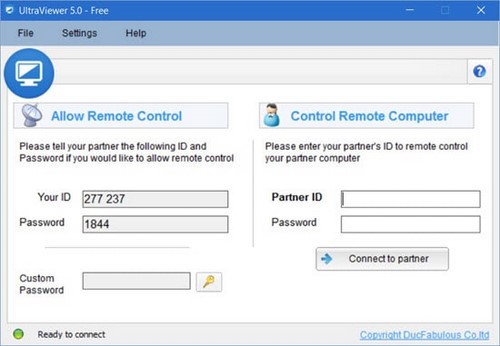
Use the installer for regular access. UltraViewer also lists an unsupported portable ZIP with fewer features; it is not the first choice for unattended access, startup integration, or a machine that will be managed repeatedly.
Understand the two sides of the main window
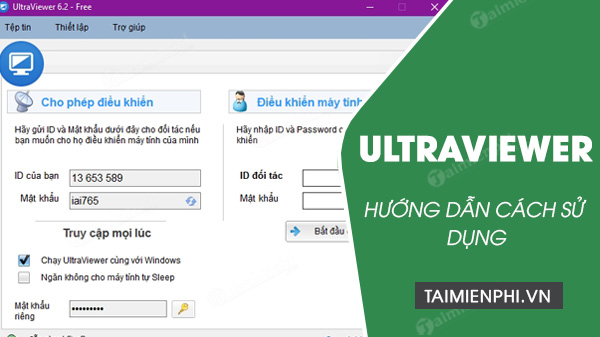
- Allow control: displays this computer's UltraViewer ID and current password.
- Control another computer: contains fields for the other computer's partner ID and password.
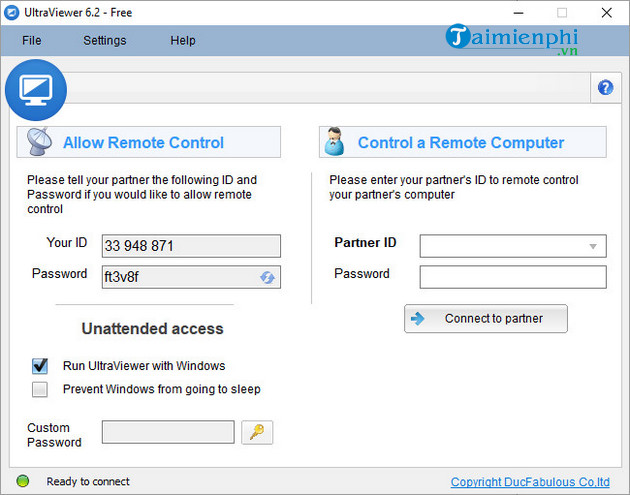
The remote user should send the credentials only to the known helper who is about to connect. The helper should not ask for a Windows password, email password, payment card number, or verification code merely to start UltraViewer.
Connect to the remote computer
On the computer receiving help
- Open UltraViewer.
- Read Your ID and the current session password.
- Send them privately to the expected helper.
- Keep the UltraViewer window open and watch the screen throughout the session.
On the controlling computer
- Open UltraViewer.
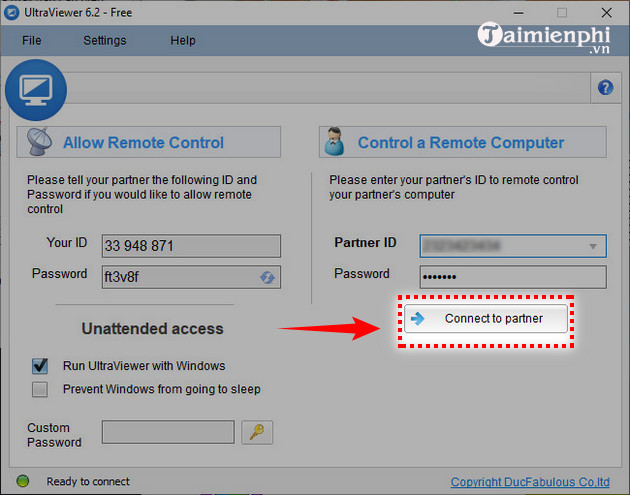
- Enter the remote computer's ID and password in the partner fields.
- Select Start Control or Connect to partner.
- Wait for the desktop to appear and confirm with the remote user that the correct machine is connected.
- Explain each sensitive or disruptive action before taking it.
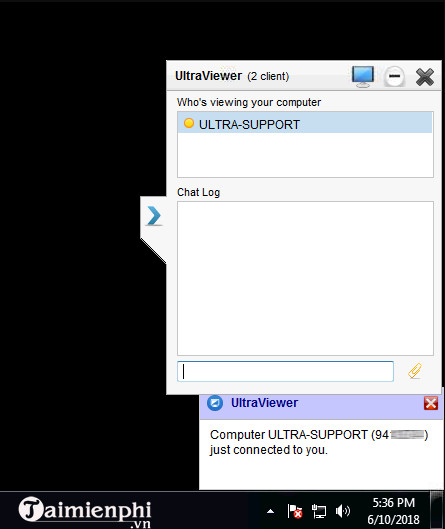
Use the session controls
The remote-control toolbar may include options for image quality, scaling, full screen, wallpaper, mouse cursor, screenshots, chat, and file transfer. The exact labels can change between versions.
- Lower image quality when the connection is slow.
- Use scale-to-fit when the remote display is larger than your screen.
- Press F1 to show or hide UltraViewer's chat window.
- Tell the remote user before transferring a file, and verify its destination.
- Do not suppress the remote user's view or input unless the agreed support task requires it and the user understands the effect.
TipsMake has a separate guide for sending and receiving files with UltraViewer. Scan unexpected files and keep backups before overwriting anything important.
Change the interface language
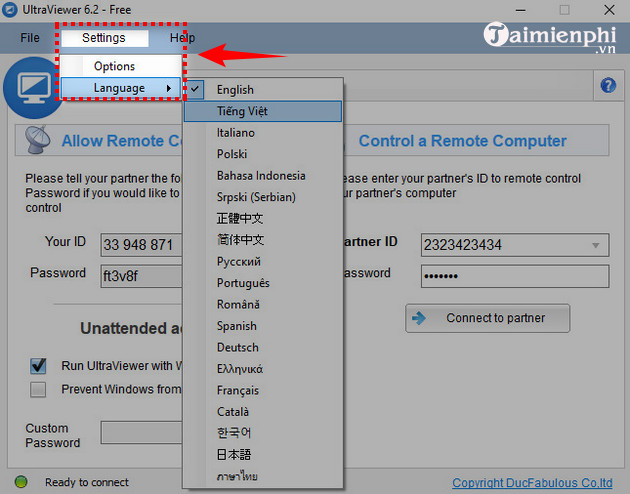
If the language needs changing, open the UltraViewer settings menu, point to Language, and choose one of the languages offered by the installed version. Menu placement can differ from the older screenshot below.
End the session safely
- Save authorized changes and close any file or settings window opened during support.
- On the remote PC, close UltraViewer to stop the active control session.
- Confirm on both computers that the remote desktop is no longer accessible.
- If a custom unattended-access password was created, clear or change it when continuing access is not required.
- Turn off Run UltraViewer with Windows or uninstall the program if the computer no longer needs remote access.
A temporary session ending does not necessarily revoke a permanent custom password. Review unattended-access and startup settings separately.
Attended versus unattended access
| Mode | Recommended use | Credential |
|---|---|---|
| Attended support | One-time help while a person watches | Current session password |
| Unattended access | Ongoing access to a computer you own or administer | Strong unique custom password plus deliberate startup settings |
Use attended support by default. Configure unattended access only when there is a continuing need, document who is authorized, and remove it when that need ends.
Connection and performance problems
- No ID appears: check Internet access, system date and time, VPN, proxy, and firewall policy. On a company network, ask the administrator.
- Partner password fails: ask the remote user to read the current password again instead of guessing repeatedly.
- Connection is slow: pause large downloads, lower image quality, and use Ethernet or a stronger Wi-Fi signal.
- Screen is black: ask the remote user to unlock Windows or dismiss a secure prompt locally; then reconnect.
- UltraViewer closes at startup: update from the official site and check security-software logs. Do not disable protection merely to force it to run.
- The PC goes to sleep: adjust the power plan only when authorized. A sleeping or powered-off machine may not accept an ordinary connection.
Remote-support safety
- Never give access to an unsolicited caller claiming that your computer, account, tax, or bank needs an urgent fix.
- Never move money, buy gift cards, reveal a one-time code, or sign in to banking while a stranger controls the screen.
- Close the session if the controller opens unrelated files or installs another remote-access program without explanation.
- Use a standard Windows account when administrator access is not required.
- Keep UltraViewer and Windows updated.
- If a session was suspicious, disconnect, change exposed passwords from a clean device, review installed programs and accounts, and contact the affected service through its official channel.
UltraViewer's official support center documents installation, chat, and session-ending behavior. For more detail on the core controls, see TipsMake's UltraViewer remote-control walkthrough. If official mobile support is essential, compare products in TipsMake's remote computer control overview.
Related Articles
 How to Use Ultraviewer to Control Remote Computers4 minutes read
 How to Control a Remote Computer with UltraViewer for Free4 minutes read
 How to Fix Ultraview Not Being Able to Retrieve ID7 minutes read
 How to Install the Latest Version of Ultraviewer for Remote Computer Control4 minutes read
 How to Use Ultraviewer to Send and Receive Files4 minutes read
 How to Install UltraViewer, Remote Computer Control Software4 minutes read
Reader Comments 0
Sign in with email or Google to join the discussion.