Table of Contents
Chrome Remote Desktop has two distinct modes. Remote Access lets you connect repeatedly to one of your own configured computers with a PIN. Remote Support creates a one-time code for an attended help session. On a computer, the service is managed through Google's Chrome Remote Desktop website and an installed host component; the old Chrome Web Store extension workflow is no longer the main setup path.

Before you begin
- Use a Google account protected with a strong password and two-step verification or a passkey.
- Update Chrome and the computer's operating system.
- Install remote access only on a computer you own or are authorized to manage.
- Keep the host computer powered on, connected to the Internet, and available for sign-in. A shut-down computer cannot accept a connection, and normal sleep settings may make it unavailable.
- Decide whether you need permanent access or only a one-time support session. Do not configure permanent access for a single help call.
Set up permanent Remote Access on a computer
- Open Chrome on the Windows, macOS, or Linux computer you want to access later.
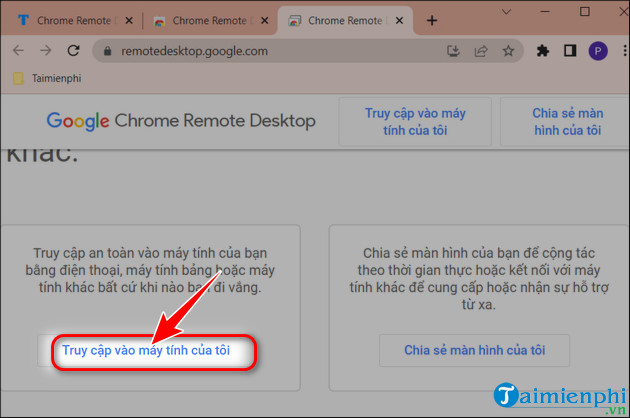
- Go to Chrome Remote Desktop: Remote Access and sign in to the intended Google account.
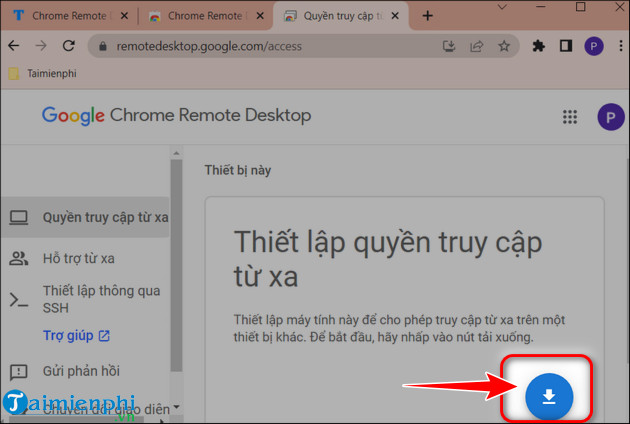
- Under Set up Remote Access, select the download button.
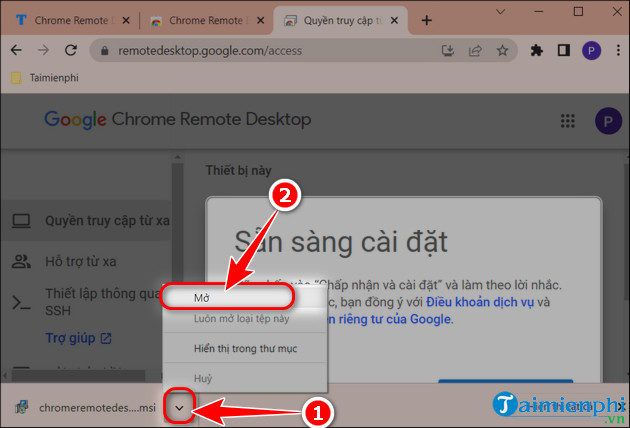
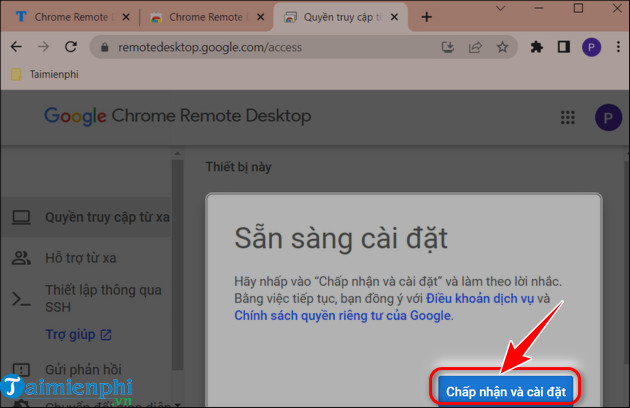
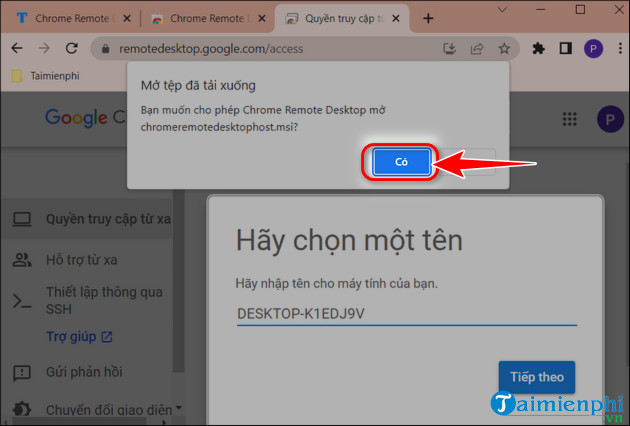
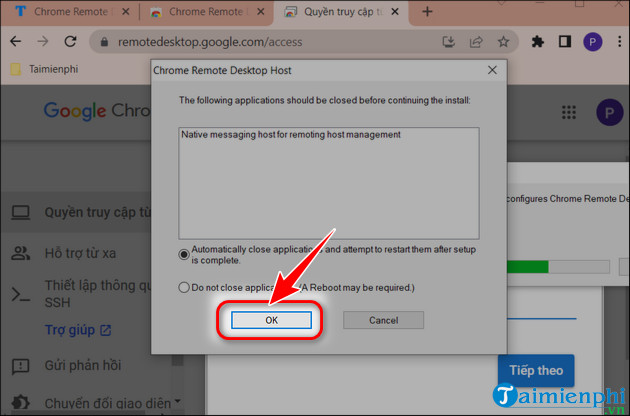
- Follow the on-screen instructions to download and install the Chrome Remote Desktop host component.
- Approve only the operating-system permissions the official installer requests. You may need the computer password or administrator approval.
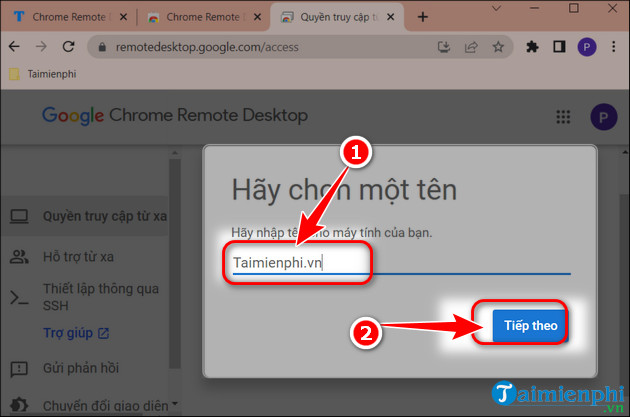
- Return to the Remote Access page, enter a clear computer name, and select Next.
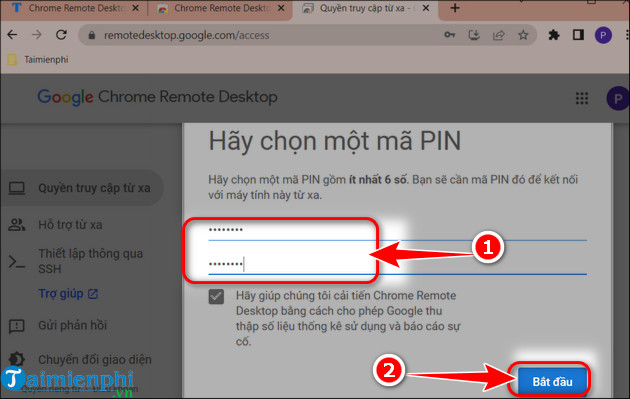
- Create a PIN that meets the displayed requirements, confirm it, and select Start.
- Wait until the computer appears as online on the Remote Access page.
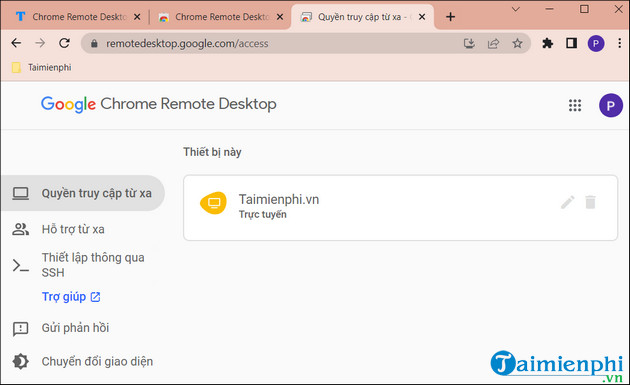
Choose the computer name and PIN carefully
Use a name that distinguishes the machine without exposing sensitive information—for example, Home desktop rather than a full name and office location. The PIN is separate from the Google account password. Do not reuse a card PIN, phone unlock code, or password from another service, and do not store it in an unprotected note on the same device.
Connect from another computer
- Open Chrome and go to
remotedesktop.google.com/access. - Sign in to the same Google account used to configure the host.
- Select the computer under Remote Access.
- Enter the host PIN and connect.
- When finished, close the tab or open the session options and select Disconnect.
A browser session on a shared computer can expose the remote device list. Sign out of the Google account and close all private windows after use.
Connect from Android, iPhone, or iPad
Google provides a Chrome Remote Desktop app on Android. On iPhone and iPad, Google also supports using the service through the browser and adding it to the Home Screen for a more app-like experience; the available app or web presentation can vary by region and current release.
- Install Chrome Remote Desktop from the platform's official app store when available, or open
remotedesktop.google.com/accessin the browser. - Sign in to the same Google account used by the host computer.
- Open the Remote Access area and select the computer.
- Enter the PIN and connect.
- Use the session menu to switch between trackpad and touch behavior, show the keyboard, send special keys, resize the desktop, or disconnect. The exact controls differ by device.
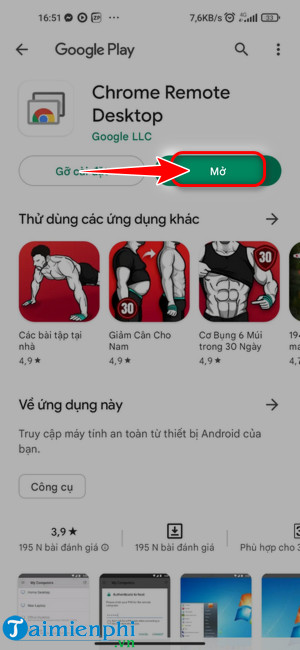
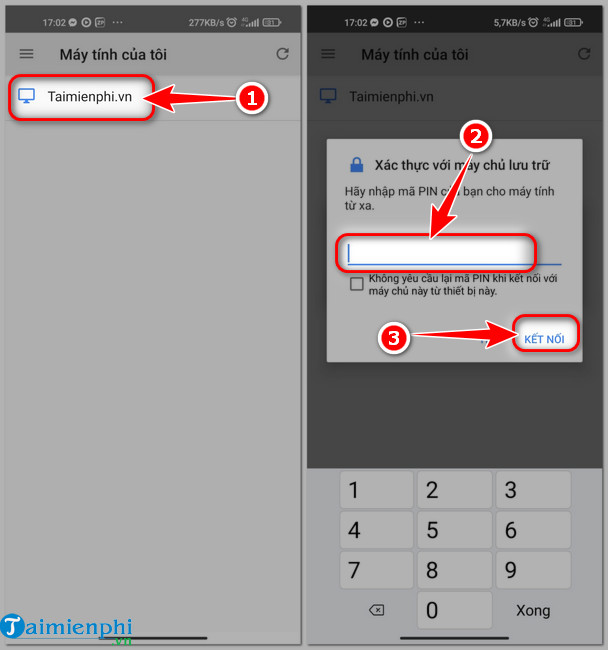
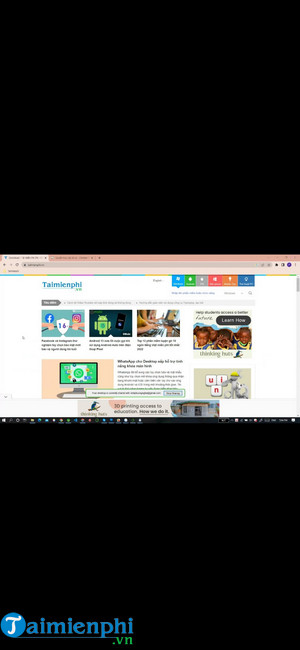
A small touchscreen is suitable for quick checks and simple fixes, but dragging, right-clicking, keyboard shortcuts, multiple monitors, and text selection may take practice. Test the control mode before relying on it for urgent work.
Provide or receive one-time remote support
Use Remote Support when another person needs temporary access. This avoids placing their computer permanently in your device list.
On the computer receiving help
- Open Chrome and go to Chrome Remote Desktop: Remote Support.
- Under Get Support, install the host component if prompted.
- Select Generate Code.
- Send the one-time code privately to the known helper.
- When the connection request appears, verify the helper's displayed email address and select Share only if it is correct.
- Watch the session and select Stop Sharing when the task is complete or if the helper goes outside the agreed work.
On the helper's computer
- Open the Remote Support page.
- Under Give Support, enter the code.
- Select Connect and wait for the other person to approve the request.
Google states that a support code works only once. The person sharing the computer is also prompted periodically to confirm continued sharing. A one-time code still grants broad access during that session: the helper can reach apps, files, email, documents, and browser history available to the signed-in user.
Stop or remove access
End the current session
Close the remote tab, select Disconnect, or choose Stop Sharing on the computer receiving support. Do not rely solely on a chat message saying the helper has disconnected.
Remove a computer from Remote Access
- Open
remotedesktop.google.com/accesswhile signed in. - Find the computer.
- Select Disable remote connections or the remove control beside it.
- Uninstall the Chrome Remote Desktop host from the computer if remote access is no longer needed.
If a Google account may be compromised, revoke access from the Remote Access page, secure the account from a trusted device, review recent sign-ins and devices, change exposed credentials, and remove unknown software or accounts from the host.
Troubleshooting
- The computer is offline: confirm that it is powered on, awake, connected to the Internet, and running the host service.
- The computer does not appear: verify that both devices use the same Google account and that remote access finished setup on the host.
- The PIN fails: enter the host PIN, not the Google password or phone unlock code. Disable and reconfigure the host if the PIN has been forgotten.
- Installation is blocked: use Google's site and ask the administrator on a managed computer. Do not disable security software to force installation.
- Input or scaling is awkward: open session options, change the control mode, enable scale-to-fit, or switch displays.
- No connection on a work network: an administrator may block Chrome Remote Desktop by policy. Do not bypass an organizational restriction.
- A support code expired: generate a fresh code and verify the helper again; do not post the code publicly.
Google's official Chrome Remote Desktop instructions cover host setup, repeated access, one-time support, and disconnection. To compare mobile-friendly alternatives, see TipsMake's apps for controlling a computer from a phone and its broader remote computer control software overview.
Security checklist
- Use permanent Remote Access only for your own or explicitly managed computers.
- Use one-time Remote Support for attended help.
- Protect the Google account and host PIN separately.
- Never approve a request before checking the helper's email address.
- Close sensitive applications before a support session.
- Disable remote connections and uninstall the host when it is no longer needed.
Related Articles
 Instructions for Using Chrome Remote Desktop Application on3 minutes read
 How to Remove Chrome Remote Desktop on Windows4 minutes read
 How to Using Chrome Remote Desktop, Remote Control Computer4 minutes read
 Chrome Browser Adds a Remote Control Feature3 minutes read
 Use Chrome Remote Desktop to Control Your PC from Anywhere: Step-by-Step Guide7 minutes read
 Instructions for Controlling a Computer with Chrome Remote Desktop3 minutes read
Reader Comments 0
Sign in with email or Google to join the discussion.