Table of Contents
If a laptop still boots from a mechanical hard drive, replacing it with an SSD is usually the most noticeable storage upgrade you can make. Windows starts, applications open, and files respond faster because an SSD has much lower access latency. It will not, however, cure insufficient RAM, an overloaded CPU, thermal throttling, malware, slow internet, or a weak gaming GPU.
When an SSD upgrade is worth it
An upgrade is especially useful when Task Manager shows the hard drive repeatedly reaching 100% active time during ordinary work, the system pauses while opening files, or Windows and applications take a long time to load. A SATA SSD is already a major improvement over an HDD for these tasks; NVMe provides higher sequential and parallel throughput when the laptop and workload can use it.
First confirm that storage is the bottleneck. In Task Manager, check CPU, Memory, and Disk activity while the slowdown occurs. If memory is full and the computer is paging heavily, more RAM may also be needed. If CPU use or temperature is the limiting factor, changing the drive alone will not solve it.
What improves—and what does not
- Responsiveness: low access latency accelerates startup, app launches, updates, searching, and multitasking that touches storage.
- File transfers: transfers are faster when both the source and destination, interface, and file pattern can sustain the speed.
- Noise and vibration: an SSD has no spinning platter or moving head.
- Shock resistance: no moving mechanism makes an SSD less vulnerable than an operating HDD to everyday movement, although connectors and circuit boards can still be damaged.
- Battery life: an SSD may use less energy than an HDD in some workloads, but the real difference depends on the drive, workload, and rest of the laptop.
An SSD does not make stored data inherently secure. Any drive can fail, and SSD failure may provide little warning. Keep a separate backup. TBW means terabytes written, a warranty-endurance rating—not “total volume wreckage” and not a countdown to immediate failure.
Check what the laptop supports
Look up the exact model or product number in the manufacturer's service manual. Do not open the case merely to guess: two laptops with the same marketing name can have different motherboards.
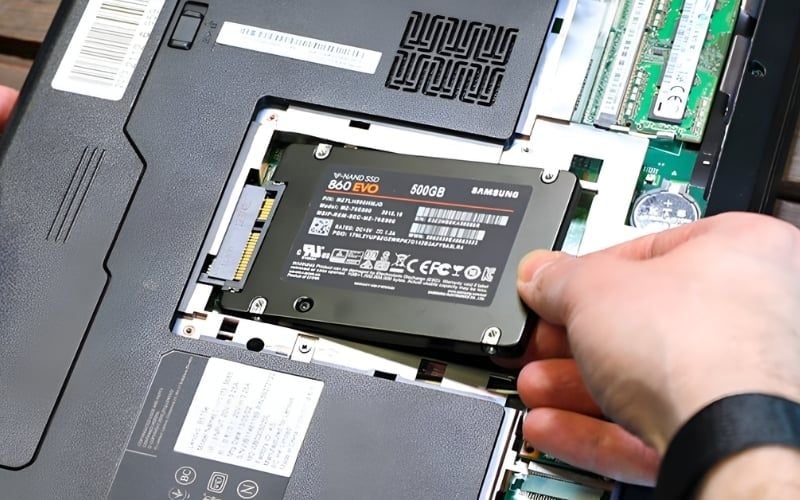
2.5-inch SATA bay
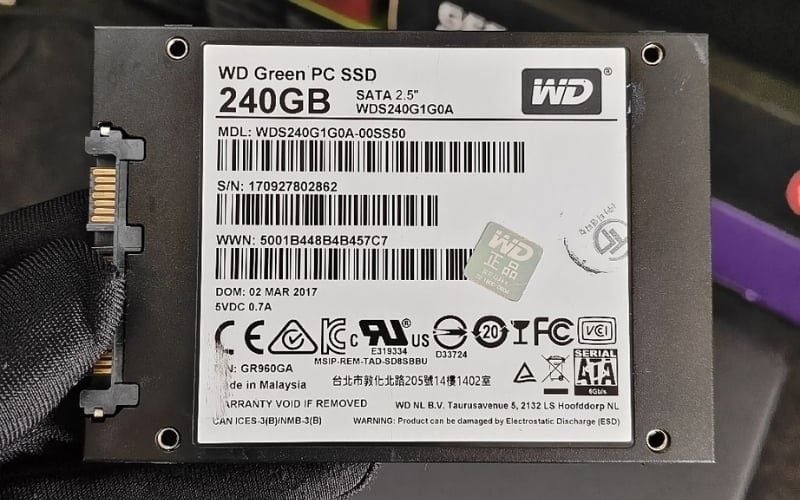
Many older laptops use a 2.5-inch SATA hard drive. A 2.5-inch SATA SSD can normally replace it, but verify drive thickness, bracket, ribbon cable, and connector orientation. Reuse the model-specific caddy and adapter.
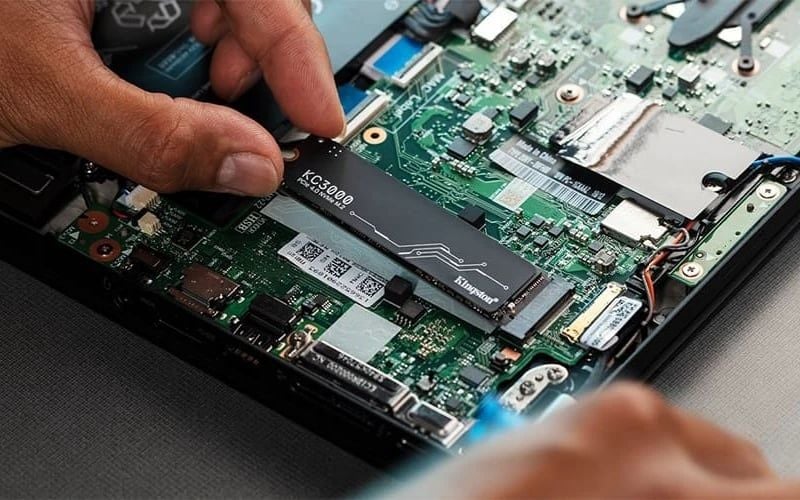
M.2 slot
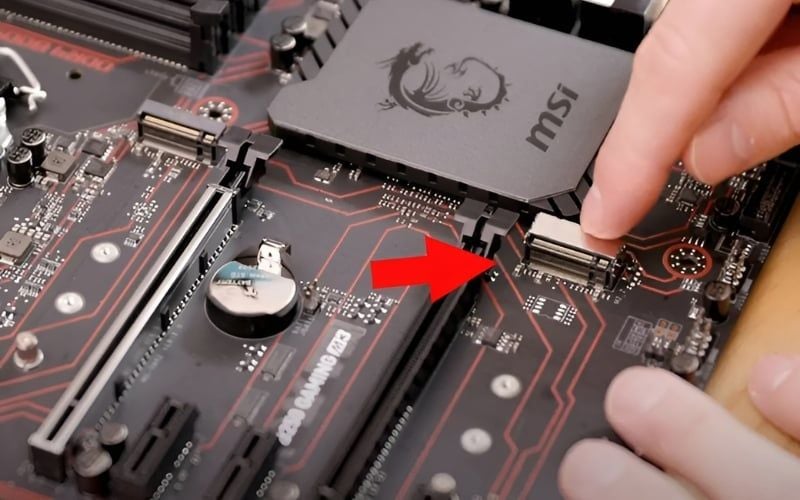
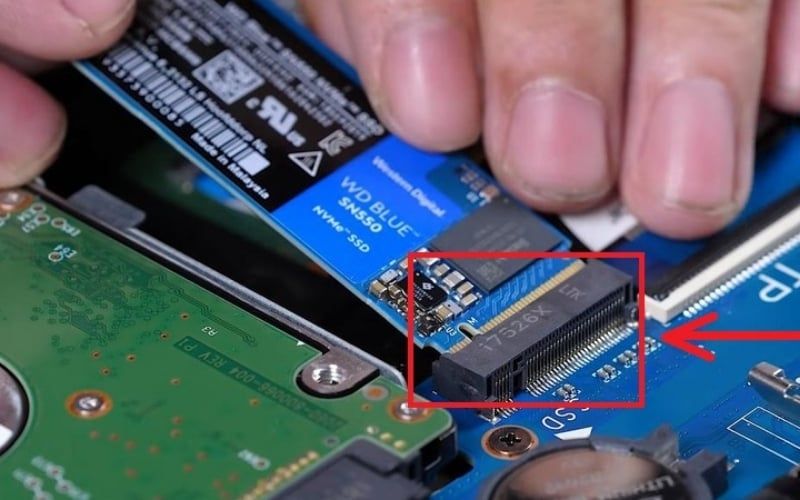
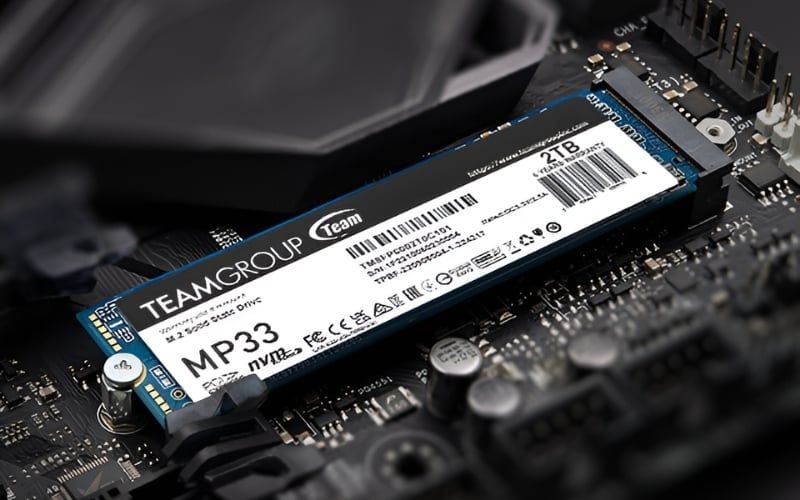
M.2 describes the physical card. The slot may support PCIe/NVMe, SATA, or both, and only certain lengths such as 2242 or 2280. Key notches alone are not sufficient proof of protocol support. Follow the M.2 compatibility checklist before buying.
Optical-drive caddy
Some older laptops can replace the DVD drive with a SATA caddy, but this is not guaranteed. Caddy thickness, bezel, mounting tab, SATA link speed, boot support, sleep behavior, and firmware compatibility vary. If using both an SSD and HDD, the primary internal bay is often the better place for the SSD. Do not buy a caddy until the exact laptop model is confirmed to support it.
One soldered or removable drive
Thin laptops may have one replaceable M.2 drive, soldered storage, or no user-serviceable storage at all. When replacing the only drive, use a USB enclosure for cloning or create installation media and a backup first.
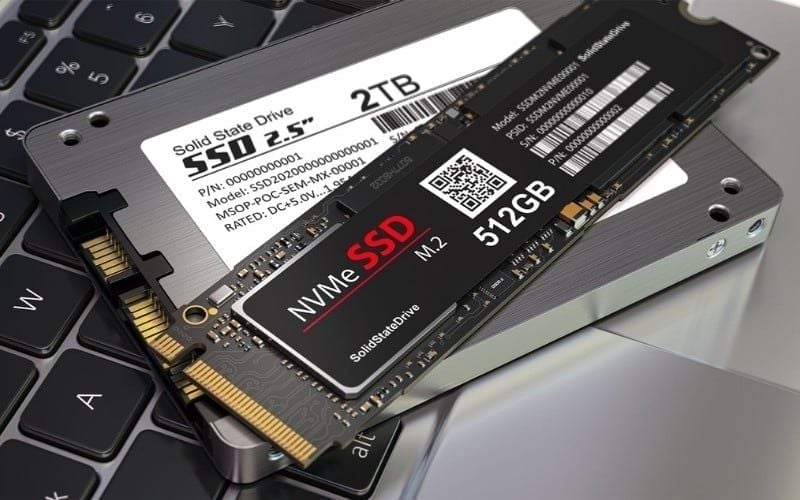
SATA versus NVMe
| Criteria | SATA SSD | PCIe NVMe SSD |
|---|---|---|
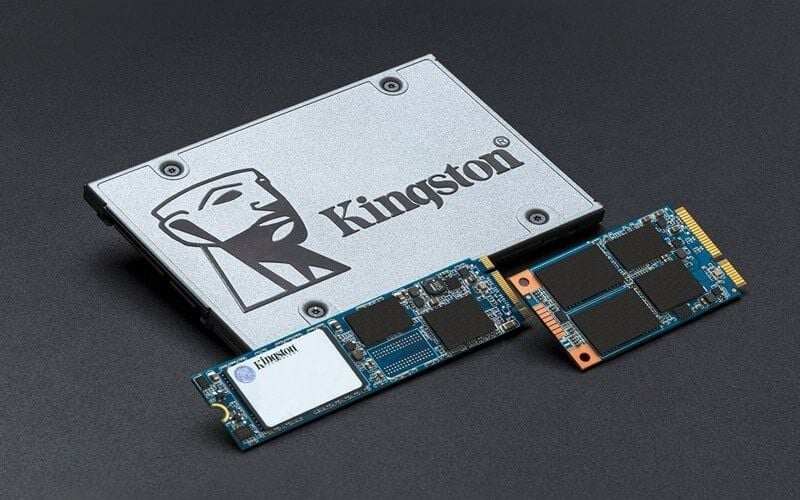
| Interface | SATA; available in 2.5-inch and some M.2 drives | PCIe through an M.2 slot in most laptops |
| Typical strength | Low-cost HDD replacement and broad older-laptop compatibility | Higher sequential throughput and more parallel I/O |
| Everyday feel versus HDD | Large improvement | Large improvement; may feel similar to SATA in light tasks |
| Compatibility risk | Needs a SATA bay or an M.2 slot that supports SATA | Needs an M.2 PCIe/NVMe slot of the correct key and length |
| Thermals | Usually modest | High-performance models can throttle in a poorly cooled laptop |
A fast NVMe drive is helpful for large transfers, some creation workloads, virtual machines, and heavy multitasking. It is not mandatory for gaming or graphics work, and it does not increase frame rate when the GPU or CPU is the limit. Choose the fastest class the laptop can use sensibly, not the largest benchmark number.
Choose the capacity from actual use
- 256GB: workable for a light, cloud-first system with disciplined file management.
- 512GB: a practical baseline for many office, study, and home laptops.
- 1TB: comfortable for gaming, development, photos, or years of local files.
- 2TB or more: useful for a large game library, video projects, virtual machines, or other large datasets—not mandatory for every gamer or creator.
Measure current storage, add planned software and growth room, and remember that advertised and displayed capacities use different units. The article on choosing SSD capacity provides a fuller calculation method.
Other specifications that matter
Look beyond brand alone. Check the exact model's warranty, endurance rating, controller and NAND design, sustained-write reviews, power use, firmware support, and thermal requirements. A reputable brand can sell both excellent and entry-level products; a product-line name is not a universal quality guarantee.

Plan the Windows migration
You have two sound choices:
- Clone the old drive: preserves Windows, programs, settings, and files. Verify that the used data fits, back up first, save the BitLocker recovery key, and check the source and destination carefully.
- Clean-install Windows: provides a fresh setup but requires reinstalling applications and restoring data. Create verified installation media and make sure required drivers and licenses are available.
Adding a blank secondary SSD does not alter the old drive by itself, but initializing, formatting, partitioning, and cloning can destroy data if the wrong disk is selected. Keep the original unchanged until the new installation has booted and the restored files have been checked.
Installation and warranty precautions
Opening a laptop does not have one universal warranty outcome. Check the manufacturer's service manual and local warranty terms. Even when an upgrade is permitted, damage caused during installation may not be covered. Shut down, unplug power, disconnect the internal battery when instructed, control static electricity, and keep a screw map. The step-by-step guide to installing a laptop SSD safely covers both M.2 and 2.5-inch drives.
For an HDD-based laptop whose CPU and RAM still meet your needs, the upgrade is often worthwhile. For a system already using a healthy SSD, first diagnose the actual bottleneck; replacing one SSD with a faster benchmark model may produce little visible change in everyday work.
Related Articles
 Tips to Optimize Internet Connection Speed from Linksys6 minutes read
 26 Tips Optimize Win 10 - Speed up Windows 10 Comprehensively27 minutes read
 How to Find the Fastest DNS to Optimize Internet Speed8 minutes read
 How to Speed up Windows 10, Optimize Windows 10 for Maximum Performance6 minutes read
 Instructions on How to Upgrade RAM on Computers and Laptops9 minutes read
 How to Speed up Windows 10 for Maximum Performance When It9 minutes read
Reader Comments 0
Sign in with email or Google to join the discussion.