Table of Contents
Quick answer
When writing documents in Microsoft Word, correctly formatting fractions makes the content clear and easy to read. You can enter fractions using symbols, the Equation Editor, or by setting up AutoCorrect for automatic conversion. Below are simple ways to…
There are many ways to write fractions in Word, such as using symbols, the Equation Editor, or keyboard shortcuts. You can choose the method that suits you best for easy document creation.
Instructions on how to insert fractions in a Word file.
Method 1: Using keyboard shortcuts
Step 1 : Place the cursor where you want to write the fraction, then press Ctrl + F9 to display the expression. On some laptops, you may need to press the Fn key as well, i.e., Ctrl + Fn + F9.
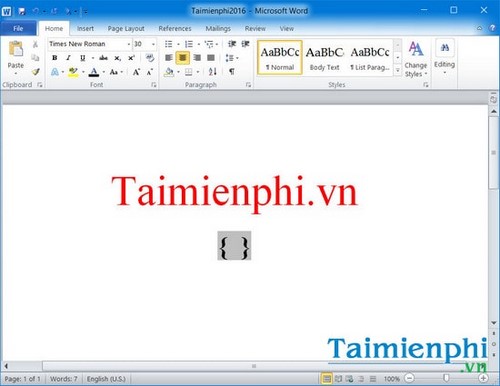
Step 2 : Enter the expression EQ(_)F(x,y) .
- Please note the following:
+ There is a space (_) after the word EQ before typing '', so you need to pay close attention because without the space, you cannot enter the fraction formula in Word.
+ Case sensitivity is not important when typing the expression.
+ EQ stands for Equation, X is the numerator, Y is the denominator, and F stands for Fraction.
+ The most important thing is never to manually type the characters in the expression because you will not be able to insert the fraction. +
For example, in this article, Free Download will enter the fraction 1/2, and the fraction expression will be entered as follows: {EQ (1,2)}
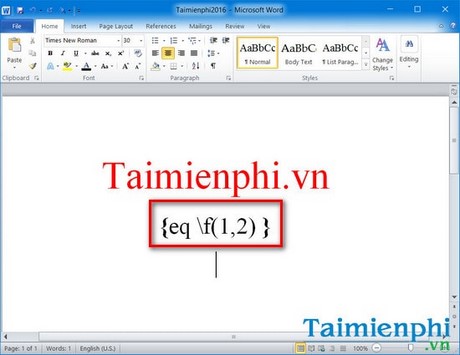
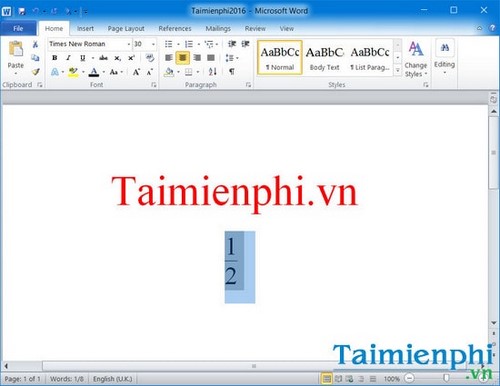
Step 3: Highlight the expression you just created and press Shift + F9 to successfully enter the fraction in Word.
- This method can be applied to Word versions 2003, 2007, 2010, and 2013.
Note:
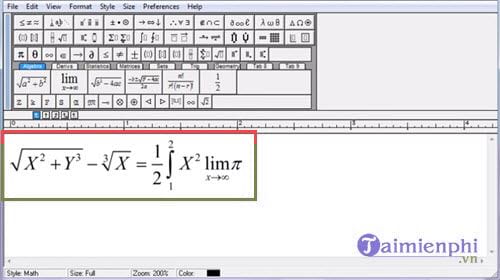
If you want to write fractions along with other mathematical formulas like the image below , please refer to the article "How to use MathType to write mathematical formulas" .
Method 2: Using the mathematical tool Equation
Step 1 : Click the Insert tab > Equation on the toolbar.
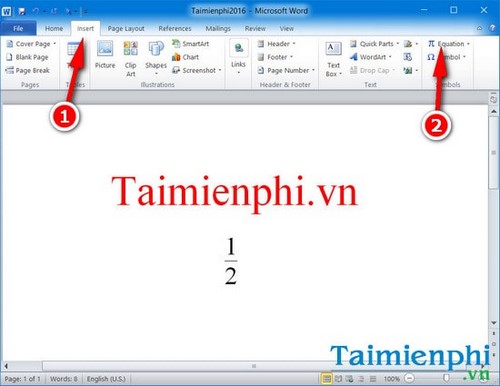
Step 2: Select the "Fraction" option on the toolbar > and choose the desired fraction format for typing fractions in Word.
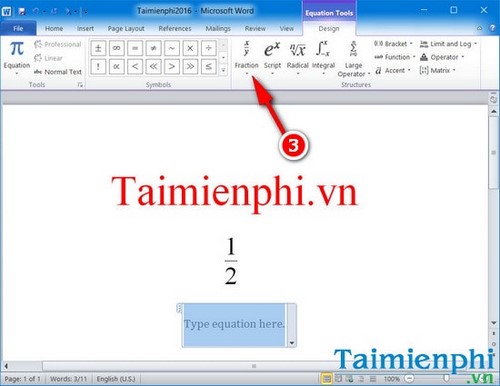
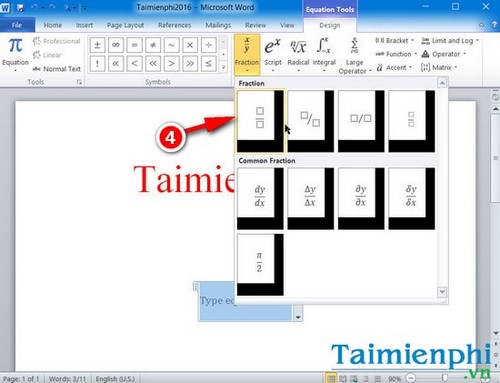
Feel free to choose any fraction expression form you like.
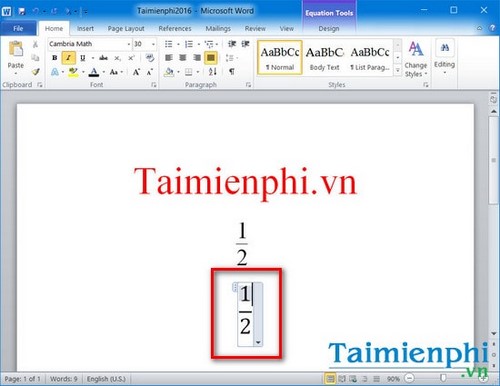
After making your selection, simply enter the fraction.
Tips for writing exponents in Word
You can only write fractions with exponents using method 1. If you need to insert exponents or adjust the position of the subscripts in Word, you can refer to the detailed instructions on writing exponents from Free Download.
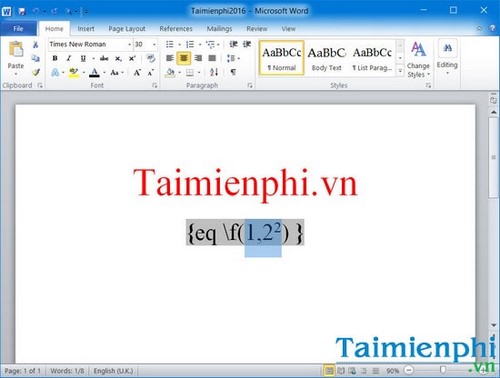
You simply insert exponents in Word as usual.
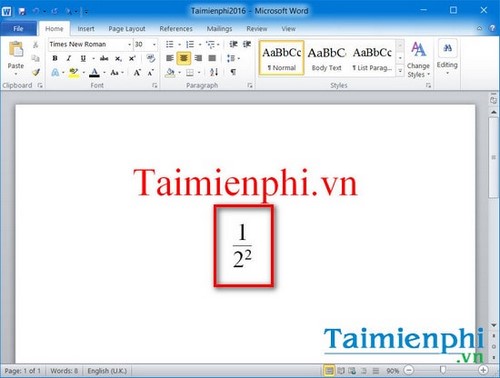
And here are the results.
Therefore, you can write fractions in Word using Symbol, Equation Editor, or AutoCorrect to quickly enter mathematical expressions. If you frequently create formulas, using keyboard shortcuts in Word will help you work faster on all versions, from Word 2007 to Word 2013.
Practical checks
- Save a copy before changing a document with complex formatting.
- Check the result in Print Preview or an exported PDF when layout matters.
- Menu names and shortcuts can vary by Word version, operating system, and keyboard.
For related formatting tools, see how to insert an X-bar symbol in Word and use the Word ribbon and ruler.
Related Articles
 How to Write Fractions in Word: Step-by-Step Guide4 minutes read
 How to Write Fractions in Word 2010, 2013, 2016, 2019, 20206 minutes read
 How to Write Fractions in Word Is Very Simple5 minutes read
 How to Write Fractions in Word - Instructions on How to Write Fractions in4 minutes read
 How to Write Fractions on Word: Write Fractions in Words5 minutes read
 6 Easiest Ways to Write Fractions in Word on Versions 2016, 20107 minutes read
Reader Comments 0
Sign in with email or Google to join the discussion.