Table of Contents
A phone cleaner can help you find large downloads, duplicate files, unused apps, and temporary data, but it cannot magically make old hardware faster or extend battery life. Start with the storage tools built into Android or iOS. Install a third-party cleaner only if it provides a specific feature you still need.

Best ways to clean up phone storage
1. Files by Google for most Android phones
Files by Google is the simplest option for many Android users. Its Clean section can suggest temporary files, duplicate items, old screenshots, large files, and unused apps. Each category shows what will be removed, so you can review the selection before deleting anything.
- Open Files by Google and select Clean.
- Review one cleanup card at a time.
- Open important files before deleting them and clear the Bin afterward only when you are sure they are no longer needed.
This is a storage-management tool, not a RAM booster. Android already manages memory and background processes, so repeatedly forcing apps to close can make them reload more often without providing a lasting speed improvement.
2. Samsung Device Care for Galaxy phones
Galaxy devices include Device Care in Settings. Open Settings > Device Care > Storage to see which categories use space and to locate large, duplicate, or unused files. The exact wording varies by One UI version. The Memory screen can close background apps, but use it for troubleshooting rather than as a routine requirement.
3. iPhone Storage for iOS
iPhone users generally do not need a separate cleaner. Go to Settings > General > iPhone Storage to see recommendations and a list of apps ordered by storage use. You can offload an unused app while keeping its documents and data, delete the app and its data, or remove large media from within the app that created it.
Be careful with photo-cleaning apps that request full access to your library. iOS already provides a Duplicates album in supported versions, and reviewing photos manually reduces the chance of deleting the wrong image.
4. CCleaner for Android
CCleaner can analyze storage, identify files that may be removable, show system information, and help manage installed apps. It is useful if you want one dashboard for several maintenance tasks, although the built-in Android tools cover many of the same needs.
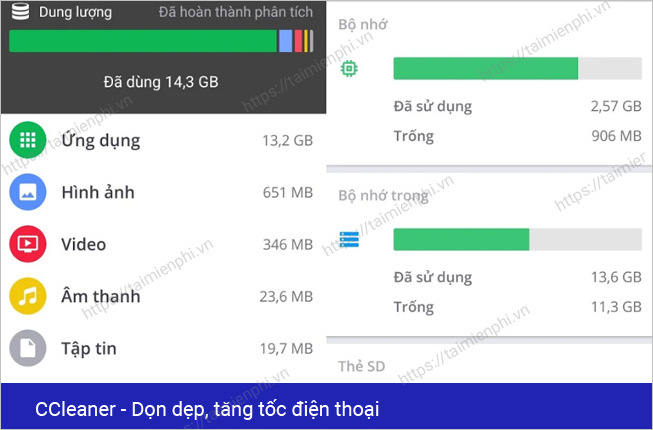
Before installing, check the current Google Play listing, subscription terms, requested permissions, and recent reviews. Do not grant access that is unrelated to the cleanup feature you plan to use.
5. A specialist Android cleaner for advanced file management
Tools such as SD Maid SE focus on leftover folders, large-file analysis, and detailed app cleanup. They suit users who want more control than Files by Google provides. Some features may require a paid upgrade, and Android's storage restrictions can limit what any cleaner is allowed to remove.
For more options, compare TipsMake's Android cleaner app recommendations. If photos occupy most of the storage, these tools for reviewing and deleting Android photos may be more useful than a general cleaner.
Cleaner apps to approach cautiously
Older cleaner lists often recommend apps such as Clean Master, Nox Cleaner, Phone Junk Cleaner, or Super Cleaner. Availability, ownership, features, and privacy practices can change, so a familiar name or a large download count is not enough to establish that an app is safe. Avoid cleaners that promise “CPU cooling,” “smart charging,” dramatic battery gains, or one-tap performance boosts without explaining what they actually change.
Before installing any cleaner:
- Download it only from the platform's official app store.
- Confirm the developer name and read the data-safety or privacy information.
- Reject permissions that are unnecessary for file management.
- Make sure cloud photos and important documents are backed up.
- Review every proposed deletion instead of approving a blind bulk cleanup.
What to delete first
The safest high-impact targets are usually offline video downloads, duplicate media, files in the Downloads folder, messaging-app attachments, and apps you no longer use. Clearing an app's cache can fix a problem or recover some space, but the cache will grow again as the app is used. Avoid clearing app data unless you understand that it can sign you out or remove locally stored settings and content.
If the phone remains slow after you free meaningful storage, restart it, install available operating-system and app updates, and check battery health. A cleaner cannot repair failing storage, a worn battery, overheating, malware, or hardware that no longer meets an app's requirements.
Related Articles
 Are Phone Cleaning Apps Really Effective?4 minutes read
 Phone Cleaning: Experience Cleaning Mobile Phones6 minutes read
 How to Clean the Phone and Other Electronic Devices6 minutes read
 Should Iphone Clean with Alcohol or Water?3 minutes read
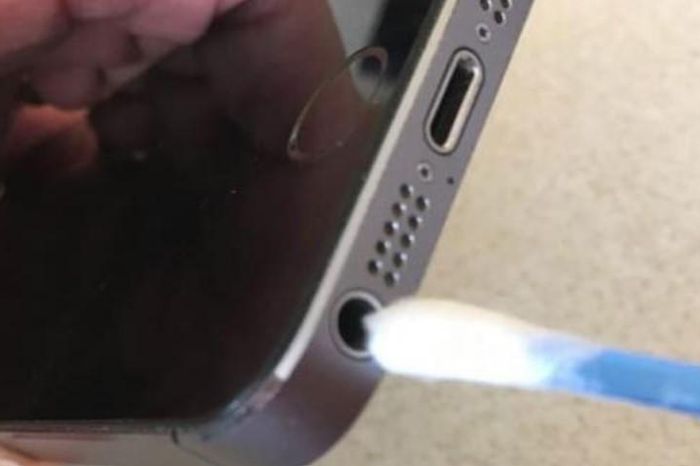 The Phone Speaker Is Noisy, Just a Simple Cleaning Tip That Won't Cost You Money6 minutes read
 Should I Use a Laptop or Phone Screen Cleaner?5 minutes read
Reader Comments 0
Sign in with email or Google to join the discussion.