Table of Contents
Bitdefender Antivirus Plus is installed through a Bitdefender Central account rather than by searching the web for a version-specific installer. Sign in to Central, confirm that the subscription is active, download the installer for the Windows PC you want to protect, and let the installer retrieve the current product build automatically.
Do not download an old “Bitdefender Antivirus Plus 2020” installer from a third-party site. Antivirus software depends on current program components and threat updates. The screenshots later in this guide show the 2020 interface only for historical reference; the current installer and dashboard may look different.

Before installing Bitdefender
- Make sure the Windows account has administrator rights.
- Install pending Windows updates and restart the PC.
- Confirm that your Bitdefender subscription is active and has an available device slot.
- Use a stable internet connection because the small setup file downloads the current application components.
- Remove another third-party real-time antivirus product if the Bitdefender installer identifies a conflict. Do not run two full real-time antivirus suites together.
Bitdefender's current Windows requirements list Windows 7 with Service Pack 1, Windows 8.1, Windows 10, or Windows 11, at least 2 GB of RAM, and 2.5 GB of free disk space. Support details can change, so verify the current Bitdefender system requirements before downloading. Even when an antivirus vendor still supports an older Windows release, an operating system that no longer receives Microsoft security updates carries additional risk.
Download Bitdefender Antivirus Plus from Central
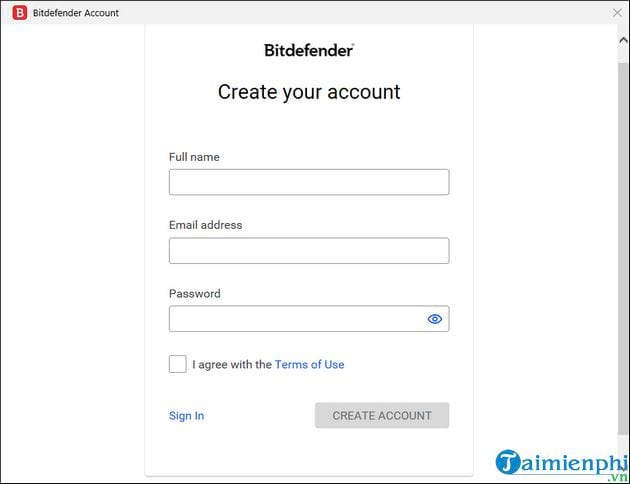
- Open the official Bitdefender website and sign in to Bitdefender Central. Create an account if you do not already have one.
- Open My Subscriptions and verify that Antivirus Plus is active. If you bought an activation code, add it to the account before installation.
- From the Central home page, select Install Bitdefender Products.
- Choose the security product covered by the subscription, then select the option to install it on this device.
- Download the Windows installer and keep the browser open until the download finishes.
Use only the installer offered from your Central account or the official Bitdefender product page. A search result, download portal, or file-sharing link can point to an outdated or modified package.
Install Bitdefender on Windows
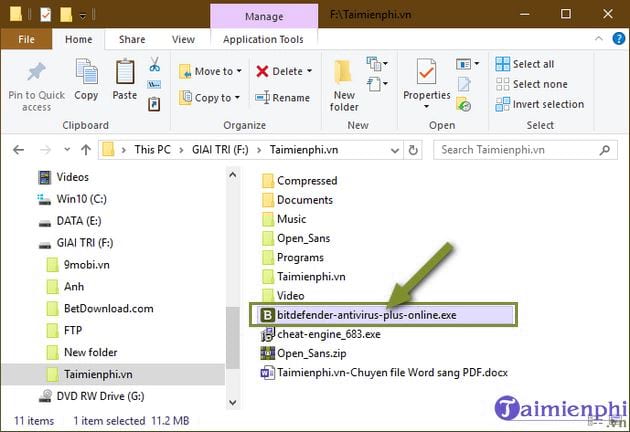
- Open the downloaded setup file. If Windows User Account Control asks whether the app may make changes, confirm that the verified publisher is Bitdefender before selecting Yes.
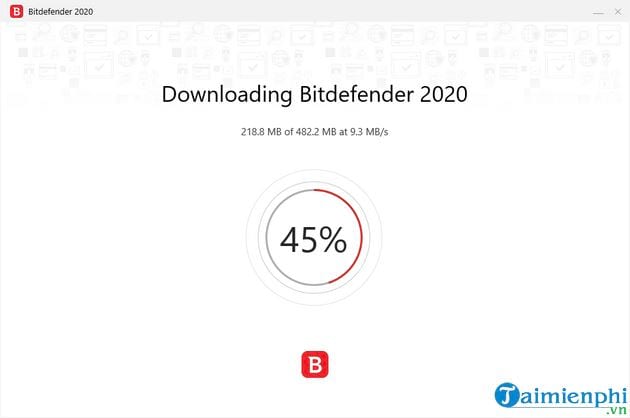
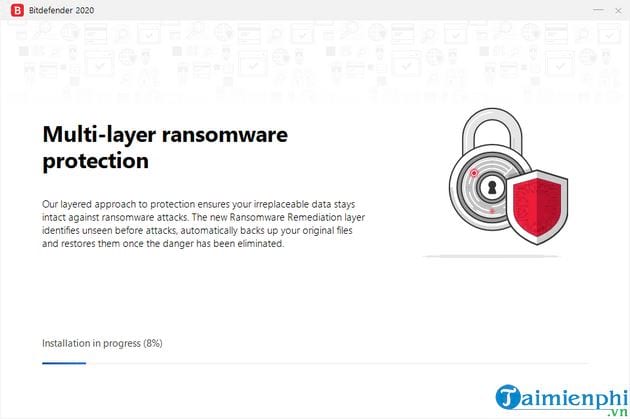
- Wait while setup downloads the required components. The time depends on the connection and the PC.
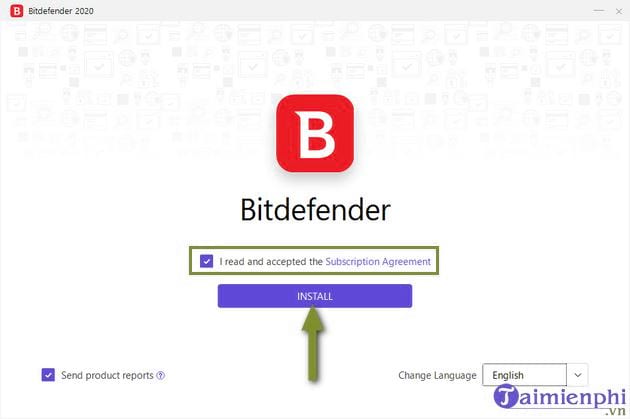
- Review the subscription agreement and any optional data or product settings shown by the installer. Select Install only after checking the choices.
- If setup asks you to remove an incompatible security product, follow the prompt, restart Windows, and launch the Bitdefender installer again.
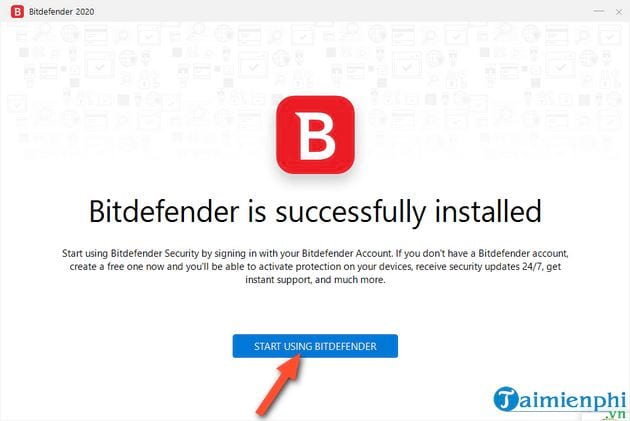
- Allow installation and the initial configuration to finish. Avoid shutting down the PC during this stage.
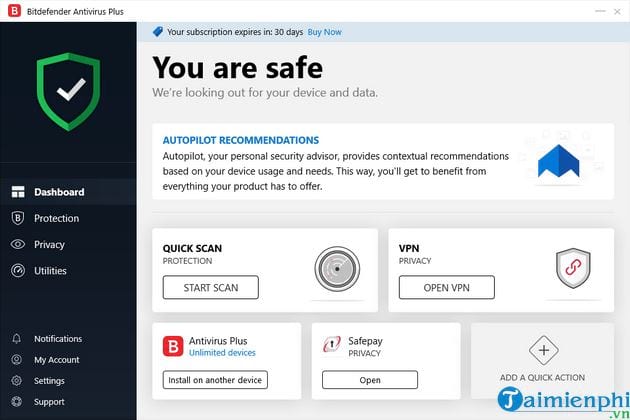
- Open Bitdefender and confirm that the dashboard reports the device as protected.
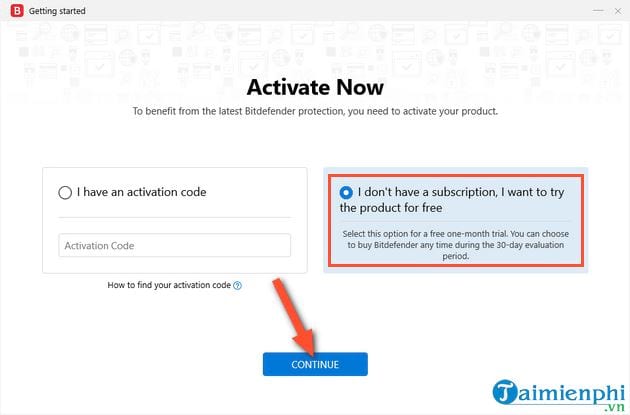
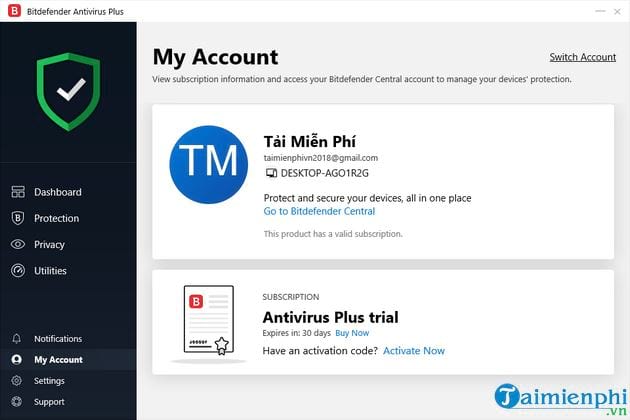
The installation should associate the PC with the subscription in Central. You normally do not need to type the activation code into the local application again if the subscription is already active in the account.
Run the first update and scan
After installation, open the dashboard and run an update if one is offered. Then start a system scan when you are not in the middle of demanding work. A first scan can take longer because the product is examining the existing files on the computer.
Open Bitdefender Central afterward and verify that the new PC appears under your devices. Remove an old device from the subscription only if you recognize it and no longer need to protect it.
If Bitdefender will not install
The installer does not open
Download a fresh copy from Central, right-click the file, open Properties, and confirm that the publisher and digital signature are valid. Make sure you are using an administrator account. Do not bypass a Windows security warning if the publisher is missing or unexpected.
Setup reports another antivirus
Uninstall the other third-party antivirus through Windows Settings, restart the PC, and try again. Some vendors provide a separate cleanup tool for incomplete removals; obtain it only from that vendor's official support site. Microsoft Defender normally changes its real-time status when Windows registers a compatible third-party antivirus, so manually disabling Defender is not the first step.
The download stalls or installation fails
Restart Windows, install available system updates, confirm that there is enough disk space, and try a stable network. Bitdefender's current Windows installation guide is the best reference when button names differ from this article.
If you are still choosing a security product, compare Microsoft Defender and Bitdefender and review TipsMake's overview of internet security suites before buying a subscription.
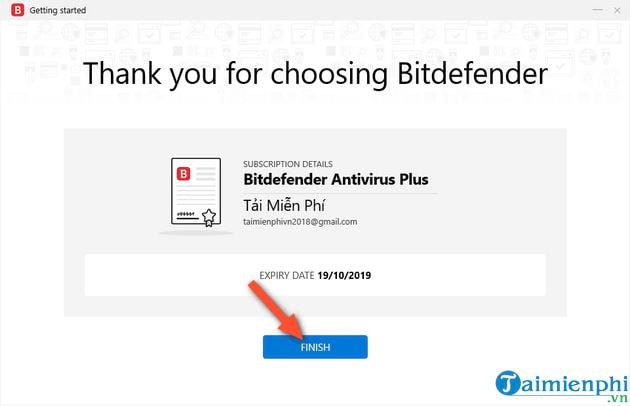
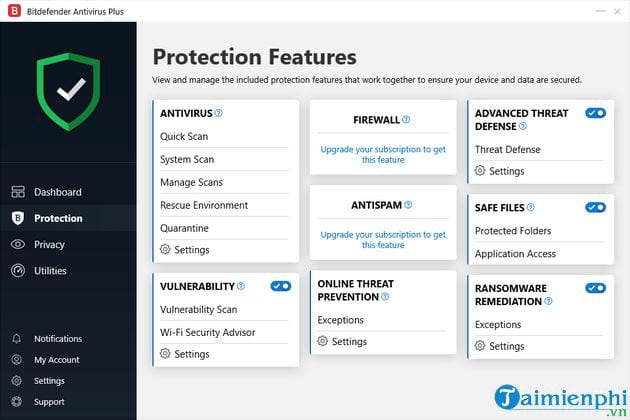
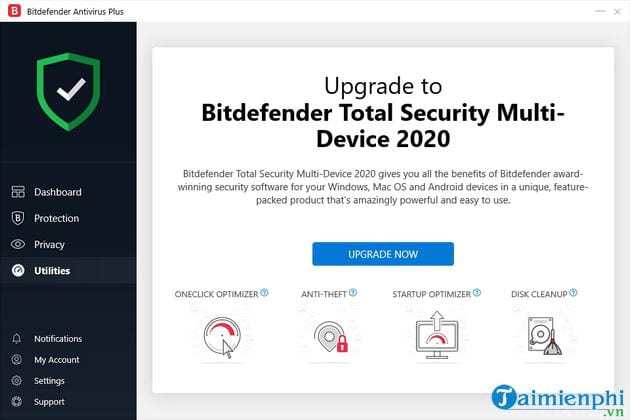
Legacy Bitdefender Antivirus Plus 2020 screenshots
The following images are retained from the original guide. They document the older online installer, agreement screen, account creation, trial activation, dashboard, protection, and upgrade pages. Use them to recognize the general installation flow, not as exact instructions for the current version.
Related Articles
 Download Bitdefender Antivirus Free 2020.1.0.17.1693 minutes read
 How to Download and Install Bitdefender on Windows5 minutes read
 Bitdefender Antivirus Free Edition Review: Compact, Full-featured5 minutes read
 How to Activate Bitdefender Total Security 2018 License for 63 minutes read
 Norton or Bitdefender Is the Better PC Protection Solution?8 minutes read
 Free 6 Month License for Bitdefender Internet Security 20194 minutes read
Reader Comments 0
Sign in with email or Google to join the discussion.