Table of Contents
Bkav Tool is a support utility that collects a diagnostic log for Bkav's technical team. It is not a replacement for real-time antivirus protection and does not independently give you a complete malware verdict. The usual workflow is to create a BL.bkc log, send it through an official Bkav support channel, receive a BT.dat response file, and process that file with the tool.
Compatibility note: Bkav's published instructions name Windows 7, Windows 8, and Windows 10. Because those instructions are old and do not explicitly list Windows 11, contact Bkav Support before running the utility on an unlisted system. Windows 7 and 8 are no longer supported by Microsoft, and standard Windows 10 support ended on October 14, 2025.
Before using Bkav Tool
- Download BkavTool.exe only from an official Bkav page or a link supplied by verified Bkav Support.
- Check the file's digital signature and publisher before granting administrator access.
- Keep Microsoft Defender or another active antivirus enabled unless Bkav specifically instructs you otherwise.
- Back up important files before applying a support-generated remediation file.
- Use the contact details on Bkav's current support page; do not trust an email address copied from an old forum post or download site.
Create the BL.bkc diagnostic log
- Save the official Bkav Tool file to a known folder.
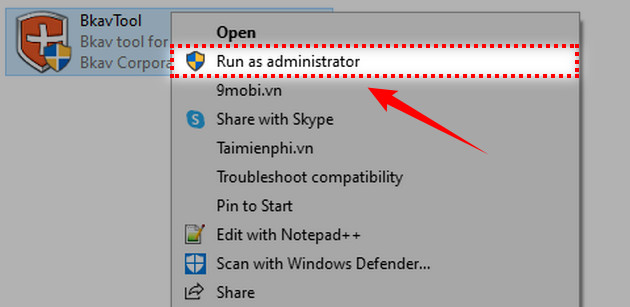
- Right-click BkavTool.exe and select Run as administrator. Approve the User Account Control prompt only if Windows shows the expected Bkav publisher.
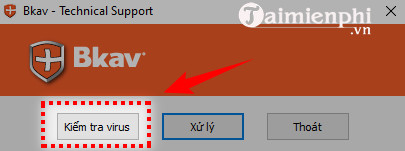
- In Bkav Tool, select Kiểm tra virus (Check for viruses) to begin collecting the diagnostic information.
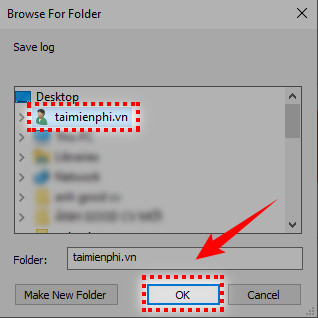
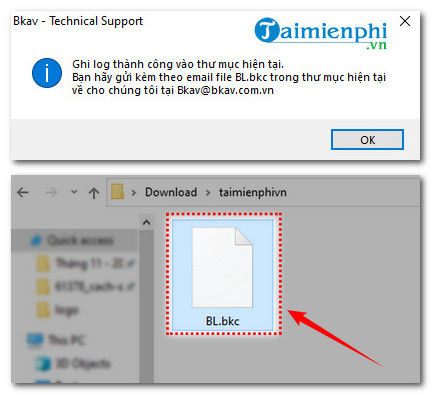
- Choose a folder you can find easily, such as a temporary support folder on the Desktop, and select OK.
- Wait for the tool to finish. The official instructions identify the generated file as BL.bkc.
Send the log to verified Bkav Support
Contact Bkav through the support page or the support channel shown inside your licensed Bkav product. Explain the symptoms, the Windows version, when the problem started, and what scans you have already run. Attach the BL.bkc file only to the verified address or support ticket Bkav gives you.
A diagnostic log may contain system details such as processes, file paths, or installed components. Treat it as potentially sensitive: do not post it publicly or send it to an address that has not been verified.
Process the BT.dat response file
If Bkav's analysts return a BT.dat file, verify that the message belongs to the support case you opened. Do not process an unsolicited BT.dat attachment.
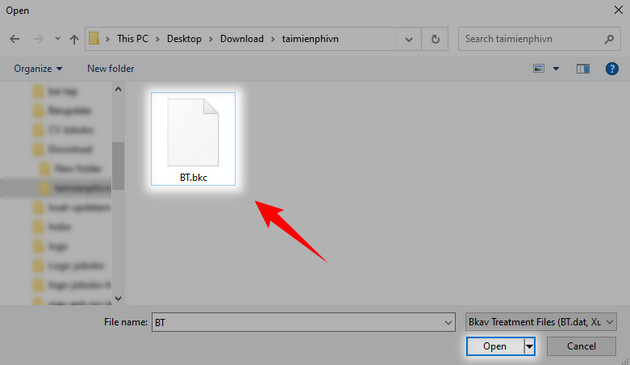
- Save BT.dat in a dedicated folder.
- Run the same verified BkavTool.exe file as administrator.
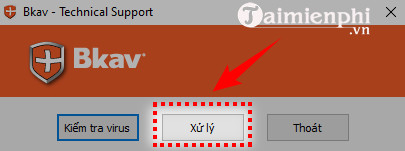
- Select Xử lý (Process).
- Select the folder that contains BT.dat and confirm the operation.
- Allow the tool to finish. Restart Windows if the verified Bkav instructions for your case require it.
Send the follow-up BS file
Bkav's instructions say that processing the response produces a BS follow-up file. Send that file back through the same verified support case so the analyst can confirm the result and update the remediation if necessary. Keep the case number and do not mix files from different computers or incidents.
If you only need a normal malware scan
Bkav Tool is intended for a guided support workflow. For a routine scan, start with the active antivirus product on the computer. Windows users can run a full Microsoft Defender scan. To check one non-confidential file or URL with several engines, compare these online virus-scanning services.
If the computer shows clear signs of compromise, disconnect it from untrusted networks, avoid logging in to important accounts, and change passwords from a separate known-clean device. A support log can help diagnosis, but it does not by itself prove that the system is safe.
Related Articles
 How to Remove Viruses Using BKAV, Using BKAV Software4 minutes read
 Bkav Released the W32. WeakPass Antivirus Server Inspection Tool3 minutes read
 Viruses Impersonating Microsoft Delete Data3 minutes read
 Nearly 3,000 New Viruses Appeared in September3 minutes read
 How Did Bkav Announce the Details of the Face ID on the iPhone X?12 minutes read
 Bkav Released a Free Detection Tool for Meltdown and Specter3 minutes read
Reader Comments 0
Sign in with email or Google to join the discussion.