Table of Contents
Learn how to remove the NPSK Ransomware and Decrypt. Npsk files with clear steps, practical tips, and troubleshooting guidance for common issues.
Step-by-Step Instructions
How to remove NPSK, a ransomware virus on your PC.
Article contents: 1. How does the NPSK ransomware infect your computer? 2. How to remove NPSK ransomware 3. How to decrypt files infected by NPSK?
1. How does the NPSK ransomware virus infect your computer?
Cybercriminals use various techniques to introduce viruses into target computers. Ransomware can infiltrate a victim's computer in several ways. In most cases, ransomware attacks are carried out Using the following methods:
- Spam : This is the most commonly used method. Cybercriminals use phishing emails disguised as legitimate business organizations or companies (receipts, prize notifications, order confirmations, bank messages, etc.) to trick users into clicking on malicious attachments.
- Software : Hackers use specialized tools to exploit known vulnerabilities in systems or applications. That's why you should always update Windows to the latest version.
- Suspicious web sources : Various suspicious websites may contain malicious scripts or hyperlinks that could infect your system.
- Remote Desktop Protocol: Cybercriminals often abuse the built-in Windows Remote Desktop Protocol feature to infect computers with ransomware. This allows them to remotely access the target computer and manually install the virus.
2. How to remove the NPSK ransomware
Before proceeding to remove the Npsk ransomware, you will need to restart your computer system (reboot) in Safe Mode with Networking and then download antivirus software capable of removing the Npsk ransomware and all related files.
2.1. For Windows XP/Vista/7
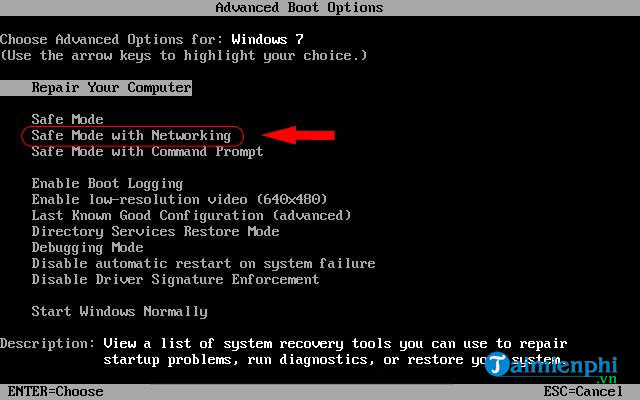
Restart your computer before your system starts by pressing the F8 key several times. This will prevent the system from loading and will display the Advanced Boot Options screen. Select Safe Mode with Networking from the list of options using the up and down arrow keys on your keyboard and press Enter .
2.2. For Windows 8/10
- Click the Start button and select Settings .
- click Update & Security , then select Recovery > Restart now .
- After your device restarts, click Troubleshoot > Advanced options > Startup Settings > Restart .
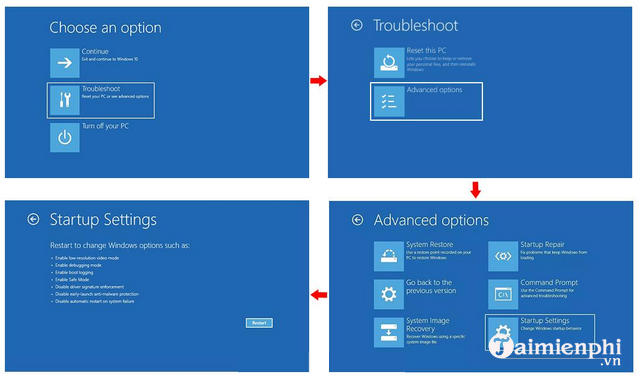
Finally, press the F5 key to enable Safe Mode with Networking .
After the system loads into Safe Mode with Networking , open your web browser and download a reliable antivirus software , then perform a full system scan. Review the scan results and remove all detected items. You can refer to the article on the top antivirus software shared by TipsMake.com.
Once the Npsk ransomware has been successfully removed, you can begin decrypting the. npsk file.
3. How do I decrypt files infected by NPSK?
3.1. Recovering files with recovery tools
In the event your computer is attacked by ransomware, you may need to recover your files using data recovery software. Stellar Data Recovery is one of the most effective tools that can recover lost or corrupted files such as documents, emails, photos, videos, audio files, and more on any Windows device. Its powerful scanning engine can detect compromised files and ultimately save them to a designated location.
- Open Stellar Data Recovery.
- Select the file types you want to recover and click Next .
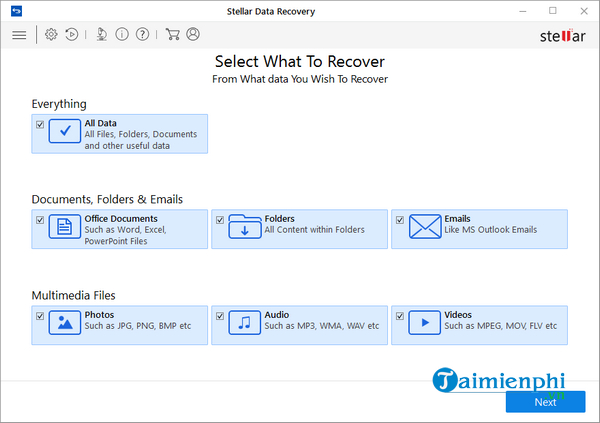
- Select the drive and folder where your files are located and the date you want to recover them. Then press Scan .
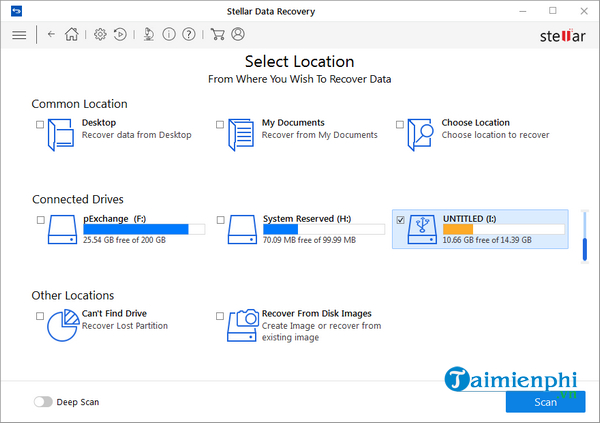
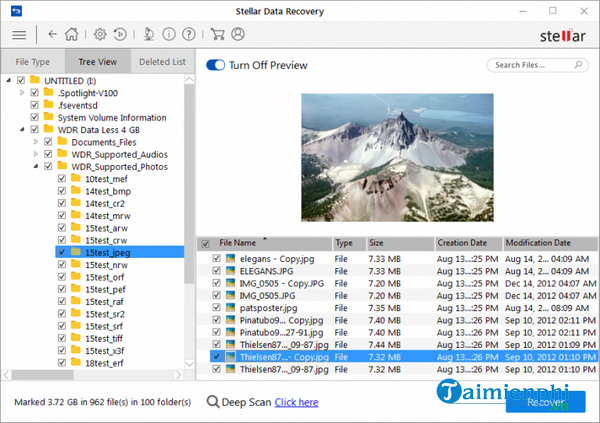
- After the scanning process is complete, click Recover to restore your files.
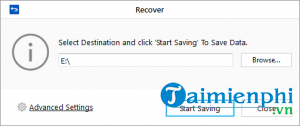
Next, choose where you want to save the file and click Start Saving to save the recovered data.
Because new ransomware viruses emerge almost daily, there's no technical capability to release a decryption tool for every single one. In this case, recovery tools have a chance to prove their effectiveness. While this is one of the most effective methods when a decryption tool isn't available, it's not 100% guaranteed and isn't the only way.
3.2. Restoring the system using System Restore
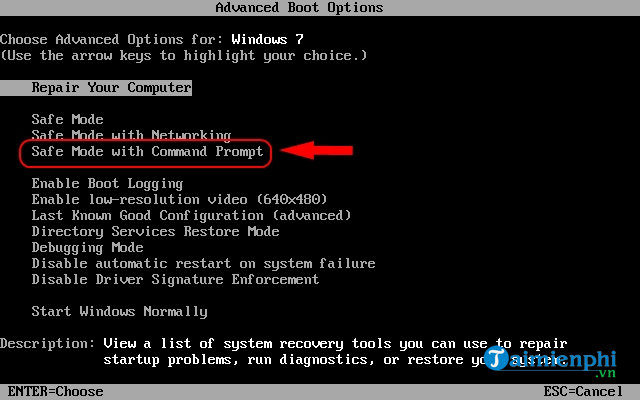
Although the latest version of the Npsk ransomware can delete system recovery files, this method may help you recover some of your files. Try this method and use the standard System Restore tool to recover your data. The entire process is best performed in Safe Mode with Command Prompt .
*For Windows XP/Vista/7 users:
Restart your computer before the system starts by pressing the F8 key several times. This will prevent the system from loading and will display the Advanced Boot Options screen. Select Safe mode with Command from the list of options using the up and down arrow keys on your keyboard and press Enter .
*For Windows 8/10 users:
- Click the Start button and select Settings .
- click Update & Security , then select Recovery > Restart now .
- After your device restarts, click Troubleshoot > Advanced options > Startup Settings > Restart .
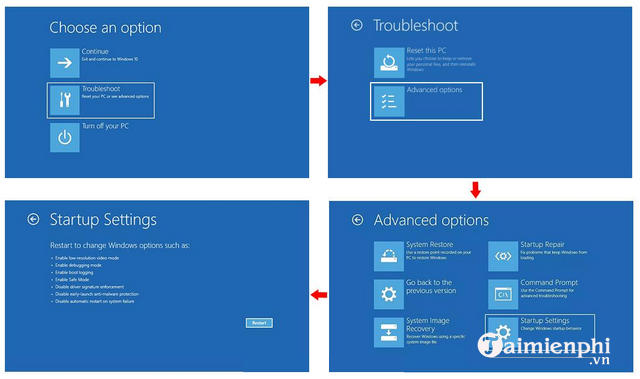
Press the F5 key to enable Safe Mode with Command Prompt .
After the system has loaded into Safe Mode with Command Prompt, follow these steps:
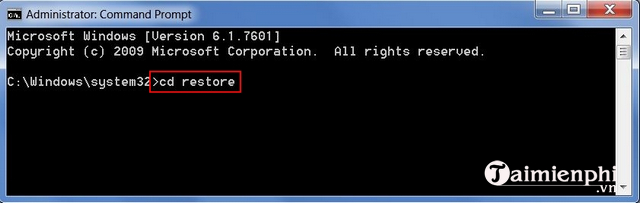
Step 1: In the Command Prompt window, type cd restore and press Enter .
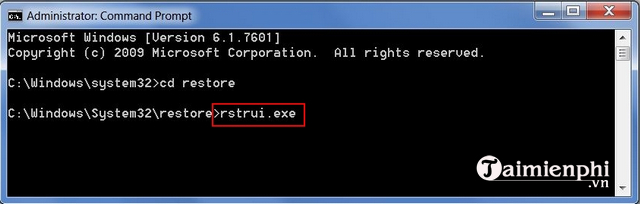
Step 2: Then type rstrui. exe and press Enter again.
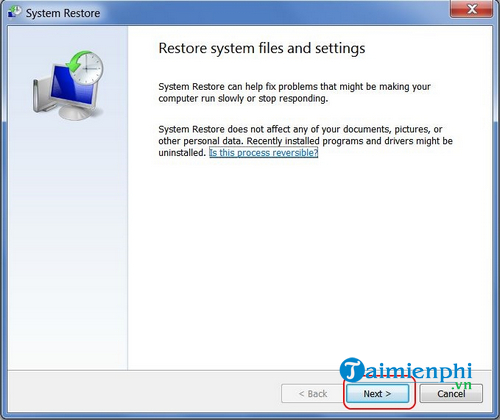
Step 3: In the new window that appears, click Next .
Step 4: Select the date and click Next again.
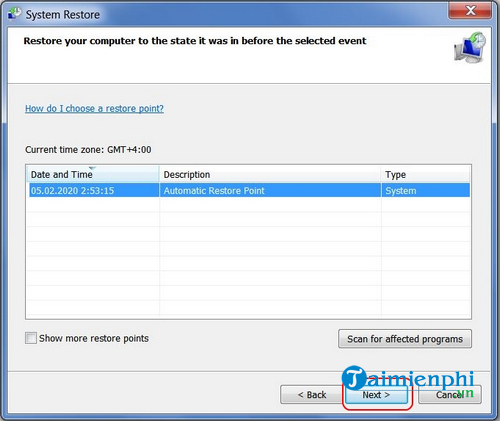
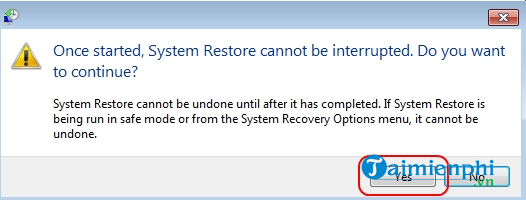
Step 5 : Click Yes to begin system recovery.
3.3. Restoring a previous file version
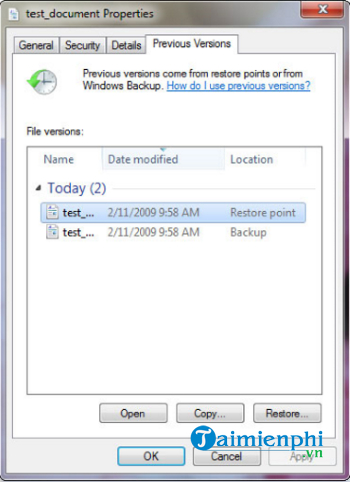
Previous versions may be copies of files or folders created by Windows Backup (if it works), or copies of files and folders created by System Restore. You can use this feature to recover files and folders that you accidentally modified, deleted, or corrupted. This feature is available in Windows 7 and later versions.
Here's what you do:
- Right-click the encrypted file and select Properties.
- Open the Previous Version tab.
- Select the latest version and click Copy .
- click Restore .
Anyone can get infected with a virus that encrypts data, but you can minimize this risk by following rules including updating Windows when an update is available, backing up all important data from your computer, never opening email attachments without scanning for viruses first, and most importantly, installing reliable antivirus software.
FAQ
How can you Remove the NPSK Ransomware and Decrypt. Npsk files?
Learn how to remove the NPSK Ransomware and Decrypt. Npsk files with clear steps, practical tips, and troubleshooting guidance for common issues.
Do the steps or features vary by device or software version?
They can. Menu names, available settings, and compatibility may differ by device, region, account type, or software version, so check the options shown on your own screen.
What should you do if the recommended method does not work?
Repeat the steps in order, confirm that the requirements are met, and restart the relevant app or device when appropriate. Also check for updates and review any error message before trying again.
Related Articles
 What Is Ransomware Cryptowall 4.0? How to Clean up Ransomware19 minutes read
 Developer Releases Decryption Key for Maze Ransomware, Egregor4 minutes read
 What Is BBBW Malware? How to Remove and Restore Data?10 minutes read
 How to Decrypt Files and Folders on Windows 105 minutes read
 There Is a Tool to Decrypt the Ransomware That Specializes5 minutes read
 How to Read Encrypted Files, How to Decrypt Encrypted Files4 minutes read
Reader Comments 0
Sign in with email or Google to join the discussion.