Table of Contents
Bootstrap 5 uses the same structural classes for checkboxes and radio buttons: wrap each control in form-check, add form-check-input to the input, and add form-check-label to its label. Use checkboxes when several choices may be selected and radio buttons when the user must choose one item from a set.
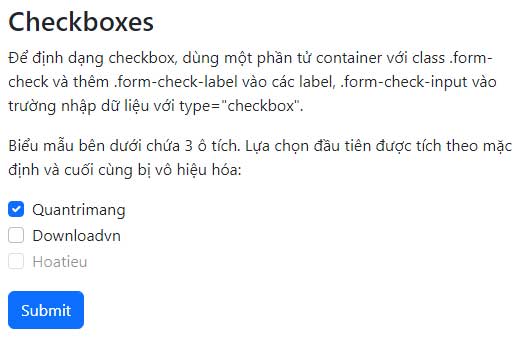
Create Bootstrap checkboxes
Each checkbox should have a unique id, a meaningful value, and a matching label. Inputs that belong to one set can share the same name when the server accepts multiple values.
<fieldset>
  <legend class="fs-6 fw-semibold">Email topics</legend>

  <div class="form-check">
    <input class="form-check-input" id="topicNews"
      name="topics[]" type="checkbox" value="news" checked>
    <label class="form-check-label" for="topicNews">
      Product news
    </label>
  </div>

  <div class="form-check">
    <input class="form-check-input" id="topicTips"
      name="topics[]" type="checkbox" value="tips">
    <label class="form-check-label" for="topicTips">
      Tutorials and tips
    </label>
  </div>

  <div class="form-check">
    <input class="form-check-input" id="topicEvents"
      name="topics[]" type="checkbox" value="events" disabled>
    <label class="form-check-label" for="topicEvents">
      Local events (unavailable)
    </label>
  </div>
</fieldset>
The checked attribute supplies an initial selection. Use it only when the default genuinely reflects the user's likely or previously saved choice. A disabled control is not submitted with the form.
Create a radio-button group
Every radio button in one set must share the same name. That shared name makes the controls mutually exclusive. IDs remain unique so each label activates the correct option.
<fieldset>
  <legend class="fs-6 fw-semibold">Delivery speed</legend>

  <div class="form-check">
    <input class="form-check-input" id="deliveryStandard"
      name="delivery" type="radio" value="standard" checked>
    <label class="form-check-label" for="deliveryStandard">
      Standard
    </label>
  </div>

  <div class="form-check">
    <input class="form-check-input" id="deliveryExpress"
      name="delivery" type="radio" value="express">
    <label class="form-check-label" for="deliveryExpress">
      Express
    </label>
  </div>

  <div class="form-check">
    <input class="form-check-input" id="deliveryPickup"
      name="delivery" type="radio" value="pickup" disabled>
    <label class="form-check-label" for="deliveryPickup">
      Store pickup (unavailable)
    </label>
  </div>
</fieldset>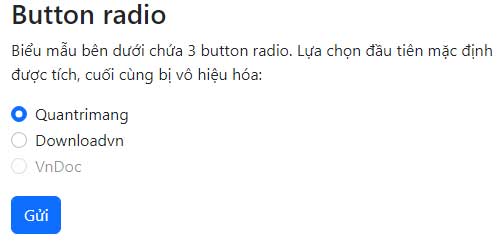
The fieldset and legend communicate the question that all options answer. A series of individually labeled radios without a group label can be difficult to understand out of context.
Display options inline
Add form-check-inline to each wrapper when short options should share a horizontal row:
<fieldset>
  <legend class="fs-6 fw-semibold">Text size</legend>

  <div class="form-check form-check-inline">
    <input class="form-check-input" id="sizeSmall"
      name="textSize" type="radio" value="small">
    <label class="form-check-label" for="sizeSmall">Small</label>
  </div>

  <div class="form-check form-check-inline">
    <input class="form-check-input" id="sizeMedium"
      name="textSize" type="radio" value="medium" checked>
    <label class="form-check-label" for="sizeMedium">Medium</label>
  </div>

  <div class="form-check form-check-inline">
    <input class="form-check-input" id="sizeLarge"
      name="textSize" type="radio" value="large">
    <label class="form-check-label" for="sizeLarge">Large</label>
  </div>
</fieldset>
Inline layout is useful for a small number of short choices. Keep longer labels stacked so they wrap cleanly on narrow screens.
Style a checkbox as a switch
Add form-switchrole="switch" can convey an on/off state more accurately to supporting assistive technology.
<div class="form-check form-switch">
  <input class="form-check-input" id="darkMode"
    name="darkMode" type="checkbox" role="switch" value="enabled">
  <label class="form-check-label" for="darkMode">
    Dark mode
  </label>
</div>
Use a switch for a setting that takes effect immediately or clearly represents on/off. Use an ordinary checkbox for agreement, selection, or a choice that is submitted later with a form.
Add validation feedback
A required standalone checkbox is useful for terms or confirmation. Add the feedback after the label and activate Bootstrap validation on submission:
<div class="form-check">
  <input class="form-check-input" id="terms"
    name="terms" type="checkbox"
    aria-describedby="termsError" required>
  <label class="form-check-label" for="terms">
    I agree to the terms
  </label>
  <div class="invalid-feedback" id="termsError">
    Accept the terms before continuing.
  </div>
</div>
For a required radio group, put required on at least one radio in the same named group and provide a group-level error message. Validate the submitted value on the server as well, because client-side constraints can be bypassed.
Optional button-style choices
Bootstrap can visually turn checks and radios into buttons with btn-check. The hidden input must still precede a matching label:
<fieldset>
  <legend class="fs-6 fw-semibold">View</legend>

  <input class="btn-check" id="viewGrid"
    name="view" type="radio" value="grid" autocomplete="off" checked>
  <label class="btn btn-outline-primary" for="viewGrid">Grid</label>

  <input class="btn-check" id="viewList"
    name="view" type="radio" value="list" autocomplete="off">
  <label class="btn btn-outline-primary" for="viewList">List</label>
</fieldset>
Although the options look like buttons, assistive technology announces them as radio buttons and reports their checked state. Choose the pattern that matches the underlying interaction, not only the appearance.
Common mistakes
- Radio buttons allow multiple choices: give every option in the group the same
name. - Labels do not toggle controls: match each label's
forwith a unique inputid. - The server receives an unhelpful value: set a meaningful
valueon every checkbox and radio. - Options lack a group question: wrap related controls in
fieldsetwith alegend. - A switch is used for agreement: use a standard checkbox when the action is consent or later form submission.
- Selections are distinguished only by color: retain labels, checked indicators, and visible keyboard focus.
The Bootstrap checks and radios reference includes reverse, disabled, indeterminate, and toggle-button variants. Use an HTML editor to catch mismatched names and IDs, and compare Bootstrap with other CSS frameworks if you are choosing a new UI foundation.
Related Articles
 How to Create a Bootstrap Button7 minutes read
 Lesson 42: Large Grid in Bootstrap 54 minutes read
 Lesson 11: Button Groups in Bootstrap 56 minutes read
 Lesson 38: Grid Systems from Stacked to Horizontal in Bootstrap 54 minutes read
 Lesson 30: Flexing in Bootstrap 59 minutes read
 Lesson 15: Pagination in Bootstrap 54 minutes read
Reader Comments 0
Sign in with email or Google to join the discussion.