Table of Contents
From monitoring battery health and managing updates to optimizing gaming performance and improving audio, Lenovo Vantage will help you realize how many hidden features your laptop really has.
Windows laptops come with many pre-installed apps, some from Microsoft and some from the manufacturer. Many people used to dismiss the manufacturer's apps as just unnecessary junk software that takes up space. They never thought they were actually useful - until they tried Lenovo Vantage.
It's more than just a tool to check your laptop's serial number, warranty status, or contact support; it's packed with features that actually improve the way you use your laptop. From monitoring battery health and managing updates to optimizing gaming performance and improving audio, Lenovo Vantage helps you see how many hidden features your laptop really has.
Battery limits help laptops work well
Keeping your battery healthy isn't difficult.
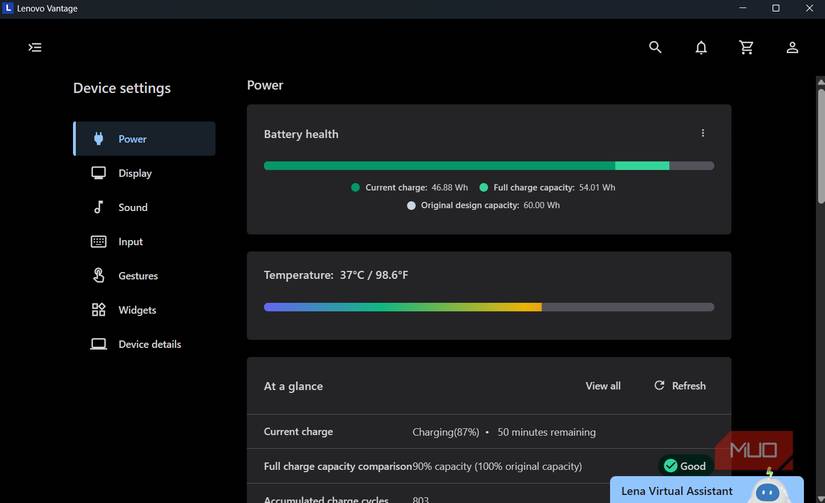
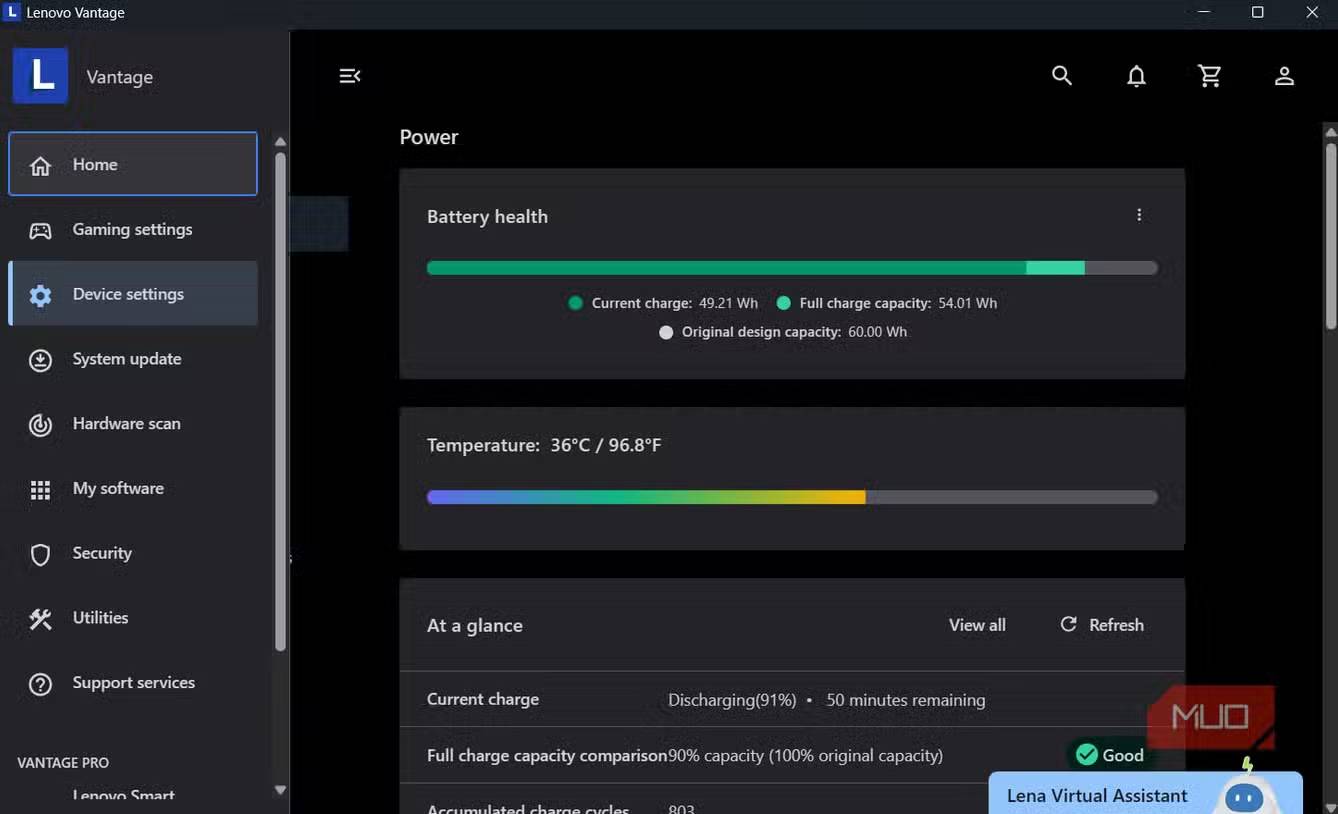
Battery life is one of the most important aspects of any laptop, but Windows doesn't offer many useful tools for monitoring performance or protecting battery health. Lenovo Vantage fixes that for me. In Device Settings > Power , you can quickly check the battery's overall health and current temperature. It even shows the number of charge cycles, giving you a good idea of when it's time to replace the battery.
But the most useful feature is the ability to set a charging limit. You can set your laptop to stop charging at around 80%, which significantly reduces the risk of long-term battery deterioration. And for those times when you're in a hurry and need a quick charge, there's Rapid Charge , which charges your battery much faster when your laptop is in hibernation or turned off.
Useful gaming settings to improve performance
Unlock your laptop's full gaming potential
For those who use gaming laptops, Lenovo Vantage offers many useful features. Right on the dashboard, you can monitor CPU, GPU, and VRAM usage in real time. This feature is extremely useful for detecting bottlenecks when playing or streaming and seeing exactly what is causing slow frame rates.
The Thermal Mode Menu lets you switch between Balanced , Performance , and Quiet Modes depending on the task you're performing. If you want to get more performance out of your system, Lenovo Vantage lets you enable GPU overclocking with a single click. This is a safe, manufacturer-approved enhancement that gives your graphics card an extra edge in heavy-duty games. In the same section, Network Boost Prioritizes game traffic over background applications, allowing you to enjoy smoother, lag-free multiplayer sessions.
Easy updates and built-in troubleshooting tools
One-click updates save hours
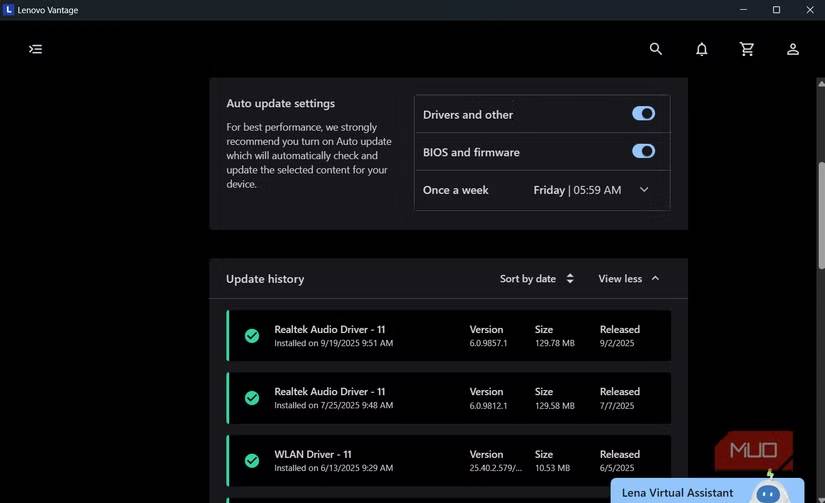
Updating your laptop's drivers and BIOS can be a tedious task, especially if you have to manually search for them on the manufacturer's website. Lenovo Vantage takes that hassle away. It automatically checks for the latest drivers, firmware, and BIOS updates tailored to your specific device model, so you never have to worry about installing what's compatible or safe.
Noise cancellation and useful hidden gestures
Small features make a big difference
Lenovo Vantage also includes a few little features you might not know your laptop has. In Device Settings > Sound , you can enable Speaker Noise canceling . This feature filters out unwanted sounds and focuses on the voice, making it ideal for online meetings in noisy environments.
The app also includes Microphone Noise canceling , which intelligently reduces input noise in three modes. In Normal Mode, the app will capture your voice and eliminate all other surrounding sounds. Voice Recognition Mode focuses on distinguishing your voice specifically, while Multiple Voices Mode, the default, will record multiple voices while still eliminating background noise.
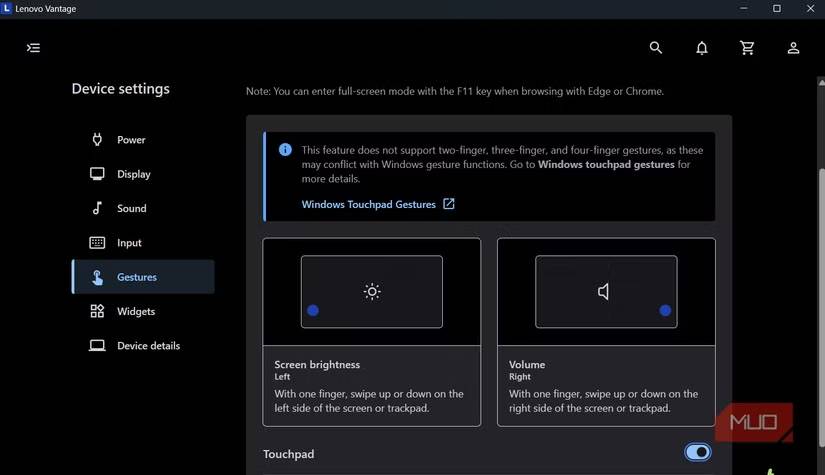
In the Gestures Tab, there are a few useful touchpad gestures that allow you to control brightness and volume. Swiping up or down on the left side of the touchpad will adjust screen brightness, while the same gesture on the right side will control volume.
FAQ
What should you know about lenovo vantage?
In practical terms, from monitoring battery health and managing updates to optimizing gaming performance and improving audio, Lenovo Vantage will help you realize how many hidden features your laptop really has.
Why does lenovo vantage matter?
The article highlights that useful gaming settings to improve performance Unlock your laptop's full gaming potential For those who use gaming laptops , Lenovo Vantage offers a lot of useful features.
What is the main takeaway?
The main takeaway is that if you want to get more performance out of your system, Lenovo Vantage lets you enable GPU overclocking with a single click.
Related Articles
 Using Lenovo, Don't Forget to Take Advantage of Vantage6 minutes read
 Lenovo Will Launch 5 New Smartphones in Just 3 Months4 minutes read
 Lenovo Introduced G Series Laptops and New IdeaPad Z4 minutes read
 Review Lenovo Thinkbook 13s: a Comprehensive, Reliable Laptop7 minutes read
 Top 5 Best Lenovo Laptops 20217 minutes read
 Lenovo Announced a New Line of Computers for Content Creators4 minutes read
Reader Comments 0
Sign in with email or Google to join the discussion.