This guide provides a practical overview of 4 Ways to Fix Laptop Keyboard Errors Should Try Before You Buy a New, including its main features, benefits, limitations, and important considerations.
1. Update keyboard driver
This is an easy and effective method for laptops using Windows operating systems. To update the keyboard driver, follow these steps:
- Go to Start Menu, look in Search bar 'device manager'
- In Device Manager, look for the Keyboards section.
- Right-click on the keyboard, select Properties> Driver
- Click the Update Driver box to update the driver
- Wait for the system to automatically update and try to see if the keyboard is used. Usually we have to restart the computer for the driver to be activated.
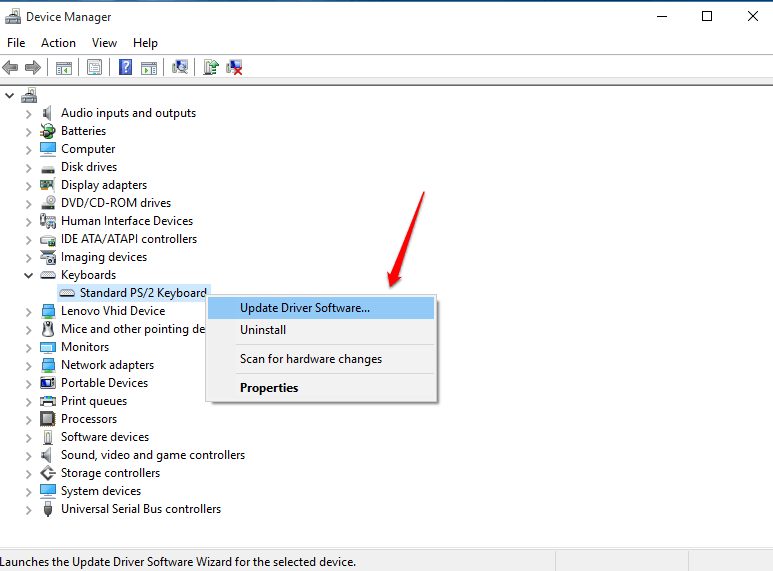 Keyboard driver installation is available on Windows devices
2. Clean the keyboard clean
One of the reasons why the keyboard could not type could be simply because. too dirty, there were obstacles inside. Every day we open the keyboard to use for a long time, so the dirt accumulated to cause jamming is not uncommon. Laptop keyboards are not as easy to clean as desktop keyboards. Do not flap or shake, shake the laptop to let dirt out as you would with a separate desktop keyboard. Such strong impacts easily damage internal components.
To clean the laptop. Let's turn it gently, then tap it on the back. Then, use your hands or hold an extra paper to dry the keys upside down to allow dust and dirt to fall out. In addition, if there are specialized cleaning tools, the better. It is using a compressed air tank or even a detergent. Although the keyboard is not broken, you should clean the laptop keyboard periodically as well.
 Regular keyboard cleaning is a must for many people
3. Reset keyboard language settings
There are many times when your keyboard is disordered, typing from character to character, typing once but displaying it many times, error of Vietnamese font, etc. These cases are mostly due to language settings in The machine is not yet appropriate.
In Windows 10, go to Time & language> Regional Settings using the Windows + I key combination. If found in the non-Vietnamese language section, add the language and press Install. Also check your Vietnamese typing software like Vietkey, Unikey to see if it is correct.
 Examples of font errors, you should try typing in Word to check for errors correctly
4. Use the virtual keyboard
When a broken keyboard is detected, it is not always possible to repair or replace it immediately. What if the job requires a crew to use the computer? We have to ask for the help of the virtual keyboard function. To find this keyboard, go to Settings> Ease of Access> Keyboard and turn On-Screen Keyboard on. Virtual keyboard using the mouse to control of course not easy to manipulate, just a temporary solution. Or else use a separate keyboard is also a good way.
 Using a virtual keyboard or a separate keyboard is an immediate solution
The above methods can fix light laptop keyboard error or used as a temporary method before replacing the new keyboard. If you do not use many ways, you still have to bring the machine to repair or install a new laptop keyboard.






Reader Comments 0
Sign in with email or Google to join the discussion.