Table of Contents
Cursor is worth trying if you already understand the code you are editing and regularly spend time on repetitive changes, repository navigation, or debugging. Its strongest advantage is not isolated code generation; it is the ability to work with the context of an existing project. It is less compelling for an occasional user, a fully offline workflow, or anyone who expects generated code to be correct without review.
Cursor is based on the Visual Studio Code ecosystem, so the interface is familiar to many developers. It adds AI completion, inline editing, repository-aware chat and Agent workflows that can modify files and run development tools. Features, models, and usage limits change frequently, so check the current Cursor documentation and pricing page before choosing a plan.
Cursor at a glance
| Good fit | Weak fit |
|---|---|
| Developers who can review diffs and tests | Complete beginners relying on generated answers |
| Large or unfamiliar repositories | Work that must remain entirely offline |
| Repeated refactors and boilerplate | Projects that prohibit third-party AI processing |
| Teams with clear coding rules and review controls | Very occasional use that does not justify a subscription |
Getting started
Download Cursor from its official site and choose the installer for your operating system. Avoid third-party download pages, especially for a tool that will access source code and may run terminal commands.
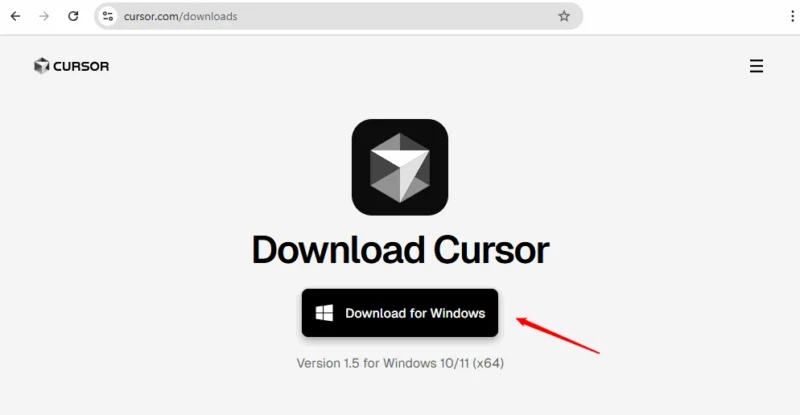
Run the installer and follow the platform prompts. During setup, Cursor can offer to import familiar editor settings, themes, keybindings, or extensions. Importing them reduces the adjustment period, but review extensions instead of copying everything automatically into a work environment.
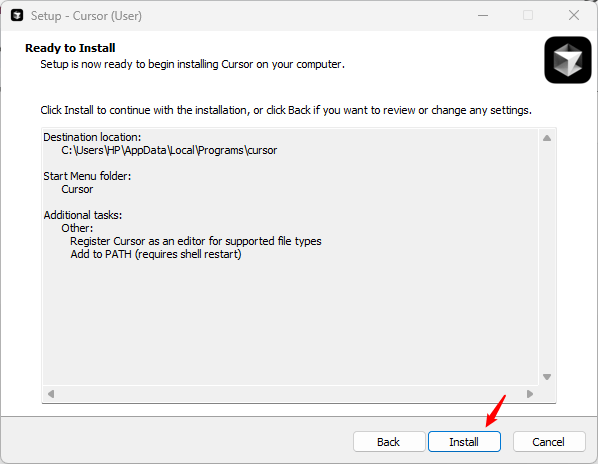
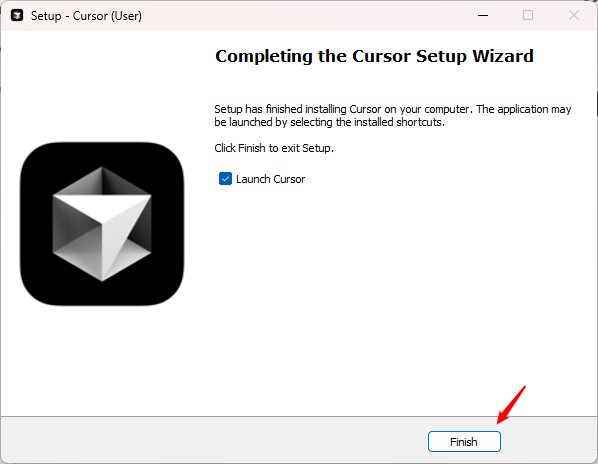
Open a non-sensitive practice repository first. Confirm the selected model, privacy settings, project trust, ignored files, and approval behavior before letting an agent edit files or use the terminal.
Where Cursor saves time
Inline edits for focused changes
Inline editing is useful when the requested change is small and the relevant file is already open. Select code or place the cursor near it, invoke the inline edit command—commonly Ctrl+K or Cmd+K, depending on the platform and keymap—and describe the desired result.
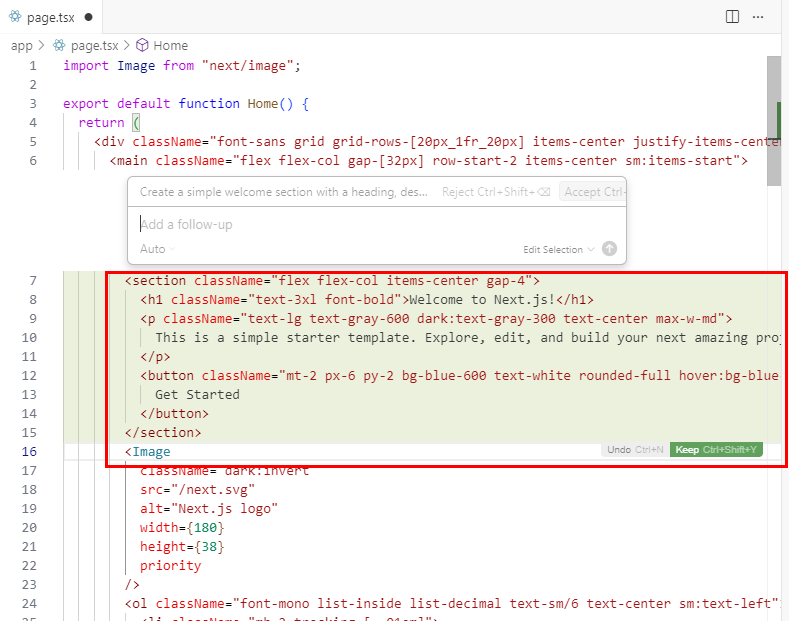
For example, “Add an accessible welcome section using the project’s existing button component” is more useful than “make a hero.” It states the component, accessibility expectation, and constraint. Review the proposed diff before accepting it.
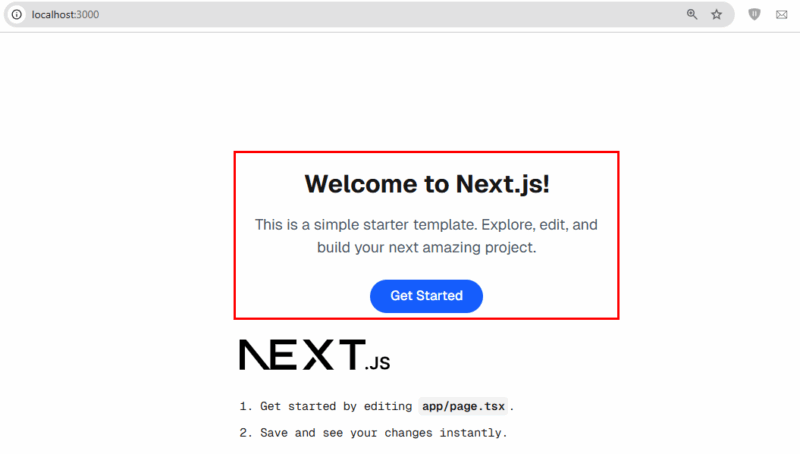
This works well for boilerplate, type annotations, repetitive renames, test cases, and local refactors. It works poorly when the prompt hides an architectural decision that the model cannot infer.
Repository-aware questions and Agent tasks
Cursor’s chat and Agent interfaces can use files from the project as context. That makes questions such as “Where is session expiry enforced?” or “Which tests cover this API route?” more valuable than generic programming questions that any documentation search could answer.
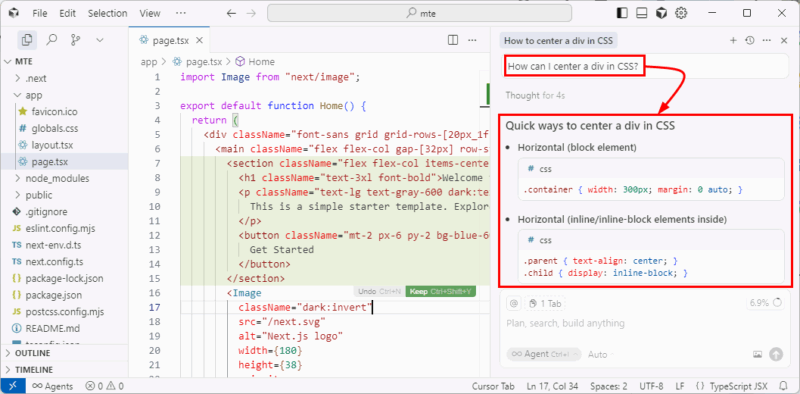
Available models and modes depend on the product version and plan. A stronger or more expensive model is not automatically the right choice; use a fast model for routine edits and reserve deeper reasoning for cross-file work.
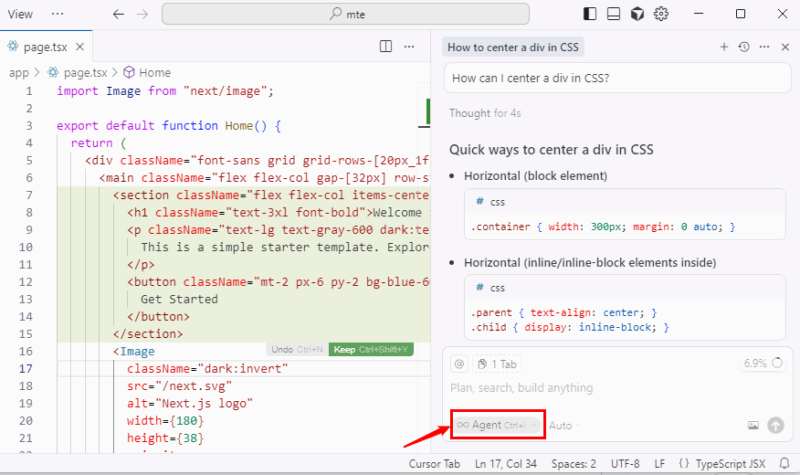
Include the smallest useful context. Reference the relevant folder, interface, error message, or test instead of attaching the entire repository to every question. Conversation history can help with follow-ups, but start a new thread when old assumptions begin to interfere.
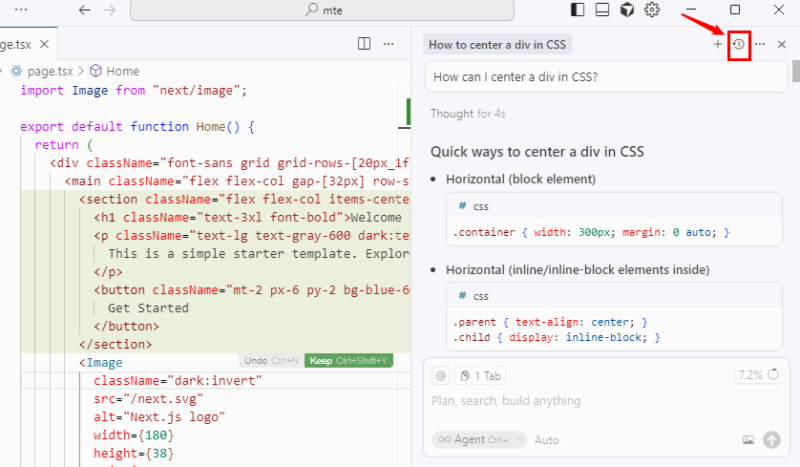
Image prompts for interface work
Image input can help a frontend developer discuss a screenshot, error dialog, or layout reference. Cursor may infer a rough component structure, spacing, or responsive behavior and then generate a starting implementation.
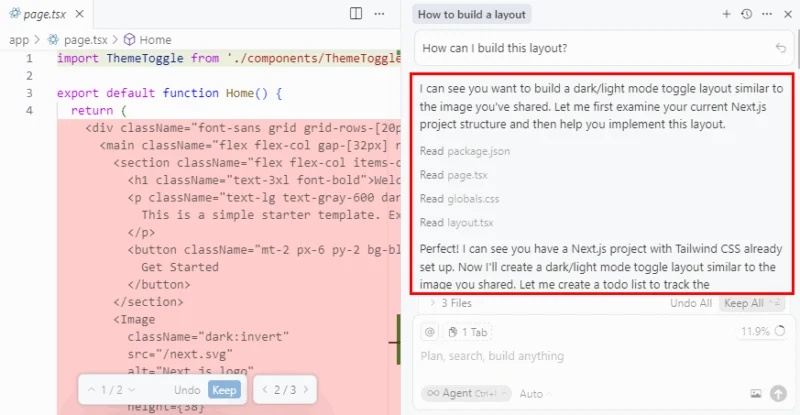
A screenshot does not reveal semantics, breakpoints, component states, source assets, or accessibility requirements. State those separately. Do not upload a private customer screen unless your organization permits that data to be processed by the selected service.
Terminal assistance
Cursor can suggest or run terminal commands, which is convenient when you remember the goal but not an exact flag. A request such as “create an empty file named mteExample in the project root” can produce the appropriate command for the current shell.
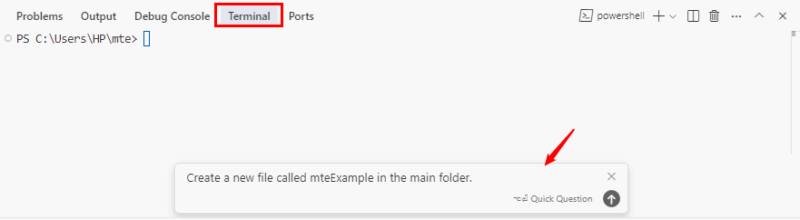
Read commands before execution. Be especially careful with recursive deletion, database migrations, package-install scripts, cloud CLIs, permission changes, and commands containing unresolved variables or broad wildcards. AI assistance lowers the effort of producing a command; it does not make that command safe.
What Cursor does not solve
- Correctness: generated code can compile and still mishandle edge cases, authorization, concurrency, or data loss.
- Current APIs: a model may suggest an obsolete library method or invent a configuration option. Verify against official documentation.
- Architecture: repository context helps, but it does not supply the product constraints and operational history held by the team.
- Security review: plausible code can contain injection risks, unsafe deserialization, exposed secrets, or overbroad permissions.
- Learning fundamentals: accepting an answer is not the same as understanding control flow, data structures, debugging, or the platform.
Privacy and repository controls
Cursor offers Privacy Mode; its pricing information states that, when enabled, code data is not used for training by Cursor or its model providers. This does not mean no data leaves the computer—the selected service still needs data required to process a cloud request. Teams should review data-use, retention, model-provider, and compliance terms rather than relying on a setting name alone.
Use .cursorignore and .cursorindexingignore to limit which files Cursor can access or index. The official ignore-file documentation explains the current behavior. Do not treat ignore patterns as a complete security boundary: keep credentials out of repositories, use secret management, and follow organizational policy.
A safe workflow for AI-generated changes
- Start from a clean branch and state one bounded objective.
- Point Cursor to the relevant code, tests, and project rules.
- Ask for a plan before a broad multi-file change.
- Review every diff; reject unrelated formatting and dependency changes.
- Run focused tests, then the wider test and lint suite.
- Exercise error paths and security-sensitive behavior manually.
- Commit only after you can explain the resulting code.
Is the paid plan worth it?
Use the free tier to measure value with real tasks rather than judging a polished demo. Track whether Cursor shortens repository exploration, produces tests you keep, or completes repetitive edits with fewer corrections. If most suggestions are rejected or your work is primarily writing small scripts, paying may not help.
A paid plan makes more sense when daily Agent usage regularly saves more time than review and correction consume. Plans include different limits and may support usage-based charges, so set billing controls and monitor model consumption rather than assuming a fixed subscription covers every request.
Verdict
Cursor is a capable accelerator for developers, not a substitute for development judgment. It is most valuable when it can see enough repository context to propose a useful change and the user has enough experience to challenge that change. Try it on a real but non-sensitive project, compare the full edit-and-review time with your current editor, and keep it only if the measured workflow is better.
Related Articles
 Tips for Effectively Importing Context into Cursor7 minutes read
 Cursor vs GitHub Copilot: Which AI Coding Tool Wins?14 minutes read
 How to Add a GitHub MCP Server to Cursor9 minutes read
 How to Activate Supabase in Cursor8 minutes read
 What Is YOLO Mode in Cursor?7 minutes read
 Replit vs. Cursor: Which AI Coding Tool Is Better?12 minutes read
Reader Comments 0
Sign in with email or Google to join the discussion.