Table of Contents
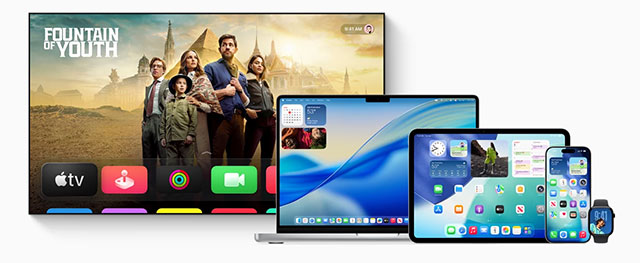
Apple confirmed that iOS 26, iPadOS 26, macOS 26, watchOS 26 and a series of new operating systems will be officially released on September 15, before the iPhone 17 series hits shelves on September 19.
Apple announced at its Awe Dropping event that the iOS 26 update will officially launch on Monday, September 15. The new IPhone 17 Models announced at the event will ship with iOS 26 pre-installed. Existing iPhone devices that are eligible for the upgrade will also start receiving the update on the same day.
This isn't just an iPhone event. Apple is expected to release all the other major software updates in the ecosystem at the same time, including iPadOS 26, macOS Sequoia, watchOS 11, tvOS 18, and visionOS 2. With many significant changes, iOS 26 promises to bring a different experience, but preparation before the update is necessary to avoid interruptions during use.
Here are five key steps to help make the transition to iOS 26 a smooth one.
5 Things You Need to Do to Prepare Before Upgrading
1. Check if the device supports iOS 26
Based on the information we found, here is a list of iPhone models that will be updated to iOS 26:
- IPhone 17 (including iPhone 17, 17 Pro, 17 Pro Max, and iPhone Air)
- IPhone 16 (including iPhone 16e, 16, 16 Plus, 16 Pro, 16 Pro Max)
- IPhone 15 (including iPhone 15, 15 Plus, 15 Pro, 15 Pro Max)
- IPhone 14 (including iPhone 14, 14 Plus, 14 Pro, 14 Pro Max)
- IPhone 13 (including iPhone 13, 13 mini, 13 Pro, 13 Pro Max)
- IPhone 12 (including iPhone 12, 12 mini, 12 Pro, 12 Pro Max)
- IPhone 11, iPhone 11 Pro, iPhone 11 Pro Max
- IPhone SE (2nd generation or later)
So, the list of devices that support iOS 26 starts with the iPhone 11 and later, including the 2020 and 2022 iPhone SE. The iPhone XR, XS, and XS Max models will not be updated.
Additionally, not all features in iOS 26 will be available on all devices. Some new features require Apple Intelligence , the artificial intelligence system built into Apple software. For example, the in-person translation tool during FaceTime Calls currently only works on iPhone 15 Pro and later models, while Spatial Scenes For the lock screen requires at least an iPhone 12. Knowing these limitations helps avoid creating false expectations about what your device can do after the upgrade.
2. Backup data before upgrading
Before installing any major update, it's important to back up your iPhone to avoid losing data. iOS updates are usually safe, but in rare cases, bugs can occur that can cause your device to freeze or cause data loss.
To be safe, make a full backup of your iPhone via iCloud or Finder/iTunes on your computer. When backing up, make an additional archive for long-term storage. This will allow you to restore to the original state in case iOS 26 encounters unexpected problems or becomes incompatible with important applications.
3. Get familiar with the Liquid Glass interface
One of the most notable changes in iOS 26 is the Liquid Glass interface. Apple has implemented more subtle transparency and blur effects, along with slight tweaks to the menus and toolbars. This is arguably the biggest visual change the iPhone has seen in years.
This change is not only cosmetic, but also helps to modernize the system experience. However, for those who are not used to the transparency effect, Apple still provides an adjustment option. In Settings → Accessibility , You can reduce the transparency level and make the interface more visible. This helps to maintain a familiar experience while still taking advantage of the improvements in iOS 26.
4. Enable important features
IOS 26 adds many new features, but not all of them are enabled by default. Some options need to be enabled manually in settings.
- Call Screening : Incoming calls from unknown numbers will be asked to verify with the virtual assistant before connecting. This feature enhances spam call blocking, but needs to be enabled in Settings → Phone .
- Messages Filtering : iOS 26 lets you filter messages from unknown senders and put them in a separate folder. You can enable it in Messages → Manage Filtering .
- Visited Places In Apple Maps: Apple Maps can remember the places you've visited to provide smarter route suggestions. When you first open the app after updating, you'll see an option to enable it.
Proactively checking and enabling these features helps you get the most out of iOS 26.
5. Explore the notable changes
In addition to the interface and hidden features, iOS 26 also brings many outstanding improvements in core applications:
- Lock Screen: supports Spatial Scenes, adds new fonts and richer widget layouts, providing more personalization options.
- Messages : adds the ability to create polls directly in group chats, and allows changing chat backgrounds, increasing flexibility and creativity in communication.
- Visual Intelligence : leverage screenshots to recognize information, translate text, or create calendar events with just one tap.
These changes show Apple's continued focus on both increasing personalization and expanding the smart capabilities of its devices.
Conclude
IOS 26 is one of Apple's most important updates in recent years, bringing a combination of a new interface, artificial intelligence features, and improvements to system apps.
To make the upgrade go smoothly, check your device compatibility, back up your data, familiarize yourself with the new interface, enable important features, and take your time exploring the changes. Careful preparation will ensure a safe transition to iOS 26 and help you get the most out of the new operating system.
FAQ
What is new about iOS 26 launches today?
In practical terms, apple confirmed that iOS 26, iPadOS 26, macOS 26, watchOS 26 and a series of new operating systems will be officially released on September 15, before the iPhone 17 series hits shelves on September 19.
Why does this update matter?
The article highlights that 5 Things You Need to Do to Prepare Before Upgrading 1.
Is the change available to everyone?
Availability may depend on the product version, region, account, or rollout stage described in the article.
Related Articles
 What Do You Need to Prepare for iPhone While Waiting for iOS 11. 3?7 minutes read
 Things You Need to Know and Prepare When Windows 118 minutes read
 Mac OS X 10. 7 Lion: Steps to Prepare for Upgrading11 minutes read
 Things to Know and Prepare Before Upgrading to Windows 1014 minutes read
 All the Things You Need to Prepare to Welcome the Lunar New Year5 minutes read
 iOS 13 Will Be Officially Released on 9/19, What to Prepare4 minutes read
Reader Comments 0
Sign in with email or Google to join the discussion.