Table of Contents
Civitai is a community library for image-generation checkpoints, LoRAs, workflows, and example images. To reproduce an example successfully, you need more than its prompt: check the resource type, compatible base model, version, trigger words, generation settings, and usage license before generating or downloading anything.
Find a model or example image
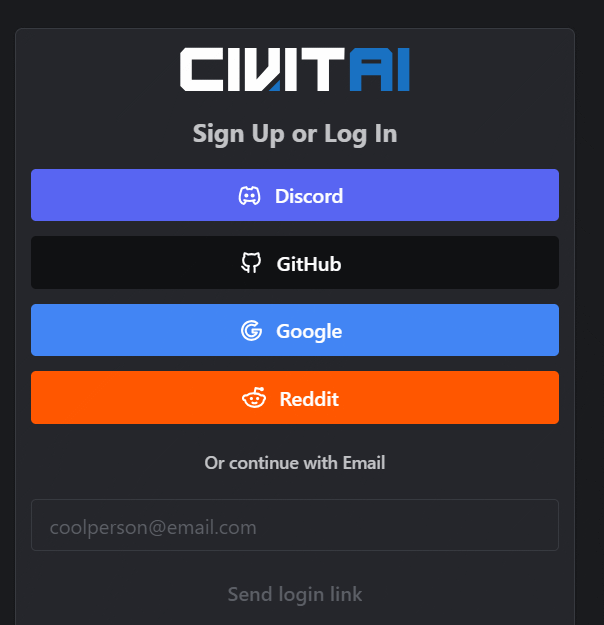
- Visit Civitai and sign in if the feature you want requires an account.
- Use the search and filters to choose a resource type and a compatible base model. A full checkpoint can provide the main image model, while a LoRA is a smaller add-on that must be used with a suitable base checkpoint.
- Open a resource page and select the version that matches your image-generation setup.
- Review the creator's description, recommended strength, trigger words, example images, and license or usage permissions.
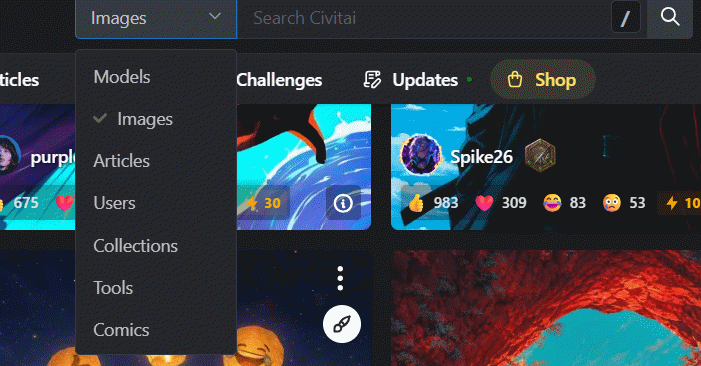
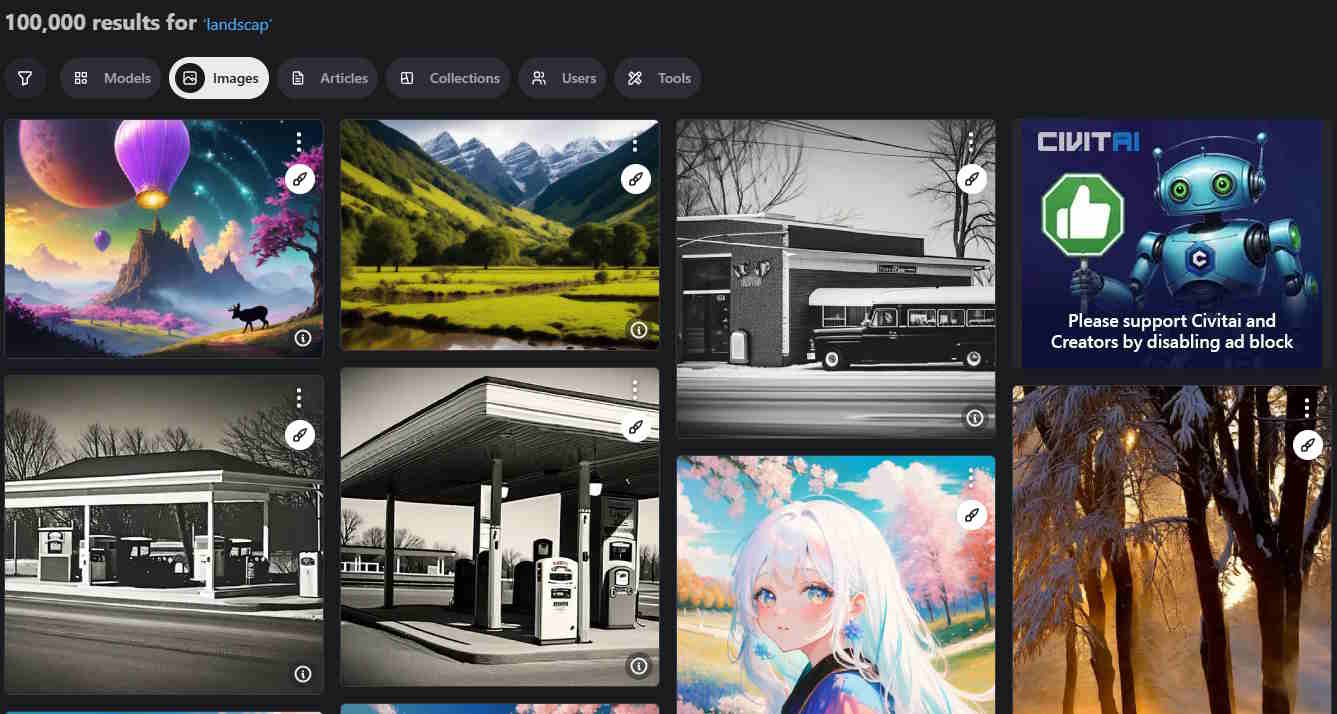
Searching the image gallery is another useful route when you know the visual style you want but not the model name. Open an image to inspect the resources and settings attached by its uploader.
Use the prompt and generation details
When metadata is available, the image page can show the positive prompt, negative prompt, sampler, seed, dimensions, step count, guidance value, and model resources. Copying only the positive prompt will not necessarily reproduce the example because the model and other settings also affect the result.
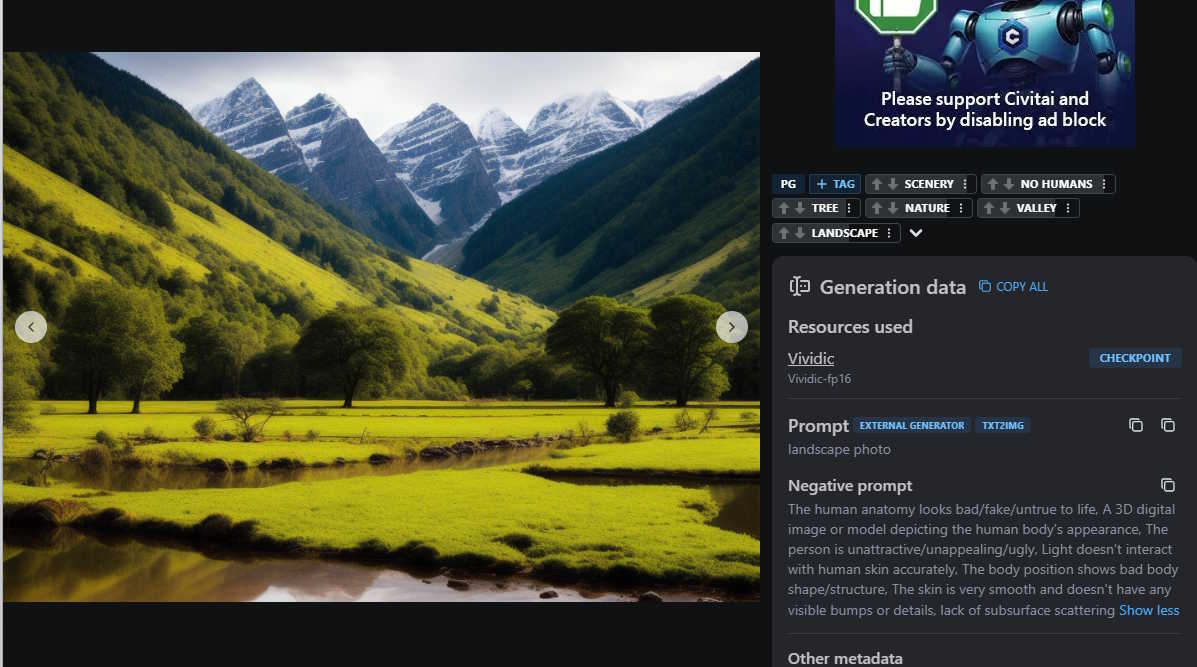
Treat the example as a starting point. Remove character names or stylistic terms you do not need, replace the subject and composition, and verify that any listed LoRA trigger words correspond to the version you selected. A creator may omit metadata, so not every gallery image can be reproduced from the page.
Remix an image on Civitai
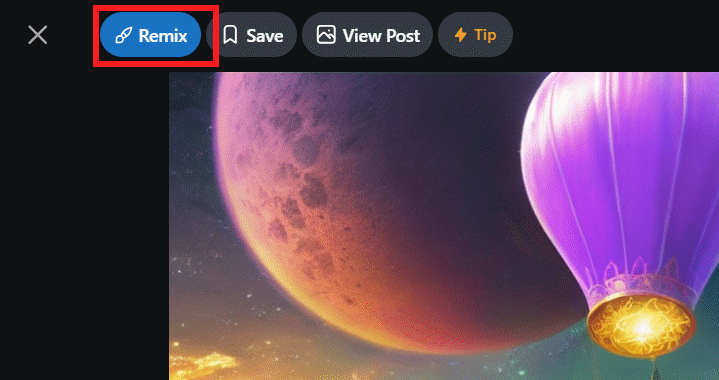
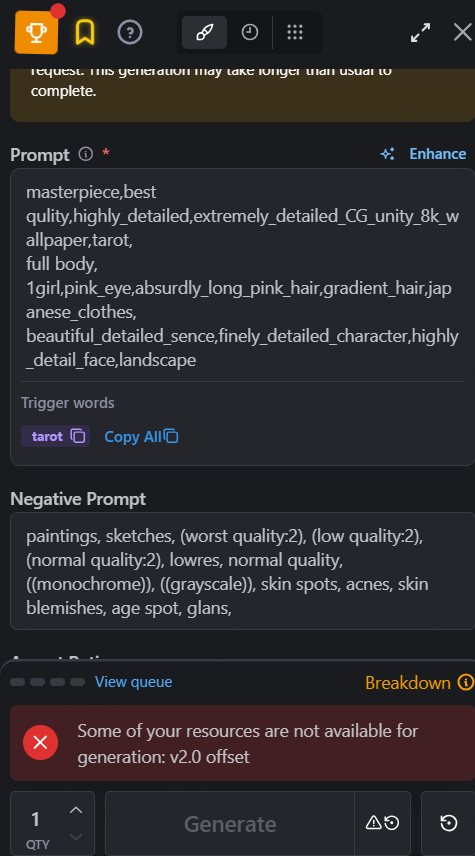
If an example supports on-site generation, choose Remix to load its available prompt, resources, and settings into Civitai's generator. Review every field before submitting: some resources may be unavailable to the generator, and a version may have changed since the image was posted.
The interface shows the generation options and any required credit cost before you run the job. Costs and availability can vary with the selected model and settings, so rely on the current estimate rather than an old fixed price.
Download a model for local use
- Open the model page and select the exact version you want.
- Confirm the base-model compatibility and read the version notes.
- Check the creator's permissions for image sharing, commercial use, redistribution, and model merging.
- Download the model file and place it in the folder expected by your chosen interface, such as the checkpoint or LoRA directory.
- Restart or refresh the interface, select the resource, and test it with the creator's recommended settings.
Folder names and loading methods differ among applications, so follow the documentation for the local interface you use. Prefer model formats intended as data files, such as .safetensors, when the creator provides them; do not run unfamiliar executables or scripts from a model download.
Troubleshoot a result that looks different
- The LoRA has little effect: Confirm that its base model is compatible, include any required trigger words, and adjust its strength gradually.
- The image changes completely: Verify the checkpoint, model version, sampler, dimensions, and seed. Hardware and software differences can still produce variations.
- A resource will not load: Make sure it is in the correct folder and supported by your interface.
- Remix is unavailable: The image may lack generation metadata, use a resource unavailable to the on-site generator, or require account access.
Also review the site's content filters before browsing in a shared environment, and do not assume that a public download grants unrestricted rights to a model or its output. The resource page's current license and creator notes should guide how you use and share the result.
Related Articles
 Japan's Artificial Intelligence Has Created Ultra-Realistic Virtual Fashion Models3 minutes read
 Instructions for Creating Images from Descriptions on Picsart3 minutes read
 Nvidia Successfully Developed an AI System That Can Create 3d3 minutes read
 How to Create Images from Drawings on Freepik Is Very Artistic: Clear5 minutes read
 Instructions for Creating Animated GIF Images in Adobe Photoshop12 minutes read
 Guide to Creating Gif Images on Android5 minutes read
Reader Comments 0
Sign in with email or Google to join the discussion.