Table of Contents
Excel offers several ways to split one column into two or more columns. Use Flash Fill when Excel can learn a visual pattern, Text to Columns for a consistent delimiter, TEXTSPLIT when you want a formula that updates, and Power Query for repeatable imports. Before starting, copy the source column or leave empty columns beside it so you do not overwrite data.
Choose the right method
| Method | Best for | Updates when source changes? |
|---|---|---|
| Flash Fill | Patterns such as extracting names, years, or codes | No |
| Text to Columns | Text consistently separated by commas, tabs, spaces, or another character | No |
| TEXTSPLIT | Formula-based splitting in current Microsoft 365 and Excel 2024 | Yes |
| Power Query | Large or recurring imports that need repeatable cleanup | Yes, when refreshed |
Method 1: Split patterned data with Flash Fill
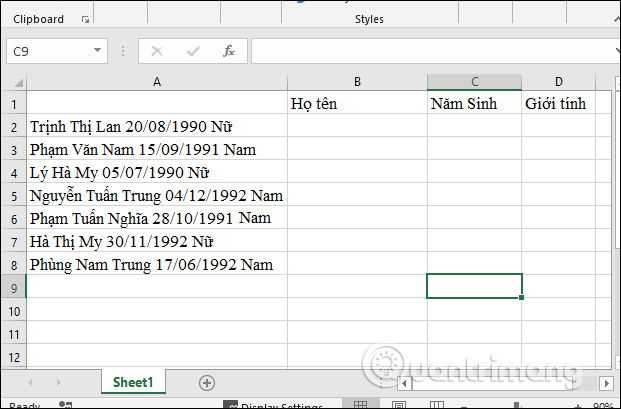
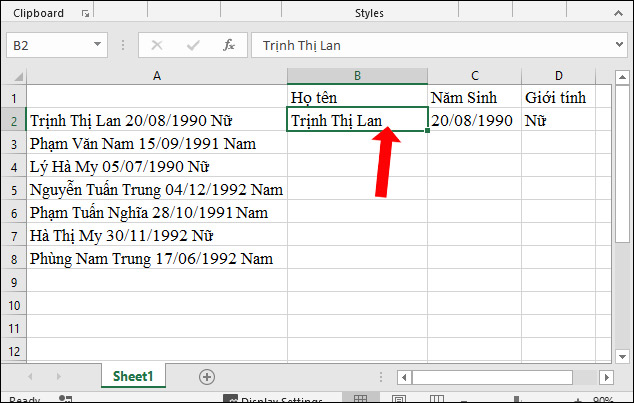
Flash Fill is available in Excel 2013 and later desktop versions. It recognizes examples you type and fills the rest of the column. In this example, one source column contains a student's name, year of birth, and gender; the goal is to place each item in its own column.
Use the Ctrl+E shortcut
- Create headings for the new columns and type the correct result for the first source row.
- Select the next cell in that output column.
- Press Ctrl+E on Windows to run Flash Fill.
- Repeat for each output column, then compare several results with the source.
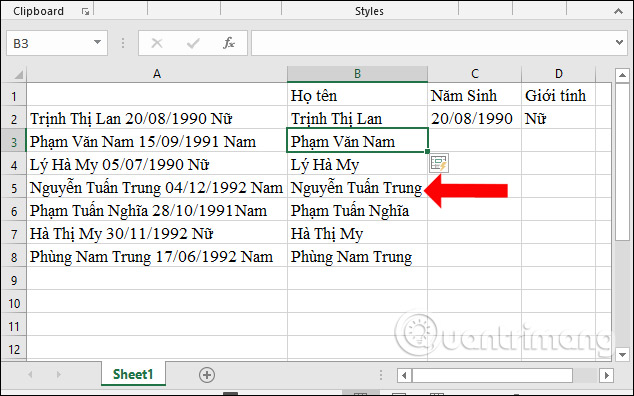
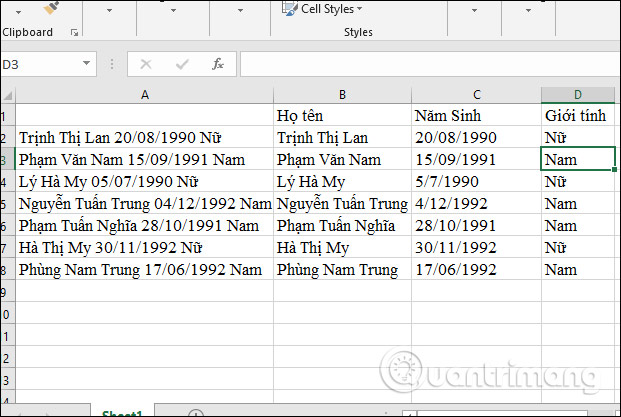
One example may be insufficient when values have different shapes. Enter a second or third correct example before pressing Ctrl+E if names, dates, or separators vary.
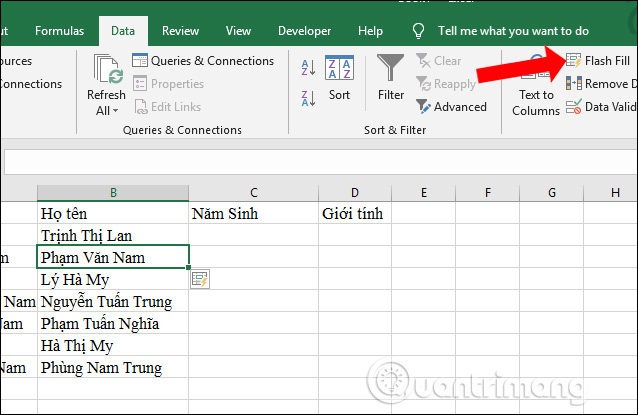
Run Flash Fill from the Data tab
After typing an example in the output column, select the cell below it and choose Data > Flash Fill. This performs the same pattern recognition without the keyboard shortcut.
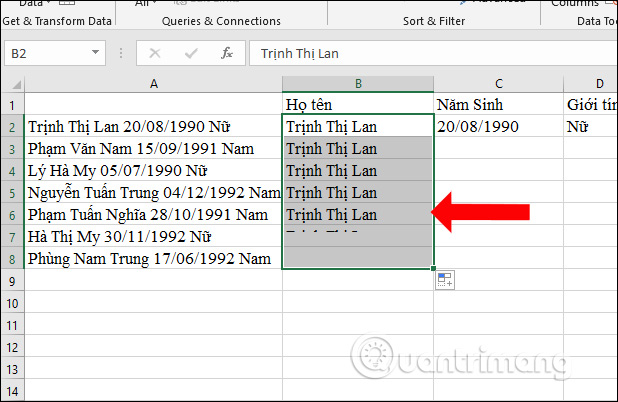
Use the fill handle and Auto Fill Options
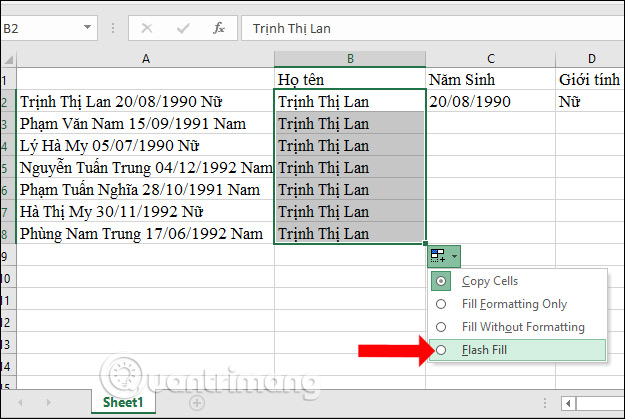
You can also drag the example down with the fill handle, then open Auto Fill Options and choose Flash Fill. Do not leave the default Copy Cells result if it merely repeats the first value.
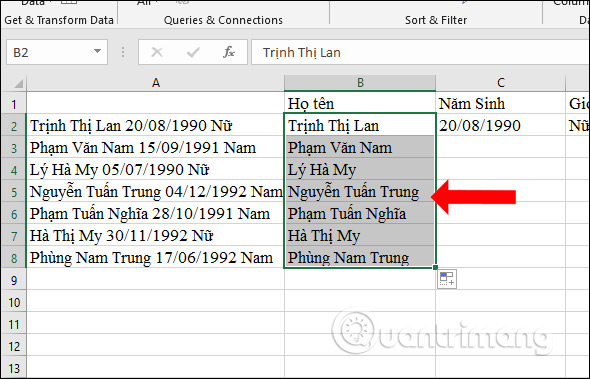
Flash Fill produces fixed values, not formulas. If the source changes, run it again. It may also misinterpret inconsistent data, so check rows with compound names, blank fields, unexpected punctuation, or leading zeros.
Method 2: Use Text to Columns for delimiters
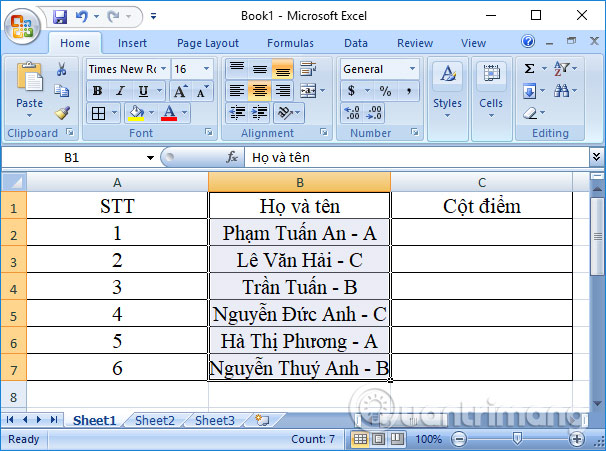
Text to Columns is dependable when every value uses a separator. The example below contains a name and score separated by a hyphen.
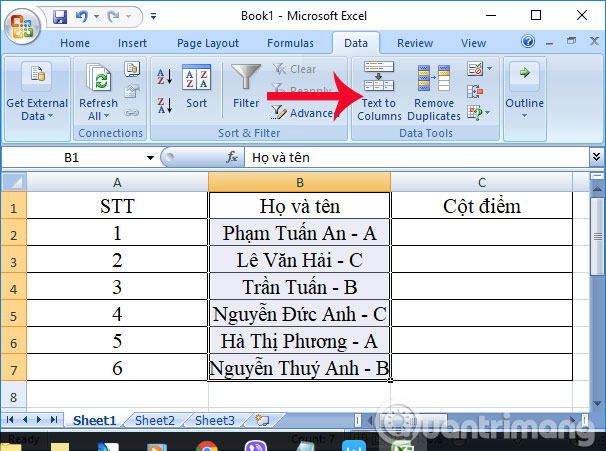
- Select only the source cells to split. Avoid the heading unless you also want it divided.
- Choose Data > Text to Columns.
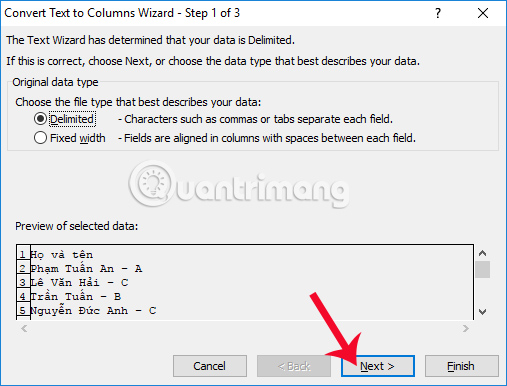
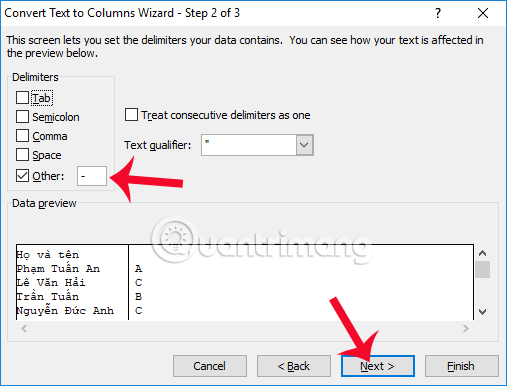
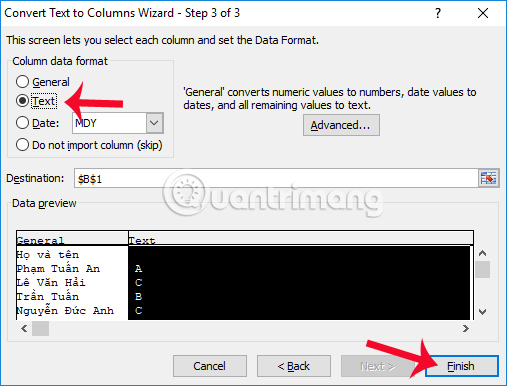
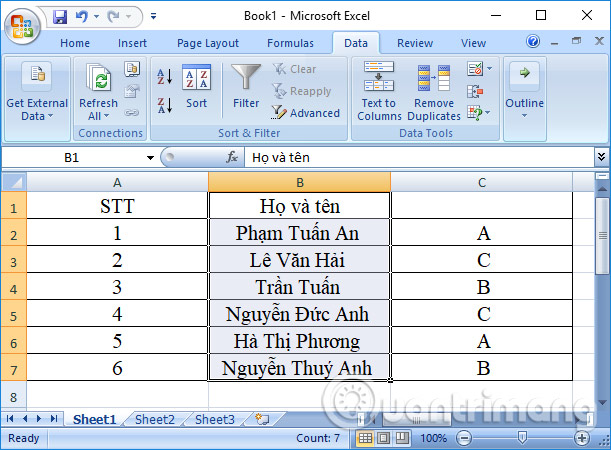
-. Inspect the Data preview; if names themselves contain hyphens, this method may create unwanted columns.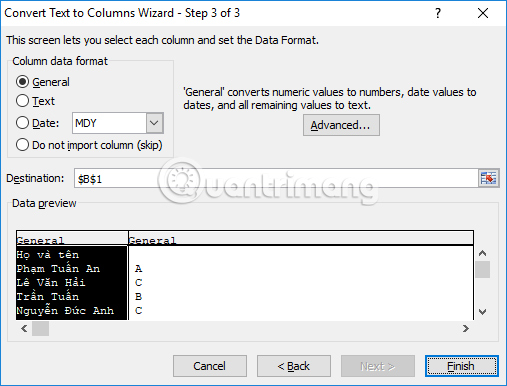

Method 3: Use the TEXTSPLIT formula
In Microsoft 365 and Excel 2024, TEXTSPLIT returns a dynamic array. If cell A2 contains Maria Santos-92, enter:
=TEXTSPLIT(A2,"-")The results spill across adjacent columns and update when A2 changes. To split values down rows instead, supply a row delimiter as the third argument. Keep the spill area empty or Excel returns a #SPILL! error.
TEXTSPLIT is preferable when the source will change, but formulas can still split at unintended occurrences. Clean inconsistent spaces with TRIM or specify multiple delimiters only when that behavior is intended.
Method 4: Split recurring data with Power Query
- Convert the range to a table, select a cell in it, and choose Data > From Table/Range.
- In Power Query Editor, select the column.
- Choose Split Column > By Delimiter, select the delimiter and where to split, then confirm.
- Rename the new columns and choose Home > Close & Load.
When the source data changes, refresh the query to repeat the recorded transformation. This makes Power Query a better choice than manual splitting for monthly exports or other recurring files.
Prevent common splitting errors
- Keep a copy of the original column until the results are verified.
- Insert enough blank columns so output does not overwrite neighboring data.
- Import phone numbers, ZIP codes, and account IDs as Text when leading zeros matter.
- Check inconsistent separators and extra spaces before splitting.
- Sample rows from the top, middle, and bottom of a large dataset.
For the current menus and version notes, see Microsoft's guides to Flash Fill, Text to Columns, and TEXTSPLIT.
Related Articles
 Steps to Lock Columns in Excel3 minutes read
 How to Split Columns in Excel3 minutes read
 How to Fix Excel Column/row Freezing Not Working4 minutes read
 Instructions on How to Plot Stacked Columns in Excel4 minutes read
 Add Column in Excel: How to Delete, Add Columns in Excel3 minutes read
 MS Excel - Lesson 4: Working with Lines, Columns, Sheets8 minutes read
Reader Comments 0
Sign in with email or Google to join the discussion.