Table of Contents
Quick answer
Inserting special characters into PowerPoint makes it easier for users to create mathematical and chemical formulas. Furthermore, special characters in PowerPoint can be used to replace emojis and symbols that aren't available on the keyboard.
Inserting special characters isn't limited to PowerPoint; you can apply this to Excel, Word, and other tools within the Microsoft Office suite. The method for inserting special characters in PowerPoint is quite simple and easy to understand. Users can apply the same method used in Excel to PowerPoint versions 2016, 2013, 2010, 2007, and 2003.
The quickest way to insert special characters into PowerPoint.
Special characters here refer to the Symbols section in PowerPoint, Excel, or Word. The Symbols section contains many characters that cannot be displayed using keyboard shortcuts. The function of special characters depends on the user. First, let's explore inserting special characters in PowerPoint 2021, 2019, 2016, 2013, 2010, 2007, and 2003, and then you can figure out where to apply them.
Download links for various versions of PowerPoint:
Download links for PowerPoint 2021, PowerPoint 2019 , PowerPoint 2016 , PowerPoint 2013, and PowerPoint 2010.
Instructions on how to insert special characters in PowerPoint 2021, 2019, 2016, 2013, 2010, 2007, 2003
1. Inserting special characters in PowerPoint 2021, 2019, 2016, 2013, 2010, 2007
Since these versions all share the same interface, especially the step of inserting special characters in PowerPoint, TipsMake will guide you through it using PowerPoint 2016. The other three versions can be done similarly.
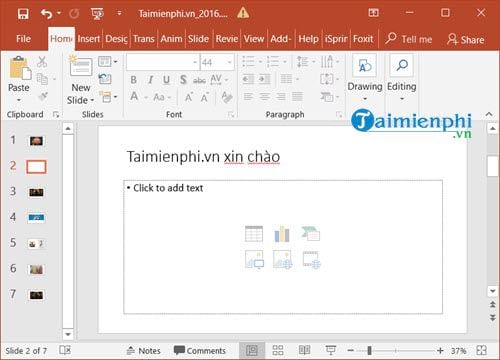
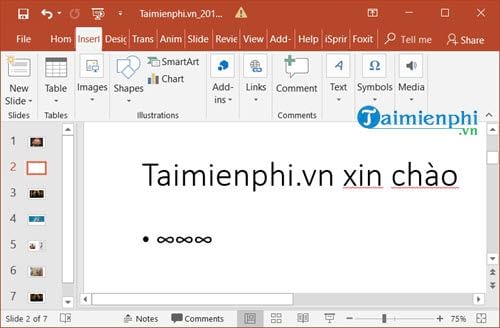
Step 1: To insert special characters in PowerPoint, simply go to Insert > select Symbols > then select Symbols again to get the special characters.
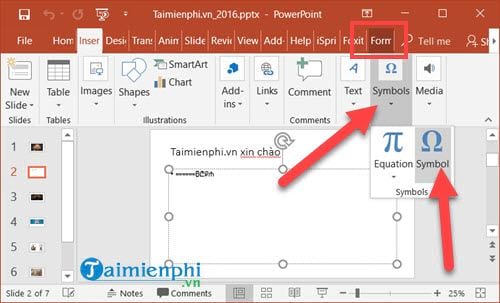
Step 2: Here you can easily see many special characters, and here you just need to click on any special character and select Insert .
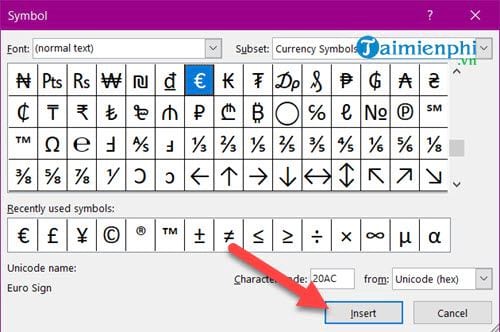
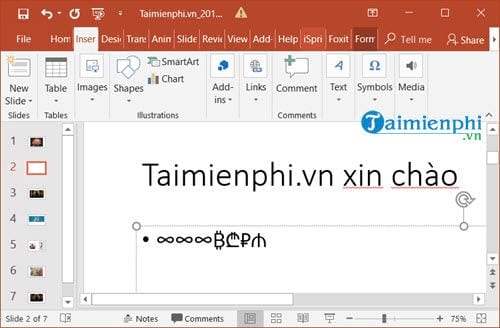
You will immediately see the characters you selected appear on the screen. These characters are just like normal text, so you can change their display style, size, or color.
Step 3: Additionally, in the Symbol library, you can set the Font and Subset to get various types of text in PowerPoint.
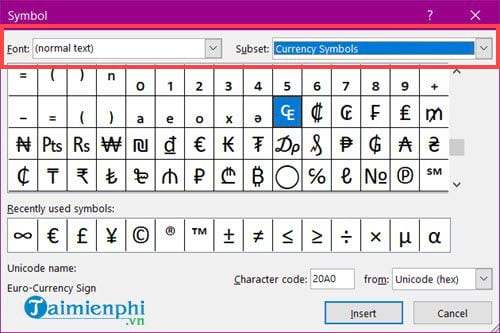
PowerPoint contains thousands of special characters, so users will need time to learn about them.
2. Inserting special characters in PowerPoint 2003
Because PowerPoint 2003 has a different interface, there are some changes to how we insert special characters in PowerPoint.
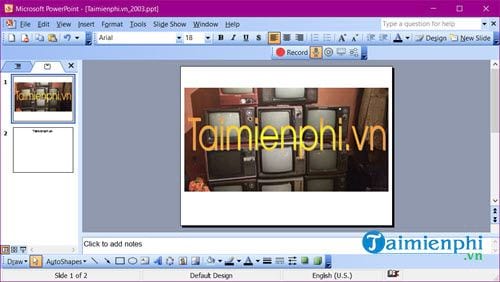
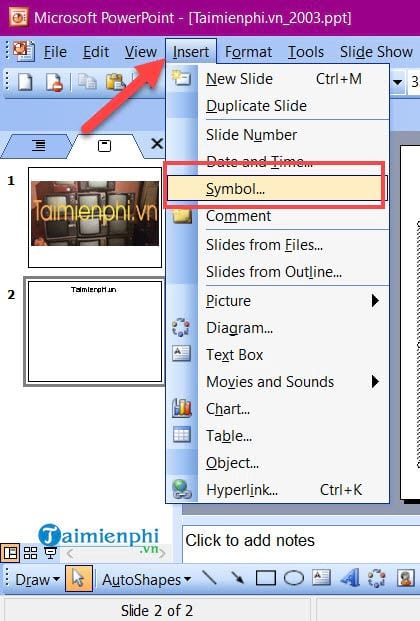
Step 1: To insert a special character in PowerPoint 2003, first go to Insert > then select Symbol .
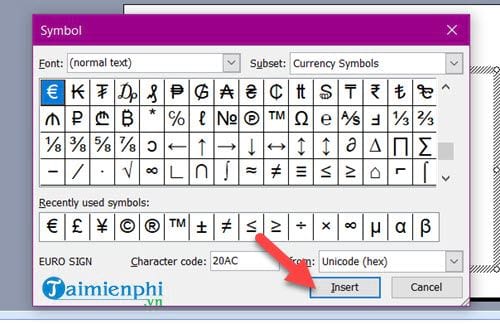
Step 2: The next step is the same as above; simply click on any special character and then press Insert .
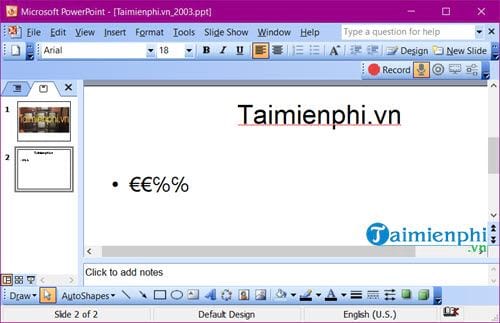
The special characters you just added immediately appeared on the screen.
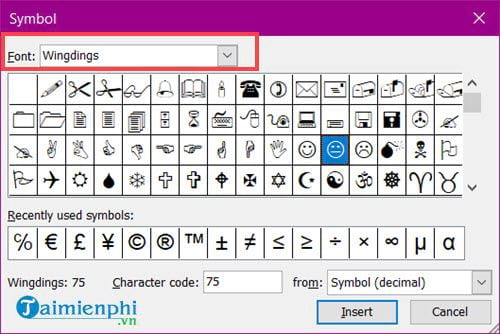
Step 3: And if you want to insert even more special characters in PowerPoint, change the font to Wingdings, which contains many commonly used characters.
You can add as many characters as you want using the method of inserting special characters in PowerPoint as described in this article.
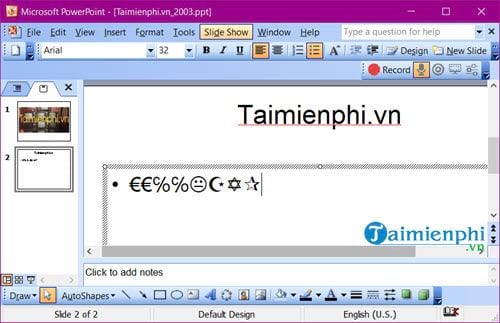
Through the above article, we have learned another basic trick in PowerPoint: how to insert special characters. This method of inserting special characters in PowerPoint can be used in all versions of PowerPoint, from PowerPoint 2016, 2013, 2010, 2007 to PowerPoint 2003.
For those using PowerPoint and finding it difficult due to its many tools and features, it's advisable to familiarize yourself with the PowerPoint keyboard shortcuts for your specific version. The keyboard shortcuts in PowerPoint are consistent across versions and are constantly updated, so if you want to use PowerPoint proficiently, you should review its shortcuts.
Related Articles
 How to Inserting Special Characters Into Word Documents3 minutes read
 Insert Special Characters in Word Documents3 minutes read
 Insert Special Characters in Spreadsheets in Excel2 minutes read
 How to Insert Special Characters in Excel: Insert Excel Characters4 minutes read
 How to Insert Images into PowerPoint for Each Version4 minutes read
 Instructions for Inserting Checkmarks in Powerpoint4 minutes read
Reader Comments 0
Sign in with email or Google to join the discussion.