Table of Contents
The OpenAI node in n8n lets a workflow send data to the OpenAI API and pass the response to later steps. A reliable setup has four parts: a trigger, an OpenAI credential, a clearly configured operation, and a downstream node that uses the result. The exact operation names can vary by n8n version, so choose the resource and action that match the task shown in your editor.
What you need before starting
- An n8n Cloud workspace or a self-hosted n8n instance.
- An OpenAI API account with API billing configured.
- An API key created for the appropriate OpenAI project.
- A small test input that contains no sensitive or confidential data.
OpenAI API usage is billed separately from a ChatGPT subscription. Create and manage keys in the OpenAI API platform, not in the ChatGPT conversation interface. The OpenAI API quickstart explains the current account and API setup.
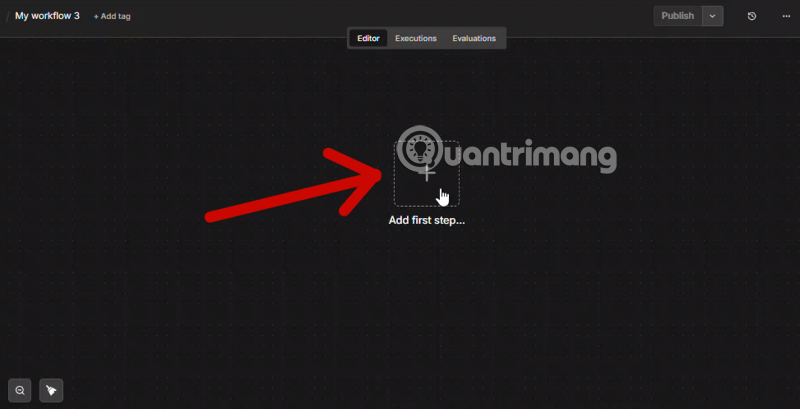
1. Create the workflow and add a trigger
Open n8n and create a workflow. Every workflow needs a starting point. For an initial test, use a Manual Trigger. In a real automation, the trigger might be a schedule, webhook, form submission, new database record, or event from another app.
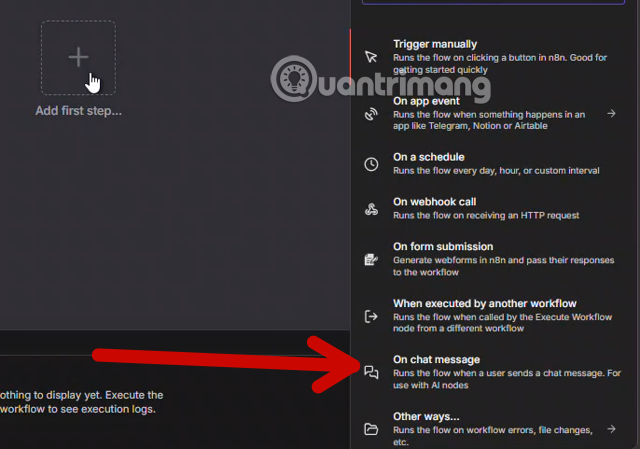
Run the trigger once and inspect its output. Knowing the incoming field names makes it much easier to map the correct values into the OpenAI node.
2. Add the OpenAI node
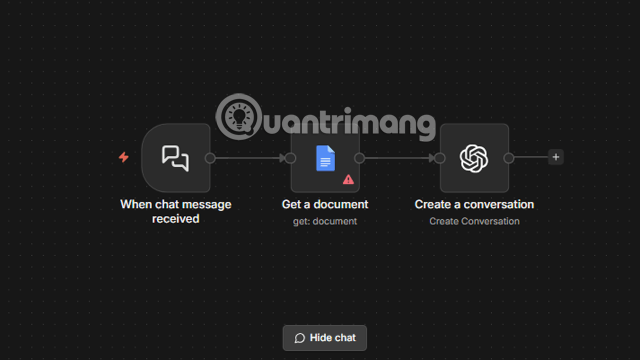
Select the plus button after the trigger, search for OpenAI, and add the OpenAI app node. Depending on the installed n8n version, you may also see AI Agent or other LangChain-based nodes. Use the regular OpenAI app node when you need a direct API operation; use an agent-oriented node only when the workflow genuinely needs tools, memory, or multi-step reasoning.
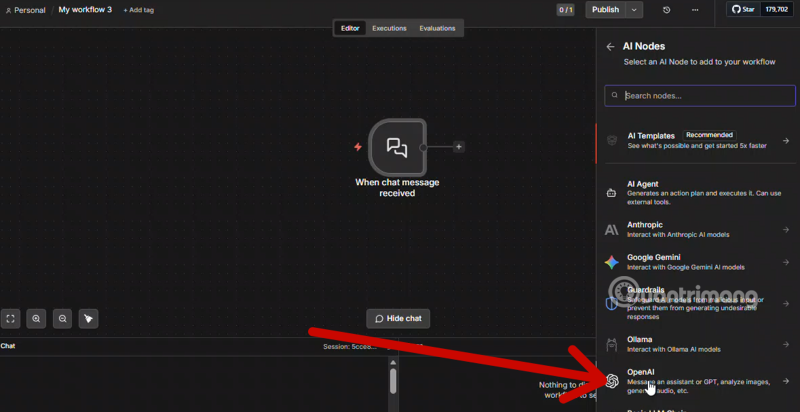
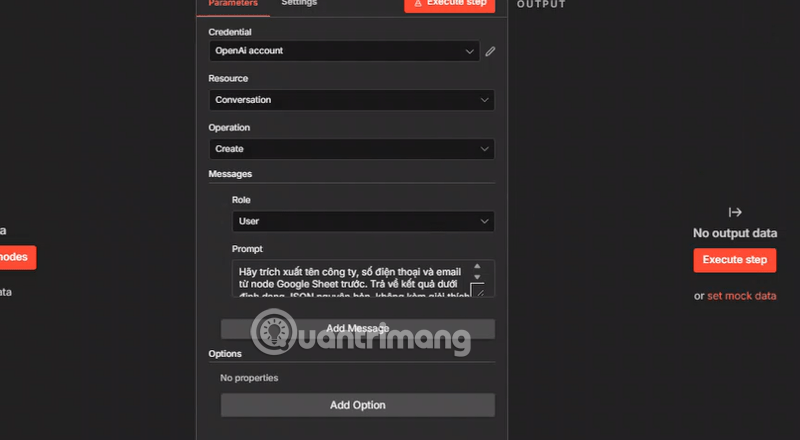
Choose the resource and operation that fit the workflow, such as generating text, analyzing an input, processing an image, or working with audio. Available actions and model names change over time, so rely on the options in the current node rather than copying an old screenshot exactly.
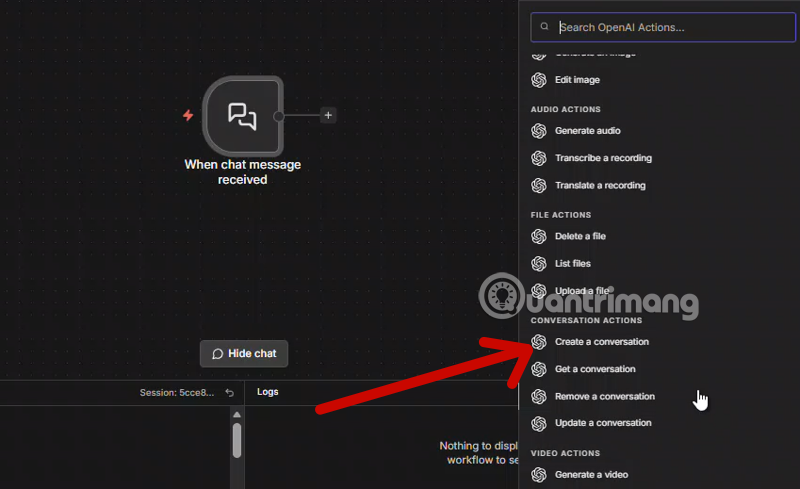
3. Configure the OpenAI credential
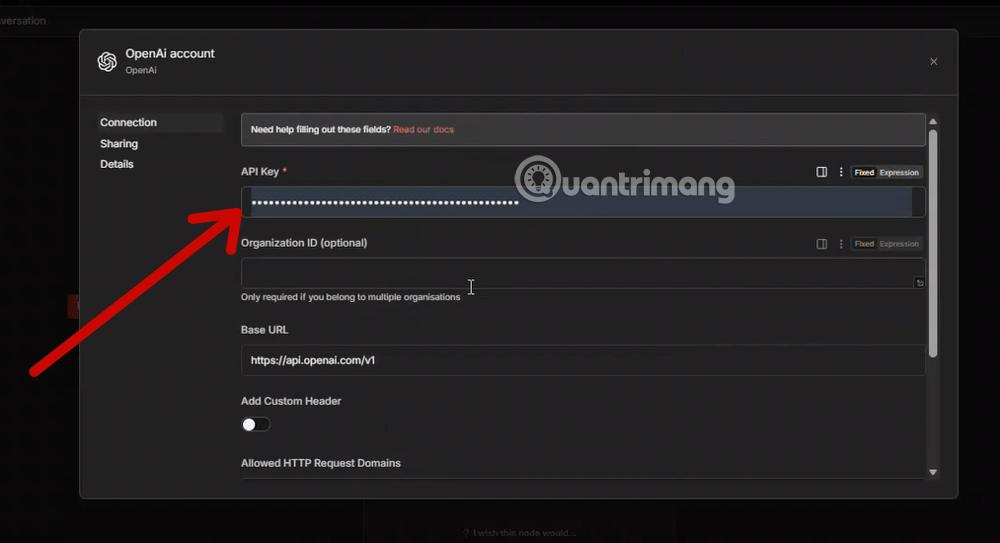
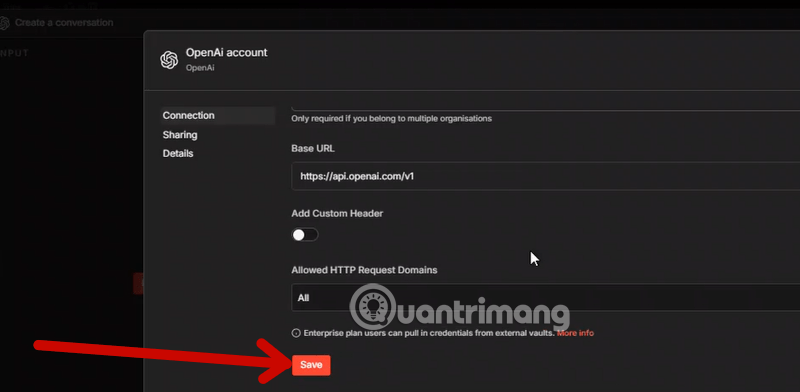
In the node's credential field, choose Create new credential and enter the API key from your OpenAI project. Save it in n8n's credential store. Do not paste the key into a prompt, ordinary workflow field, Code node, or shared screenshot.
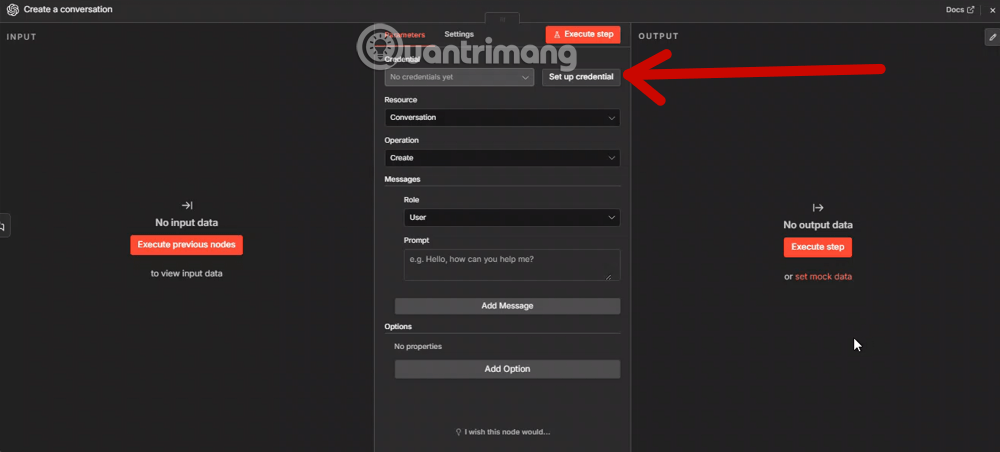
Use a key intended for this automation, give the project only the access it needs, and monitor usage. If a key is exposed, revoke it and create a replacement. On a shared or self-hosted n8n installation, also restrict who can view or edit credentials and workflows.
4. Map the input and write a precise instruction
Select an available model that supports the chosen operation. Then define what the node should do. A useful instruction states the task, the relevant input, the desired output format, and any limits. Avoid sending an entire record when only one or two fields are needed.
To use data from a previous node, switch the field to an n8n expression and select the required value from the input panel. For example, a support workflow could pass the customer's message while keeping the ticket ID outside the prompt for later routing.
When later nodes must parse the response, request a stable structured format if the selected n8n operation supports it. Define the expected fields and validate them before using the data in a database, email, or external system. A free-form answer is usually adequate for a draft, but it is fragile for automated decisions.
5. Test the node and inspect its output
Select Execute step or the equivalent test control in your n8n version. Check the full result, not only the visible text. Confirm that the expected input was sent, the response has the required fields, and empty or unusual inputs do not break the next step.
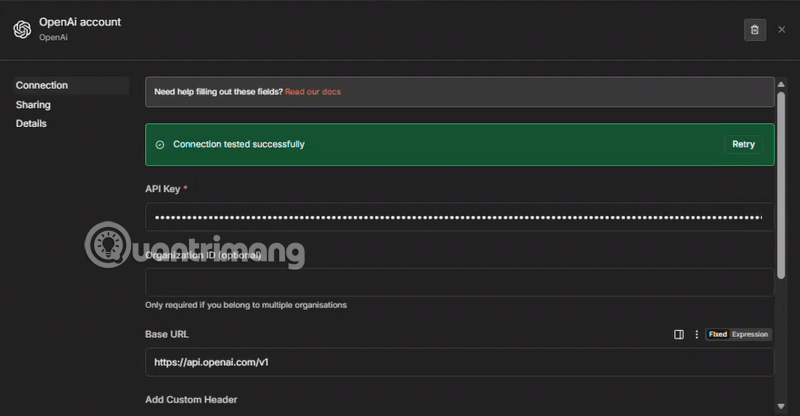
Common failures include an invalid or revoked key, missing API billing, unavailable model access, malformed input, a rate limit, or a response that does not match the expected schema. Use the error details returned by the node to distinguish authentication problems from temporary service or rate-limit errors.
6. Connect the result to the rest of the workflow
Add the next node and map only the output fields it needs. Typical destinations include a spreadsheet, database, Slack message, email draft, content-management system, or conditional branch.
Keep a human approval step before high-impact actions such as publishing content, sending messages to customers, changing records, or acting on financial or security-related data. Model output should be treated as untrusted input: validate it, set limits, and escape it appropriately before inserting it into HTML, commands, or database queries.
7. Add production safeguards before activation
- Control cost: send only necessary context, choose a suitable model, limit output length, and monitor API usage.
- Handle transient errors: add a controlled retry with backoff for rate-limit or temporary service errors. Do not retry invalid credentials indefinitely.
- Prevent duplicate actions: store an event or record ID so a retried workflow does not send the same email or create the same entry twice.
- Create an error path: log the failed item and notify an owner without exposing API keys or private input.
- Protect data: remove unnecessary personal or confidential information before sending a request and apply your organization's retention rules.
- Test edge cases: try blank, very long, malformed, and multilingual inputs before enabling the schedule or webhook.
A simple workflow pattern
A maintainable first automation is: Trigger → clean and validate input → OpenAI → validate output → human approval or destination → log result. This separates deterministic data handling from model generation and makes failures easier to diagnose.
After several successful manual runs, save the workflow, configure its trigger, and activate it. Re-test after changing the model, prompt, schema, credentials, or n8n version because any of those changes can alter the node's output.
Related Articles
 Everything You Need to Know About Openai7 minutes read
 n8n Fundamentals: Nodes, Triggers, Expressions, and Data Flow10 minutes read
 What Is OpenAI? Company, Products, Models, and Mission13 minutes read
 GPT - 4o API Guide: Getting Started with OpenAI's API15 minutes read
 How to Create a ChatGPT API Key6 minutes read
 OpenAI Codex User Guide with 3 Real-World Examples10 minutes read
Reader Comments 0
Sign in with email or Google to join the discussion.