Table of Contents
Every n8n workflow is built from the same elements: a trigger starts an execution, nodes receive and process data, connections define possible routes, and expressions insert values from the current execution. Understanding those pieces makes both ordinary automation and AI workflows easier to build and debug.
This tutorial creates a small workflow that generates sample data and sends it through an If node. No external account or API key is required.
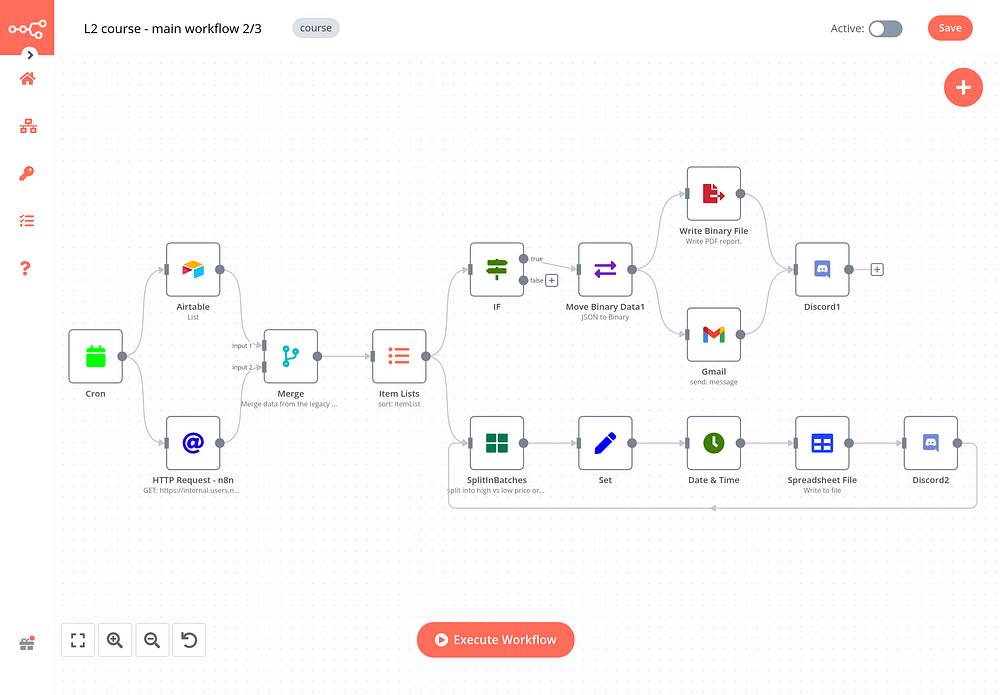
What n8n is
n8n is a workflow-automation platform. Its visual editor connects services, APIs, databases, and custom code into an executable flow. A workflow might receive a webhook, validate its payload, update a database, and send a notification.
You can use n8n's hosted Cloud service or run a supported self-hosted edition. The source code in the main repository is available under n8n's Sustainable Use License, which is a source-available or “fair-code” license rather than a conventional permissive open-source license. Review the license terms before redistributing or offering n8n as a service.
Self-hosting gives the operator control over the n8n instance and database, but it does not automatically keep every byte inside the network. A workflow that calls Gmail, Slack, an AI API, or another external service sends the selected data to that service. Map the complete workflow data path before using confidential information.
The four core workflow components
1. Triggers start executions
A trigger is the entry point. Common trigger types include:
- Manual Trigger: runs when you test the workflow in the editor.
- Webhook: runs when a request reaches the test or production URL.
- Schedule Trigger: runs on a configured interval or schedule.
- App trigger: starts from an event in a service, such as a new message or record.
- Chat Trigger: receives chat messages for conversational workflows.
Trigger behavior differs by integration. Some services push events to n8n; others require polling. A production trigger usually requires the workflow to be published or active, while manual testing runs from the editor.
2. Nodes retrieve, transform, route, or send data
Each node performs a defined operation. Typical groups include:
- App nodes: read from or write to services such as Google Sheets, Slack, GitHub, or a database.
- Core nodes: make HTTP requests, edit fields, merge data, loop, wait, or run code.
- Flow nodes: route items with If, Switch, Merge, and related logic.
- AI nodes: call models, tools, retrievers, memory, and vector stores.
Names change as the interface evolves. The node formerly called Set is displayed in current documentation as Edit Fields (Set).
3. Connections carry data along branches
A connection links one node's output to another node's input. A node may have several outputs; for example, an If node sends matching items to the true branch and the remaining items to the false branch.
A visual connection shows a possible route. It does not guarantee that every node runs during every execution. A branch with zero items may not execute downstream work, and an error can stop or redirect the flow depending on node and workflow settings.
4. Expressions insert dynamic values
An expression is JavaScript-like code inside double braces. It is evaluated during the workflow execution:
{{ $json.customer.email }}Here, $json is the JSON for the current input item. Use the expression editor and drag data from the input panel rather than typing long paths from memory.
How n8n data flows
n8n passes data between nodes as an array of items. Each item normally contains a json object and may also contain binary data or metadata used to link items across nodes.
Conceptually, a node receives:
[
  { "json": { "name": "Ava", "count": 14 } },
  { "json": { "name": "Leo", "count": 7 } }
]
Most nodes process each item automatically. If those two items enter an If node configured with count > 10, Ava's item goes to the true output and Leo's item goes to the false output.
Item linking matters when one node creates or combines items. Referencing “the matching item” from an earlier node is safer than assuming the same array position after a merge, split, aggregate, or code transformation.
Build your first n8n workflow
Step 1: Create and name the workflow
Create a new workflow and give it a name such as My First Data Flow. A descriptive name is important once the instance contains scheduled and production automations.
Step 2: Add Manual Trigger
Add a Manual Trigger. This lets you run the workflow from the editor without waiting for an external event.
Step 3: Add Edit Fields (Set)
Connect an Edit Fields (Set) node after the trigger. Add these output fields:
| Field | Type | Value |
|---|---|---|
greeting | String | Hello from n8n! |
count | Number | 42 |
Execute the node once and inspect its output. Confirm that count is a number, not the string "42", because comparisons can behave differently when types do not match.
Step 4: Add an If node
Connect an If node after Edit Fields. Create a number condition:
- Value 1:
{{ $json.count }} - Operation: is greater than
- Value 2:
10
The sample item should leave through the true output. Connect another Edit Fields node to each output if you want to label the result as high or low.
Step 5: Test and inspect each node
Select Execute workflow or the equivalent test control. Open every node's input and output panel. n8n shows the actual data passed through the execution, which is more reliable than debugging from the canvas alone.
Useful expression patterns
| Expression | Purpose |
|---|---|
{{ $json.subject }} | Read subject from the current item |
{{ $json.user?.email }} | Read a nested value without failing when user is missing |
{{ $("Trigger Name").item.json.id }} | Read the linked item from a previous node |
{{ $("Node Name").all() }} | Return all items output by a previous node |
{{ $input.all() }} | Return all items entering the current node |
{{ $now }} | Use the current date and time object |
{{ $execution.id }} | Use the current execution identifier |
Current n8n documentation uses $("Node Name").item.json for linked data from a previous node. Older examples using $node["Node Name"] may still appear online, but use the expression editor's generated syntax for your installed version. The official previous-node reference lists the current methods.
When to use an expression and when to use a node
- Use an expression for a field lookup, short calculation, date formatting, or small inline condition.
- Use Edit Fields when you want to add, remove, rename, or reshape fields visibly.
- Use If for a true/false branch and Switch for several routes.
- Use the Code node for multi-step logic that would be difficult to read as an expression.
The Code node supports JavaScript and Python, but runtime capabilities vary. Importing built-in or external npm modules is restricted by default and requires self-hosted configuration; do not assume an arbitrary package is available. See n8n's Code node guide.
Credentials and external services
Integration nodes often require OAuth, an API key, a database login, or another credential. Create the appropriate credential from the node or the Credentials area, complete its authentication flow, and select it in the node.
Do not paste secrets into:
- expressions or Edit Fields values;
- Code node source;
- workflow names, notes, or exported JSON;
- test payloads that may be retained in execution history.
n8n encrypts stored credentials in its database using an encryption key. Self-hosted operators should set and securely back up a stable custom key, restrict access to the database and environment, rotate secrets appropriately, and protect exported workflows and execution data. Losing the encryption key can make stored credentials unusable.
Production checks before activating a workflow
- Use test credentials and sample data first.
- Validate required fields and data types at the entry point.
- Define what should happen when an API times out or returns an error.
- Limit the data sent to external services.
- Set execution-retention and logging policies appropriate to the content.
- Verify the schedule, webhook production URL, and time zone.
- Prevent duplicate processing with a stable record or event identifier.
- Run one end-to-end test, then inspect every branch and side effect.
Key points
A trigger starts the workflow, nodes perform work, connections define routes, and expressions pull dynamic values from execution data. Items—not a single global object—move between nodes. Once you can inspect those items and follow their paths through branches, most n8n debugging becomes a matter of finding where the data shape first differs from what the next node expects.
Related Articles
 Basic Knowledge Management Principles Everyone Should Know8 minutes read
 What Do You Know About Data Mining? - Part 2?4 minutes read
 What Do You Know About Data Mining? - Part 1?4 minutes read
 Browse Trees in Data Structures and Algorithms6 minutes read
 Your First AI Node: Basic LLM Chain7 minutes read
 What Are You Missing Out on If You Use Your Phone Without Samsung Flow?6 minutes read
Reader Comments 0
Sign in with email or Google to join the discussion.