Table of Contents
MiniMax Audio can create a reusable synthetic voice from a short recording and then read new text in that voice. Use this feature only for your own voice or a voice you have clear permission to reproduce. Never use a clone to impersonate someone, bypass voice authentication, mislead an audience, or publish speech the speaker did not approve.
Prepare a useful and safe voice sample
The quality of the reference recording has a direct effect on the result. Record in a quiet, non-echoing room and keep a consistent distance from the microphone. Speak naturally at a steady pace, with no music, sound effects, overlapping voices, or aggressive noise reduction.
- Use one speaker only.
- Include complete sentences with varied sounds and natural pauses.
- Avoid whispering unless that is the voice style you intend to reproduce.
- Trim long silence at the beginning and end.
- Listen through headphones and confirm that the speech is clear before uploading.
MiniMax's current web page requests a clean clip between 10 and 60 seconds; limits can change, so follow the requirement shown in the upload panel. The MiniMax API has separate requirements. For a comparison with other products, see TipsMake's guide to AI voice-generator tools.
Create a MiniMax Audio voice clone
1. Open Voice Clone
Go to the official MiniMax Audio Voice Clone page and sign in. The navigation labels may move as the service changes; look for Voice Clone in the Audio workspace.
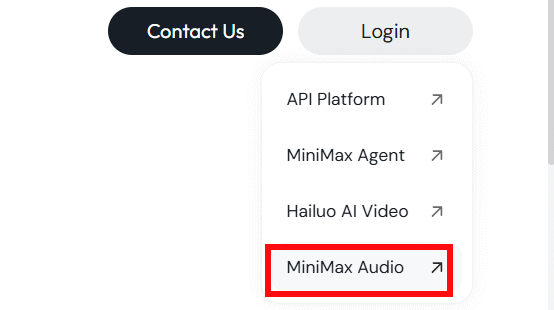
Sign in to the MiniMax Audio workspace from the official site.
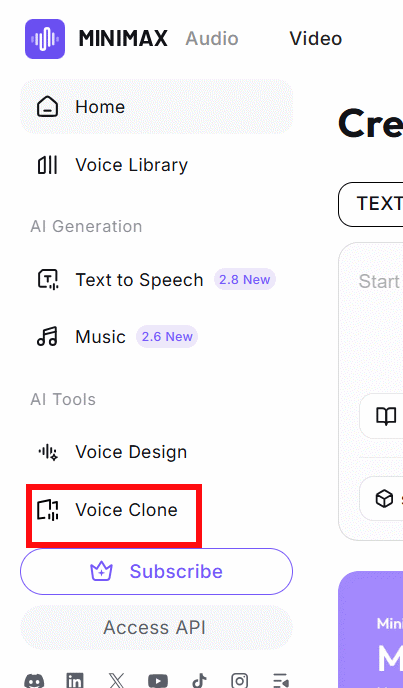
Open Voice Clone from the Audio navigation.
2. Upload or record the sample
Upload the prepared audio file, or record directly if the page offers that option. Confirm that the sample meets the displayed duration, format, and size limits. Do not upload a private conversation or a recording that includes another person.
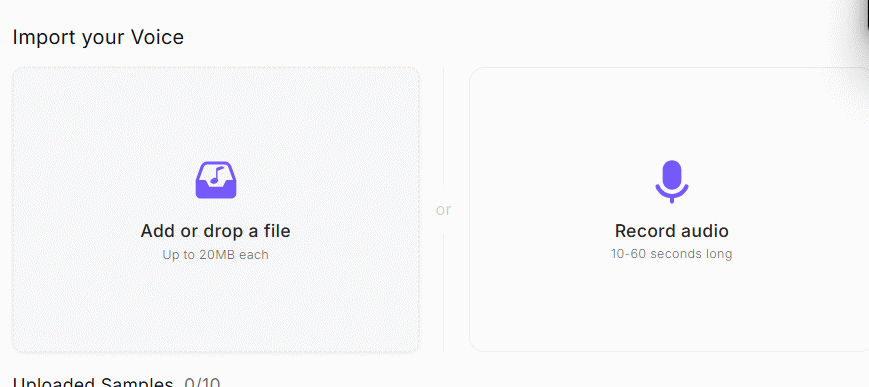
Use a clean recording that contains only the authorized speaker.
3. Enter a short preview script
Select the intended language or pronunciation setting, then enter a short test script. Use original text with ordinary punctuation. A good preview contains a mix of short and long phrases, numbers, names, and words that matter to your project.
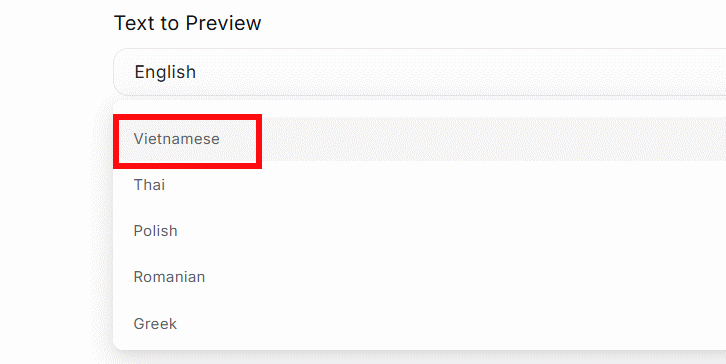
Choose the language used in the preview script.
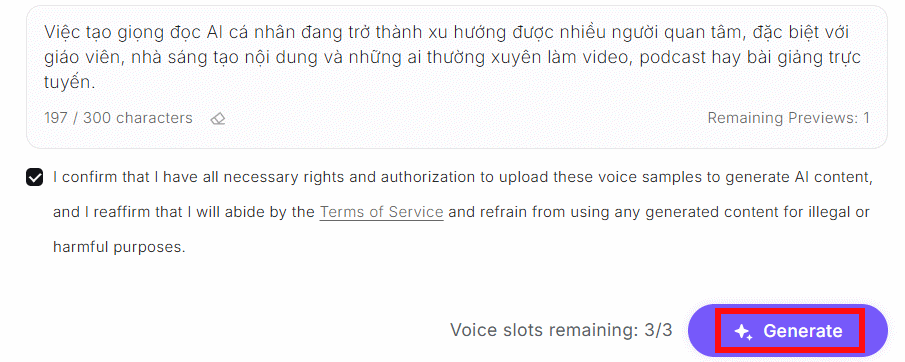
Enter a representative test passage, then generate the preview.
4. Review the preview before saving
Listen for mispronounced names, unnatural pauses, clipped words, changes in accent, and inconsistent volume. If the result is poor, improve the source recording instead of accepting a weak clone. A longer sample is not automatically better; clarity and consistency matter.
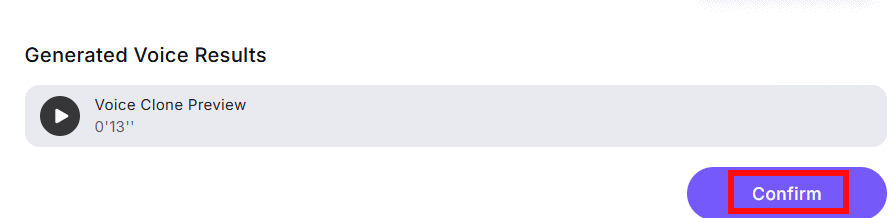
Confirm the clone only after listening to the complete preview.
Give the voice a descriptive private name that identifies its owner and permitted use, such as “Alex — tutorial narration only.” Avoid a public figure's name or wording that suggests authorization you do not have.
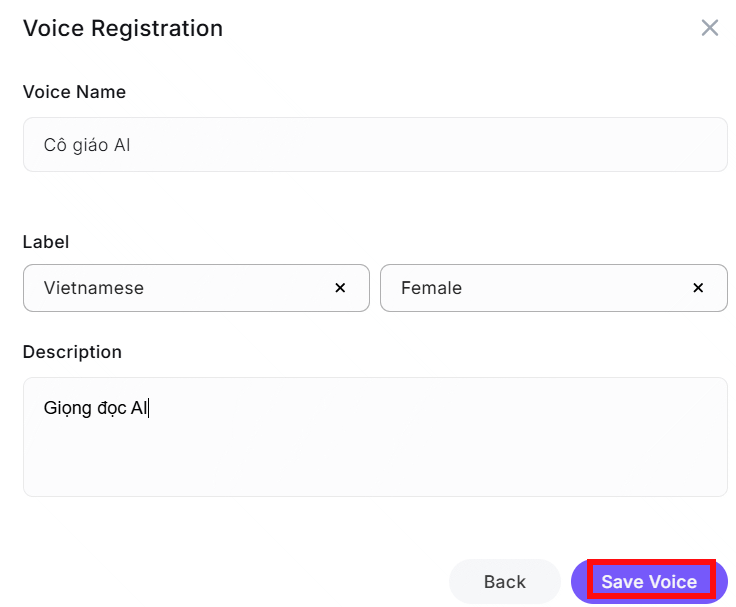
Use a clear label that records who owns the voice and how it may be used.
5. Generate and download narration
Open the saved voice in the Voice Library, enter the final script, and generate the audio. Listen to the entire result before downloading or publishing it. Check names, dates, numbers, disclaimers, and any sentence whose meaning could change because of emphasis.
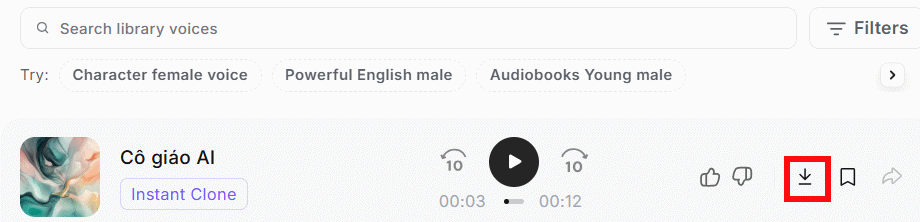
Download the file only after reviewing the finished narration.
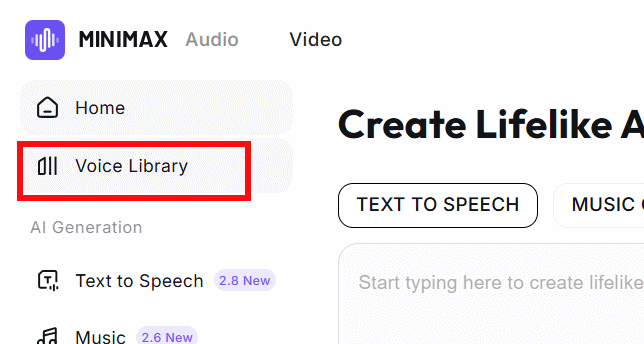
Previously created voices are available from the Voice Library.
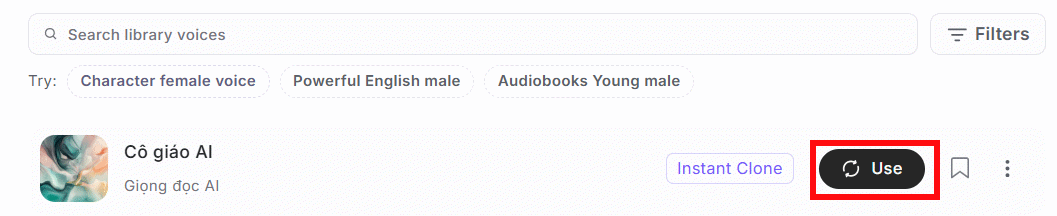
Select the saved voice when generating a new authorized script.
Improve difficult scripts
- Use punctuation to create natural phrase boundaries.
- Write abbreviations the way they should be spoken when the model misreads them.
- Spell uncommon names phonetically only if the editor supports it and the result remains accurate.
- Generate long projects in manageable sections so errors are easier to replace.
- Keep tone and terminology consistent across sections.
- Do not use an AI voice for quotations unless the wording is accurate and the presentation cannot be mistaken for an authentic recording.
For simpler narration that does not need to imitate a particular person, a stock text-to-speech voice may be safer and faster. TipsMake's overview of AI voice-making tools covers alternatives.
Consent, disclosure, and account security
Voice likeness can be identifying and difficult to revoke once audio is copied. Obtain written permission that covers the project, platform, duration, audience, editing, and whether future scripts require approval. A parent or legal guardian should handle consent for a minor.
- Tell listeners when synthetic speech could reasonably be mistaken for a real recording.
- Do not clone a customer, employee, actor, relative, or public figure without explicit authority.
- Do not use cloned speech for calls requesting money, passwords, verification codes, or urgent action.
- Protect the MiniMax account with a unique password and any available multi-factor authentication.
- Review MiniMax's current terms, privacy controls, pricing, and deletion options before uploading sensitive recordings.
- Delete unused clones and source files when the project and retention obligations are complete.
Keep the original recording, final script, consent record, and exported audio together. That creates a clear production record and makes it easier to correct or withdraw material later.
Related Articles
 How to Create a Personal Voice on iPhone3 minutes read
![10 Top AI Voice Changers in 2024 [Desktop & Online]: Best Options Compared](/data7/thumbs_200x120/10-best-ai-voice-changers-in-2024_thumbs_200x120_jO2A8YC3M.jpg) 10 Top AI Voice Changers in 2024 [Desktop & Online]: Best Options Compared11 minutes read
10 Top AI Voice Changers in 2024 [Desktop & Online]: Best Options Compared11 minutes read Instructions on How to Adjust the Voice After Recording13 minutes read
 7 Best Best Voice Changing Software on Computers16 minutes read
 How to Use ChatGPT Voice on Computer3 minutes read
 Fake Voice 7.0 - Fake Voice 7.0 Download and Installation4 minutes read
Reader Comments 0
Sign in with email or Google to join the discussion.