Table of Contents
ChatGPT Images can create a thumbnail from a text description or edit uploaded images into a new composition. For a standard YouTube video, request a 16:9 layout; use 9:16 only for a vertical Shorts thumbnail or another vertical platform.
The strongest workflow is to supply your own background or subject image, describe the typography rather than copying another creator's design exactly, generate a first draft, and then make small, specific edits.
Before you start
Prepare:
- the video topic and one clear promise to the viewer;
- an original or licensed background/subject image, if you have one;
- the exact thumbnail text, ideally a short phrase;
- brand colors or an existing brand guide;
- an optional reference image you own or are authorized to use.
Do not upload an image simply because you found it in search results. You need permission to reuse the source, logo, photograph, and other protected elements. A style reference should communicate broad characteristics—bold condensed type, yellow accent, dark outline—not instruct ChatGPT to duplicate a specific creator's thumbnail.
Step 1: Open ChatGPT Images or start an image request
Open ChatGPT and start a new image request. The exact navigation can vary as the Images experience is updated. You can describe a new thumbnail from scratch or attach files to edit and combine.
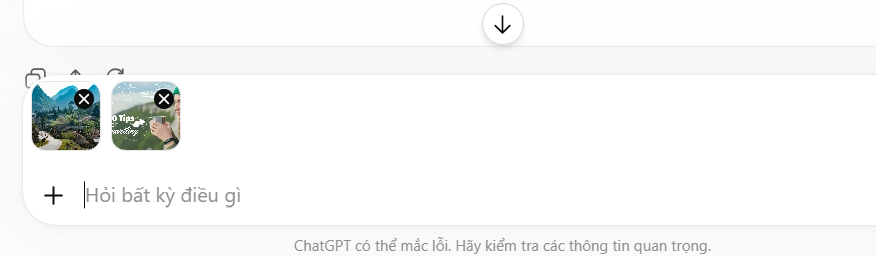
OpenAI's current image system supports text rendering, multi-image input, creative transformations, and follow-up edits. You do not need to select an older DALL·E model for the normal ChatGPT Images workflow.
Step 2: Upload the source images and label their roles
Attach the main photo first. If you also provide a typography or layout reference, identify it clearly:
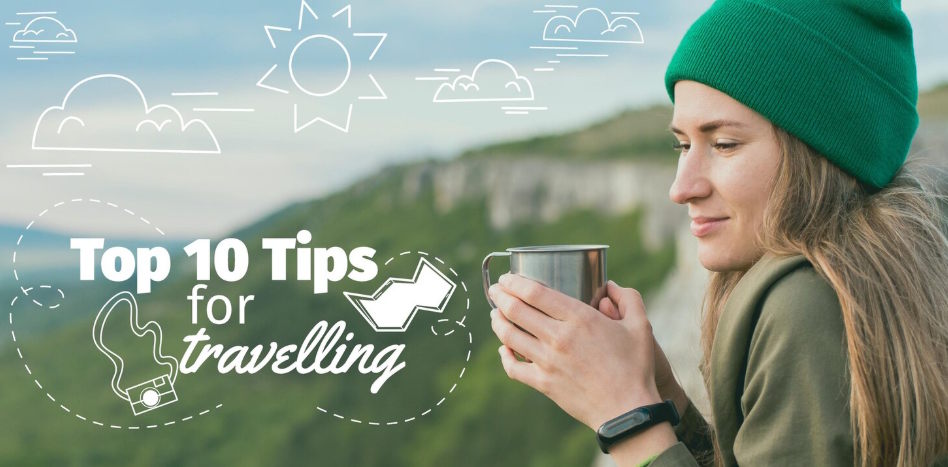
- Image 1: the subject/background to preserve.
- Image 2: an authorized style reference; use only its general typography characteristics.
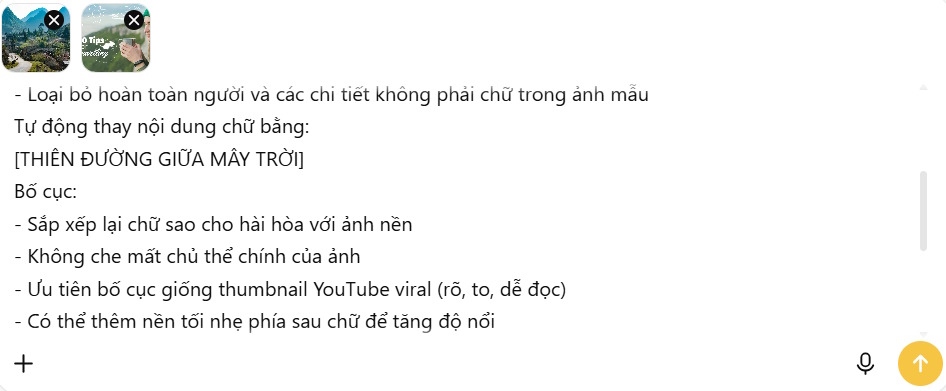
If preserving the subject matters, say which details must remain unchanged: face, product shape, logo, lighting, or composition. “Keep everything” can conflict with a request to add large text, so specify the acceptable edit area.
Step 3: Write a precise thumbnail prompt
Use a prompt with the exact text, visual hierarchy, protected details, and output ratio. This template is a safer alternative to asking for a copy of another thumbnail:
Create a 16:9 YouTube thumbnail using Image 1 as the main background.

Preserve:
- the person's face, clothing, and pose
- the product and its colors
- the existing lighting and camera angle

Add this exact headline:
"FIX SLOW WI-FI"

Typography:
- bold condensed sans-serif
- uppercase white text
- thick dark navy outline
- one yellow accent behind the word "SLOW"
- no extra words or misspellings

Layout:
- keep the subject on the right
- place the headline on the left
- do not cover the face or product
- strong separation between subject and background
- simple composition readable at small size

Output:
- 16:9 landscape
- no border, watermark, channel logo, or invented UI
For a Shorts cover, change the output to 9:16 vertical and keep important content away from interface overlays. Do not request 9:16 for a normal landscape video thumbnail.
Step 4: Generate and inspect the first result
Generate the image, then check the result before downloading:
- Is every word spelled exactly as requested?
- Does the subject still look like the source?
- Is the main idea understandable without reading the video title?
- Can the headline be read when the image is shown at phone size?
- Did the model invent a logo, object, button, or background detail?
- Does the image accurately represent the video?
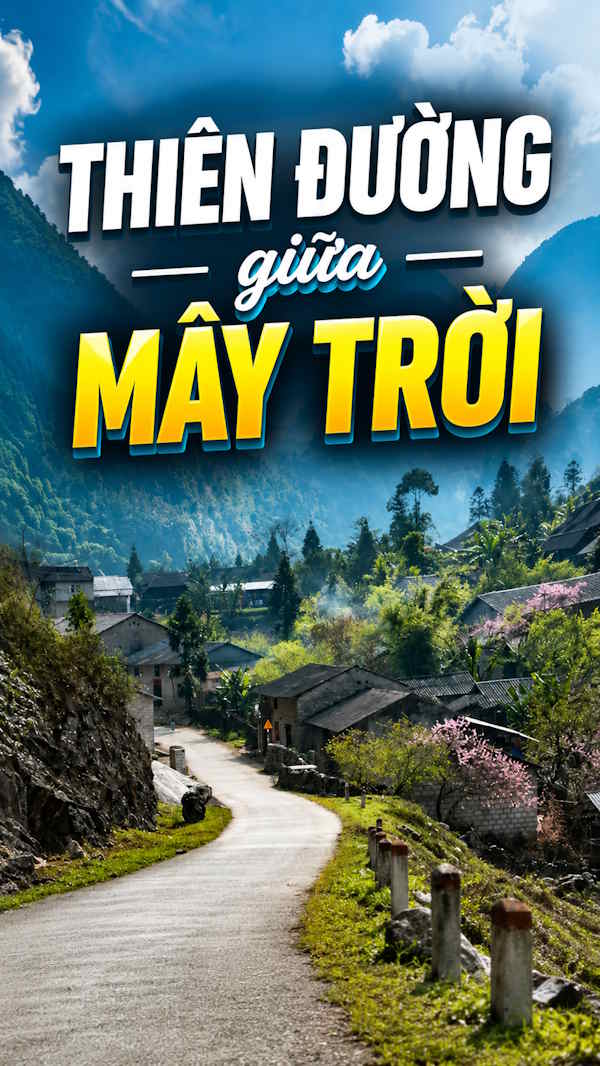
Image generation is probabilistic. Improved text rendering does not guarantee perfect spelling or a precise font. Recreate critical typography in a conventional design tool when exact brand type, kerning, or legal text is required.
Step 5: Refine one problem at a time
Continue in the same conversation and request a focused edit. Examples:
- “Keep the image unchanged. Replace only the headline with ‘FIX SLOW WI-FI’ and preserve its position.”
- “Make the headline 20% larger without moving the subject.”
- “Remove the invented icon in the lower-left corner. Change nothing else.”
- “Increase the dark gradient behind the left-side text, but keep the face and product untouched.”
- “Create a second version with the same content and a calmer blue-and-white palette.”
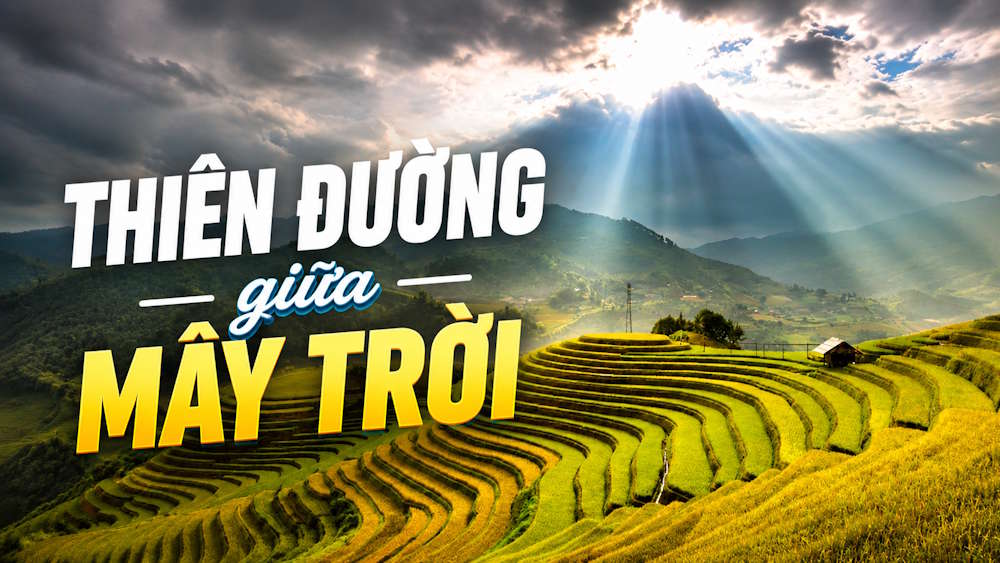
Small edits are easier to evaluate than asking for a complete redesign every turn. If an edit repeatedly damages the subject, return to the best earlier image and try again from that version.
Choose the right size and file
YouTube currently recommends uploading the largest practical thumbnail and suggests 3840 × 2160 pixels with a minimum width of 640 pixels, using a 16:9 ratio for standard players and previews. JPG and PNG are supported; upload-size limits depend on device. Shorts use a 9:16 format, and vertical-video thumbnails can be cropped or replaced in some mobile surfaces.
Check YouTube's current custom thumbnail guidance before export because resolution and upload limits can change.
Design choices that improve readability
| Element | Recommendation |
|---|---|
| Headline | Use a short phrase that adds context rather than repeating a long title |
| Subject | Keep one dominant focal point with a clear silhouette |
| Contrast | Separate text from the background with a panel, gradient, outline, or shadow |
| Color | Use one accent color and maintain brand consistency |
| Detail | Remove small decorative elements that disappear on a phone |
| Accuracy | Represent the actual video; avoid a misleading object, result, or reaction |
Common prompt mistakes
- “Make it viral”: this gives no usable design direction and cannot guarantee performance.
- Too much text: the type becomes small and errors become more likely.
- Conflicting preservation rules: a request to keep the entire scene unchanged leaves nowhere to place new elements.
- Copying a reference exactly: imitate broad design principles, not a protected layout, logo, or creator identity.
- Wrong aspect ratio: 16:9 is normal for standard YouTube thumbnails; 9:16 is for Shorts and vertical uses.
- No quality check: faces, hands, product labels, and small text can change during editing.
Use ChatGPT for concepts, then verify the final asset
ChatGPT Images is effective for generating variations and making conversational edits. OpenAI describes the current system as better at preserving composition, lighting, likeness, and other details during edits, but it still has limitations. Review the official ChatGPT Images overview for the latest capability notes.
Before publishing, compare the thumbnail with the video, check spelling and brand rules, preview it at a small size, and keep the editable source or prompt history. A clear, accurate thumbnail is more durable than a visually aggressive design that promises something the video does not deliver.
Related Articles
 What Is ChatGPT Images 2?6 minutes read
 How to Create Quizzes on ChatGPT5 minutes read
 Fix Windows Error Without Image, Thumbnail Thumbnail2 minutes read
 How to Creating Chibi Couple Images, Creating Chibi Images in ChatGPT4 minutes read
 How to Create Stickers Using ChatGPT4 minutes read
 How to Delete and Reset the Cache Thumbnail on Windows 106 minutes read
Reader Comments 0
Sign in with email or Google to join the discussion.