Table of Contents
Windows 11 can quickly analyze and tell you how hard drive space is being used so you can take appropriate action to free up computer space. If your hard drive is running out of space, you can use Cleanup Recommendations or use the Disk Usage tool to analyze drive space to find a solution. Below is a guide to find drive capacity on Windows.
Check disk space on Windows via Settings
Step 1:
Open Settings , then select System and then click Storage to see the capacity.
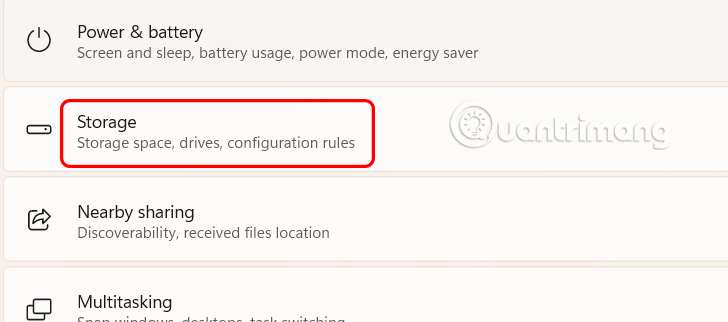
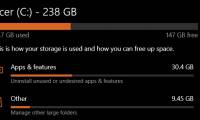
In Local Disk (C:) you click Show more categories to expand the list of file types that are taking up space on drive C.
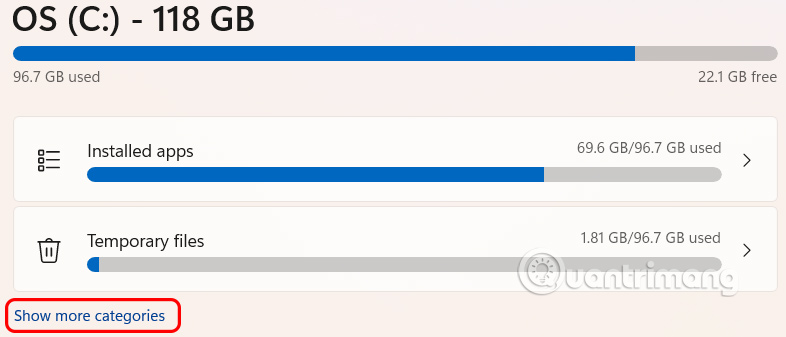
Step 2:
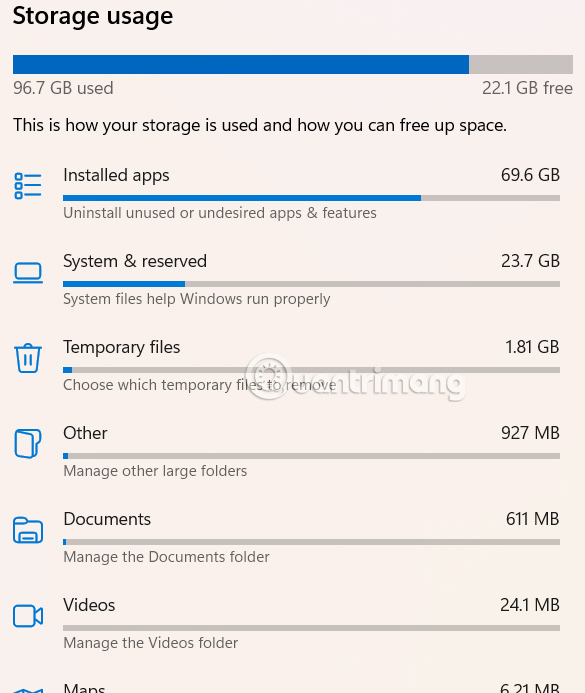
Show details of files taking up space on drive C.
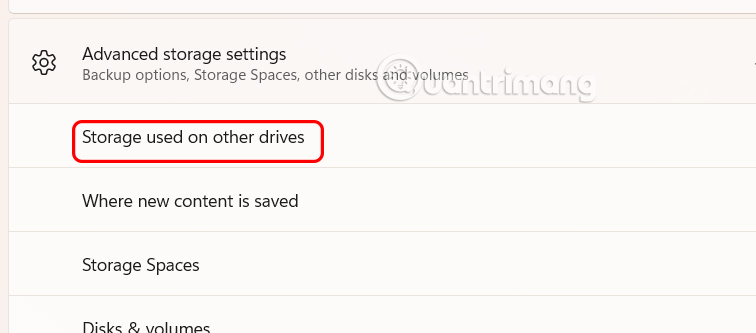
You can also click Advanced storage settings to view advanced storage settings.
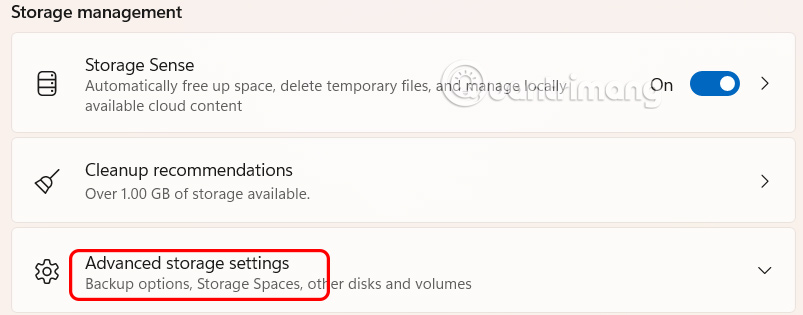
Continue scrolling down to Storage management to adjust. Then tap on Storage used on other drives .
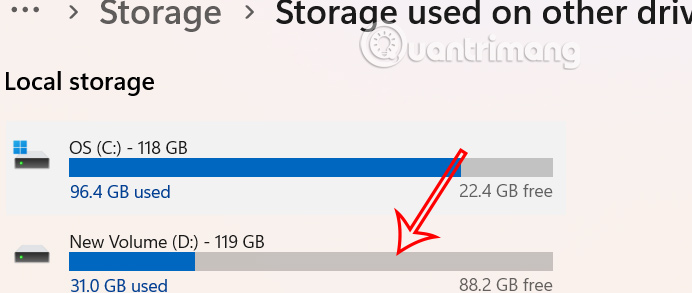
Select another drive to see C drive capacity.
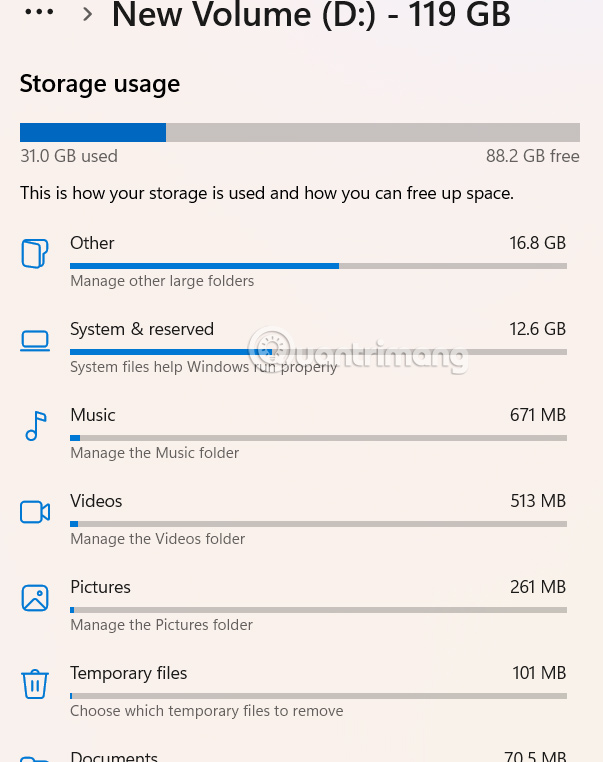
Here you also see the disk storage usage.
Instructions for viewing disk capacity using DiskUsage
Windows 11 also comes with the DiskUsage tool, which lets you analyze disk usage via Command Prompt.
Step 1:
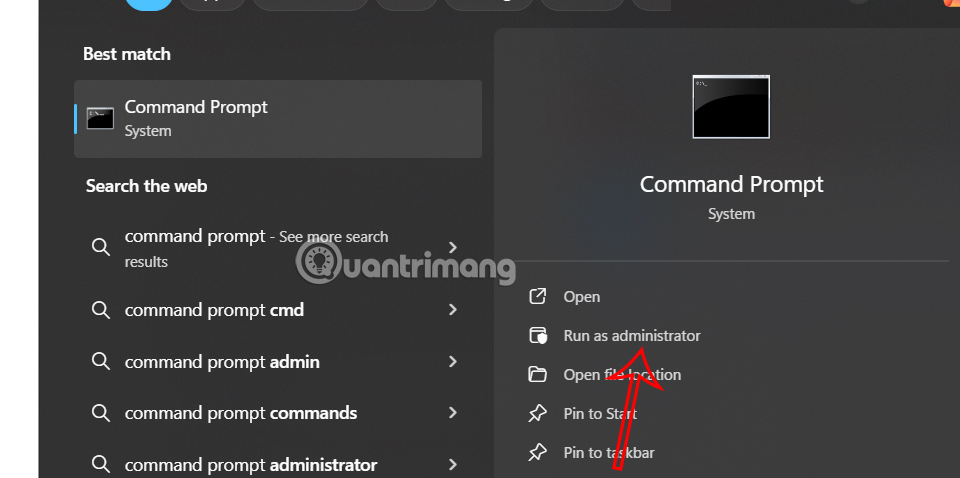
Type Command Prompt in the search bar and click Run as administrator to run with Admin rights.
Step 2:
Type the following command to analyze the storage usage of a folder on Windows 11 and press Enter.
diskusage PATH/TO/LOCATION /h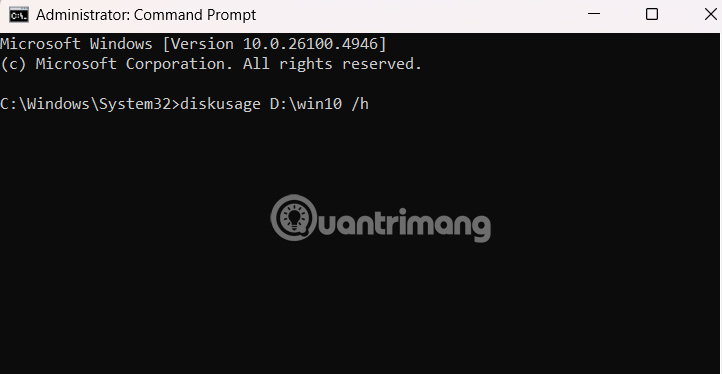
In the command, replace PATH/TO/LOCATION with the location you want to analyze, for example analyze the Win10 folder. The command proceeds to generate a report on disk space usage.
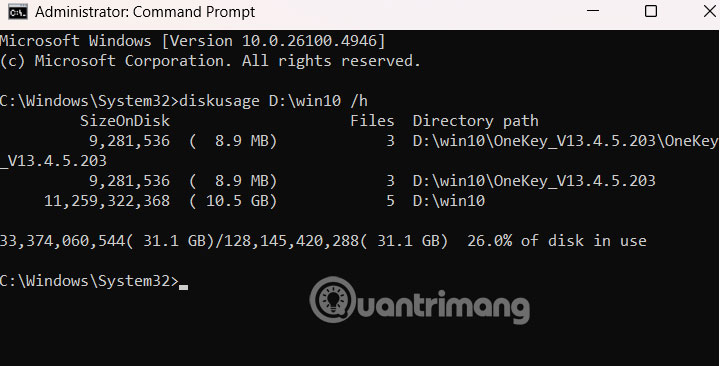
Enter the command below to find files larger than a certain size.
diskusage /minFileSize=FILE-SIZE-KB PATH/TO/LOCATION /hEnter the following command to list the largest files on the drive in descending order for a given location.
diskusage PATH/TO/LOCATION /h /u=NUMBERNUMBER is the number of files you want to view.
Enter the following command to list the top folders by size on the drive in descending order for a given location.
diskusage PATH/TO/LOCATION /h /t=NUMBERNUMBER equals the number of folders you want to view.
Final Thoughts
Following the steps in order and checking version-specific settings should make it easier to View Files Taking up Disk Space on Windows 11. If an option looks different, verify the device, app, or operating-system version before changing additional settings.
FAQ
What is the best way to View Files Taking up Disk Space on Windows 11?
Start with the requirements described in the article and follow the steps in order. Windows 11 can quickly analyze and tell you how hard drive space is being used so you can take appropriate action to free up computer space.
What should you know about Check disk space on Windows via Settings?
Open Settings, then select System and then click Storage to see the capacity.
What should you do if the instructions do not match your screen?
Check the device, software version, account permissions, and regional settings. Interfaces can change after updates, so use the closest matching option and consult the official support documentation when necessary.
Related Articles
 Free Up Hard Drive Space Automatically on Windows 10 with Disk7 minutes read
 4 Best Disk Capacity Analysis Tools on Windows 108 minutes read
 How to See What Is Taking up a Lot of Storage Space on4 minutes read
 How to Fix Temporary Files Taking up a Lot of Space on Your Computer7 minutes read
 Fix Log File Taking Up All Linux Drive Space: What to Know8 minutes read
 How to Clean up Junk Files to Reduce Disk Space C3 minutes read
Reader Comments 0
Sign in with email or Google to join the discussion.