Table of Contents
The Claude Code extension is usually the better interface for multi-file work in VS Code because plans, file references, inline diffs, diagnostics, and conversation history stay beside the editor. The CLI remains useful for terminal-first tasks, remote shells, automation, and commands whose output is easier to inspect directly. These are two interfaces to the same coding workflow, not competing models.
What the VS Code extension adds
- Inline diffs for reviewing proposed edits
@-mentions for files and selected line ranges- Plan review before implementation
- Conversation history in editor tabs or windows
- Access to VS Code diagnostics and the active selection
- A visual panel alongside source control, tests, and the debugger
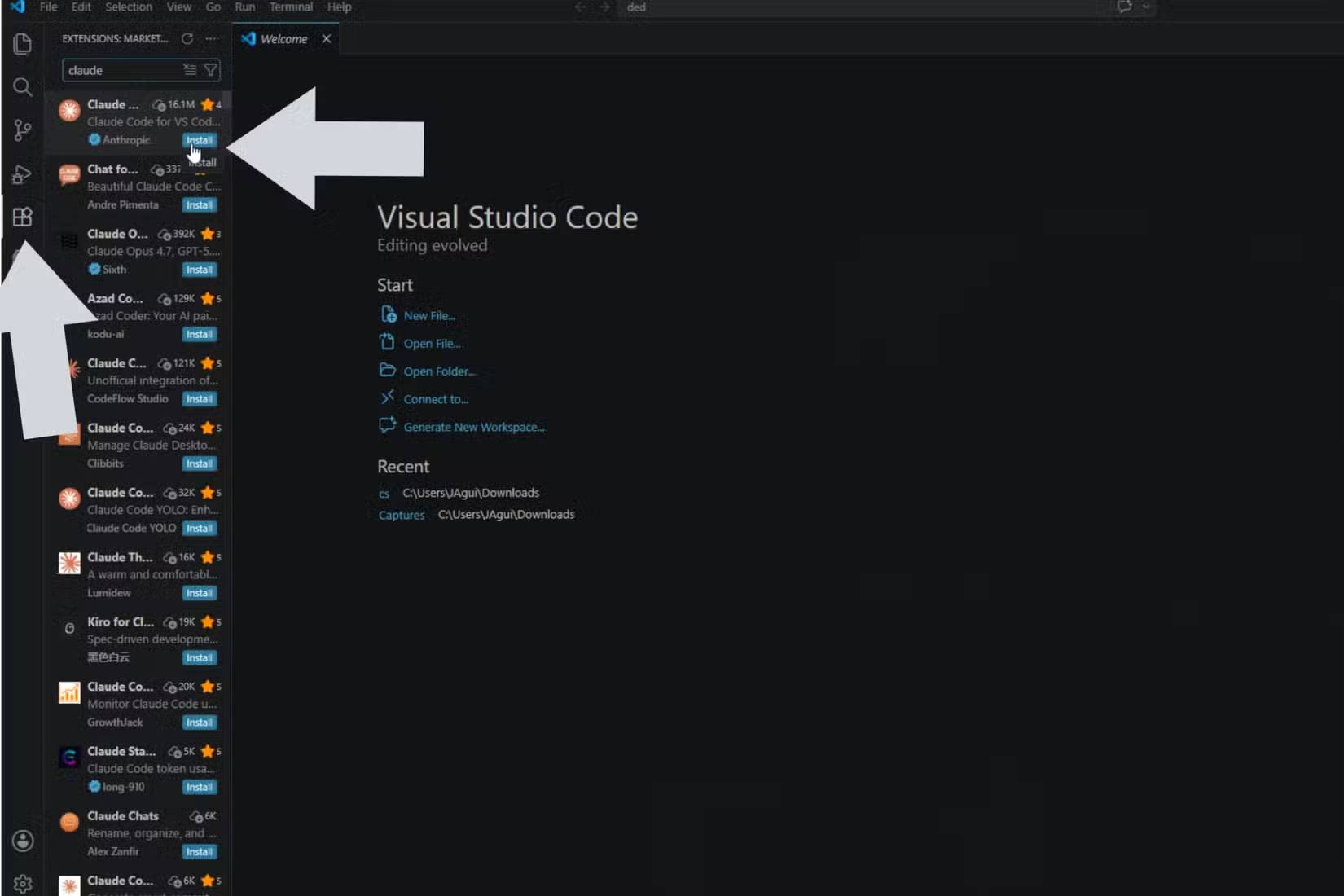
The extension keeps Claude Code beside the files and editor tools used to review its work.
Anthropic's official VS Code guide describes the extension as the recommended way to use Claude Code in VS Code. Check that page for current prerequisites, supported authentication, installation paths, and keyboard shortcuts.
Install and open Claude Code in VS Code
- Open Extensions with Ctrl+Shift+X on Windows or Linux, or Cmd+Shift+X on macOS.
- Search for Claude Code and verify that the extension is the official Anthropic listing.
- Install it and sign in through the supported account or organizational provider.
- Open a source file, then use the Claude spark icon, Activity Bar, status bar, or Command Palette entry.
If the panel does not appear, update VS Code, reload the window, check workspace trust, and temporarily test for a conflict with another coding-assistant extension. Do not install an unrelated extension with a similar name.
Use the editor interface for review-heavy work
Start with a plan
For a feature or bug that touches several files, first ask Claude to inspect the relevant code and propose a plan without editing. Review assumptions, file boundaries, migration risks, and tests. A useful prompt is:
Inspect the authentication flow and propose a minimal plan for adding passkey fallback.
Do not edit files yet.
List the files you expect to change, security assumptions, tests, and rollback concerns.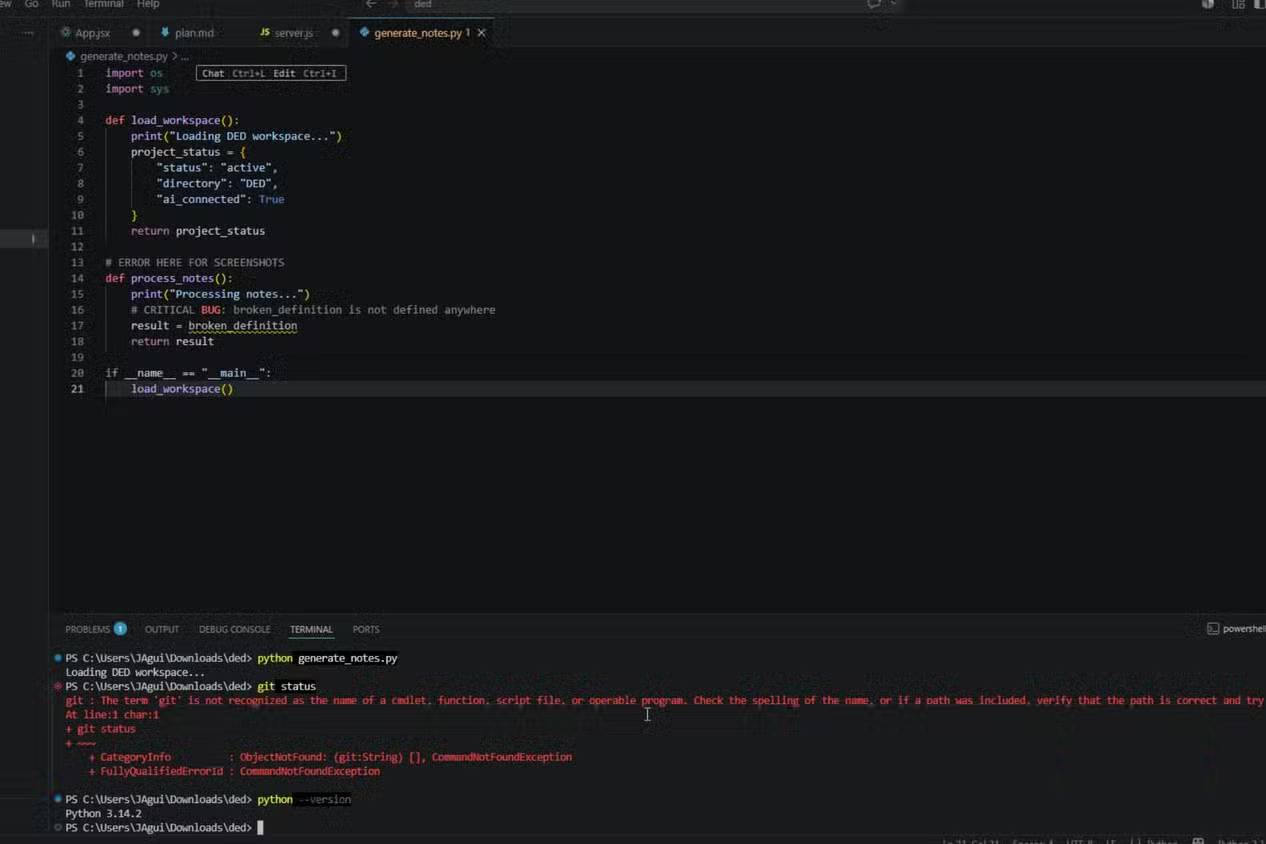
A plan is useful only when you check it against the real repository.
Plans do not make edits correct automatically. Add missing constraints in the conversation or edit the plan before authorizing implementation.
Reference exact files and selections
Use an @-mention or selected lines to constrain the question: ask why a build fails in one module, request a test for one function, or compare an implementation with a canonical example. This is more precise than telling the assistant to “fix the project.”
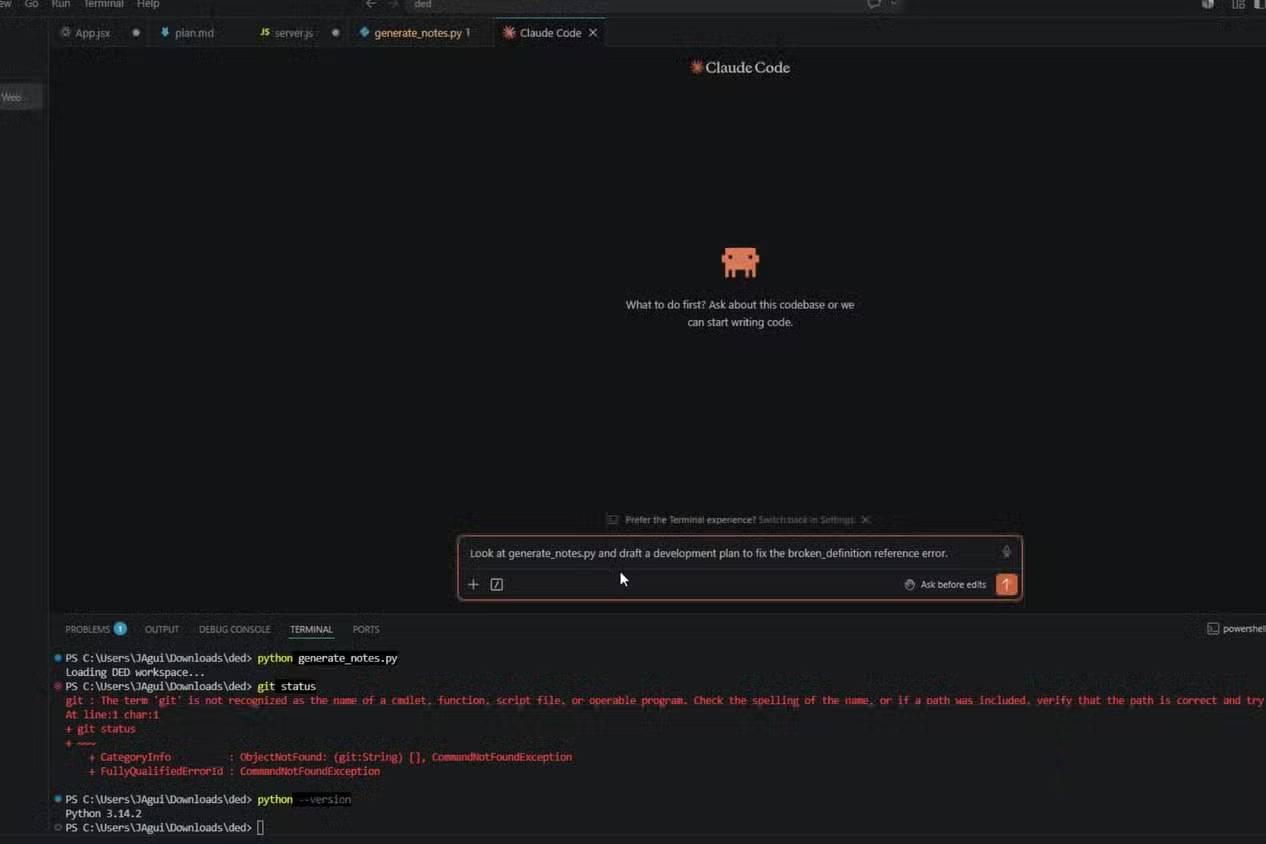
Keep the request beside the files and diagnostics that define the task.
The extension can provide active-file and selected-line context. Exclude secrets and sensitive files with appropriate permission rules, and do not select an .env file merely to explain a configuration issue.
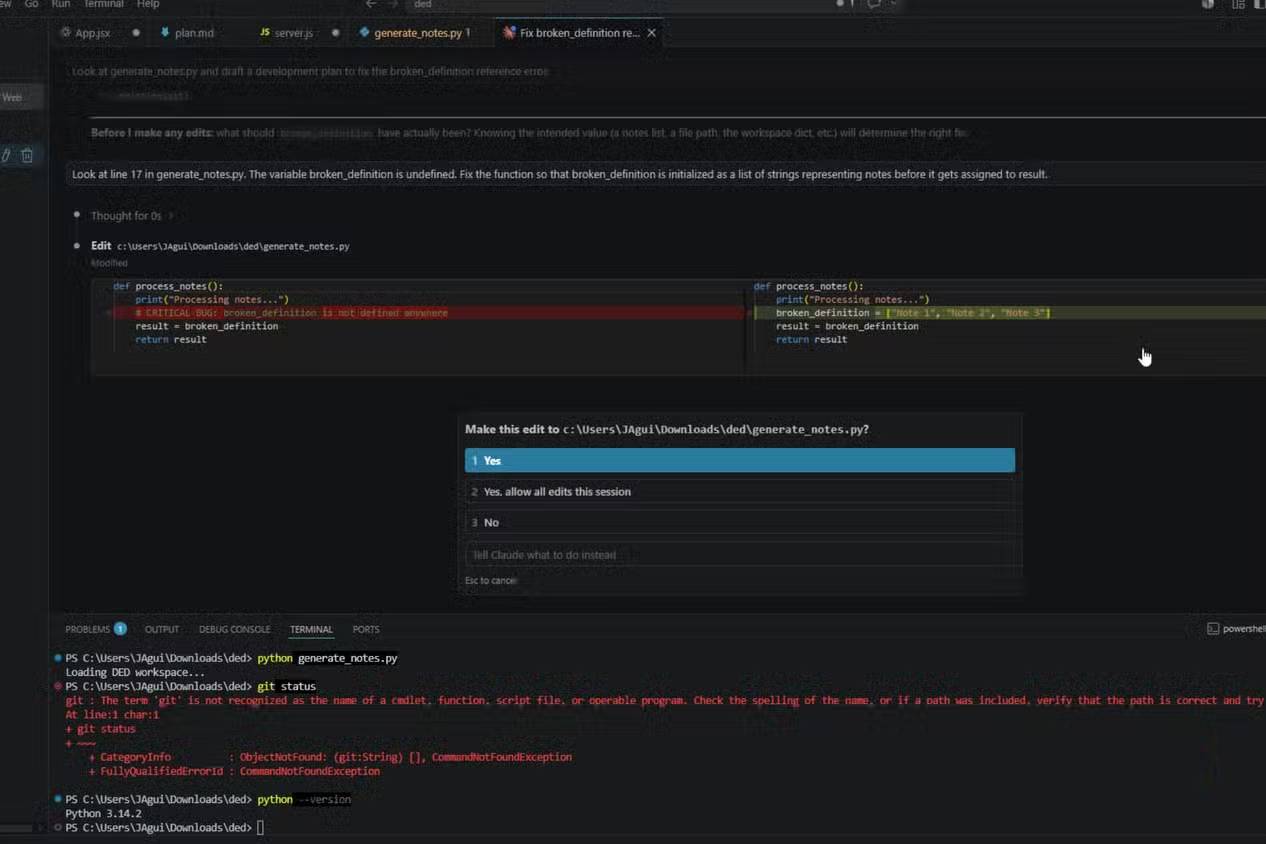
Review diffs before accepting them
Inspect each changed file for unrelated edits, deleted validation, weakened types, dependency changes, generated artifacts, and missing tests. Run the repository's formatter, type checker, tests, and build instead of relying on a confident explanation.
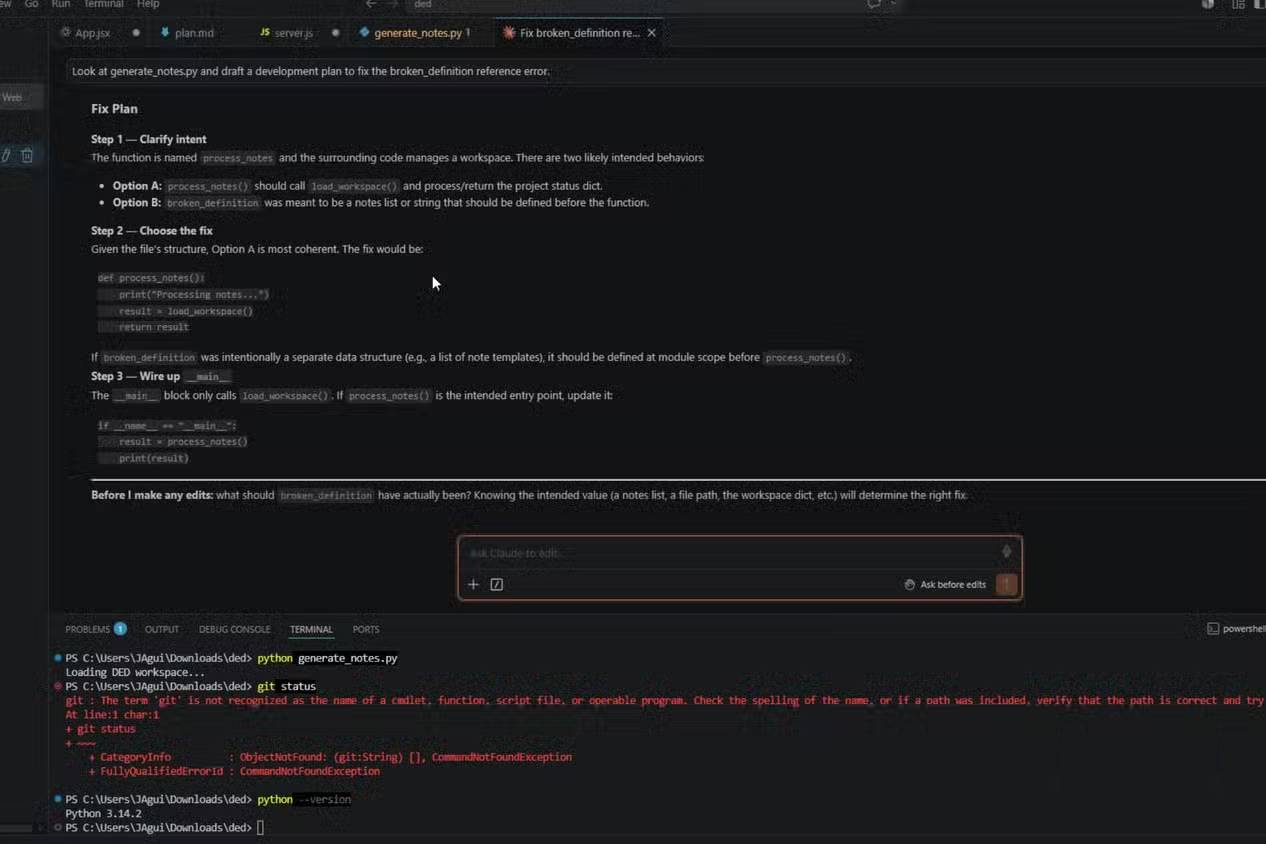
Inline diffs make additions and deletions easier to inspect than a terminal transcript.
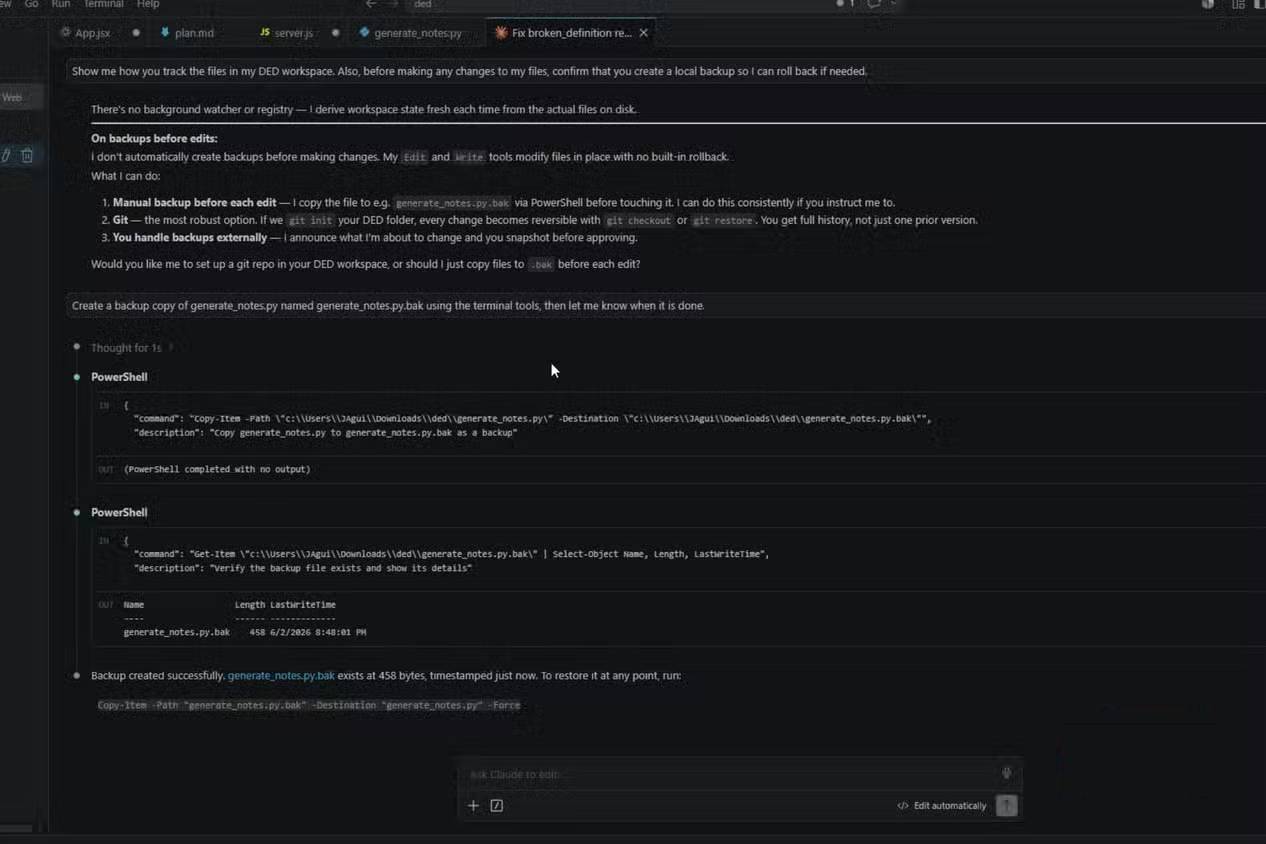
Use Git—not duplicate files—as the safety net
Do not ask an agent to create ad hoc “backup copies” beside source files. Those copies become stale, pollute searches, and may accidentally be committed. Instead:
- Start from a clean working tree.
- Create a feature branch for non-trivial work.
- Make a small commit before a risky change when appropriate.
- Review
git diffafter each logical step. - Commit only after tests and human review pass.
Version control provides a traceable recovery path for agent edits.
For a comparison of agent workflows, TipsMake's Replit versus Cursor guide also emphasizes commits and pull-request review.
When the CLI is the better interface
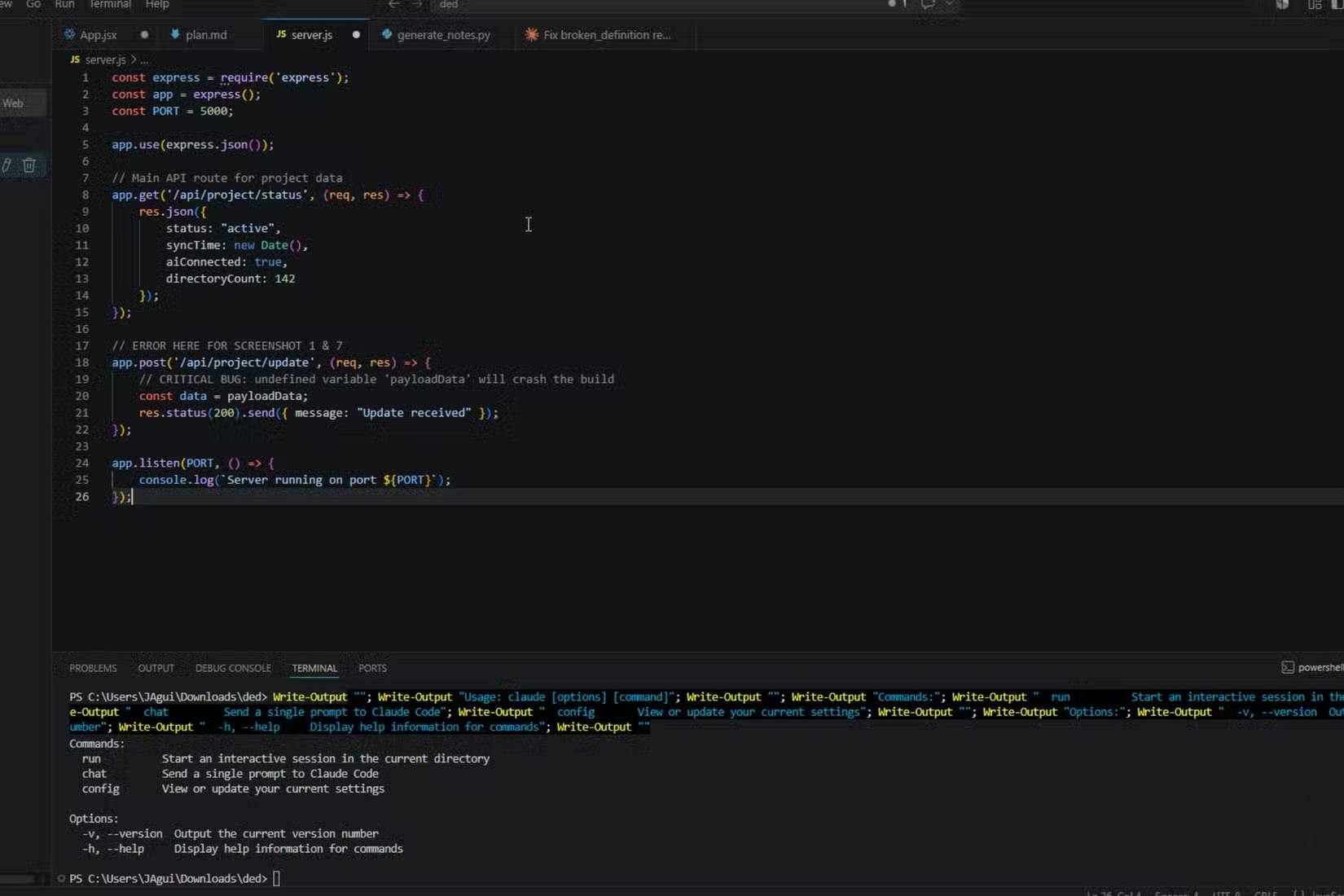
Use the Claude Code CLI when you are already working in a terminal, need detailed process output, operate over SSH, want shell composition, or are building an approved scripted workflow. In VS Code, open the integrated terminal and run claude after installing the standalone CLI.
The CLI remains convenient for terminal output, remote environments, and direct shell workflows.
The VS Code extension includes its own copy of the CLI for the chat panel, but that does not automatically place the claude command on the shell PATH. Anthropic documents a separate CLI installation for terminal use. The extension and CLI can share conversation history; use the current resume command documented by Anthropic rather than copying a long chat manually.
Combine the extension and CLI
| Task | Prefer | Reason |
|---|---|---|
| Review a multi-file feature plan | Extension | Plans, source files, and diffs remain visible together |
| Inspect or accept edits line by line | Extension | Native diff tools are clearer |
| Analyze terminal logs | Either | Mention a VS Code terminal or work directly in the CLI |
| Remote or terminal-only development | CLI | No editor panel is required |
| Non-interactive automation | CLI | Designed for scripted invocation, subject to permissions and review |
| Run a long background command | CLI/terminal | Command output and process state are easier to monitor |
Security and permission settings
- Use manual approval for edits and commands when working in an unfamiliar or untrusted repository.
- Keep VS Code Restricted Mode enabled for workspaces you do not trust.
- Review proposed changes to
settings.json,tasks.json, hooks, scripts, and CI configuration because VS Code or the shell may execute them. - Do not expose secrets through file selection, terminal output, prompts, or logs.
- Restrict network, filesystem, and tool permissions to what the task requires.
An AI assistant can read files, edit code, and run commands only within the permissions and integrations it receives. Editor placement does not make an agent inherently more accurate or secure.
Limitations of the extension
- The panel consumes editor space, especially on a small display.
- Large conversations and repositories can make context management harder.
- Background-process visibility may be less detailed than in the terminal.
- The interface does not eliminate hallucinated APIs, incomplete tests, or unsafe shell commands.
- Some developers are faster in a keyboard-only terminal workflow.
The extension improves visibility, not correctness by itself.
A practical default workflow
- Open a clean branch in VS Code.
- Ask the extension for a read-only plan.
- Correct the plan and authorize one small implementation step.
- Review the diff and run focused tests.
- Use the CLI or integrated terminal for commands that need detailed monitoring.
- Repeat in small increments, then run the full relevant test suite and review the final diff.
The extension is strongest when visual review matters; the CLI is strongest when terminal control matters. Keep both available and choose per task instead of treating either interface as a universal replacement for the IDE or shell.
Related Articles
 What Is the Claude Code: Clear Explanation7 minutes read
 When Should You Not Use Claude Code?10 minutes read
 Things You Need to Know About Claude Code5 minutes read
 How to Use Claude to Code and Debug Code6 minutes read
 How to Use Claude Code Safely: a Guide to Risk Management12 minutes read
 Connect Claude Code to Discord With Channels11 minutes read
Reader Comments 0
Sign in with email or Google to join the discussion.