Table of Contents
IOS 26 supports almost any image as a 3D space scene. However, there are some cases where you cannot use space scenes in Photos or as iPhone lock screen wallpaper.
IOS 26 and iPadOS 26 allow you to view almost any image as a 3D space scene, especially creating animated iPhone lock screen wallpapers. However, in some cases, you cannot use space scenes in Photos or as iPhone lock screen wallpapers. Here are some ways to fix the error of not being able to use space scenes on iPhone.
Turn on space scene mode on iPhone
The option to view photos as spatial scenes is turned on by default. However, if you don't see the hexagon button in the Photos app, you can't view this mode.
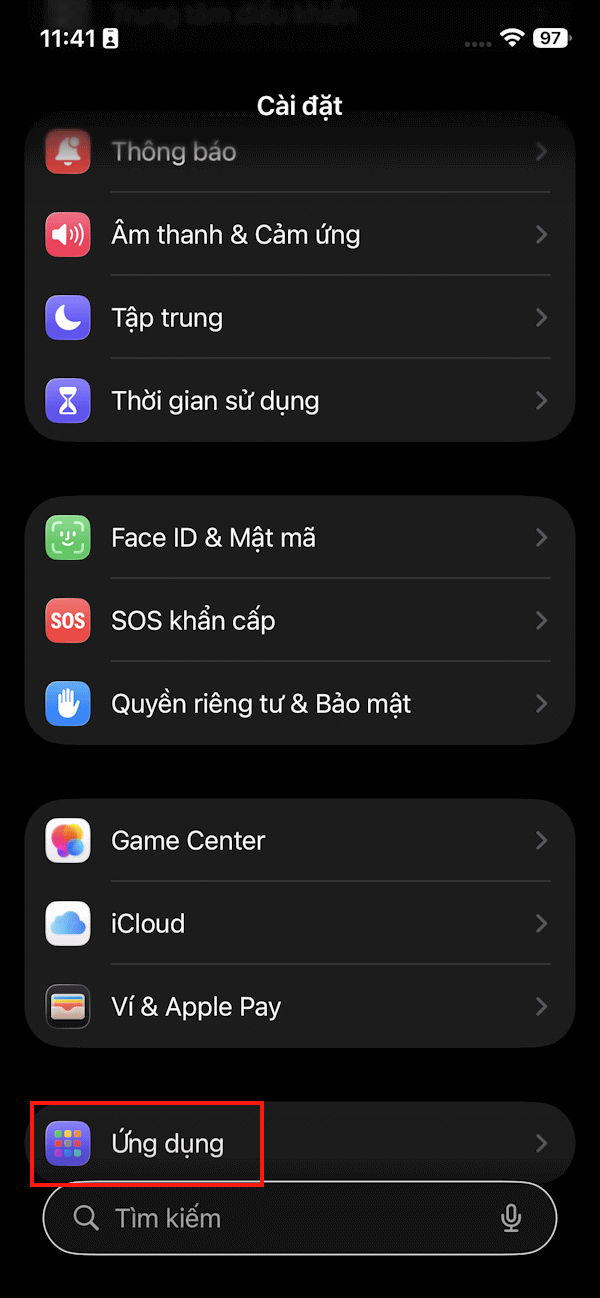
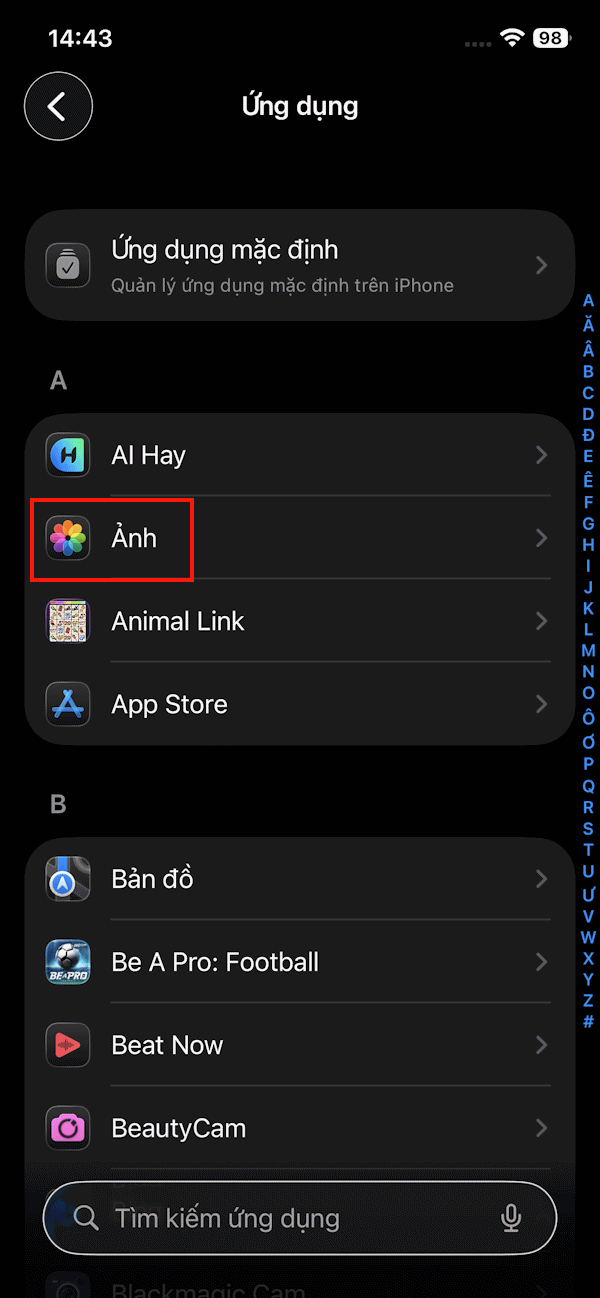
Go to Settings , select Applications Below and then select The Photos app .
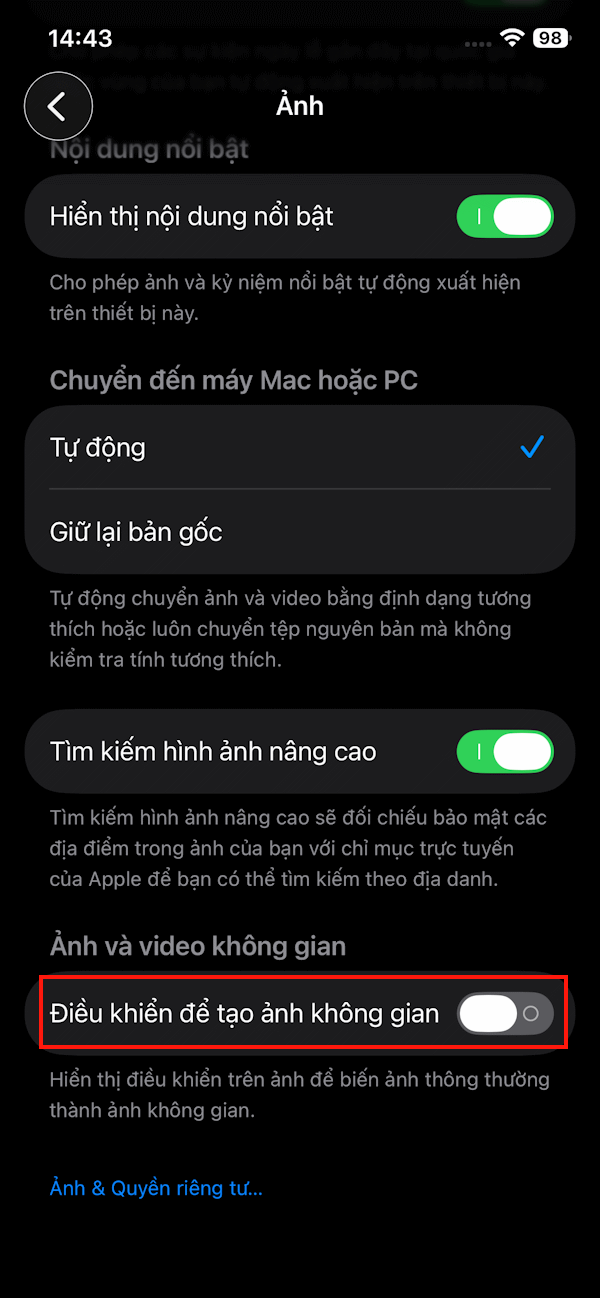
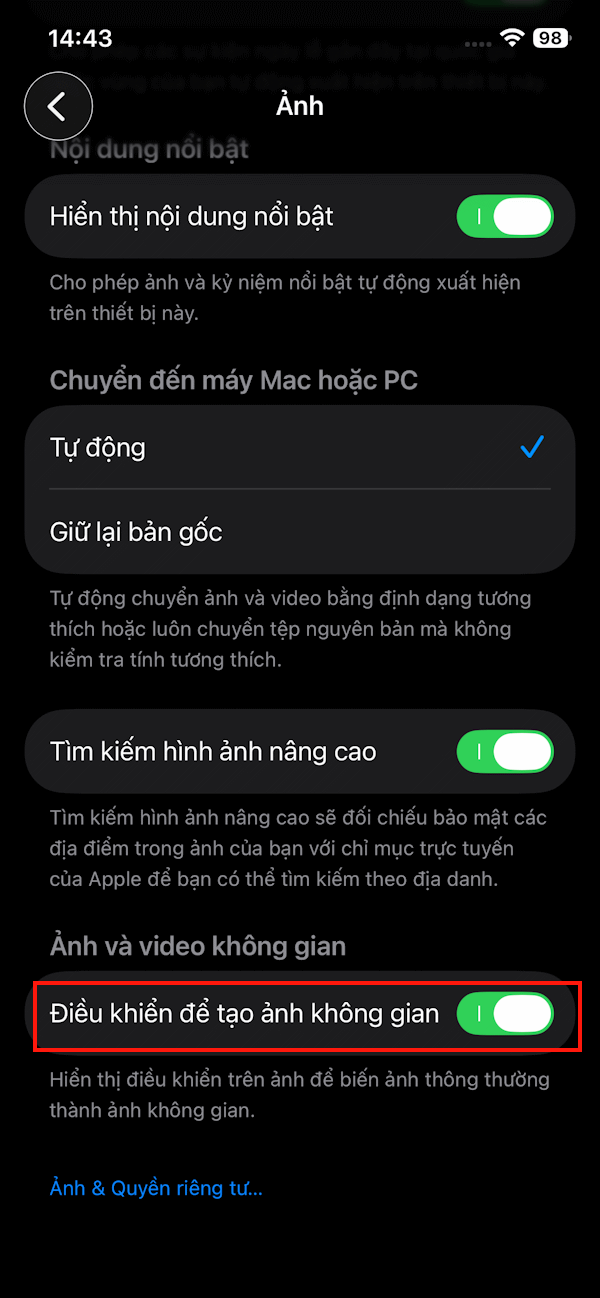
In the settings interface for the Photos application, scroll down and Check if Control to create spatial photos is enabled , if not, it needs to be activated.
Then exit the Photos app and reopen it. You will now see the space scene icon in the photos section.
Use appropriate images
The Aerial Scene feature works best with photos that have a clear subject, or at least some recognizable subject matter, allowing for a 3D effect from a 2D image. Note that you can't use Aerial Scene with screenshots.
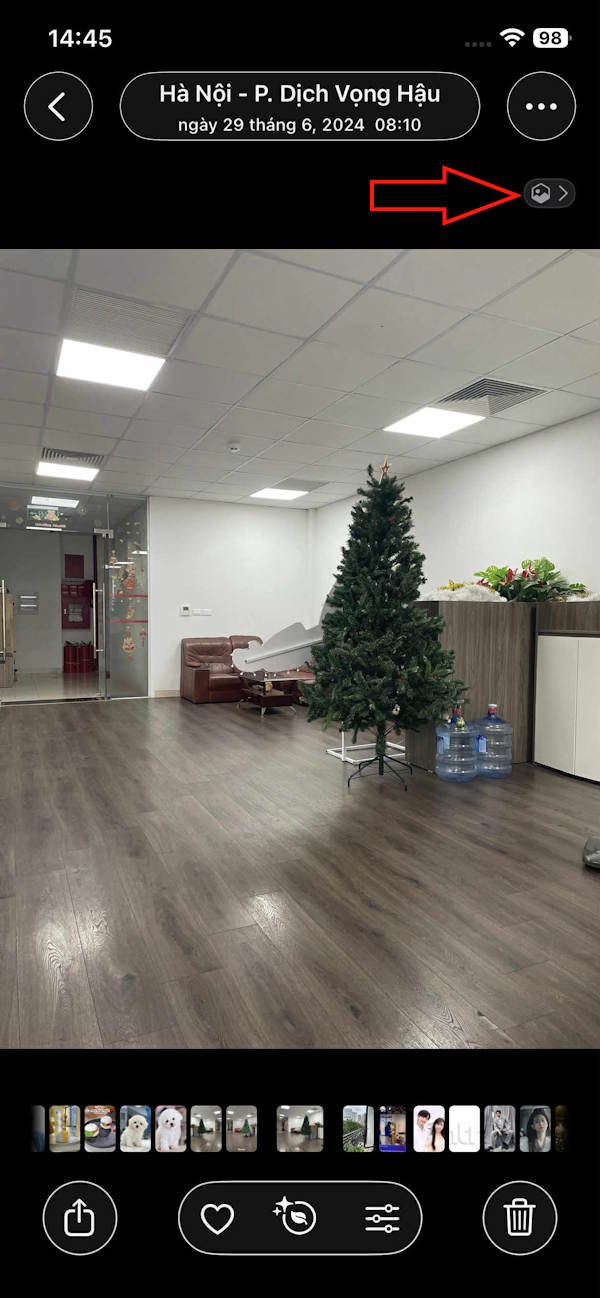
Do not enlarge the image
The space scene button will disappear for a photo in the Photos app if you've zoomed in on it. Just view the photo without zooming in, then tap the space scene button.
Turn off power saving mode on iPhone
Your 3D lock screen wallpaper won't move if your iPhone or iPad is in low power mode on iPhone. Turn off low power mode to set the moving space wallpaper on your lock screen.
FAQ
What should you know about cannot use space scene on iPhone how to fix?
In practical terms, iOS 26 supports almost any image as a 3D space scene. However, there are some cases where you cannot use space scenes in Photos or as iPhone lock screen wallpaper.
Why does cannot use space scene on iPhone how to fix matter?
The article highlights that however, in some cases, you cannot use space scenes in Photos or as iPhone lock screen wallpapers.
What is the main takeaway?
The main takeaway is that turn on space scene mode on iPhone The option to view photos as spatial scenes is turned on by default.
Related Articles
 Tips for Creating a Moving iPhone Lock Screen Wallpaper Effect4 minutes read
 How to Enable Lock Screen Space Scene on iOS 263 minutes read
 What Is the Scene: What Is H Scene in Movies, Stories3 minutes read
 Crime Scene Zero: Complete Guide5 minutes read
 How to Take Photos and Videos of Space on iPhone: Step-by-Step Guide3 minutes read
 How Much Storage Space Do You Need on Your iPhone?6 minutes read
Reader Comments 0
Sign in with email or Google to join the discussion.