Table of Contents
When a new notification arrives, Windows will display a screen blinking effect. Users can choose to have the title bar, the active window, or the entire screen blink when a...
If your computer's notification sound is malfunctioning, such as a broken speaker or a non-functioning notification sound mode, Windows offers an alternative screen flashing effect. As soon as a new notification arrives, Windows will display a screen flashing effect. Users can choose to have the title bar, the active window, or the entire screen flash when a notification arrives. Below are detailed instructions.
Turn the screen flash effect on or off via Settings.
Step 1:
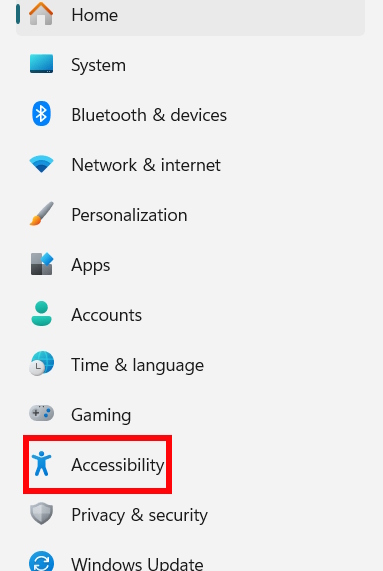
Open Settings on your computer, then select Accessibility from the list on the left side of the interface.
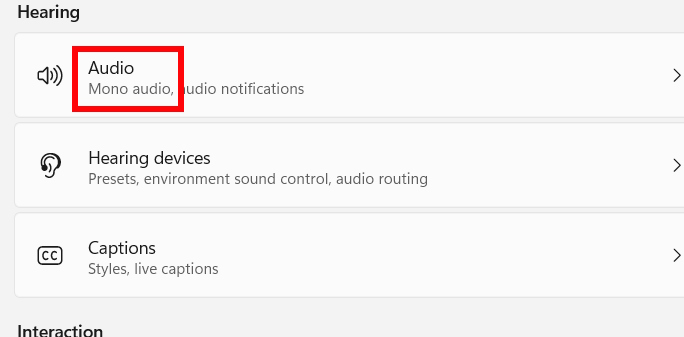
Continue looking to the side and click on the Audio option to adjust the sound settings on your computer.
Step 2:
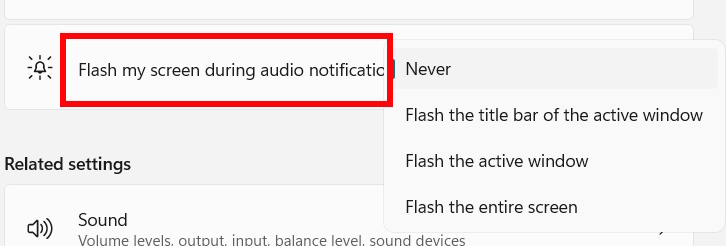
Find the "Flash my screen during audio notifications" setting to adjust the screen flashing effect when you receive audio notifications.
We select one of the flashing effect options below.
- Never
- The title bar of the active window is blinking.
- The active window is blinking.
- Illuminate the entire screen.
Turn the screen flash effect on or off via the Control Panel.
Step 1:
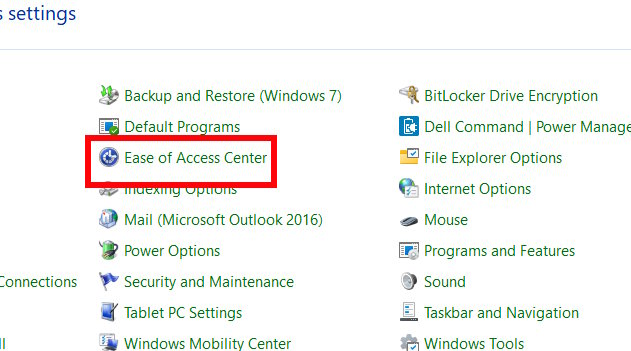
Open the Control Panel and switch to Small icons mode. Then, scroll down and click on Ease of Access Center.
Step 2:
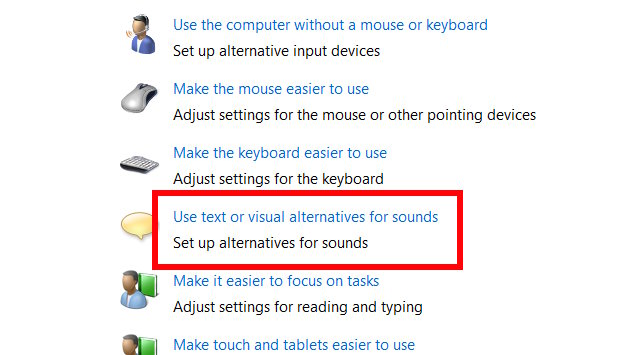
Switch to the new interface, scroll down and select the option " Use text or visual alternatives for sounds".
Step 3:
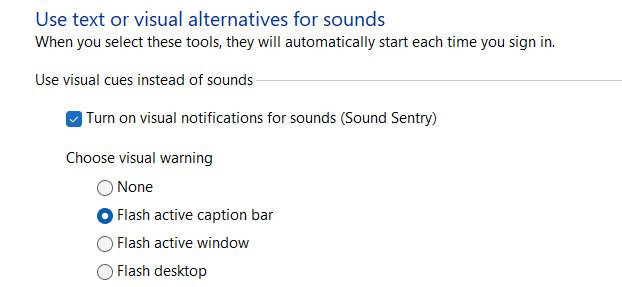
To enable the screen blinking effect when there is a notification sound, check the box next to "Turn on visual notifications for sounds (Sound Sentry)".
In the Choose visual warning section, we can also select the flashing effect we want.
How to enable screen flash effects via Registry
Please note that you need administrator privileges to perform this action.
Turn off screen flickering effects.
reg add "HKEY_CURRENT_USERControl PanelAccessibilitySoundSentry" /v Flags /t REG_SZ /d 2 /f reg add "HKEY_CURRENT_USERControl PanelAccessibilitySoundSentry" /v WindowsEffect /t REG_SZ /d 0 /fThe title bar of the active window is blinking.
reg add "HKEY_CURRENT_USERControl PanelAccessibilitySoundSentry" /v Flags /t REG_SZ /d 3 /f reg add "HKEY_CURRENT_USERControl PanelAccessibilitySoundSentry" /v WindowsEffect /t REG_SZ /d 1 /fThe active window is blinking.
reg add "HKEY_CURRENT_USERControl PanelAccessibilitySoundSentry" /v Flags /t REG_SZ /d 3 /f reg add "HKEY_CURRENT_USERControl PanelAccessibilitySoundSentry" /v WindowsEffect /t REG_SZ /d 2 /fThe entire screen flickers.
reg add "HKEY_CURRENT_USERControl PanelAccessibilitySoundSentry" /v Flags /t REG_SZ /d 3 /f reg add "HKEY_CURRENT_USERControl PanelAccessibilitySoundSentry" /v WindowsEffect /t REG_SZ /d 3 /fRelated Articles
 How to Enable, Disable Flash Player on Google Chrome3 minutes read
 Instructions to Disable Flash Player on All Browsers6 minutes read
 How to Enable or Disable Transparency Effects in Windows 103 minutes read
 How to Enable and Disable the Standby Screen Mode in Windows 103 minutes read
 Disable // Enable the 'Welcome' Screen of Windows XP1 minutes read
 Disable Adobe Flash on Edge Browser: Disable Adobe Flash Player3 minutes read
Reader Comments 0
Sign in with email or Google to join the discussion.