Table of Contents
This practical guide explains how to log out of mail on iPhone. Follow the steps in order, review the requirements first, and use the troubleshooting notes when a setting or option does not work as expected.
How to Temporarily Turn Off Email on iPhone
Step 1:
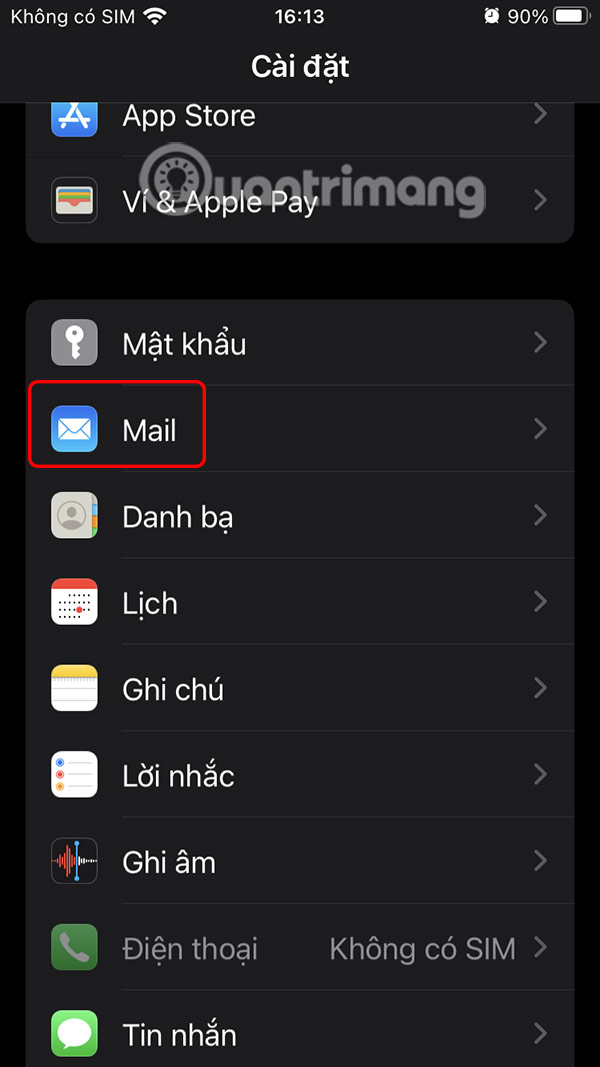
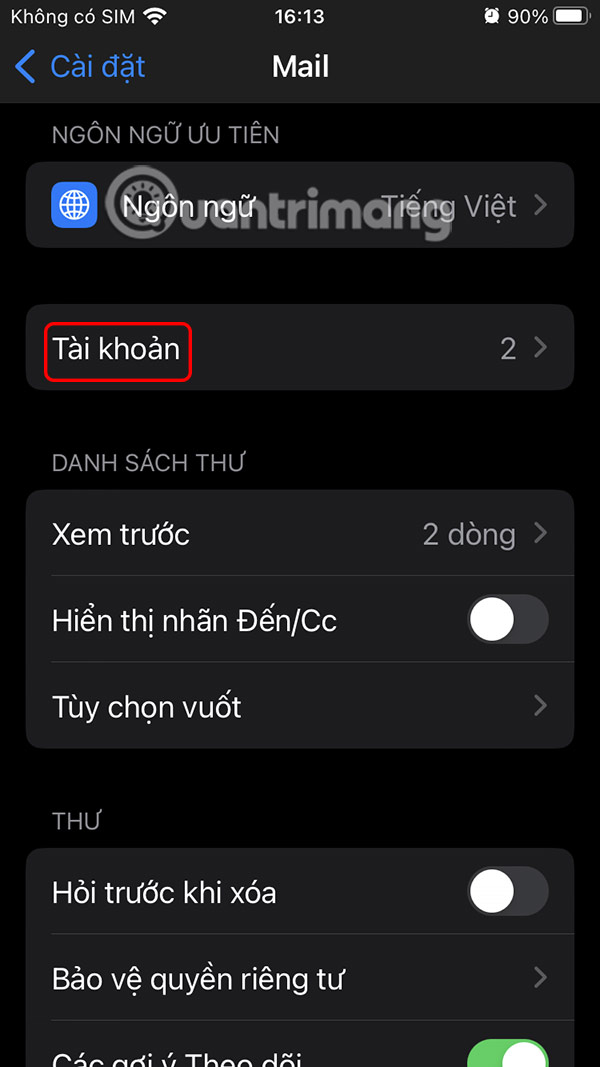
You access settings on iPhone then select Mail application in the list. Switch to the new interface, users select Account item below.
Step 2:
Now you will see the email account used on iPhone. Tap on the account you want to pause, such as 3rd party app and then turn off Mail .
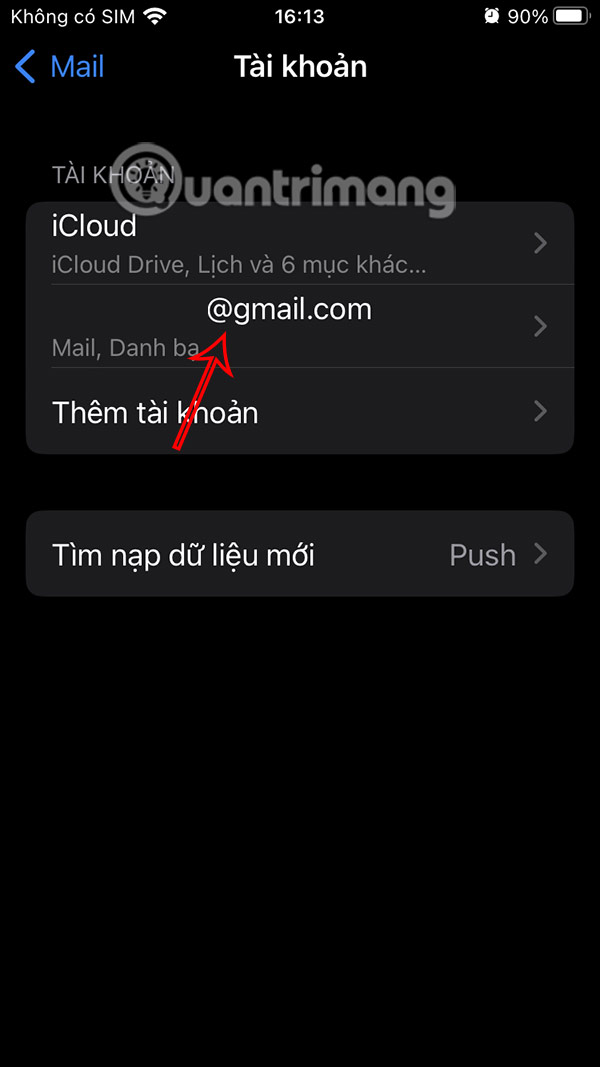
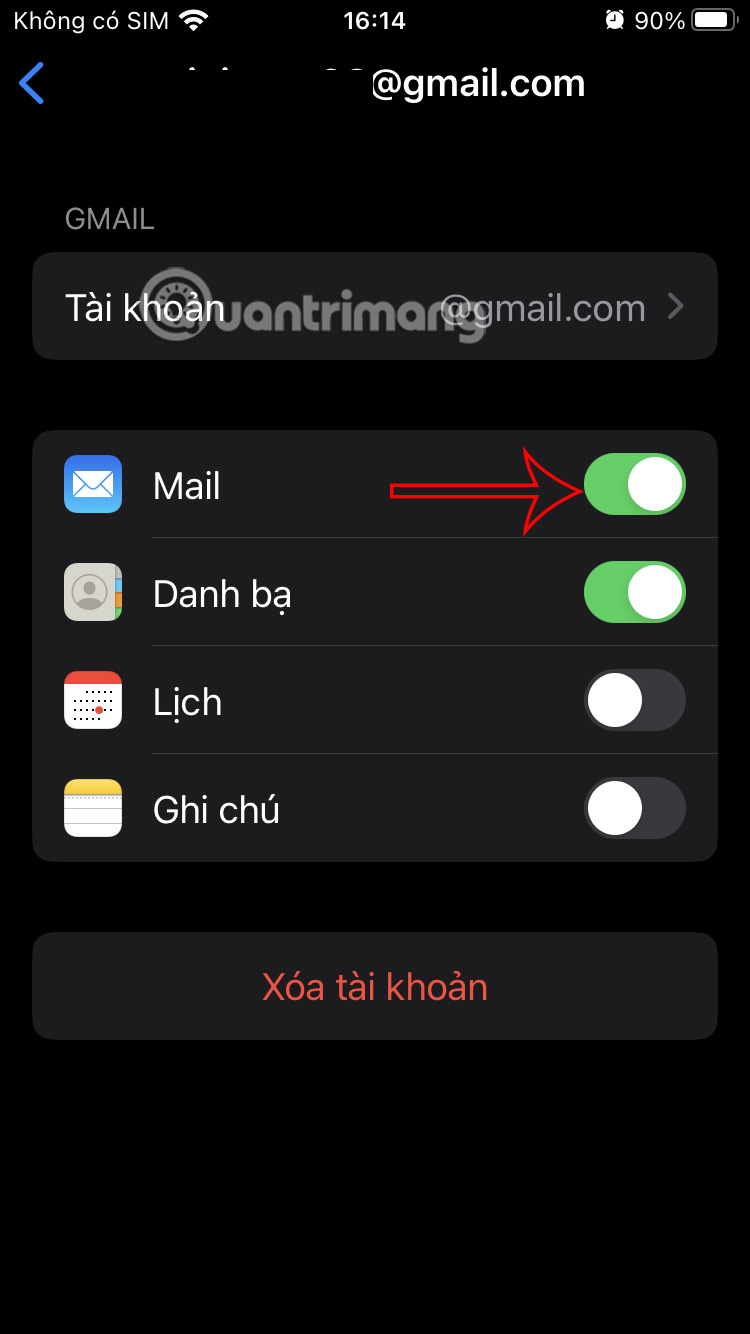
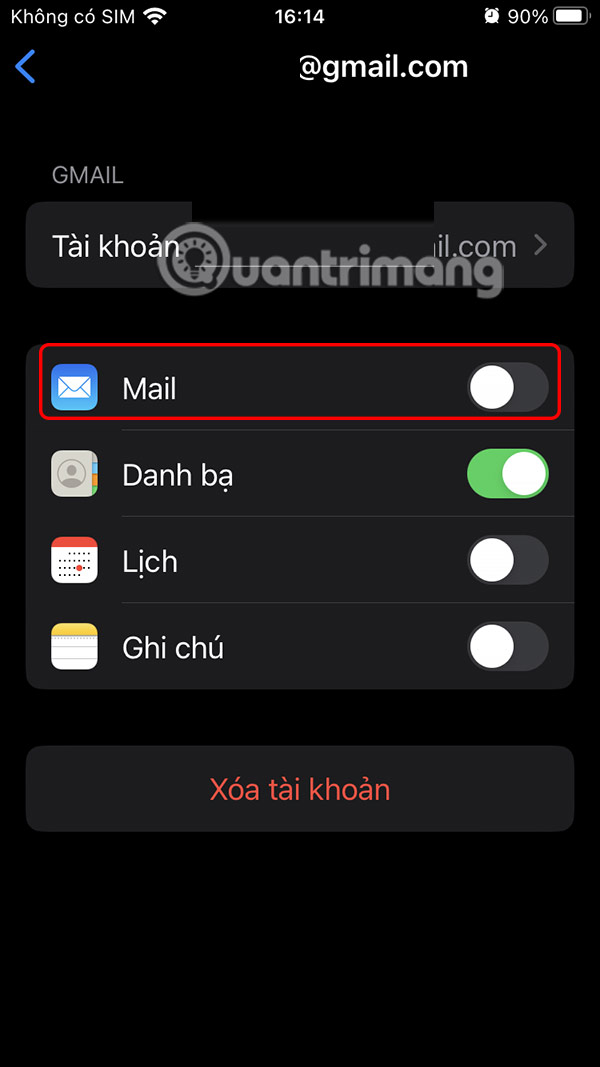
Your email will disappear from the Mail app immediately, but the account will remain on your iPhone. This is also useful if you want to stop seeing emails in Mail but still use that account in other apps like Contacts or Calendar.
How to Sign Out of Mail on iPhone
We also access the settings on the iPhone and then tap on the Mail app. Then select Accounts and select the email account you want to delete from the iPhone. Finally, tap Delete Account and select Delete from My iPhone to do so.
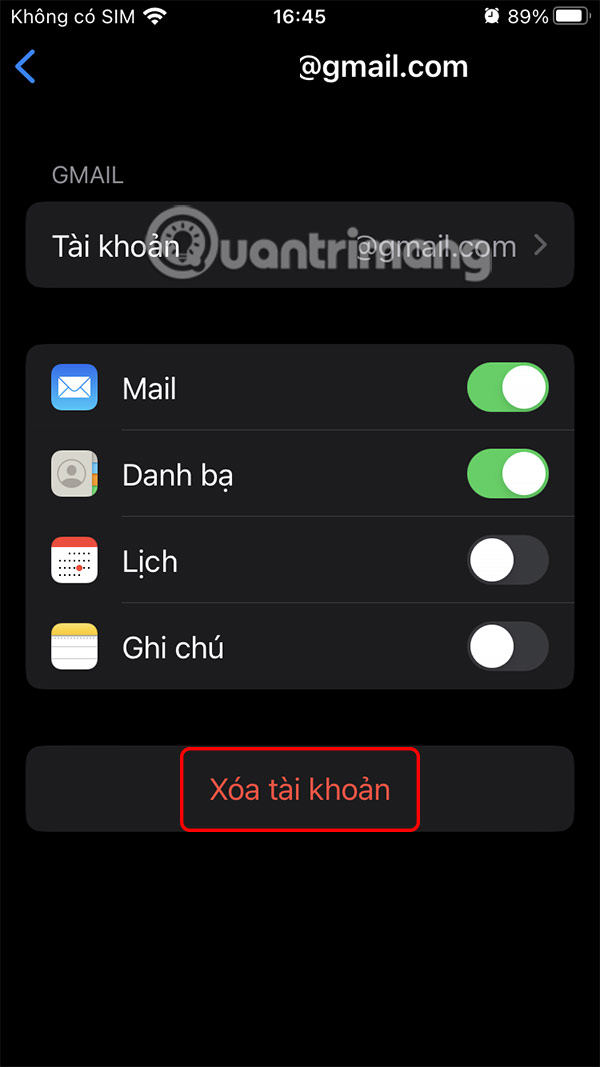
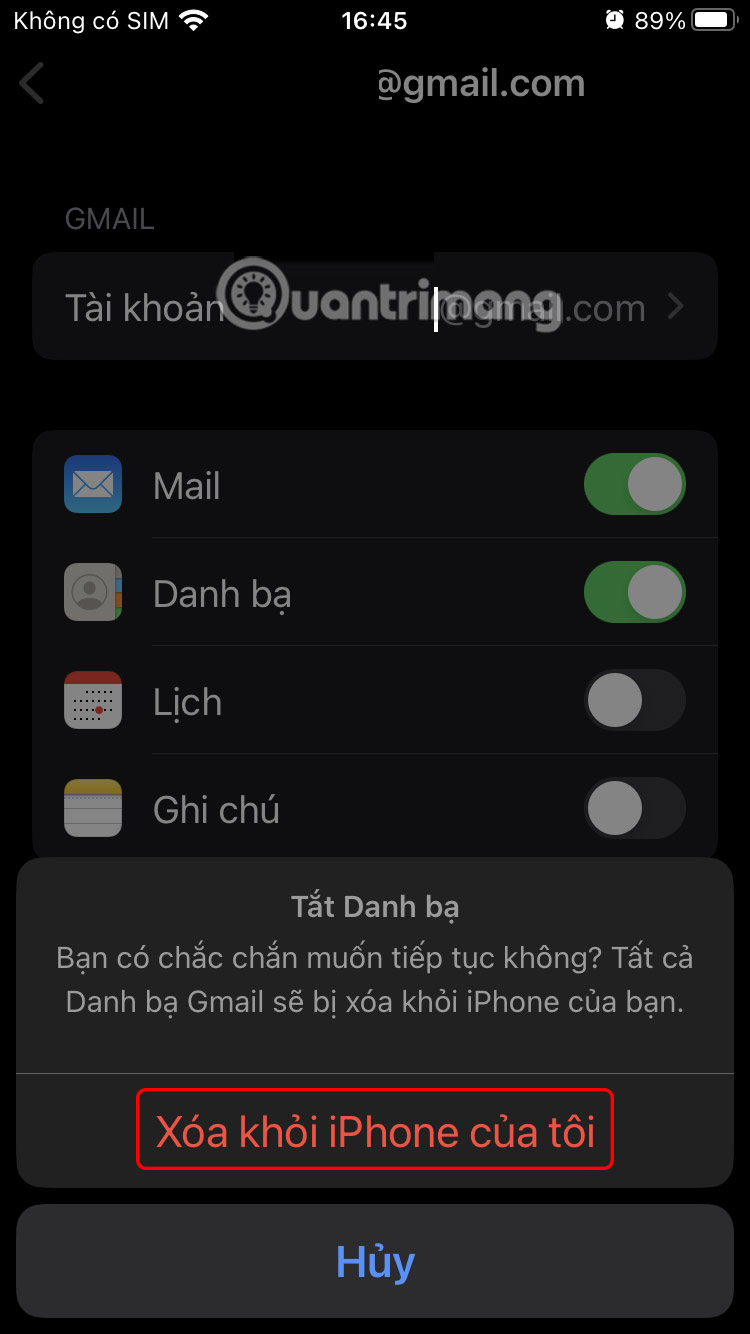
This will remove the account from the Mail app and other apps that use it, such as Contacts or Calendar.
How to delete iCloud email on iPhone
Tap on your iCloud account on your iPhone and select Sign Out at the bottom of the interface. Enter your account password to continue.
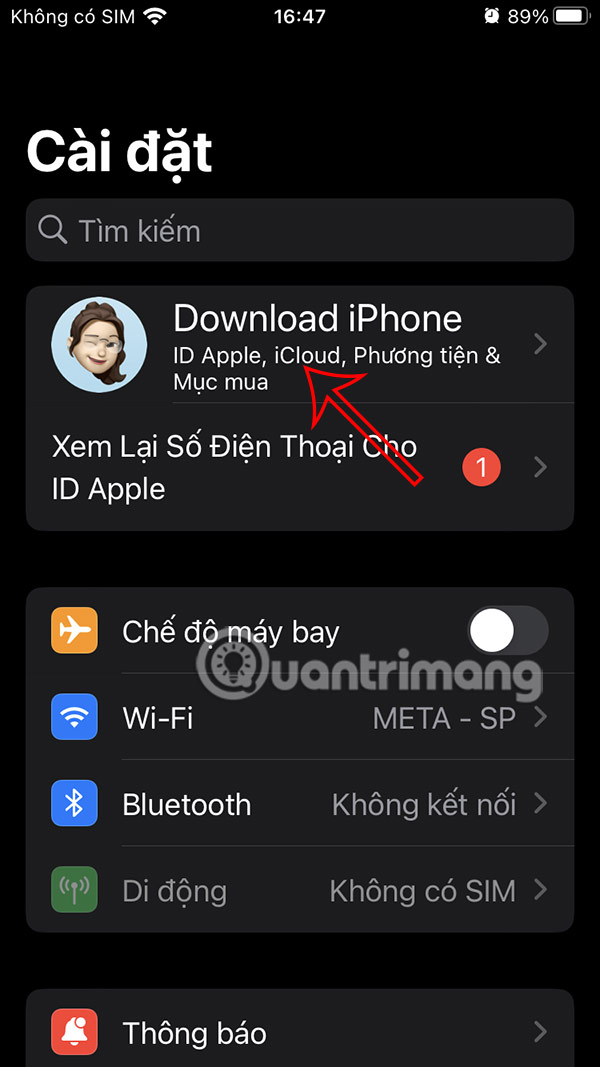
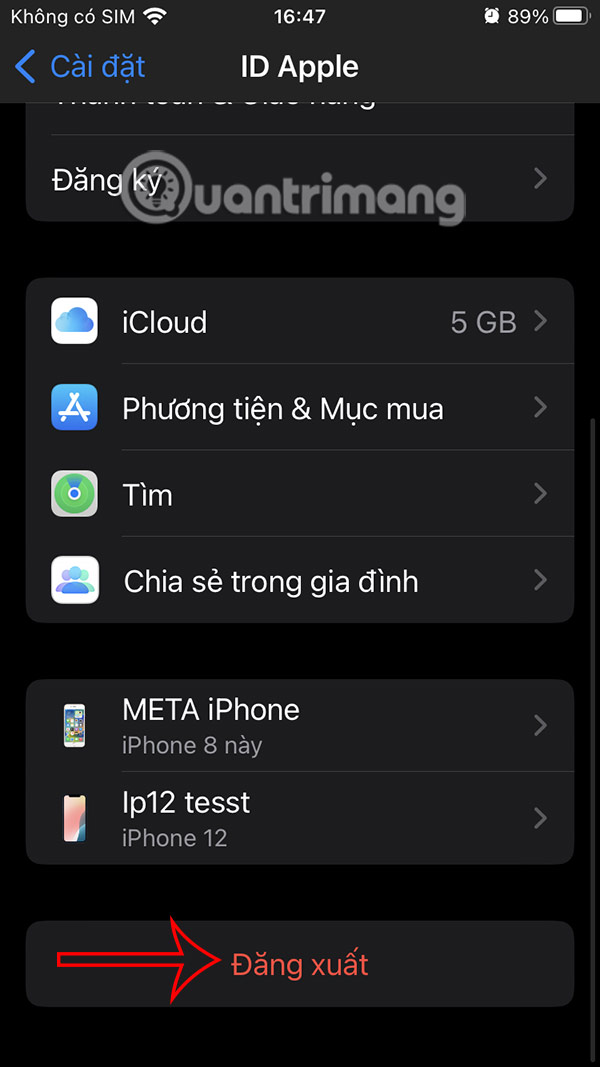
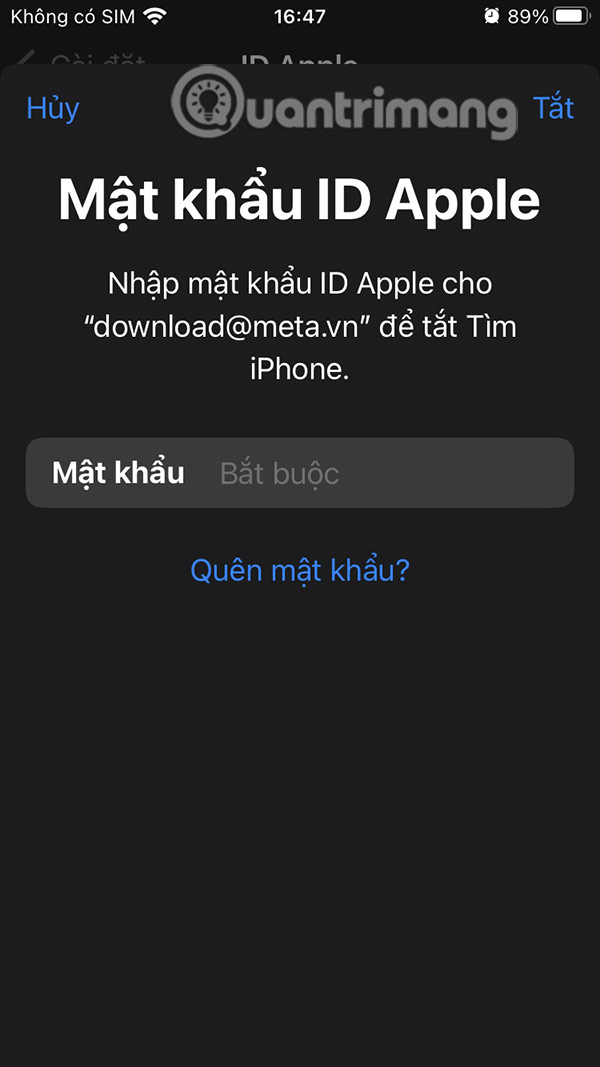
This will remove your entire Apple account from your device. You won't be able to use it in other apps or access iCloud data.
How to Sign Out of Gmail on iPhone
If you use the Gmail app instead of Apple's Mail app, you'll need to do this directly in the Gmail app.
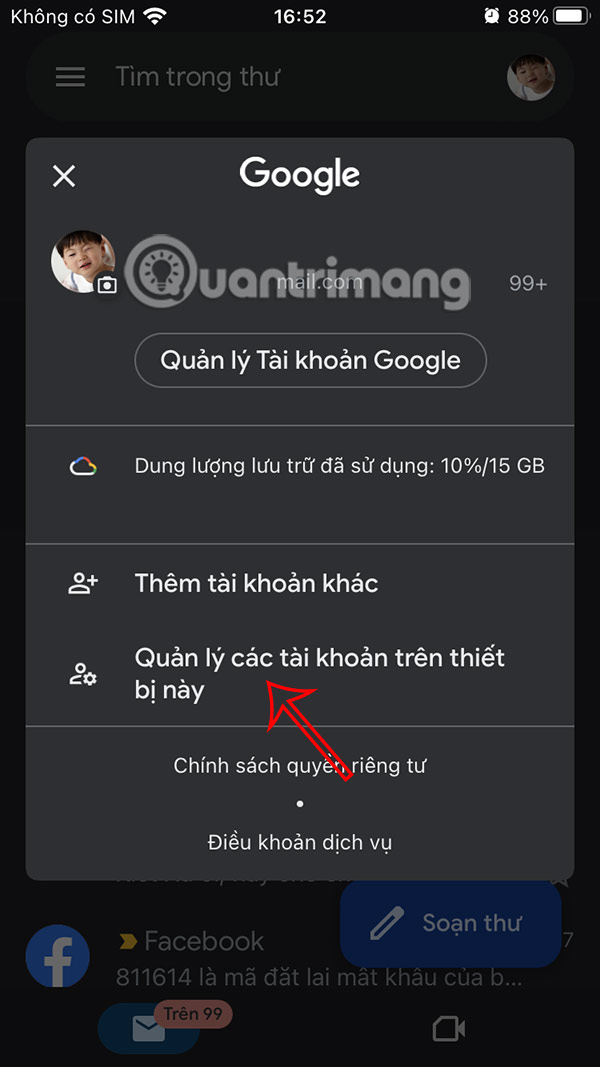
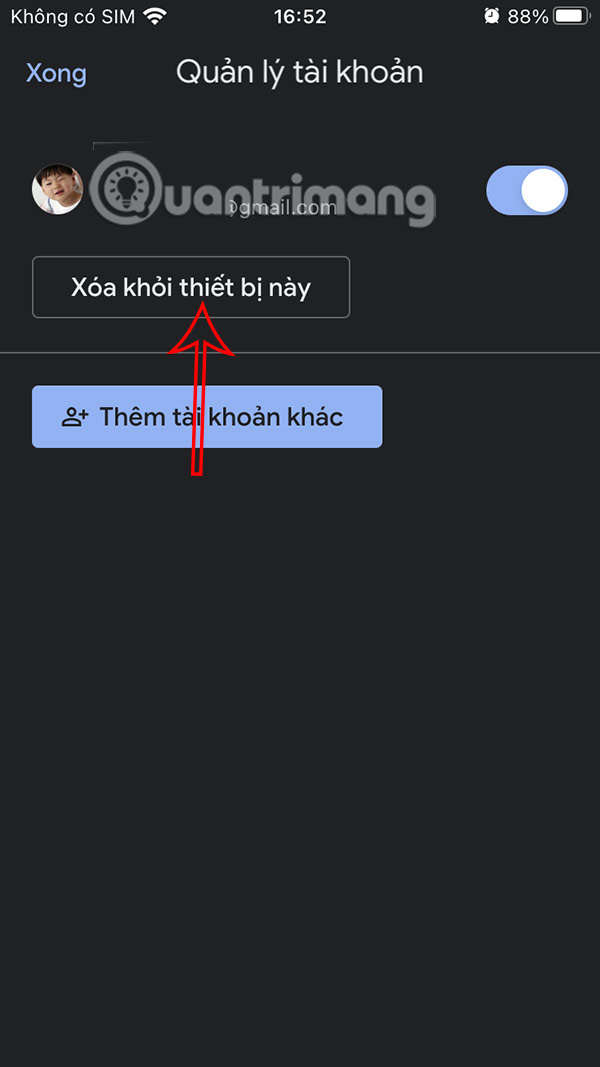
You access the Gmail application and select the avatar . Then click Manage accounts on this device and click Remove from this device to do so.
FAQ
How to Temporarily Turn Off Email on iPhone?
You access settings on iPhone then select Mail application in the list. Switch to the new interface, users select Account item below.
How to Sign Out of Mail on iPhone?
We also access the settings on the iPhone and then tap on the Mail app. Then select Accounts and select the email account you want to delete from the iPhone. Finally, tap Delete Account and select Delete from My iPhone to do so.
How to delete iCloud email on iPhone?
Tap on your iCloud account on your iPhone and select Sign Out at the bottom of the interface. Enter your account password to continue.
How to Sign Out of Gmail on iPhone?
If you use the Gmail app instead of Apple's Mail app, you'll need to do this directly in the Gmail app.
Related Articles
 How to Manage Email and Mailboxes in the Mail Application on iPhone9 minutes read
 How to Use Mail Drop on iPhone to Send Large Files3 minutes read
 How to Set Up Swipe to Delete Mail on iPhone3 minutes read
 How to Enable iPhone Mail Privacy Protection3 minutes read
 How to Restore the Old Mail Interface on iPhone3 minutes read
 Instructions on How to Use Mail on iPhone Extremely Well and Conveniently10 minutes read
Reader Comments 0
Sign in with email or Google to join the discussion.